Teams restore job
Introduction
The Teams restore job is used to restore deleted teams or clone existing teams in Microsoft Teams. The restore job can reconstruct the entire team structure: messages and items that have already been backed up are restored to their source location, the structure of the channels is recreated in the restored team, and the SharePoint data related to the selected team is also restored.
The following components can be restored:
- Team name and team configuration
- Membership information
- Channels
- Tab configurations
- Messages and shared files
- SharePoint data linked to the team
The following sections explain how to create and configure a Teams restore job, including what to recover, version selection, additional owner settings, filtering, notification, and resource settings. They also describe how to save and run the job and monitor the restore process on the Job progress page.
Teams restore job configuration
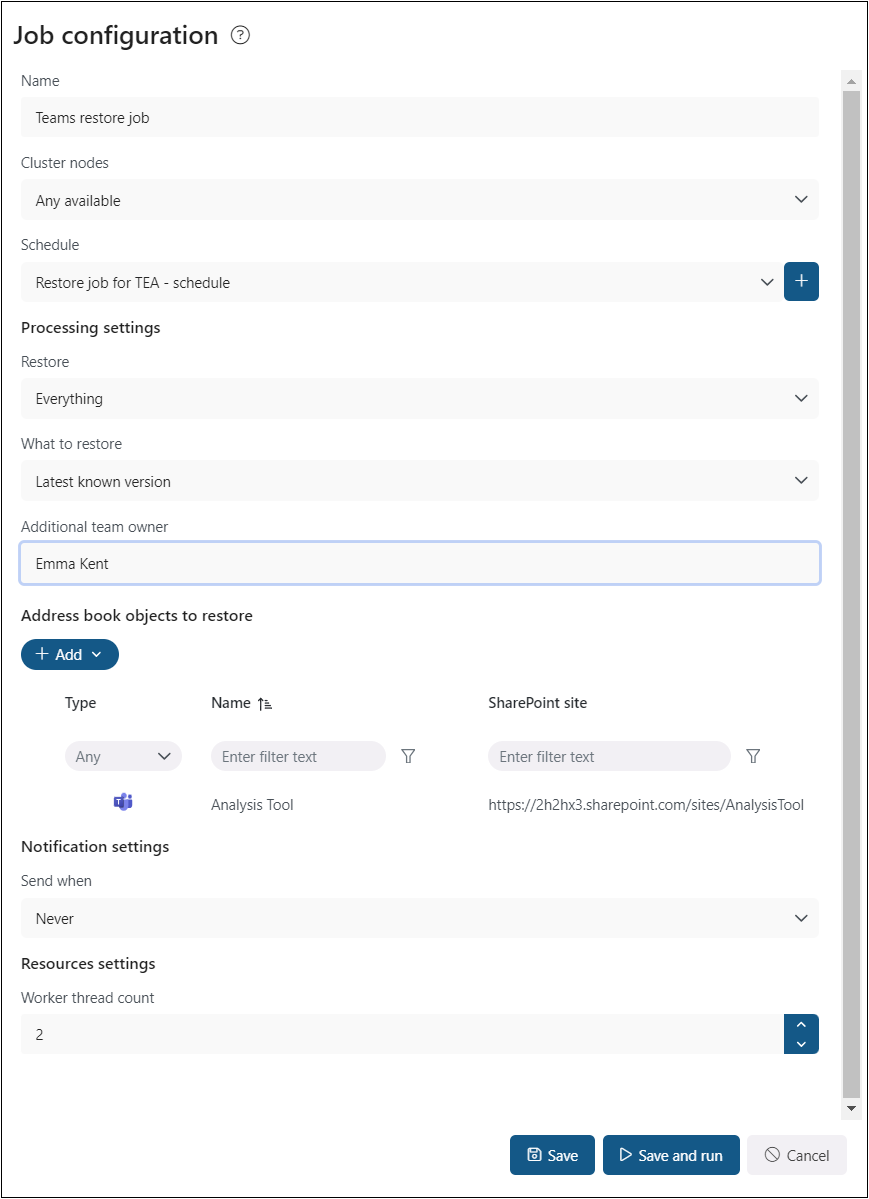
To create a Teams restore job, click + New on the Jobs page and select Teams restore from the dropdown menu. The Job configuration window then appears. Configure the following sections:
- Name: Each restore job requires a unique name to distinguish it from other restore jobs. By default, the system assigns a name to the new restore job, but you can change it as needed.
- Cluster nodes: Select the node where the restore job will run.
- Schedule: Select the running times of the restore job. You can either select an existing schedule from the list or create a new one by clicking the + button in the Schedule row. For restore jobs, it is recommended to set a One time schedule or start the job manually. For more information, see Schedules.
- Processing settings: Configure what will be restored and how. See the Processing settings section below for details.
- Notification settings: Configure when the restore job should send notification emails. You can choose to receive notifications always, never, or only when an error or warning occurs — for example, when the restore of one or more items fails. Enter the recipient email addresses in the Recipient list textbox.
- Resource settings: Set the value that determines how many items can be processed simultaneously by the restore job. The recommended value is 2.
Processing settings
Recover
Select what should be recovered:
- Everything – the restore job recreates the backed-up team structure and restores messages and files from the database.
- Structure and files only – restores the backed-up team structure and files (uploaded and SharePoint files), including the contents of tabs (Wiki, Tasks, Calendars), but does not restore messages.

What to restore
Select which version of the items should be restored:
- Last known version – restores the latest backed-up version of the item or message.
- Specific date – restores the version that was valid at the specified time, meaning the version with a modification date older than or equal to the specified date.

Additional team owner
The restore job restores users as they were in the original team: owners are restored as owners and members are restored as members. You can also add an additional team owner — these users are added automatically to the restored team. Enter the email address or first name and press Enter to add the user.
Users who are already members of the team cannot be restored as owners. This change must be done manually in the team.

Address book objects to restore
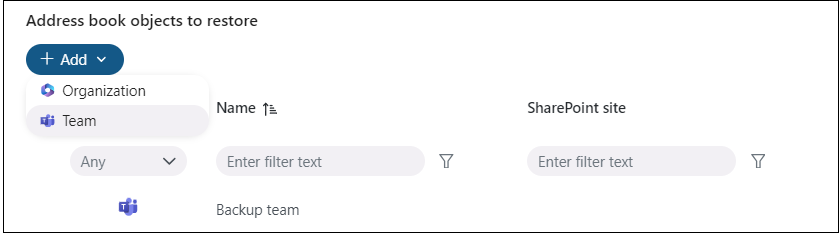
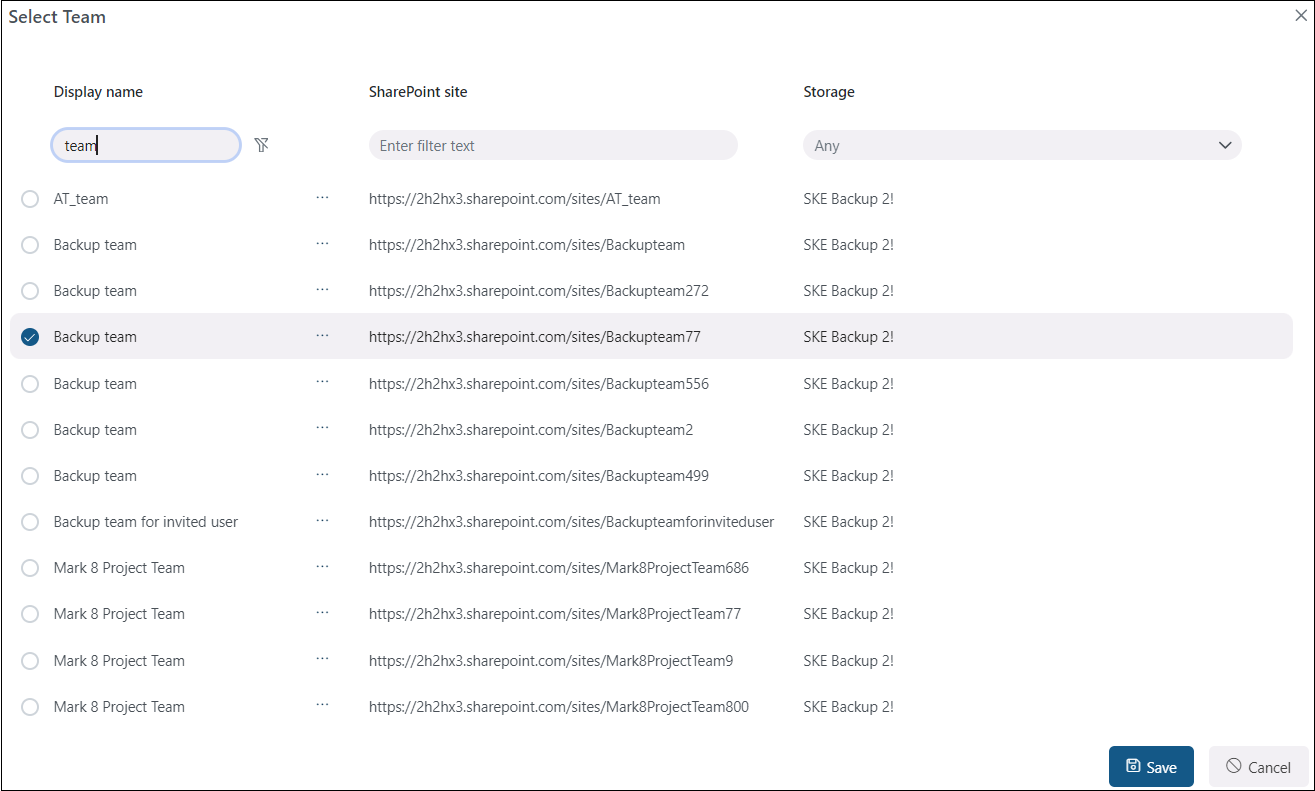
Select the teams or the entire organization to be processed by the restore job. Click + Add, select the required teams in the Select team window, and then click Save.
Save and run the restore job
After configuring the restore job, click Save at the bottom of the page to save the configuration and return to the Jobs page. If you want to start processing immediately, click Save and run — the restore job starts and you are redirected to the Job progress page.
Monitor restore progress
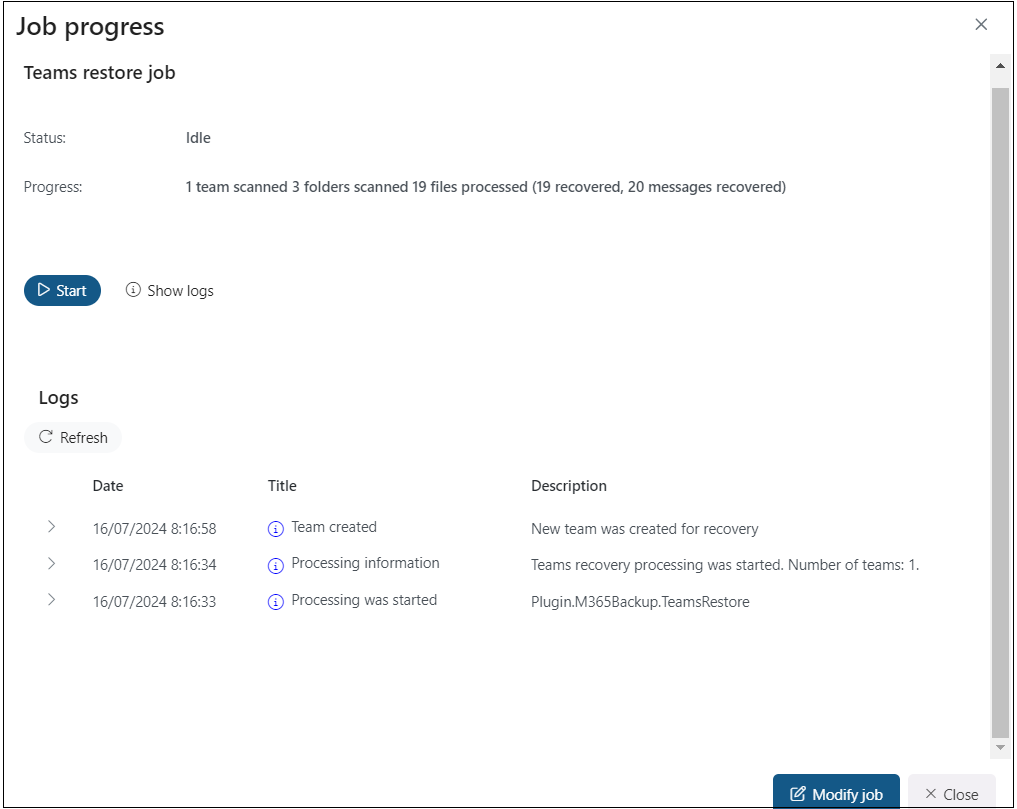
On the Job progress page, you can monitor the restore job and check its current status and progress. You can also:
- restart a finished job or stop a running job using the Start/Stop button;
- view the latest logs by clicking Show last logs;
- view the session logs of the currently running job; and
- modify the job by clicking Modify job, which redirects you to the Job configuration page.