Disk storage
Introduction
The Disk storage page in Backup Administration for Microsoft 365 allows administrators to configure local or remote disk-based storage, including the target path, credentials, optional features, connection testing, and status settings.
Disk storage stores binaries on a single local or remote disk.
Configure Disk storage
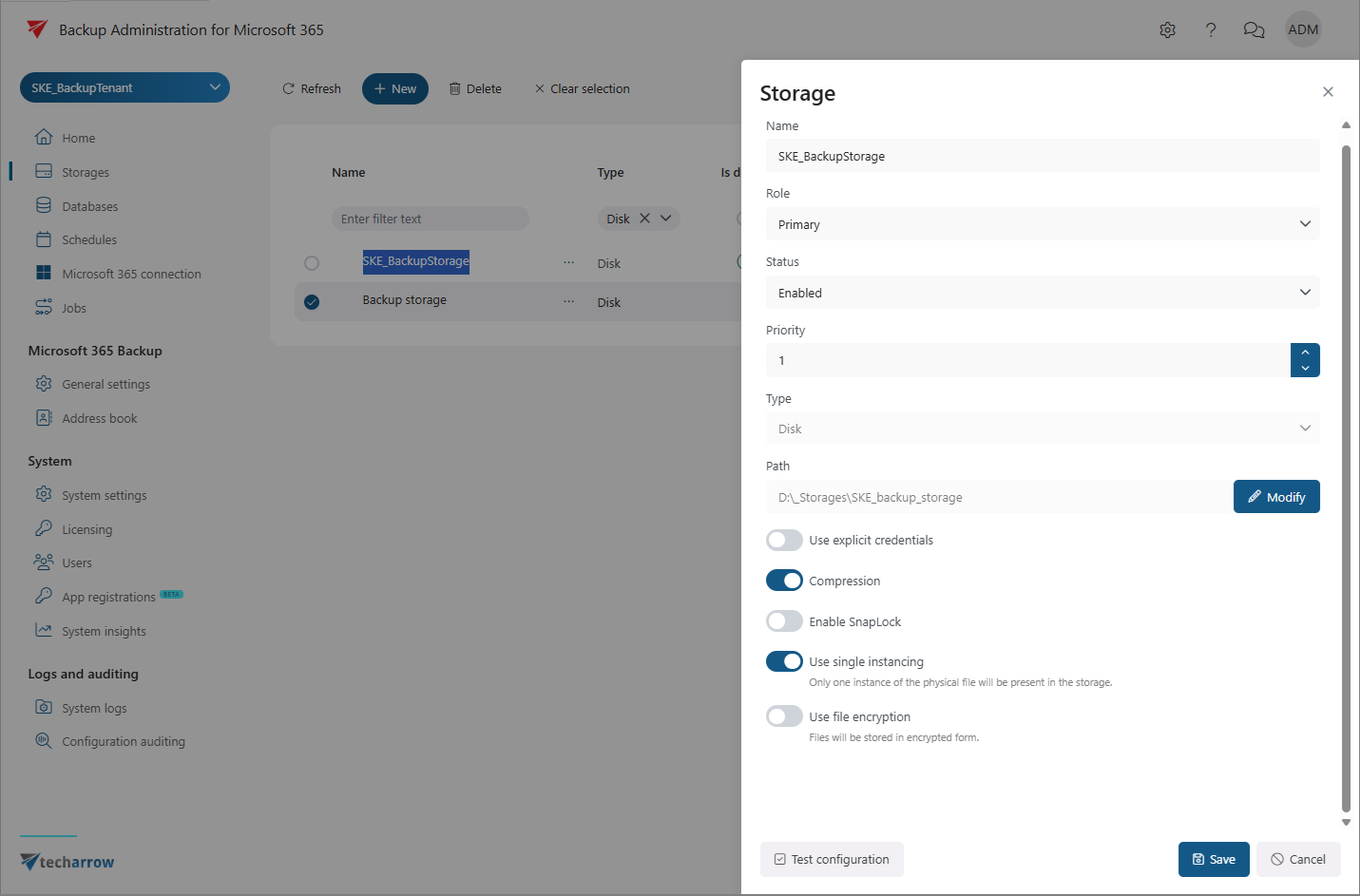
When configuring a Disk storage, specify the target path and, if required, the credentials used to access it.
The following settings are available:
- Path: Specifies the target destination where the binaries are stored.
- Use explicit credentials: Enable this option if credentials are required to access the specified path.
- Role: Set the role to Primary. A Primary storage acts as the main repository for the selected workflow or task, such as email backup or document management. If multiple storages are defined, the storage marked as Primary takes precedence for data storage and retrieval.
You can also configure the following options:
- Compression: Compresses files larger than the defined size to reduce storage space usage.
- SnapLock: Prevents files from being deleted until the specified retention period expires.
- Use single instancing: Keeps only one physical copy of a file in the storage. This can be useful when the same file is stored in multiple folders or when SharePoint list items contain the same attachments and only their metadata differs.
- Use file encryption: Stores files in encrypted form on the disk storage to improve storage security. Make sure that the encryption key is stored securely. If the database fails and the key is unavailable, the encrypted files may become unreadable. To download the encryption key, click the Download link in this section.
Before saving the configuration, we recommend verifying the connection by clicking Test storage.
When you have finished configuring the storage, click Save to save the changes. To discard the changes, click Cancel.
Storage status
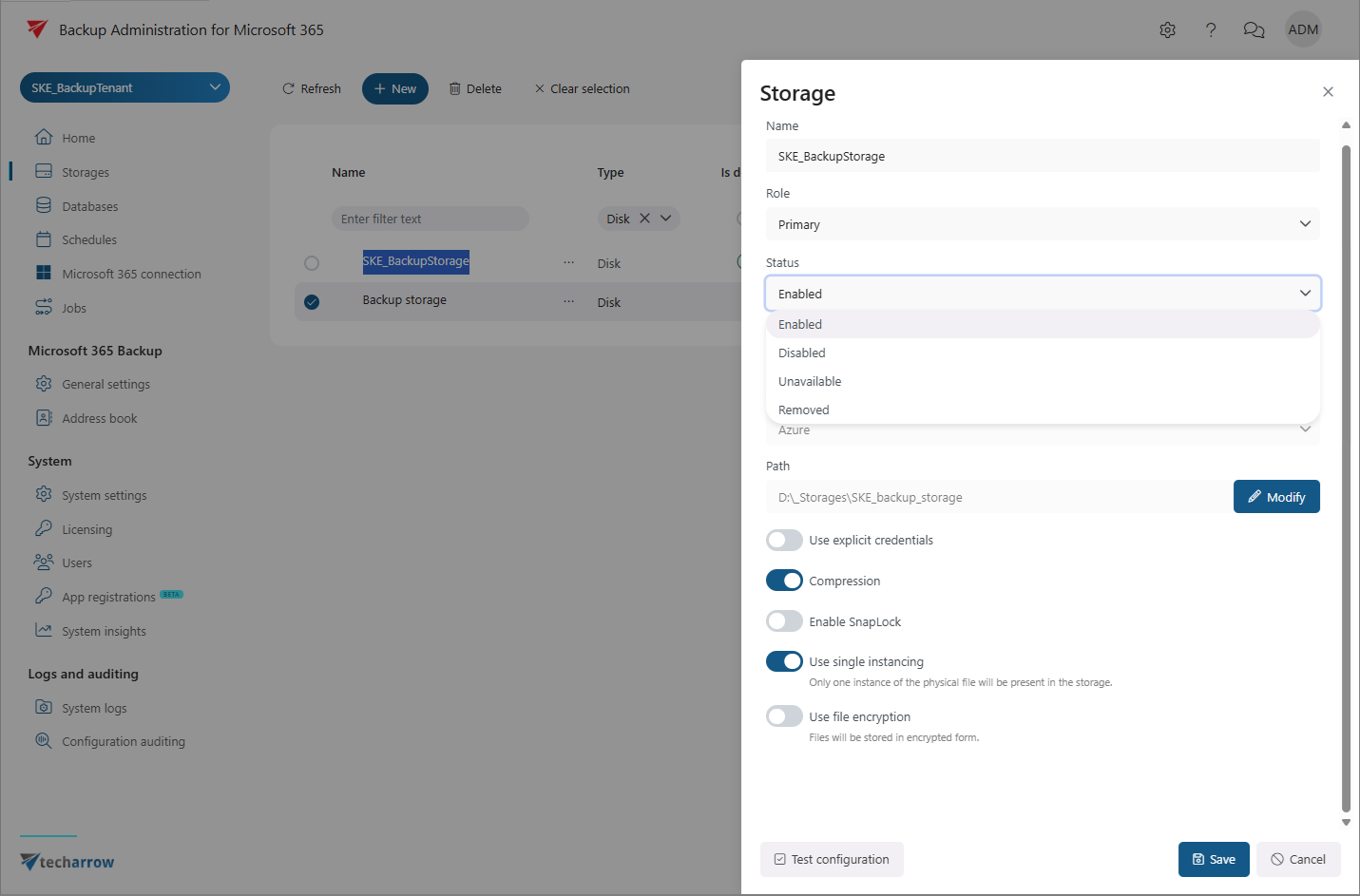
After the storage has been created, the Status option becomes available when you open the storage for the first time or select Edit from its context menu.
The storage can have one of the following statuses:
- Enabled: The storage is active and ready for use. It can accept new data, perform retrieval operations, and participate in workflows such as archiving, backup, or file storage.
- Disabled: The storage is temporarily turned off and is not used by Backup Administration. It remains in the system but cannot accept new data or participate in workflows until it is enabled again. Backup can continue if an allowed writable replica storage is available. In this case, documents are stored in the replica storage, and when the storage is enabled again, the Storage Replication Job duplicates the files to the primary storage.
- Unavailable: The storage cannot currently receive data or be used for operations. No operations can be performed with the storage until the issue is resolved and its status returns to Enabled.
- Removed: The storage has been deleted or disconnected from the system and is no longer available for operations or workflows.