System logs
Introduction
This page describes the System logs feature in Backup Administration. It explains how to review current and past system and job-related events, how to export log data, and how to sort and filter entries to assist with troubleshooting.
Overview
The System logs feature allows users to review current or past system and job-related events in Backup Administration. Users can check all system events and access failure details that may occur during job execution, which can assist in troubleshooting.
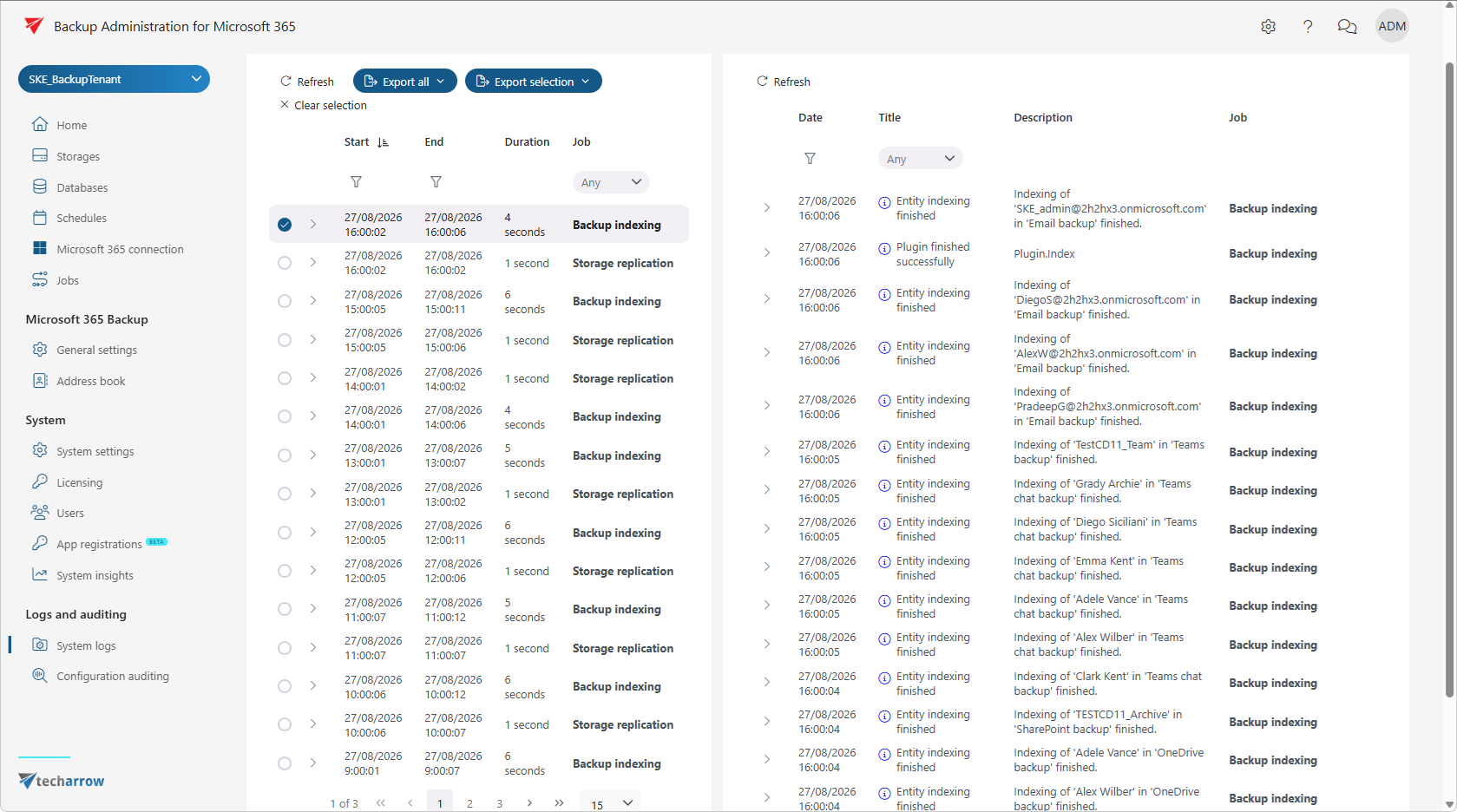
System logs interface
The System logs page consists of the following components.
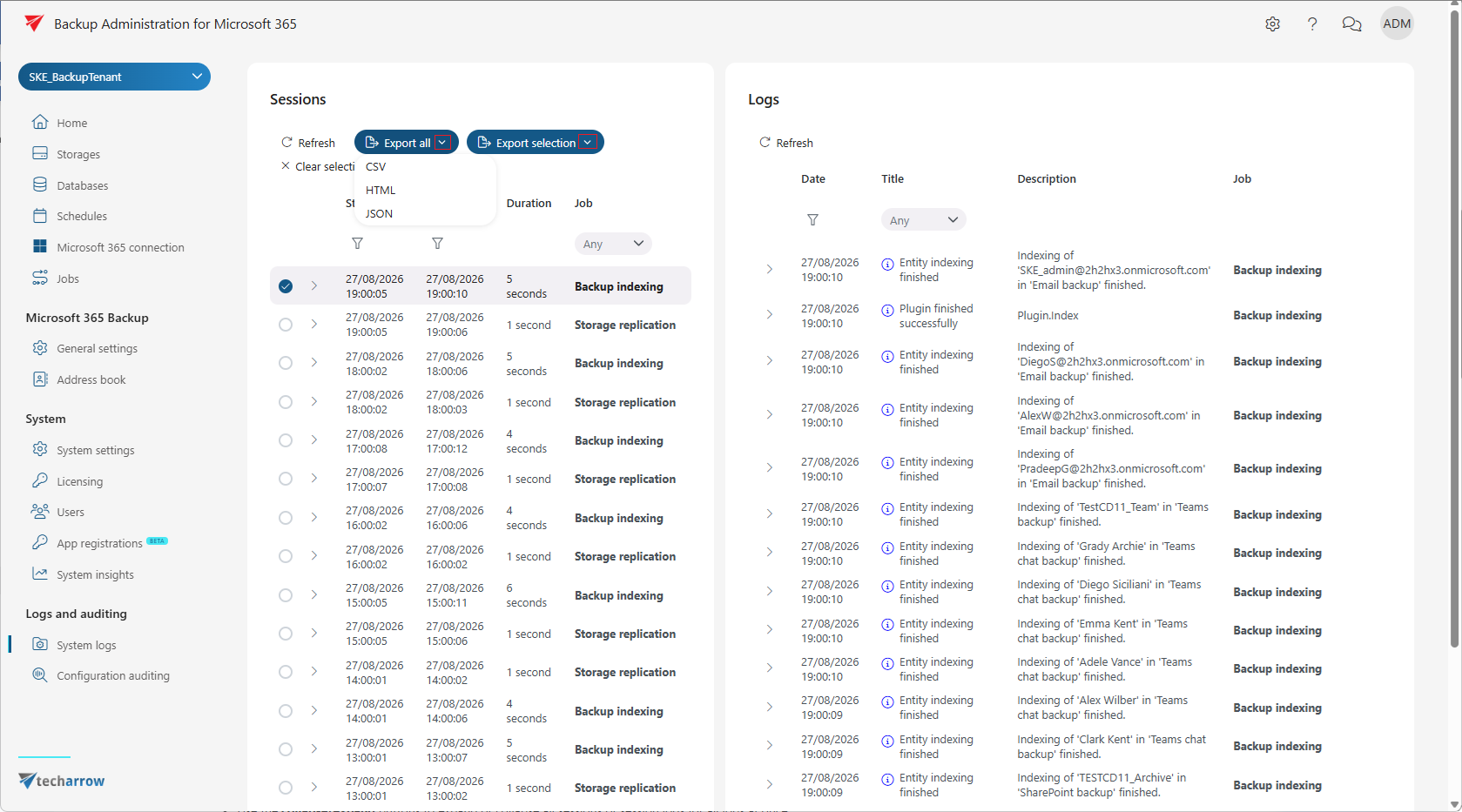
Export all and Export selection
The Export all button is always visible. The Export selected button is only active when one or more items are selected. These functions allow you to save log data into CSV, HTML, or JSON files for review. The exported report contains all necessary information — Code, Title, Date, Type, Instance, Description, and Details — to help you quickly identify potential failures.
Sessions and Session logs
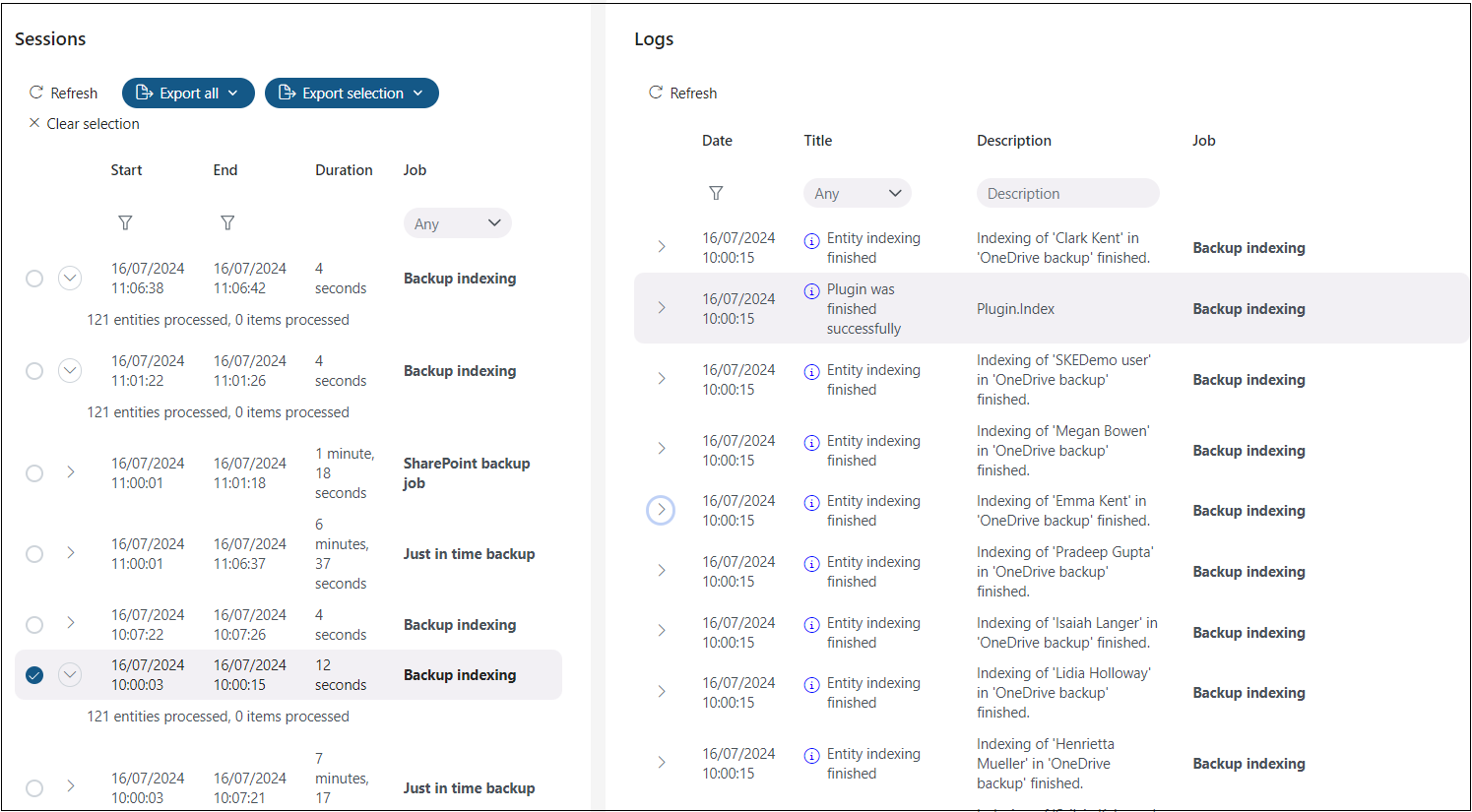
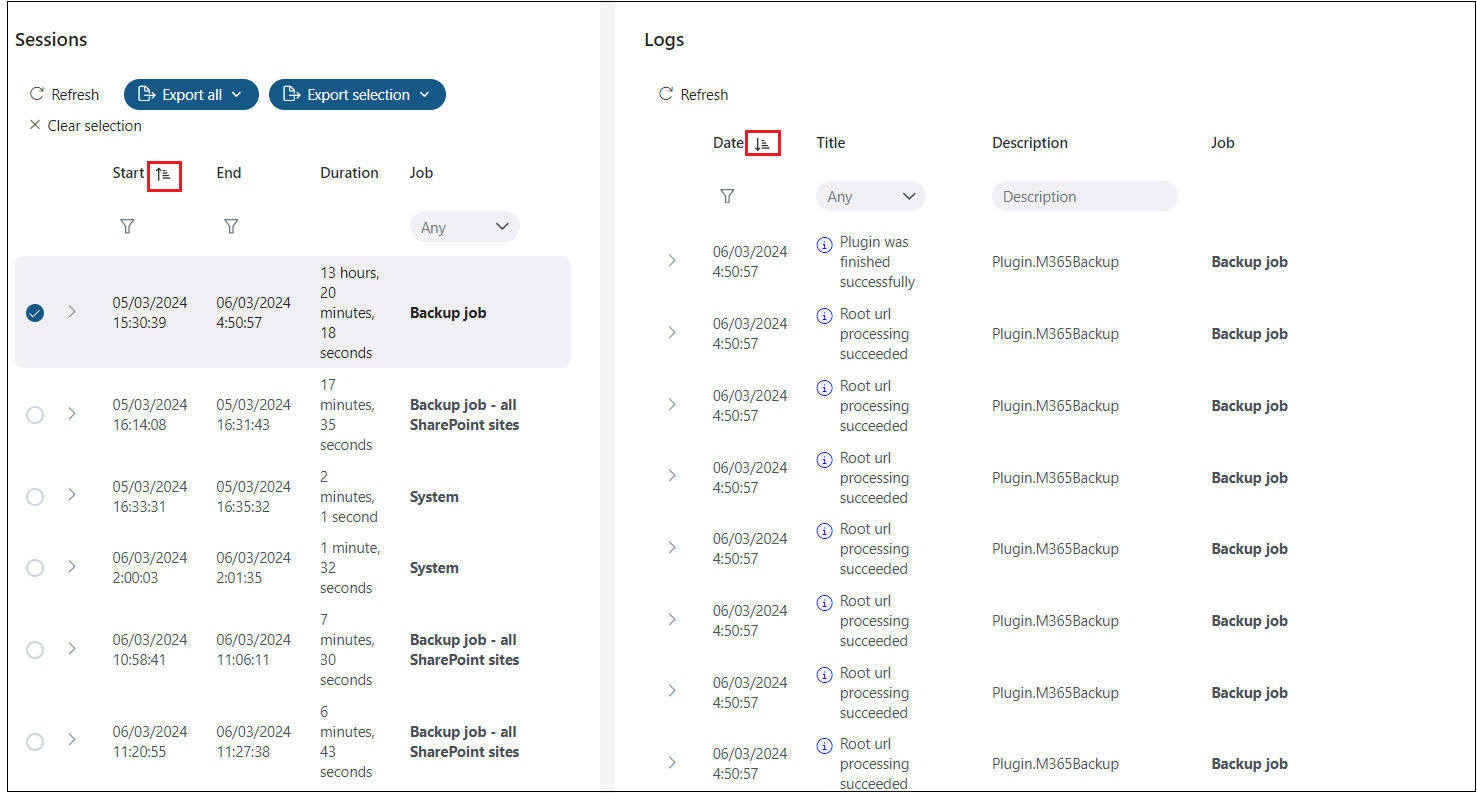
The Sessions column on the left allows you to monitor job and system runs. The Session logs column on the right shows the corresponding system and job events.
- Click Refresh to reload the current runs and events from the database.
- Use the collapse/expand buttons to expand or collapse all sessions or session logs for all jobs at once.
- Events can also be listed at the bottom of the columns.
Sorting
Sorting is available in both the Sessions and Session logs tables. Click a column name to sort items in ascending or descending order:
- Sessions table: Start and End columns.
- Session logs table: Date column.
Filtering
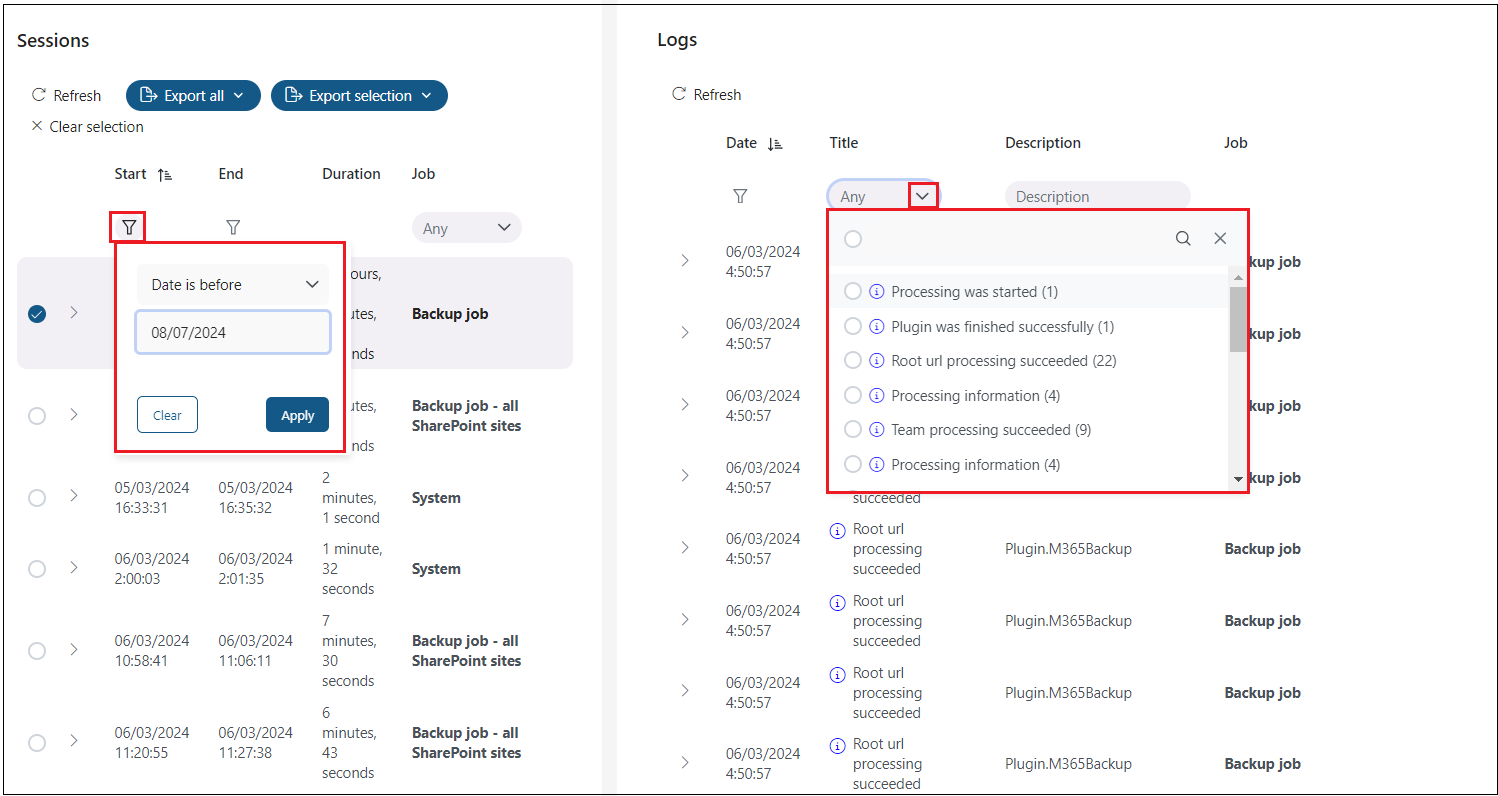
You can filter entries on the System logs page using the following methods:
- Click the funnel icon to set a condition and value from the dropdown list (for example: "Date is before 25/04/2024").
- Open a dropdown menu and select from the available options, or type a keyword to filter entries.