General settings
Introduction
This page describes the options available on the General settings tab of Microsoft 365 Backup. It explains how to enable end-user access to backed-up data through contentACCESS Portal, and how to configure just-in-time email backup using Exchange Online journaling.
Available options
The General settings tab contains the following two options:
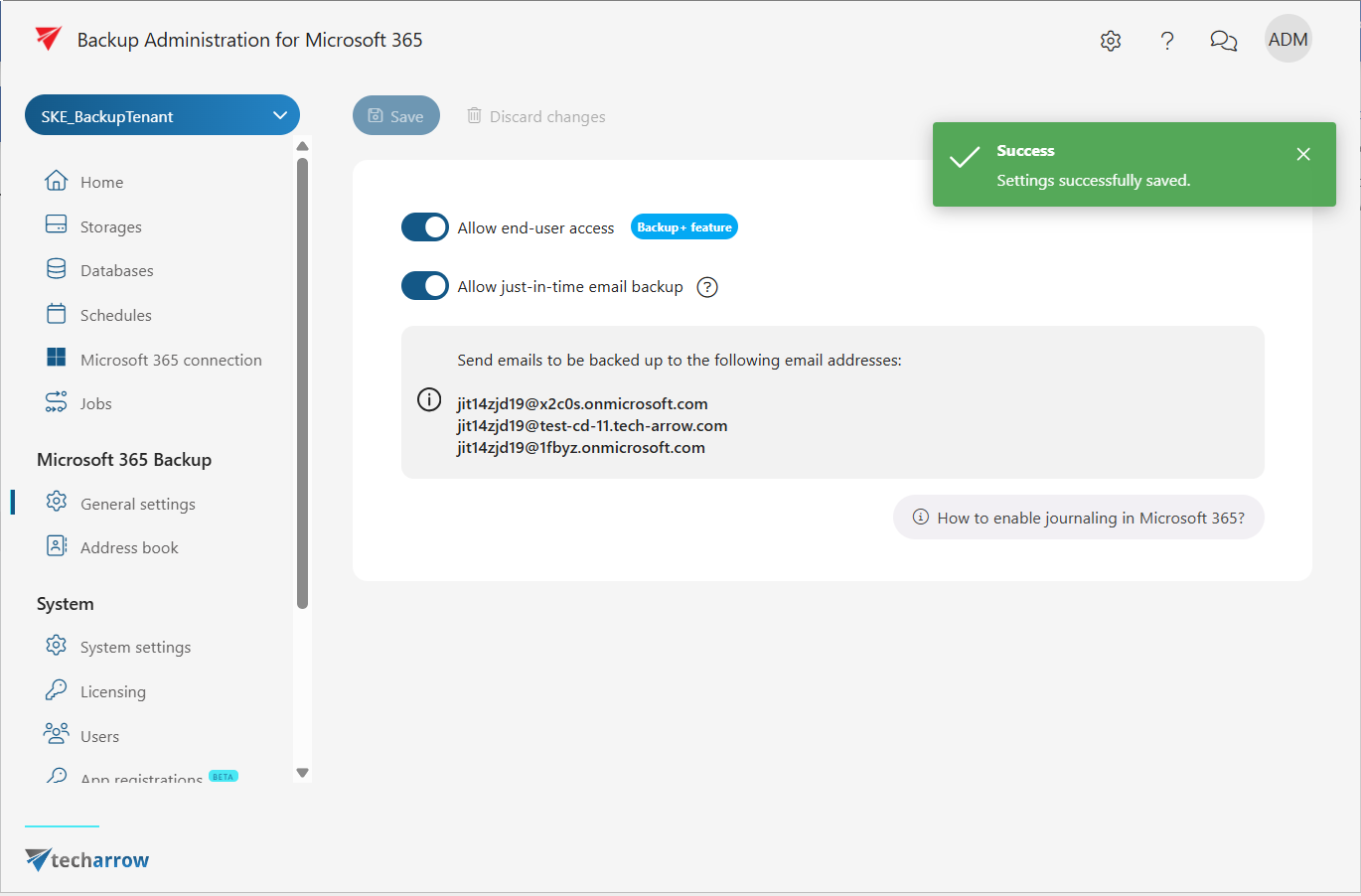
- Allow end-user access – When enabled, user access with the Standard user role can be explicitly created at the tenant level. This is a Backup+ feature tied to a license. If Backup+ is enabled on the license, the administrator can turn this option on or off. Users will see all backed-up entities in contentACCESS Portal. If this checkbox is disabled, the roles will be removed from the users automatically.
Upon enabling this option, user access will be created on the next run of a backup job, and only for those entities selected in that backup job.
If this feature is disabled on the license server, the checkbox will be inactive and the administrator will not be able to change the setting.
- Allow just-in-time email backup – When enabled, the system is ready to back up emails sent to predefined email addresses. This function automatically generates the required mappings and the backup job. To use this feature, the administrator must first set up journaling in Exchange Online. The required steps are described in the Microsoft 365 journaling section of the contentACCESS documentation.
What happens when you enable Allow just-in-time email backup
After enabling and saving the Allow just-in-time email backup option, the following changes occur automatically:
-
On the General settings tab, a specific domain and email address are generated. You can forward the emails you want to back up to this address. If multiple options are available, you must always choose one for forwarding.
-
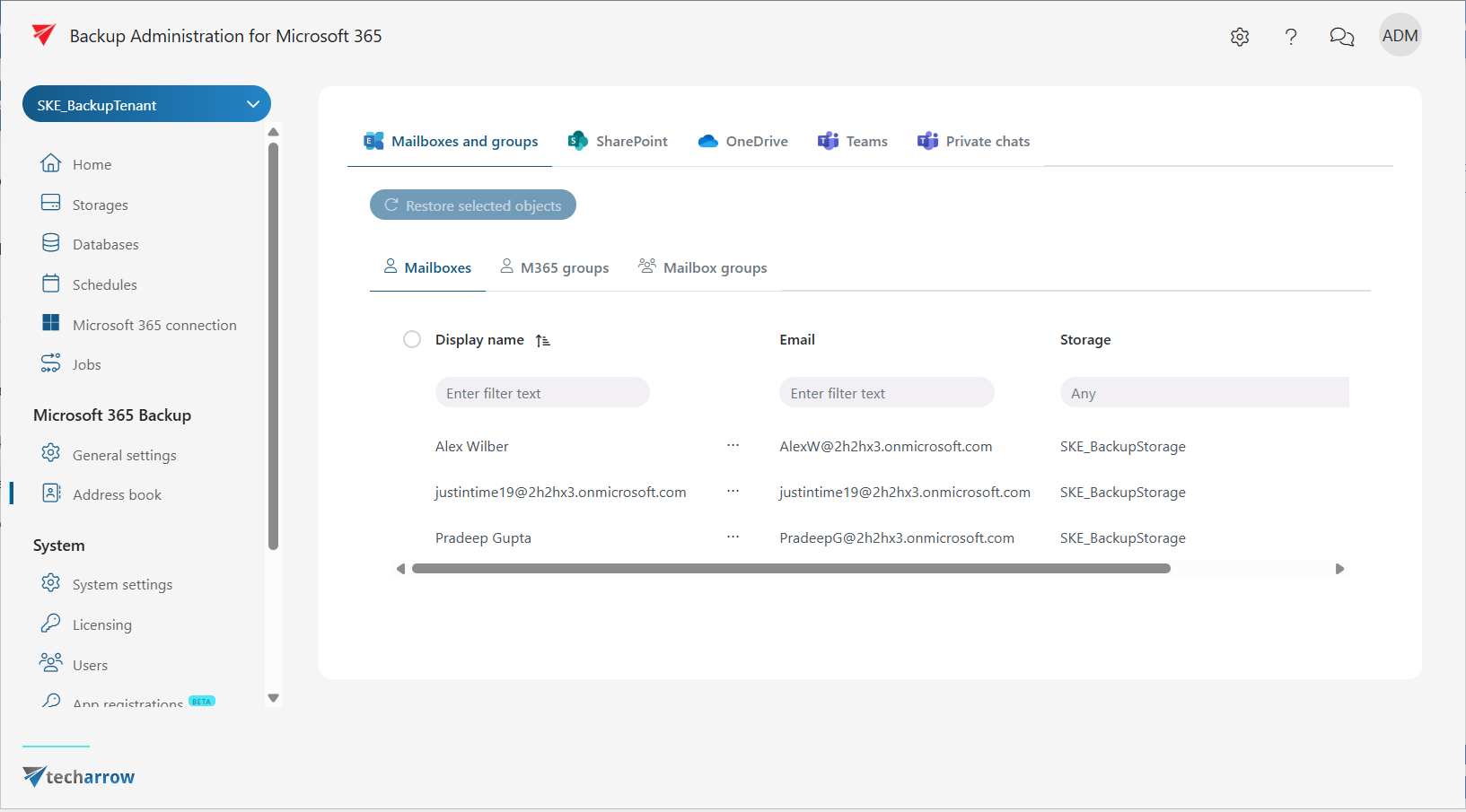
A mailbox with a system-generated email address appears in the Address book (left-side menu > Address book). The emails will be forwarded to this email address.
-
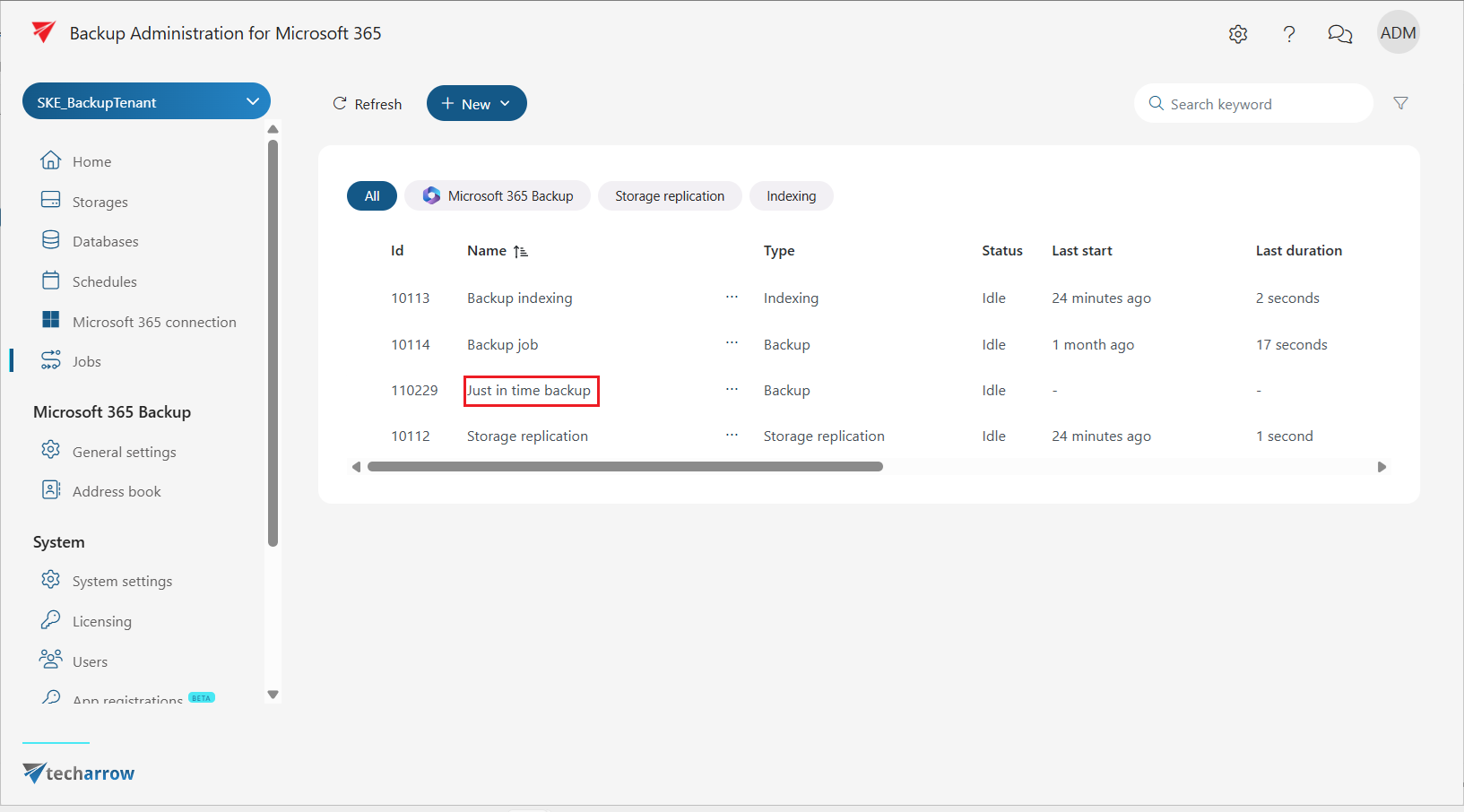
The Just in time backup job is created and configured automatically on the Jobs page. The job runs periodically based on the schedule configuration and processes all mailboxes from the selected tenant.