System settings
Introduction
The System settings page contains global configuration options that affect the entire Backup Administration installation (not just a single tenant).
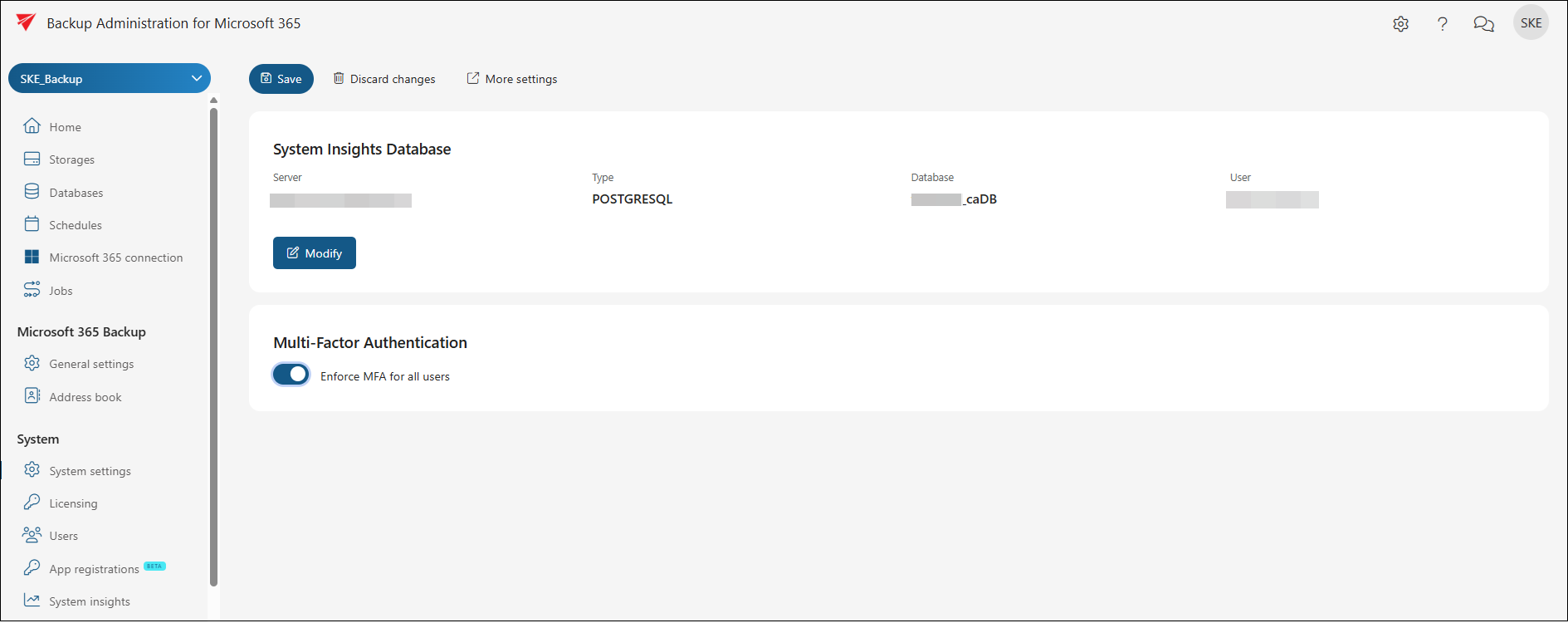
Here, administrators can configure and maintain the System Insights Database connection, enforce or disable Multi-Factor Authentication for all users (on system level), and access additional advanced options through More settings. In short, this page is the central place for defining system-wide behavior that impacts authentication and core operational settings.
More settings
The page header includes a More settings action that opens the legacy Central Administration web interface in a new browser tab and navigates directly to the Core settings area. Use this option when you need access to advanced settings that are not available in the Backup Administration interface. For background on the corresponding contentACCESS area, see System.
System Insights Database
System Insights requires a dedicated database connection. The System Insights Database panel displays a summary of the currently configured connection, including the Server, Database type, Database name, and User.

For more information about System Insights, please read the System Insights documentation page.
If no database has been configured yet, a Configure button is shown. Once a connection is in place, a Modify button allows you to update the configuration.
Clicking Configure or Modify opens a sidebar editor where you can enter or change the connection details:
- Connection name – a descriptive name for the connection.
- Database type – the type of database engine (e.g., MSSQL or PostgreSQL). Available options may be limited by your license.
- Server – the hostname or address of the database server.
- Database – the name of the target database.
- Port – the port number for the connection. Leave empty or set to 0 to use the default port.
- Schema – the database schema to use.
The sidebar also provides two optional toggles:
- Use system database server – when enabled, the connection fields (server, schema, port, and type) are pre-filled from the system database configuration.
- Use explicit credentials – when enabled, you must provide a User and Password. When disabled, the connection is stored without explicit credentials, and the contentACCESS service identity is used with Windows integrated authentication. When explicit credentials are provided, SQL authentication is used instead.
The sidebar offers the following actions:
- Test database – validates the entered details and tests the connection to the database server.
- Save – tests the connection first, then saves the configuration if the test is successful.
- Cancel – closes the sidebar without saving any changes.
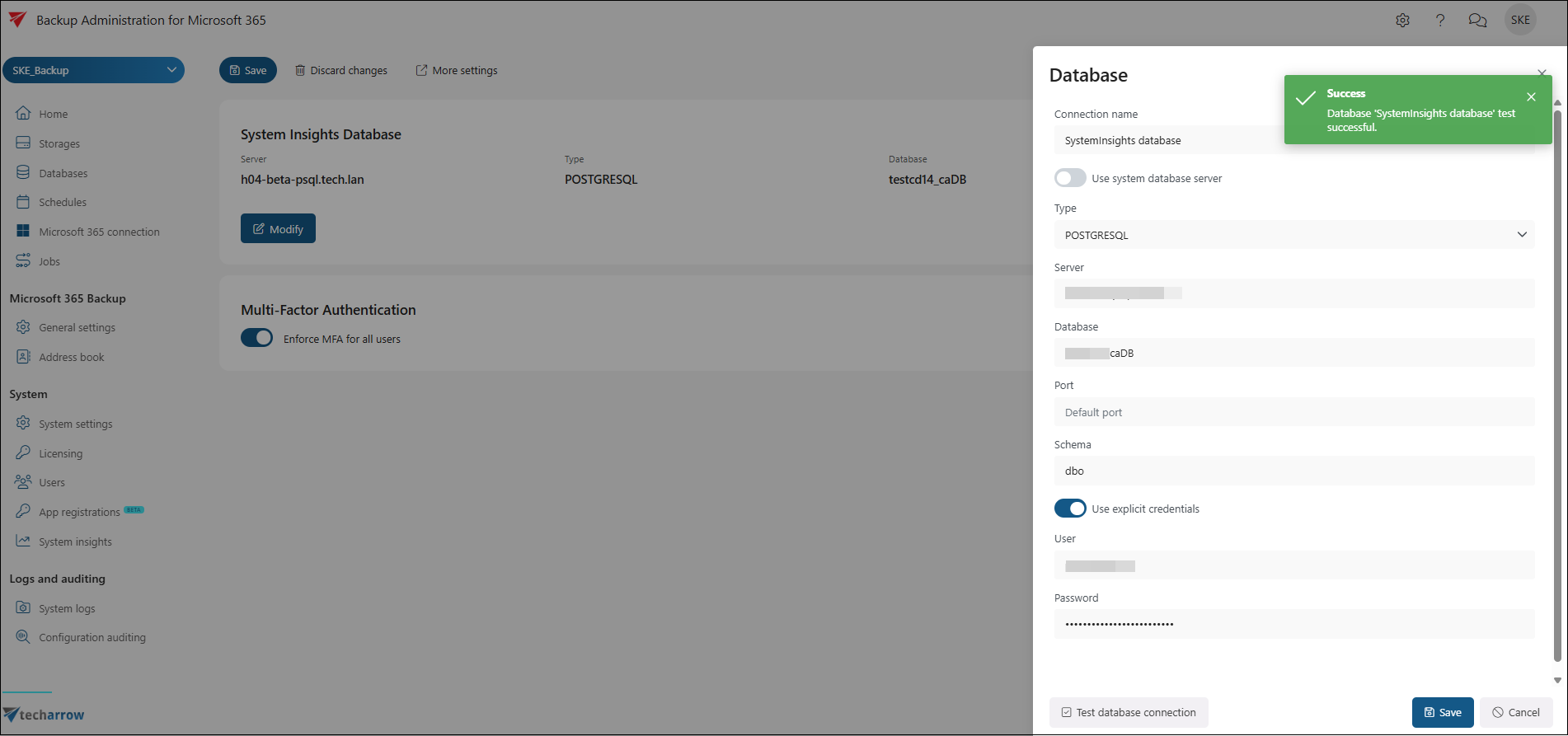
After saving changes to the System Insights database settings, a restart of the contentACCESS service may be required for the new settings to take effect. A notification will appear in the interface when a restart is needed.
Multi-Factor Authentication
The Multi-Factor Authentication panel allows you to enforce MFA across the entire system. You can enable or disable the Enforce MFA for all users toggle to control whether all users are required to authenticate with a second factor.

When MFA is enforced system-wide, it overrides individual user settings. Even if MFA is disabled for a specific user in Users → User details, that user is still required to use MFA while system-wide enforcement is active.
For step-by-step instructions, see Configuring multi-factor authentication (MFA).
Saving changes
The System settings page uses two separate save flows:
- MFA settings are managed through the Save and Discard changes buttons in the page header. Changing the MFA toggle activates these buttons, and clicking Save applies the new MFA configuration system-wide. Discard changes reverts any unsaved MFA changes.
- System Insights Database settings are saved directly from the sidebar editor using the Save button in the sidebar. The Cancel button closes the sidebar without saving.