Configuring multi-factor authentication (MFA)
Introduction
This page covers multi-factor authentication (MFA) configuration in Backup Administration for Microsoft 365.
MFA adds a second layer of security to the sign-in process: in addition to a username and password, users must verify their identity using a time-based one-time code generated by an authenticator app. Administrators can enforce MFA at three levels — user, tenant, and system — so that affected users must complete MFA enrollment before they can sign in.
This page explains:
- How to enforce MFA at user, tenant, and system level.
- What the MFA enrollment process looks like for end users (QR code scan, code verification, and saving recovery codes).
- How users authenticate after MFA is set up, including fallback options such as email codes and recovery codes.
- How administrators can reset a user's MFA configuration so the user must re-enroll.
Enforce MFA
MFA (multi-factor authentication) can be enforced at three levels: user level, tenant level, and system level. When enforcement is active at any of these levels, users must complete their MFA setup before they can sign in.
User level
To enforce MFA for individual users, you can:
- Use the Users page: Select one or more users and click Enforce MFA in the command bar.
- Use the User details panel: Open a user via the context menu (...) and toggle Enforce MFA in the User details section.
- Use the User details page: Click a user's display name to open the full details page, then toggle Enforce MFA in the User details section.
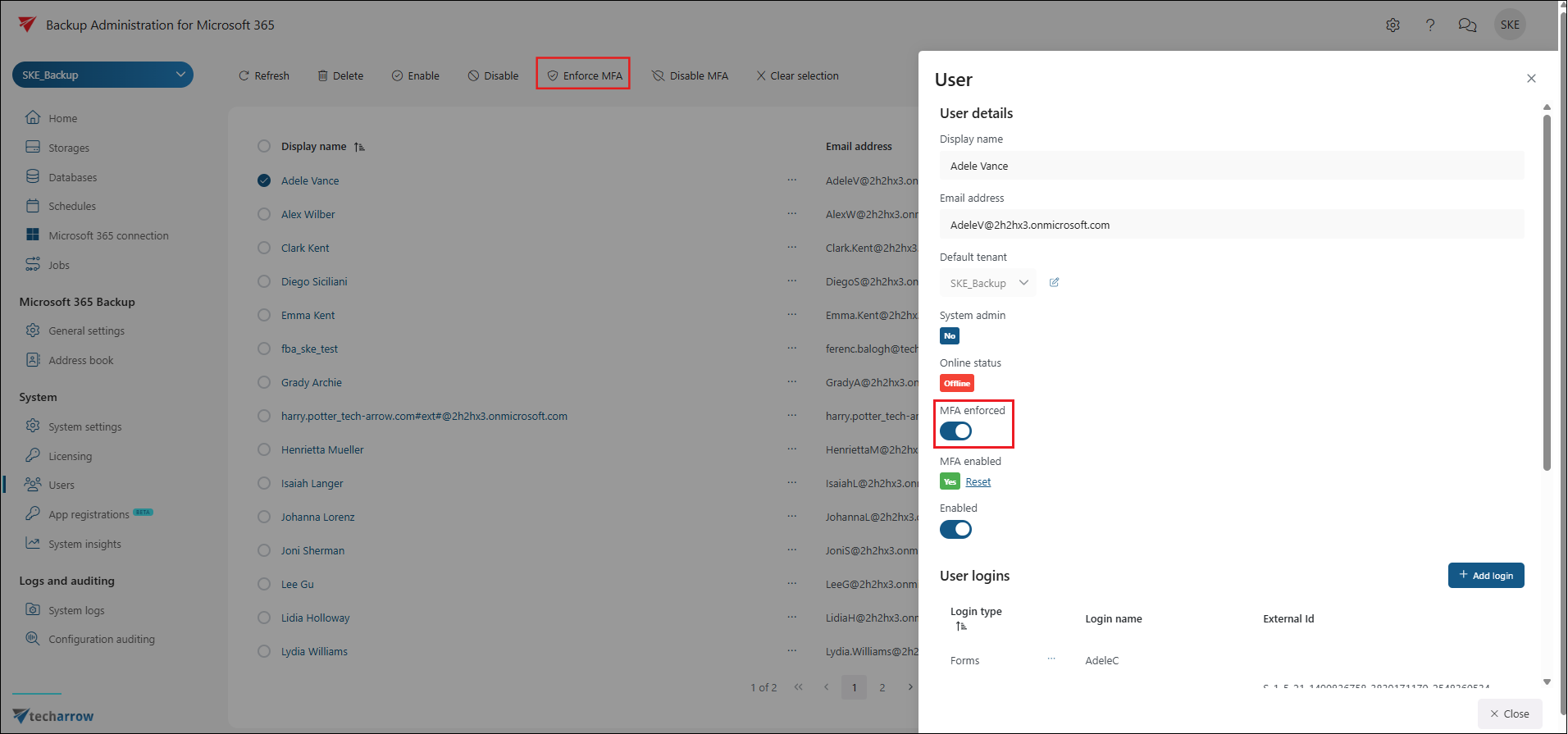
Screenshot A: Enforce MFA from User details page
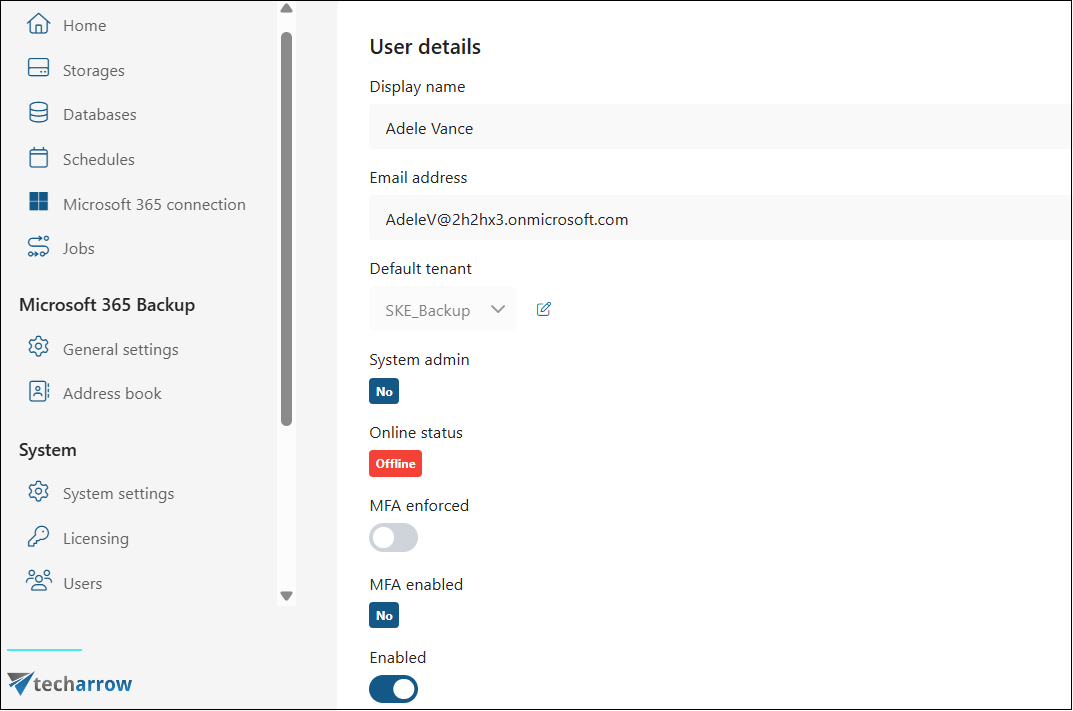
Screenshot B: Enforce MFA on Users page and User details panel
Tenant level
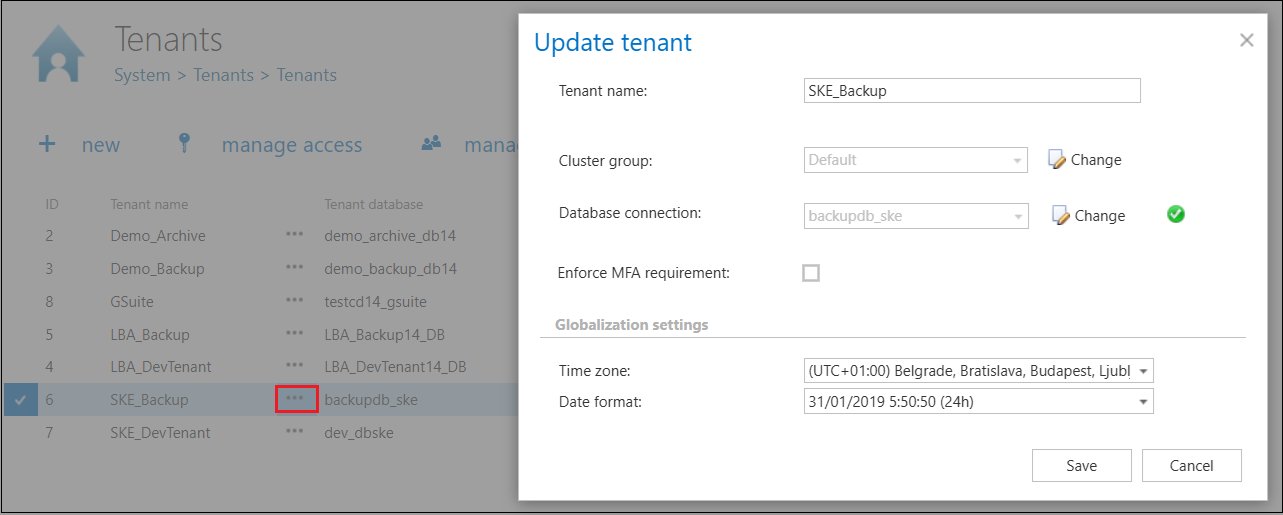
To enforce MFA for all users in a tenant, use Central Administration:
- In Central Administration, go to Tenants.
- Click the context menu (...) next to the tenant name and select Edit tenant.
- Enable the Enforce MFA requirement checkbox.
System level
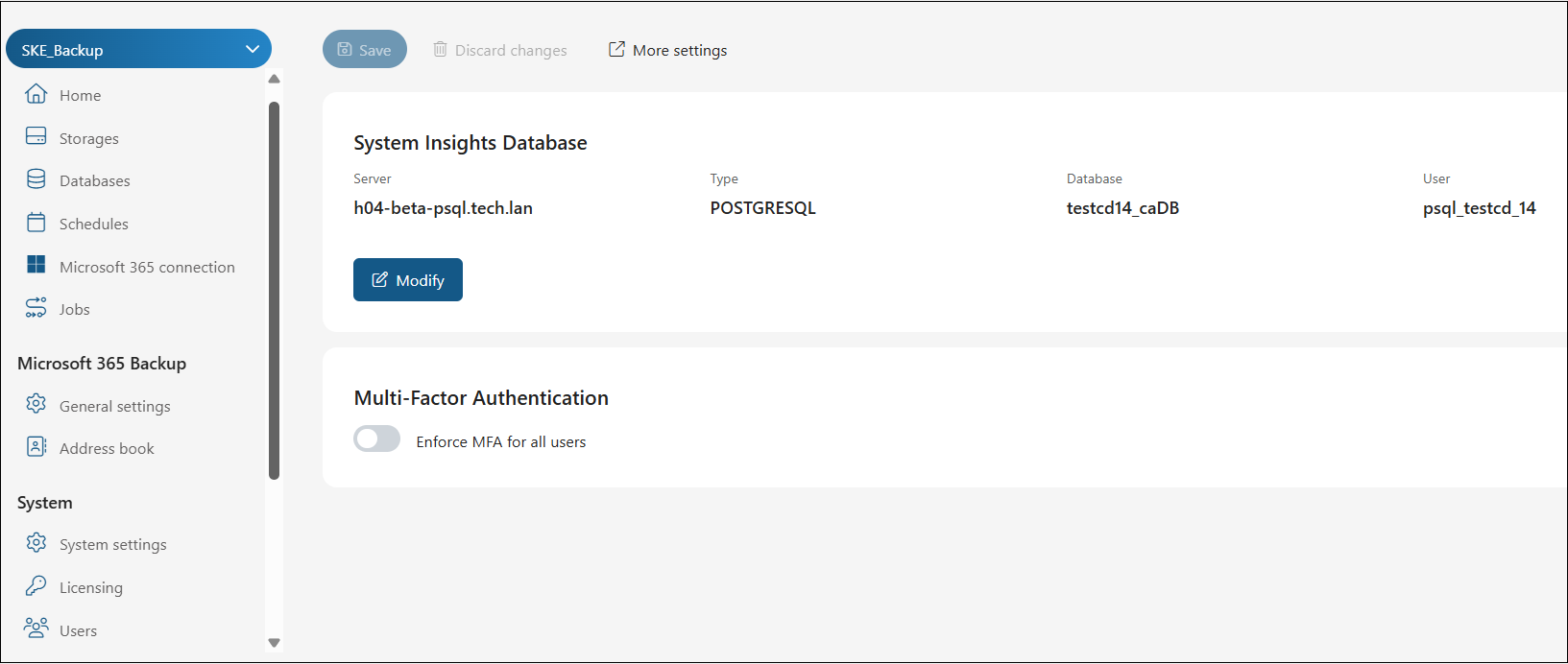
To enforce MFA for all users across the entire system, use Backup Administration:
- In the left menu, select System > System settings.
- Enable the Multi-factor authentication toggle in the settings.
What users see
Two-factor authentication setup is optional until multi-factor authentication is enforced at user, tenant, or system level. Once enforcement is active at any of these levels, the user must complete multi-factor authentication setup at the next sign-in before they can continue to the applications they are allowed to use (for example contentACCESS Portal, Central Administration, or Backup Administration).
When multi-factor authentication is not enforced, users can optionally set it up in their My profile area. My profile can be accessed in either of these ways:
- Sign in through the Central login page, then on the Login Successful page select My profile.

- In contentACCESS Portal, click the current user in the top-right header, open the dropdown menu, and select My profile.

When MFA is enforced at user, tenant, or system level, users cannot continue from the Login Successful page after entering username and password until MFA setup is completed.
At this time, MFA enforcement applies to users who authenticate with the Forms login provider.
Configure MFA setup
Complete the MFA setup in the following steps:
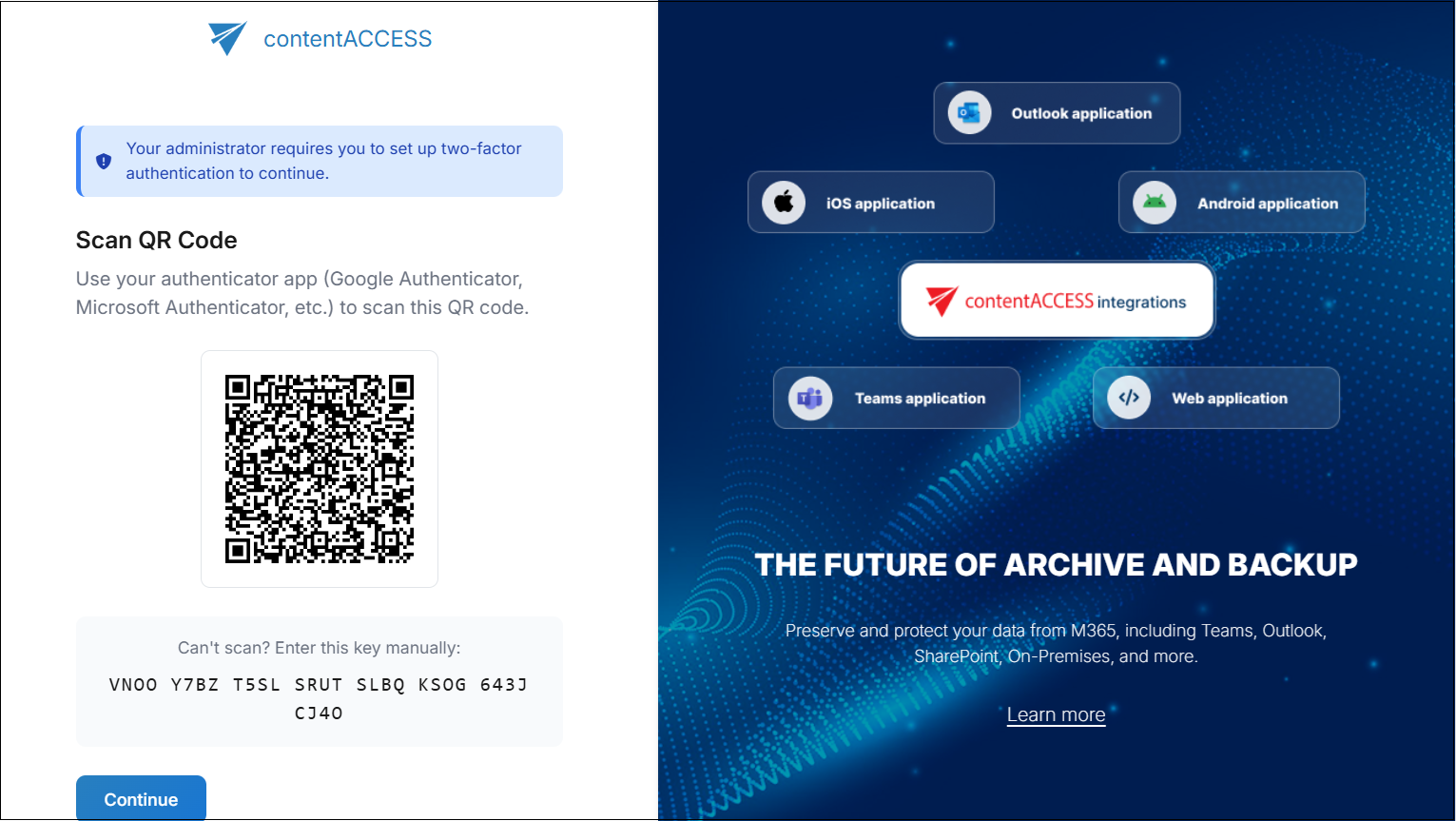
- On the Scan QR code page, either scan the QR code with your authenticator app, or manually enter the provided key in the app.
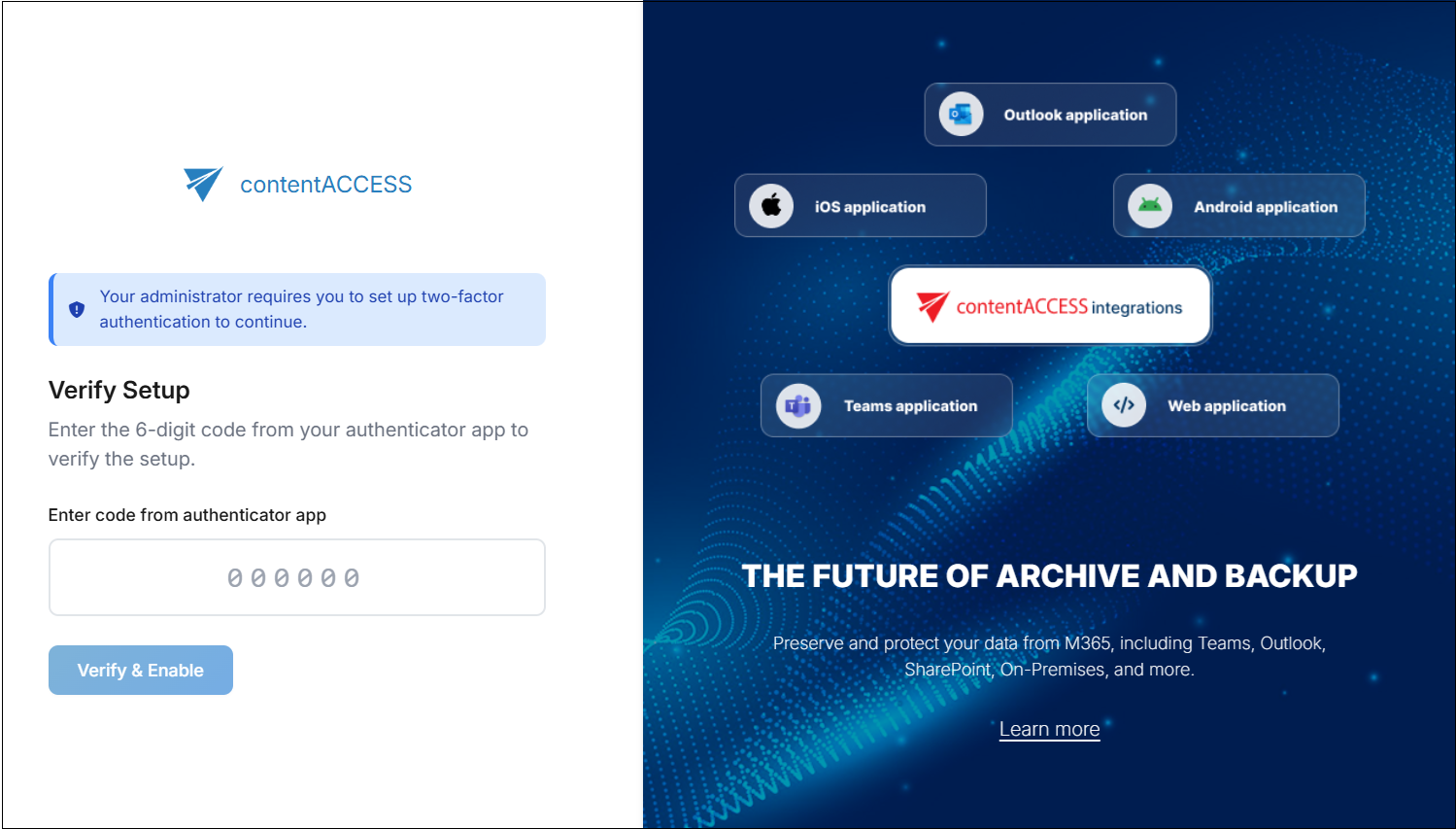
- Click Continue to open the Verify setup page, then enter the 6-digit code shown in your authenticator app.
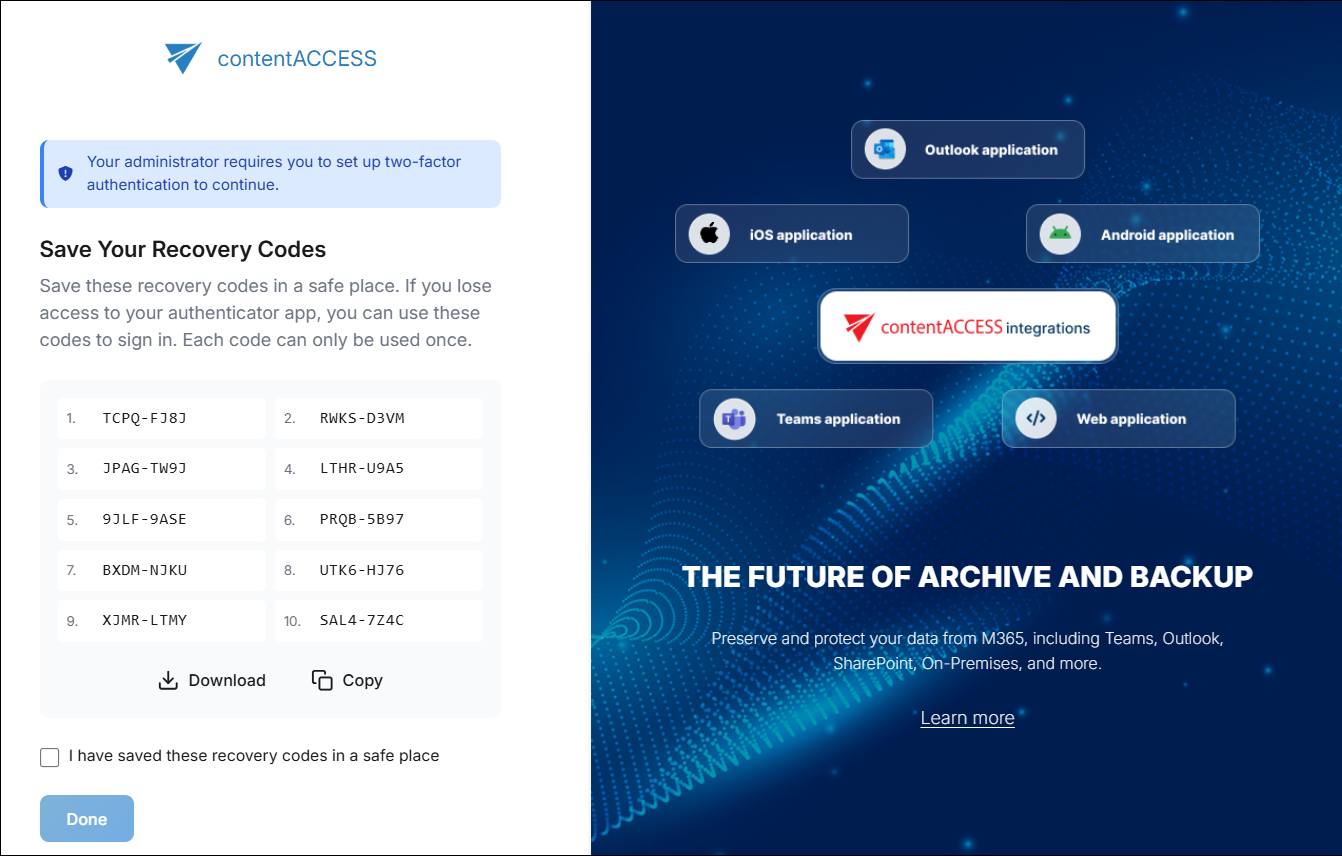
- Click Verify and Enable to open the Save your recovery codes page. These codes let you sign in if you cannot access your authenticator app, so you can disable two-factor authentication. Each recovery code can be used only once. If you run out of codes, you can generate new ones in My profile > Manage two-factor authentication.
The Done button remains disabled until you confirm saving the codes by selecting I have saved these recovery codes in a safe place.
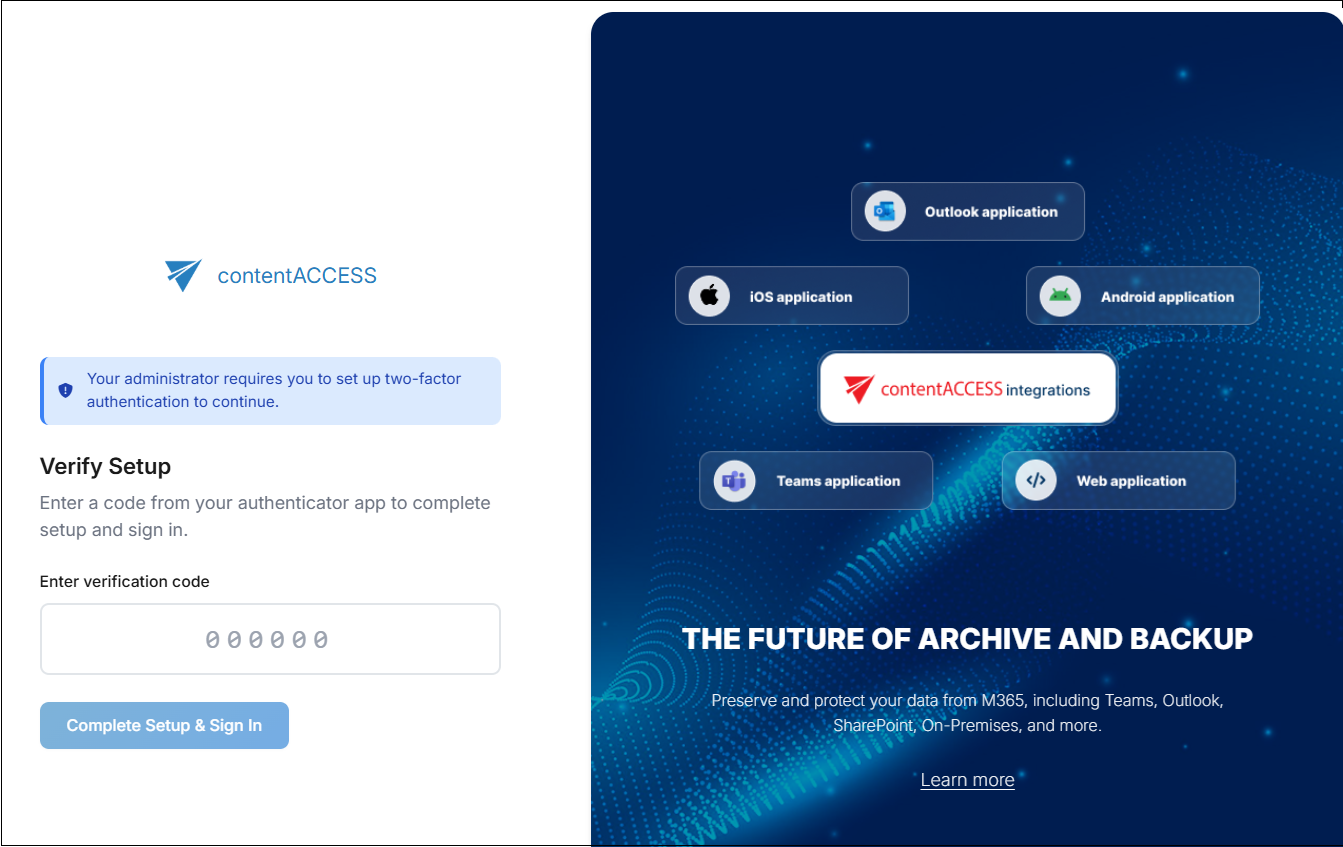
- As the final step, enter one more code from your authenticator app to complete setup and continue to the applications available to you.
Sign in with MFA after setup
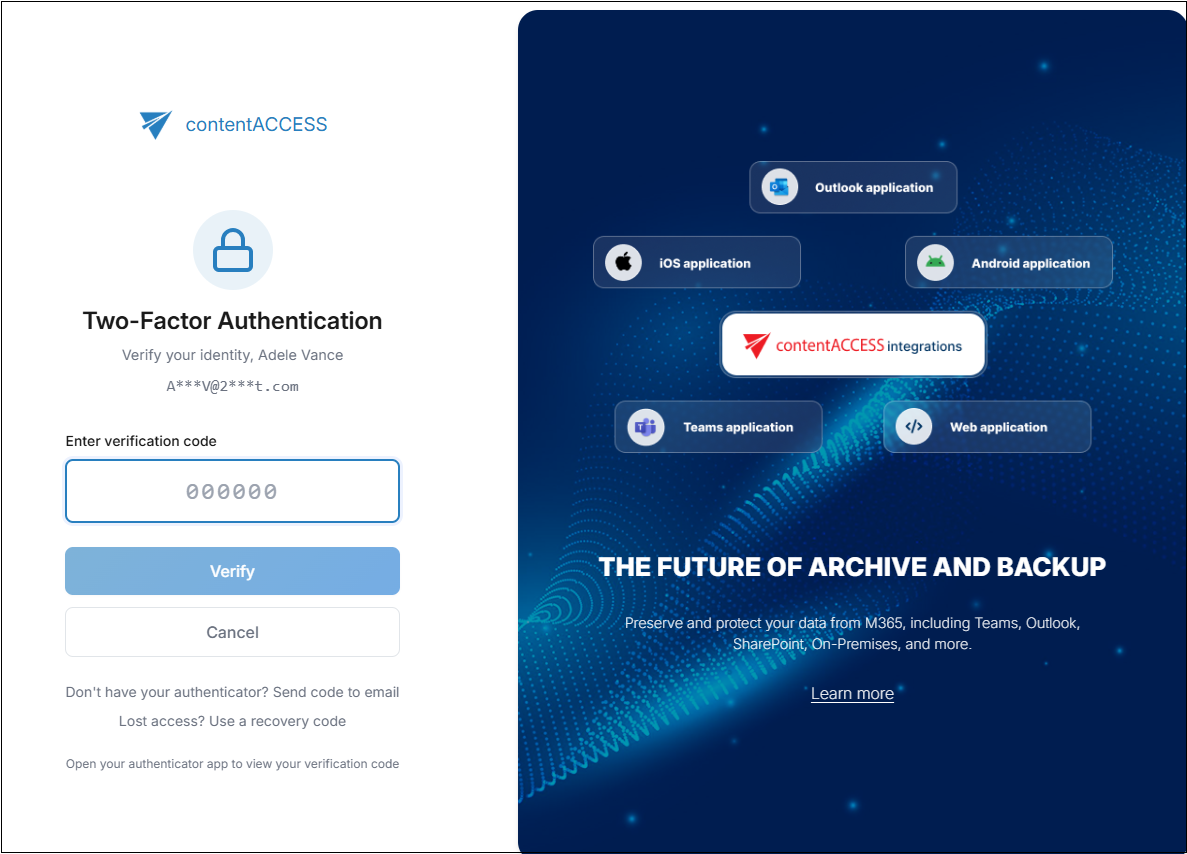
After two-factor authentication is configured for the user, the Two-Factor authentication section appears on the login page at every sign-in. The user must enter the 6-digit code from the authenticator app and click Verify to complete the login process.
If the authenticator app is not available, users can still sign in using either of these methods:
- Select Don't have your authenticator? Send code to email to receive a one-time code at the user's configured, valid email address, then use that code to sign in.
- Select Lost access? Use a recovery code to sign in with one of the 12 recovery codes.
The setup method is the same, step by step, for both enforced and optional two-factor authentication.
Reset MFA
If the user has MFA set up, you can trigger an MFA reset. This clears the existing MFA setup so the user must enroll again.
MFA reset is available in the User details page and in the User details panel when the user already has two-factor authentication configured.
This action does not permanently disable two-factor authentication for the user; after reset, the user must complete the full MFA setup process again, step by step, as described above.
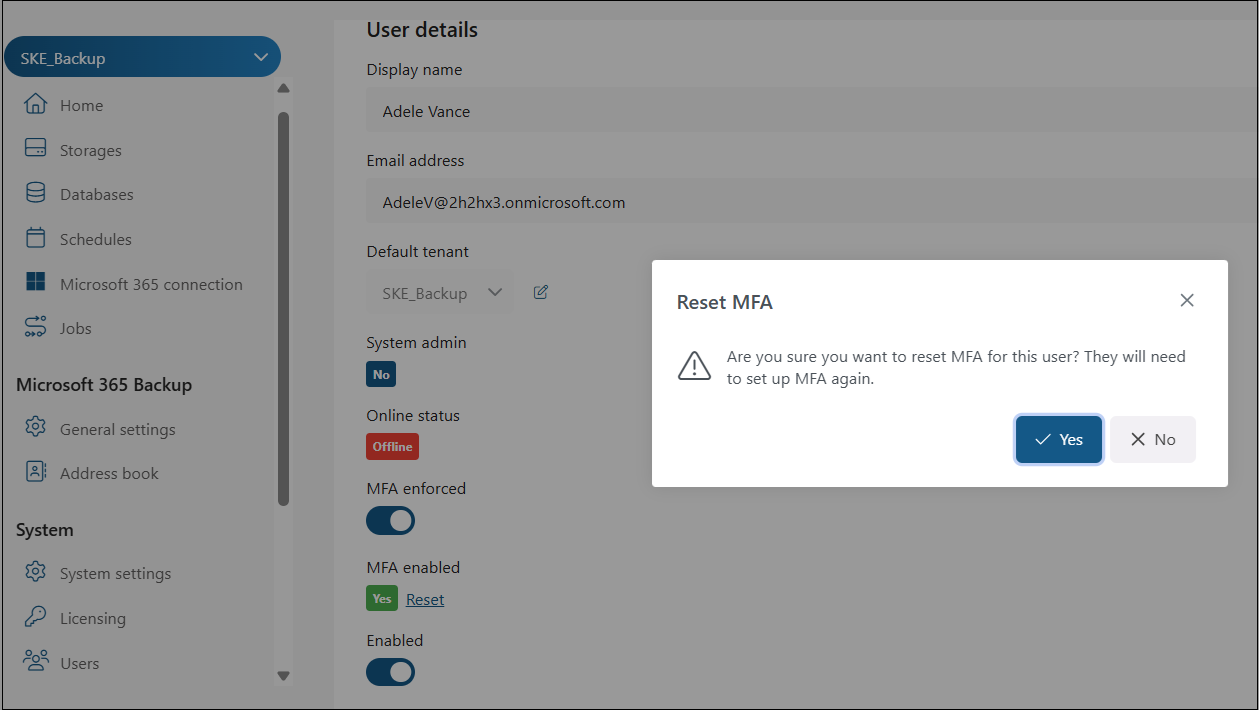
After an MFA reset, the user must complete MFA setup again before they can complete MFA-protected sign-in.