Databases
Introduction
This page describes the Databases page of Backup Administration for Microsoft 365. It explains how to view the databases configured for the selected tenant, configure an existing database, test the database connection, and manage database settings.
Databases configured in contentACCESS through Central Administration are also displayed on this page, providing an overview of all databases associated with the selected tenant. You can also configure existing databases directly from this page without having to open Central Administration.
The configured database is used to store the processed metadata of the tenant.
View configured databases
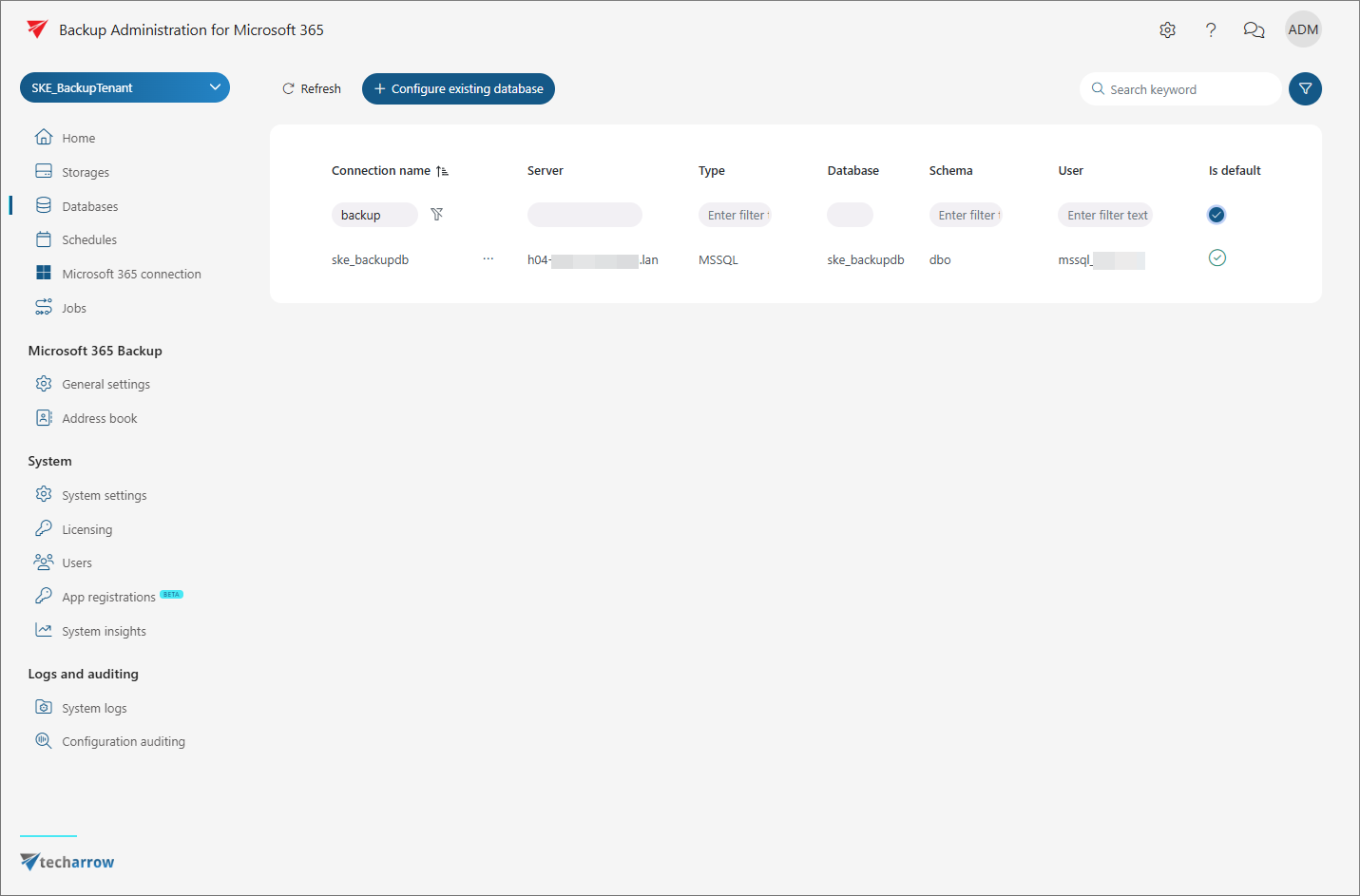
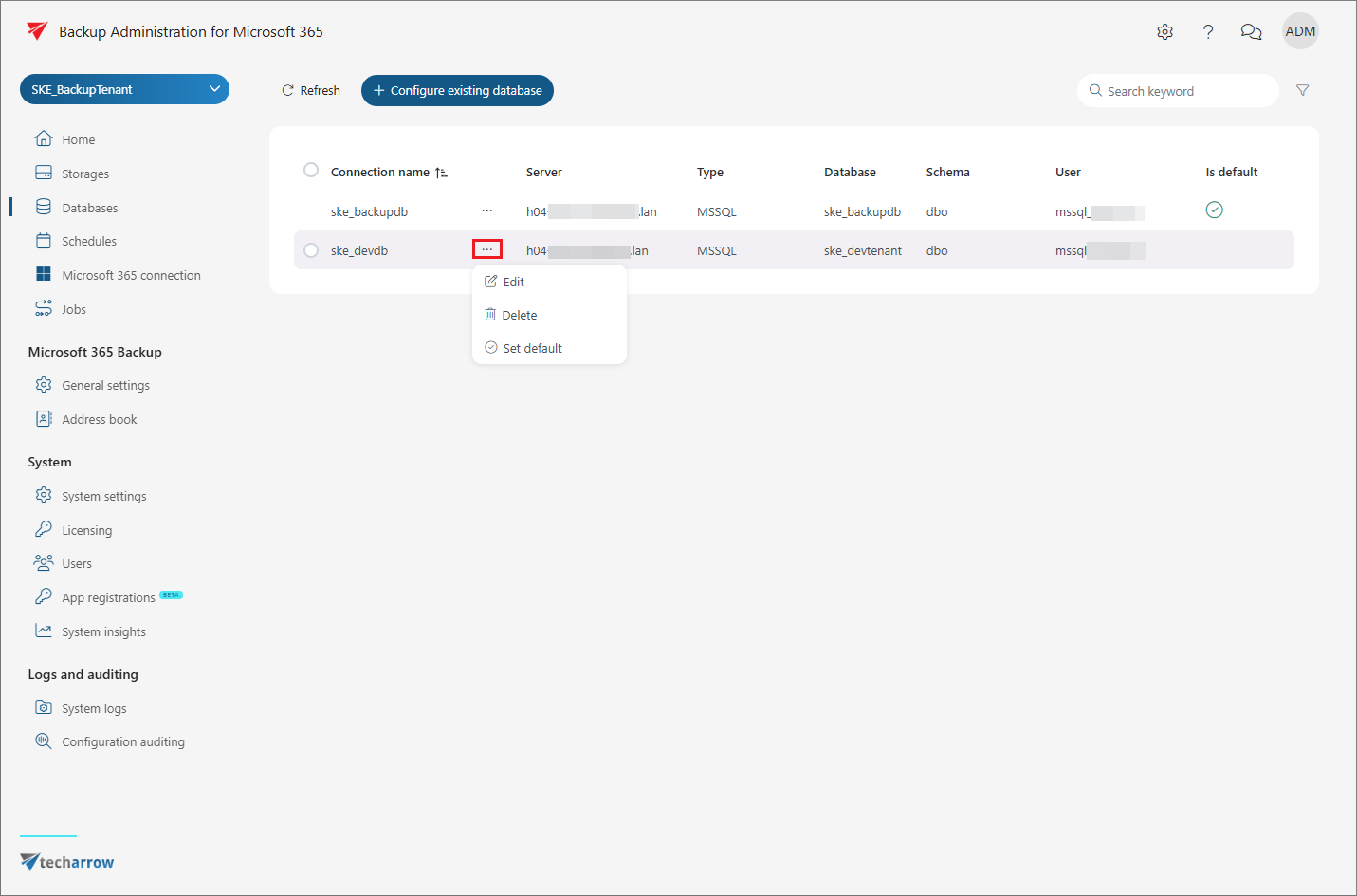
The database grid displays the following information for each configured database:
- Connection name
- Server
- Type (MSSQL or PostgreSQL)
- Status, indicating whether the database is the default database
Configure an existing database
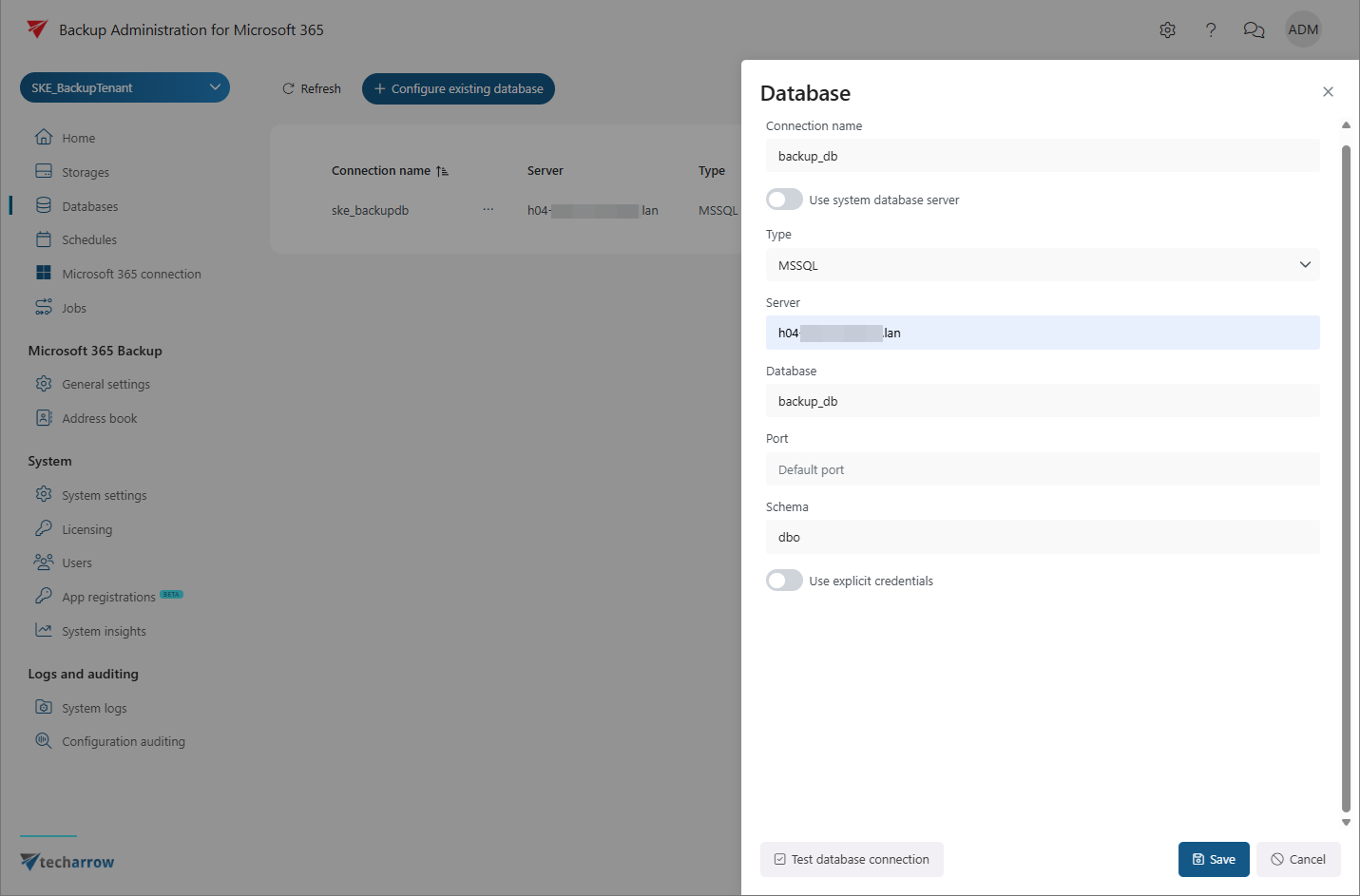
To configure an existing database, click + Configure existing database on the Databases page. The Database window opens with the following fields:
- Connection name: Specifies a name for the database connection.
- Use system database server: Enable this toggle if you want to use the system database server. When enabled, the Server and Schema fields are filled in automatically.
- Type: Select the database type — MSSQL or PostgreSQL.
- Server: Specifies the server where the database is hosted.
- Database: Enter the name of the existing database.
- Port: Specifies the port used to connect to the database. The default port is used if left empty.
- Schema: Specifies the database schema.
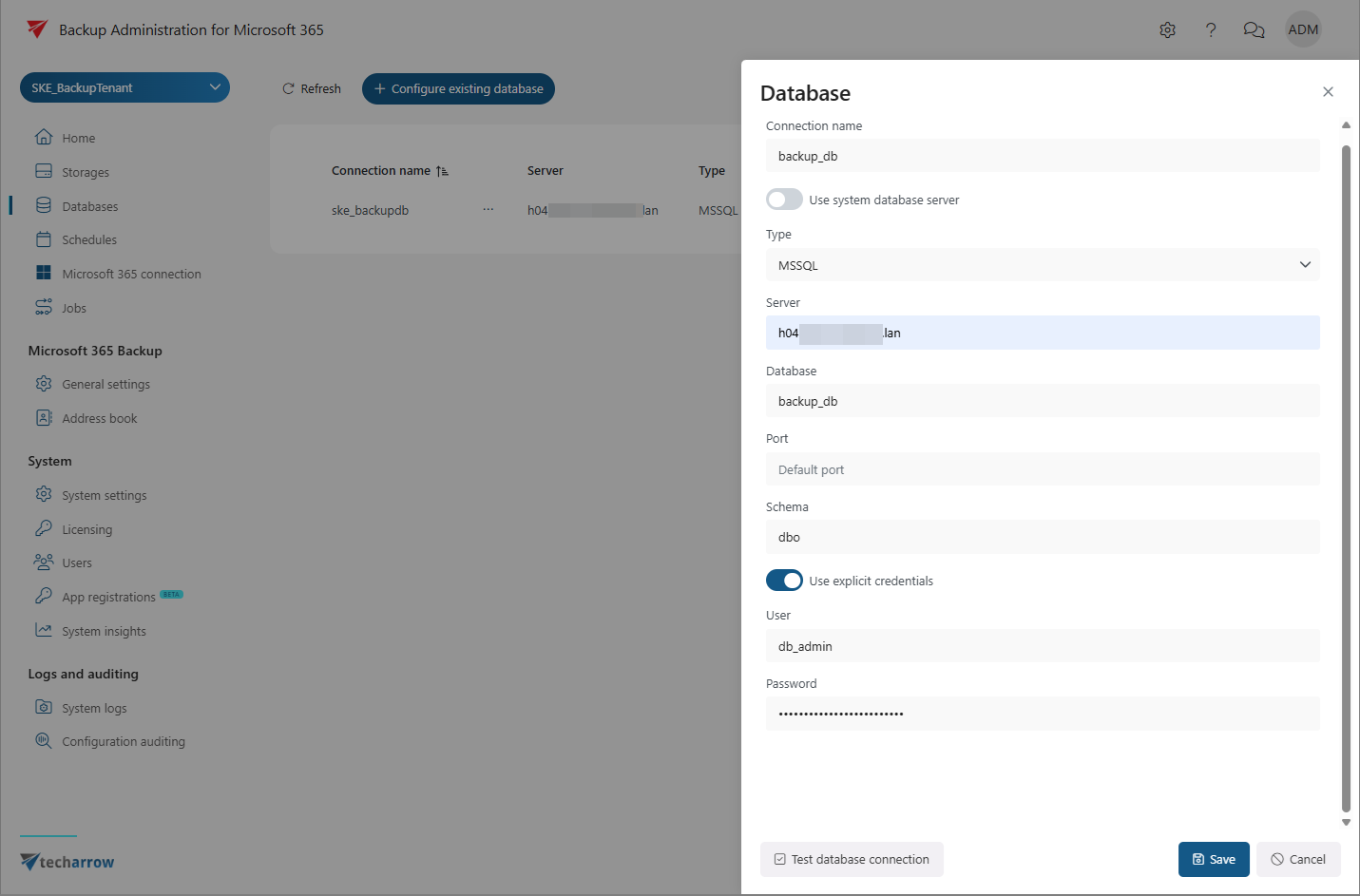
- Use explicit credentials: Enable this toggle if credentials are required to access the database. Enter the user name and password that should be used to connect.
By default, Backup Administration for Microsoft 365 connects to the database using the credentials of the service account running Backup Administration.
To use different credentials, select Use explicit credentials and enter the user name and password that should be used to connect to the tenant database.
You can verify the connection by clicking Test database connection in the lower-left corner of the window.
Manage databases
You can manage a configured database from its context menu on the Databases page.
The available actions allow you to:
- Modify the database settings.
- Delete the database if it is not set as the default database.
- Set default to make the database the default database.
Search and filter databases
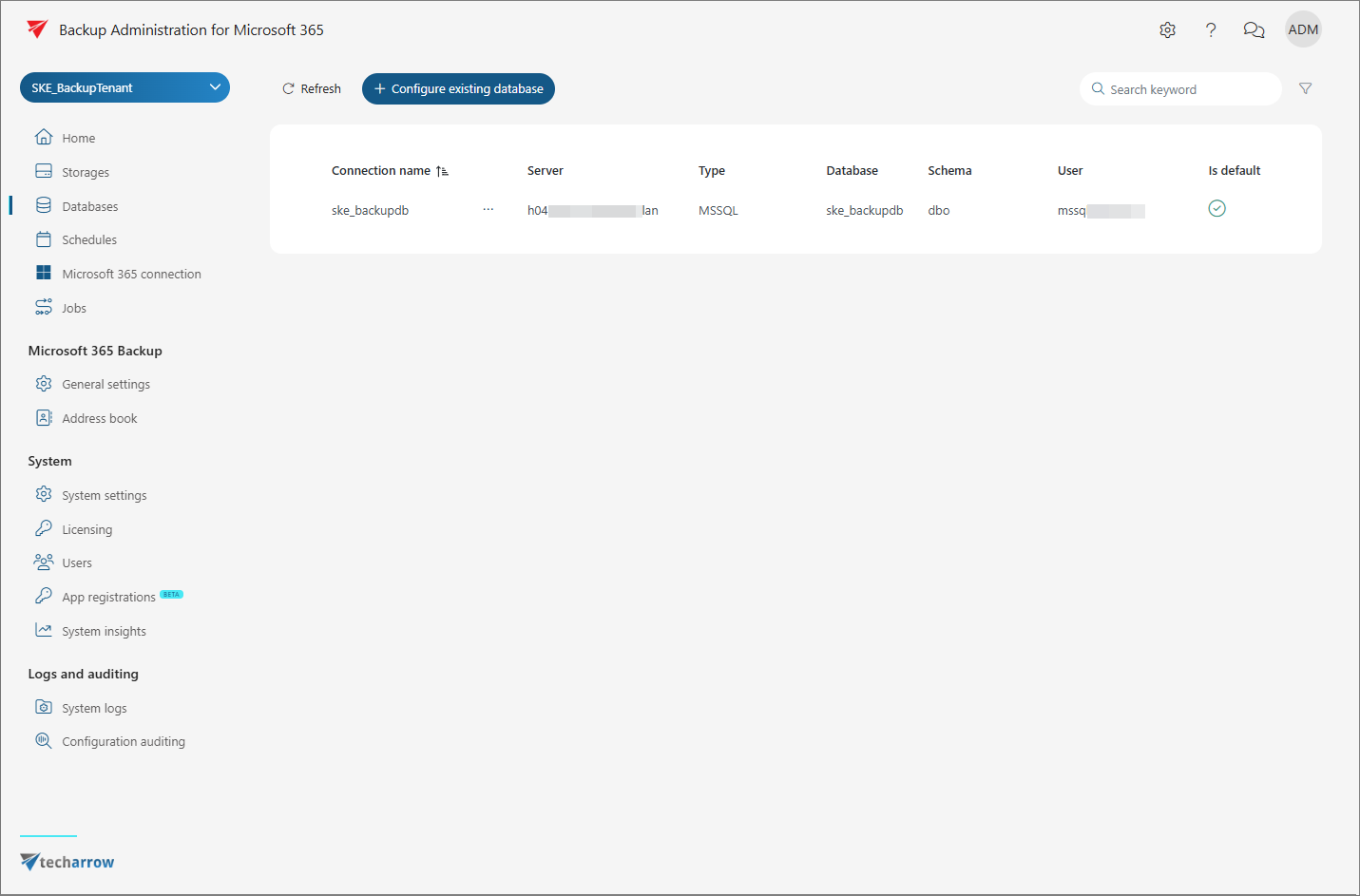
The Databases grid displays the configured databases and their settings. You can search and filter the list to find specific database configurations.
To search the list, click the search textbox and enter a keyword.
To filter the list, click the Funnel icon. An additional filtering row appears above the list.
You can filter the following columns:
- Connection name, Server, User, Type, and Database: Enter the required filter text. The filter is applied automatically.
- Is default: Use the item selector in the corresponding column to filter for the default database.
To close the filtering section, click the Funnel icon again.