Jobs
Introduction
The Jobs page in Backup Administration for Microsoft 365 allows you to set up jobs customized to manage specific data processing tasks. You can create different types of jobs and configure their settings, such as scheduling, filtering, and the objects to process. These configurations define the specific data processing tasks performed by each job.
You can create multiple jobs of the same type, providing flexibility to manage your data according to your requirements.
Job types
Backup Administration provides the following job types:
-
Backup job: Copies physical or virtual files from the selected source, such as a mailbox, SharePoint site, or Microsoft Teams, to a secondary location. Backup jobs provide data storage and protection against data loss caused by equipment failures, malicious actions, disasters, and other events. You can back up all selected files, versions, and data, or only the changes made since the last backup, including updated items and newly created versions.
-
Restore job: Restores a mailbox, SharePoint site, OneDrive, or team from a backup. Restore jobs can be used when an entire mailbox, site, OneDrive, or team has been deleted, or when one or more folders or items have been deleted and need to be restored from the backup storage.
-
Indexing job: Automatically assigns default index zones to files, emails, Teams messages, and Teams chat messages from the selected items. This makes it easier to search for and find specific content in the contentACCESS Portal.
Create a job
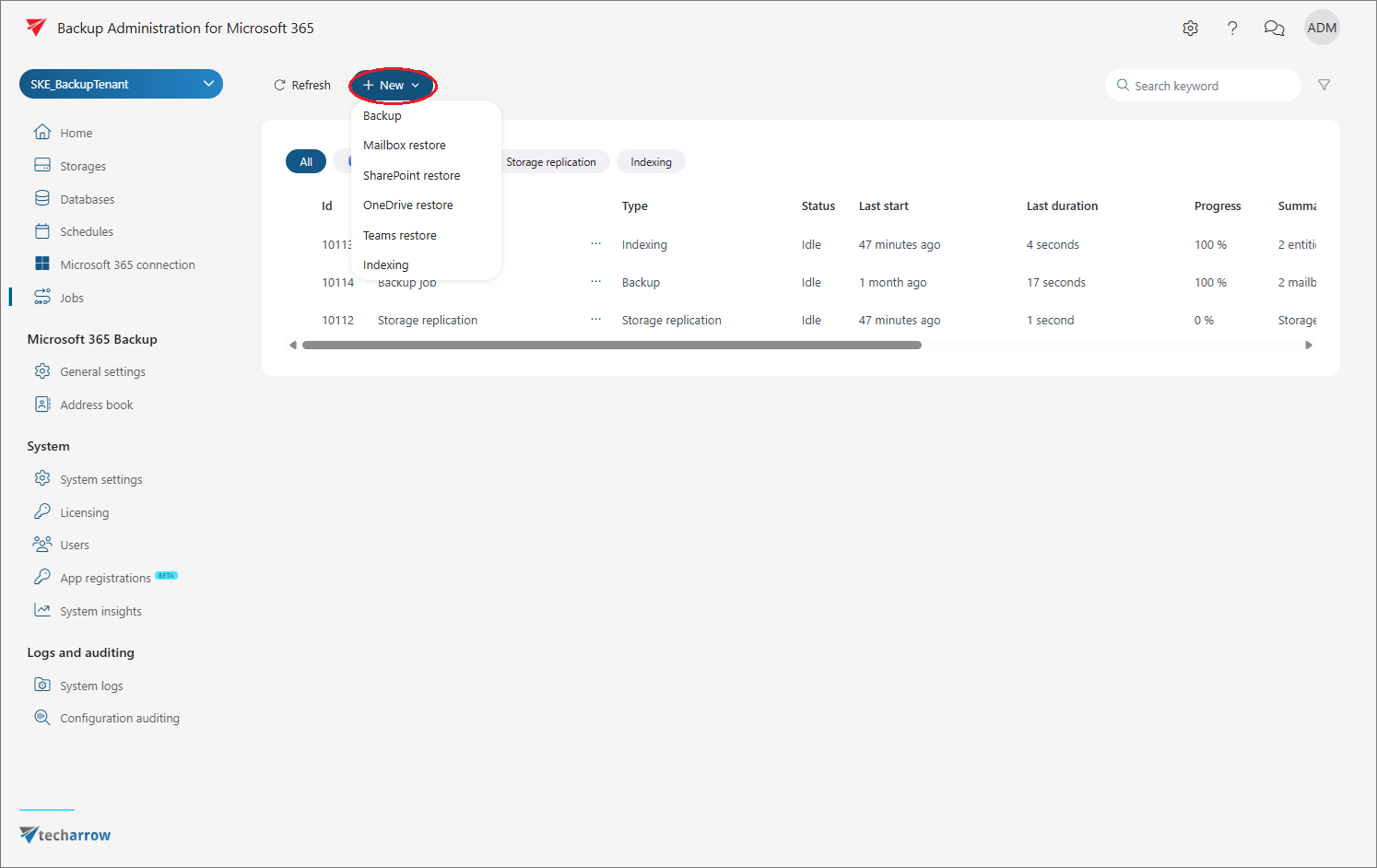
To create a new job, navigate to the Jobs page and click + New.
Select the required job type from the dropdown menu. Depending on the selected type, the available options include Backup, Mailbox restore, SharePoint restore, OneDrive restore, and Teams restore.
The corresponding job configuration window opens, where you can configure the job according to your requirements.
Further information about configuring each job type is provided in the corresponding subsections.
View jobs
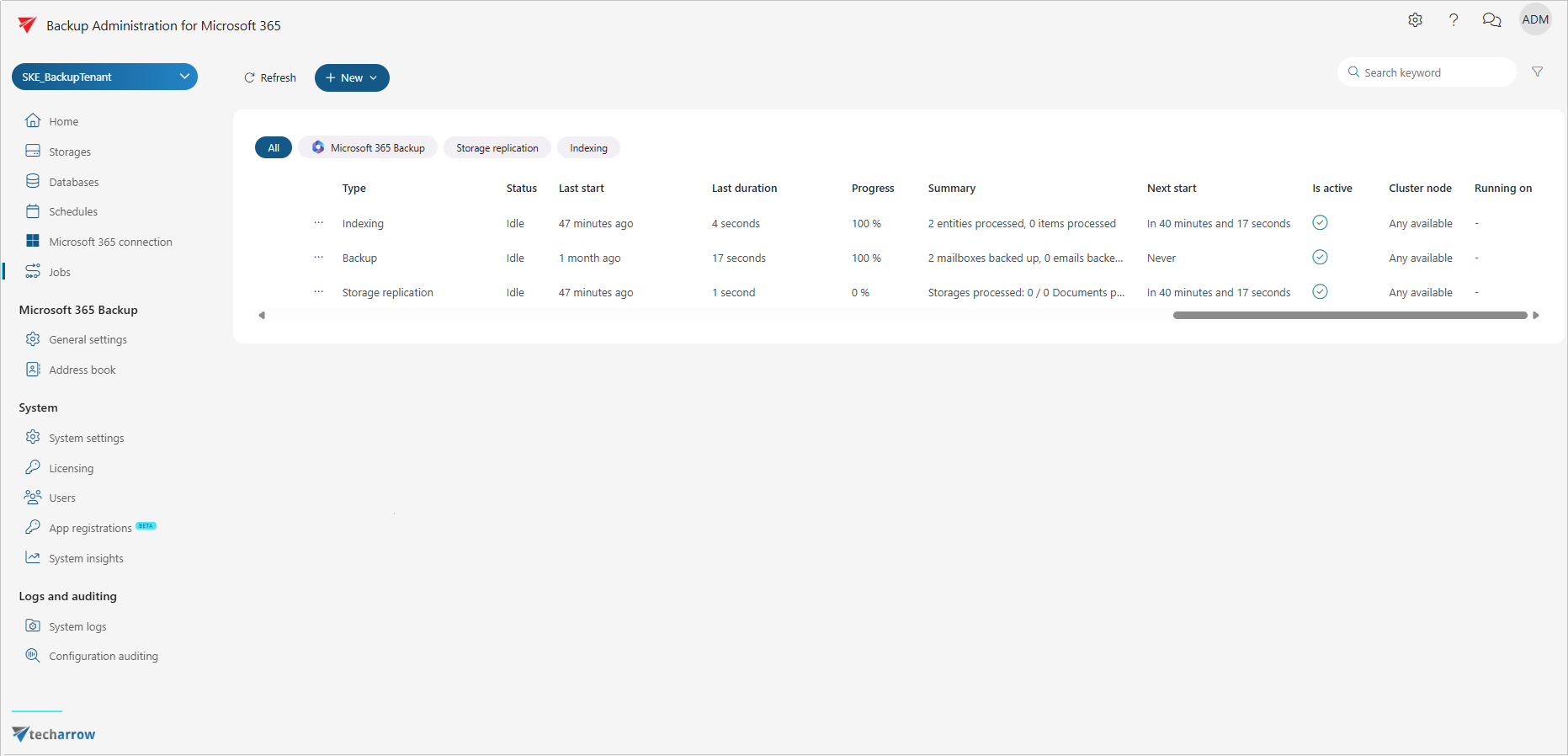
The Jobs page displays the available jobs in a grid. You can refresh the list by clicking Refresh.
The grid contains the following information:
- ID: The ID number of the job.
- Name: The name of the job.
- Type: The type of the job.
- Status: The current status of the job. Idle means that the job has completed its task and is not currently running.
- Last start: The time when the job was last started.
- Last duration: The duration of the last job run.
- Progress: The volume of items that have already been processed.
- Summary: An overview of the processed, skipped, and failed items.
- Next start: The time when the job will restart processing if a Periodical or Week schedule with repeat schedule is configured.
- Is active: Indicates whether the job is active or deactivated. Active jobs run according to their schedule. Deactivated jobs do not run and cannot be started manually.
- Cluster node: The cluster node where the selected job can run.
- Running on: The cluster node where the job is currently running.
Manage jobs
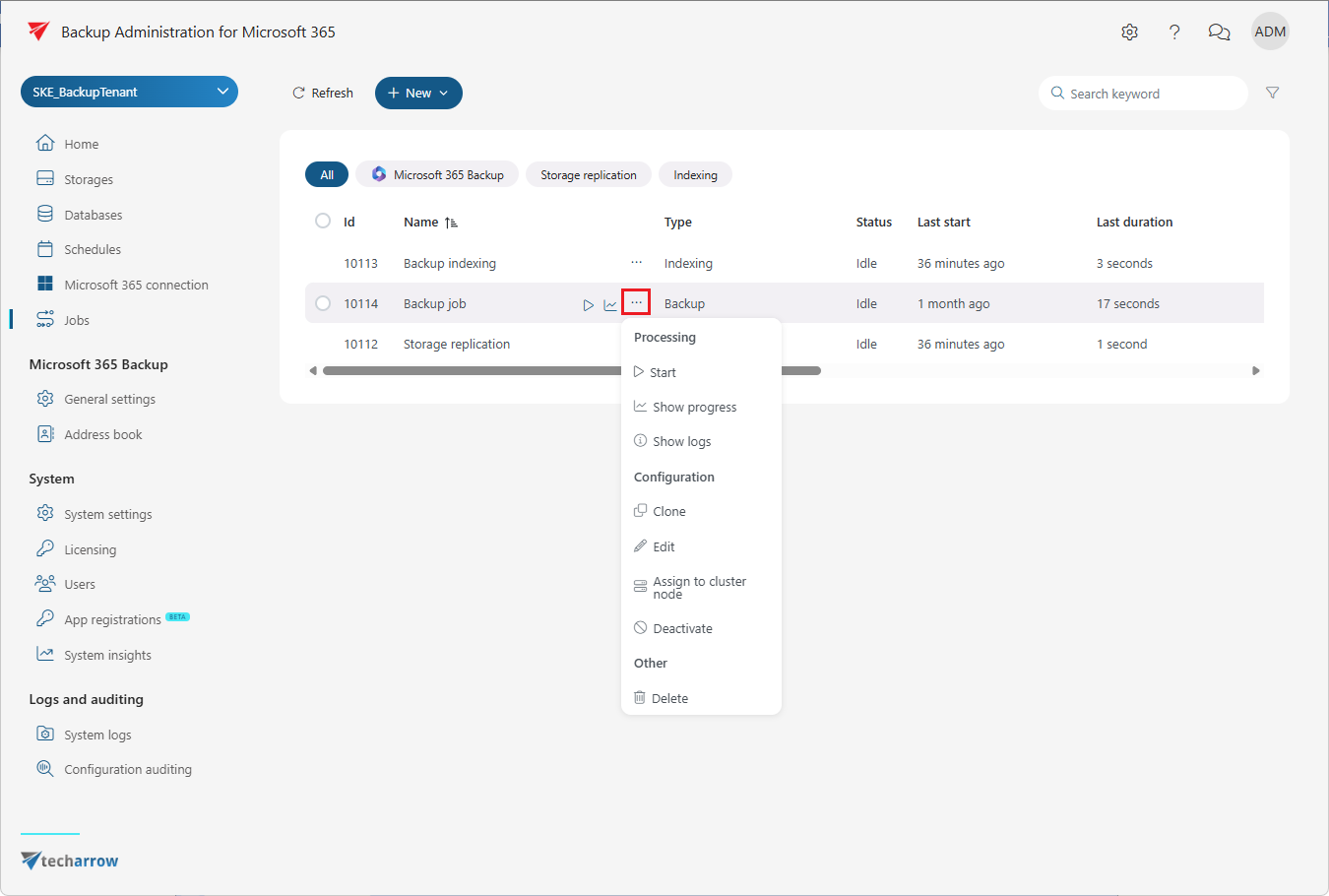
You can manage a job from its context menu. To open the menu, select the required job and click the ellipsis (…).
The context menu provides the following options:
- Start/Stop: By default, Start is available, allowing you to start the job manually. After the job starts, Stop becomes available and allows you to stop the selected job.
- Show progress: Opens the Job progress page, where you can monitor the job's progress and view the session logs.
- Show last logs: Opens the System logs page. The last run of the selected job is preselected, and the corresponding events are displayed in the event table.
- Clone: Creates a copy of an already configured job. The cloned job has the same configuration as the original job. When you select Clone, the Clone job window opens with the display name automatically filled in. You can change the name and click Clone to create the job.
- Edit: Opens the Job configuration window, where you can modify an existing job.
- Assign to cluster node: Opens the Assign job to cluster node window, where you can assign a cluster node to the selected job.
- Deactivate: Deactivates a job that is not currently in use but may be needed in the future. Deactivating a job does not delete it. The job is marked as inactive, does not run according to its schedule, and cannot be started manually. Running and waiting jobs cannot be deactivated.
- Delete: Permanently deletes the selected job. Running and waiting jobs cannot be deleted.
Search and filter jobs
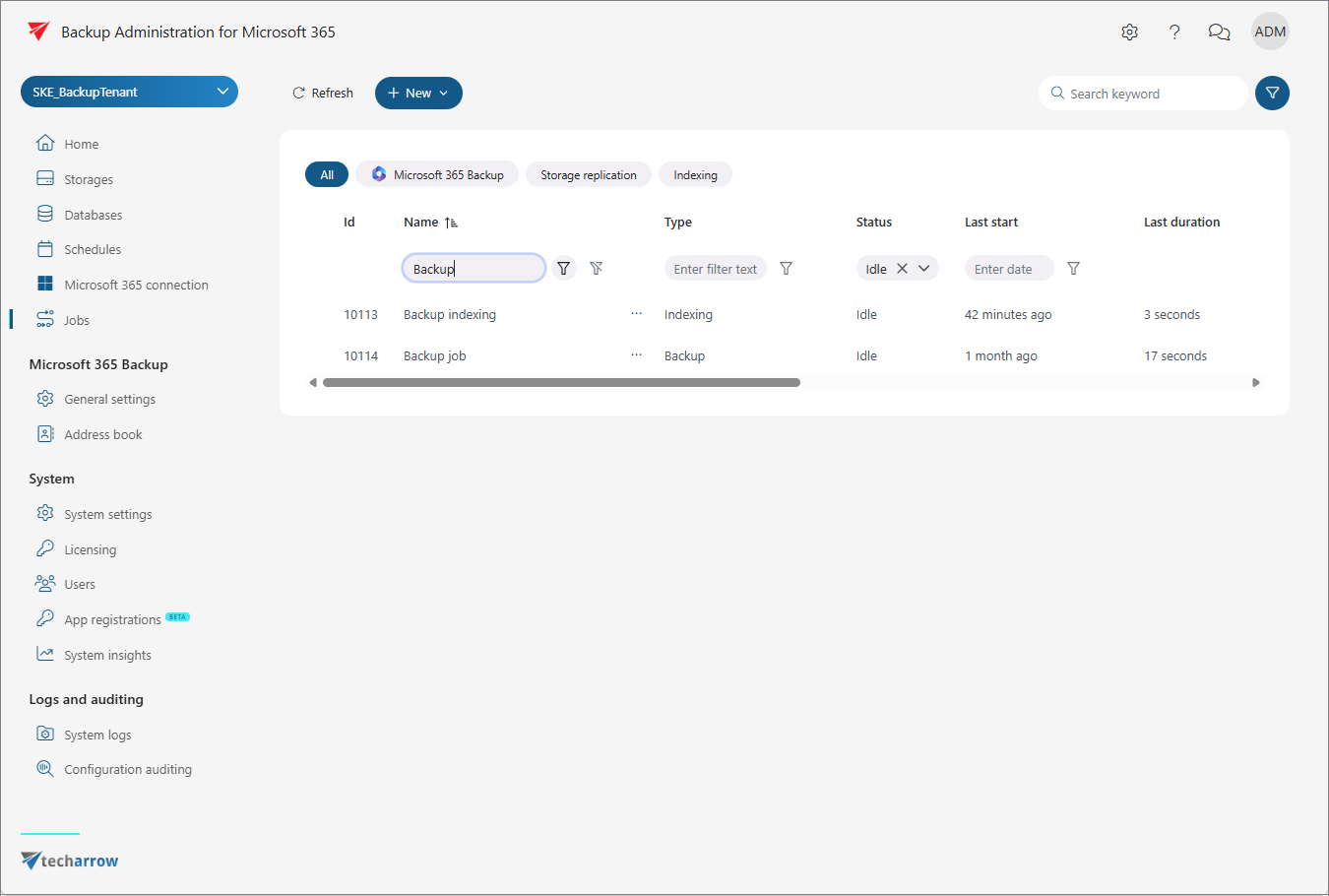
You can search for jobs using the search textbox in the upper-right corner of the page.
You can also filter the jobs displayed in the list. To filter by job type, select one of the available options, such as All, Microsoft 365 Backup, or Indexing.
To apply more specific filters, click the Funnel icon. An additional row appears below the column headings, allowing you to filter the displayed values.