Backup job
Introduction
The purpose of a backup job is to securely store data and prevent or aid any potential data loss. A backup job can be created from the Jobs page by clicking the + New button and selecting Backup from the dropdown menu. The Job configuration page will appear, where you can configure the backup job according to your requirements.
Backup job configuration
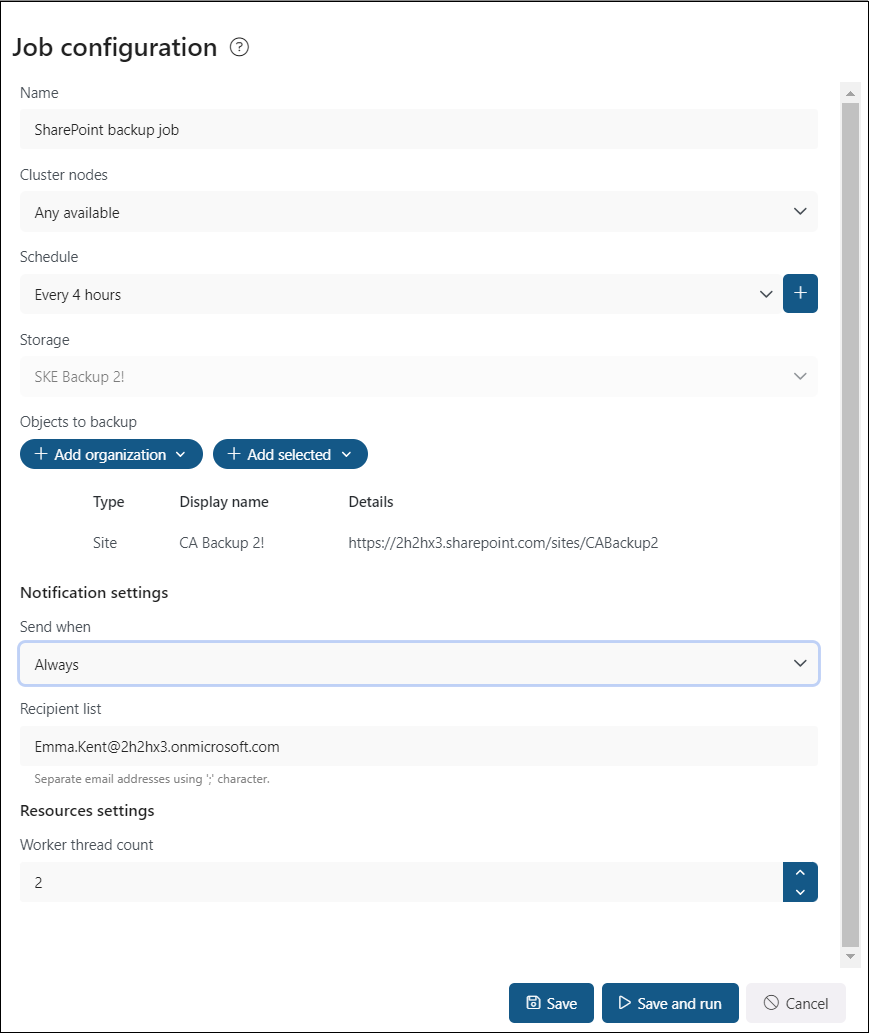
On the Job configuration page, configure the following sections:
- Name: Each backup job requires a unique name to distinguish it from other backup jobs. It is recommended to give the job a name that clearly indicates the model the backup was created for.
- Cluster nodes: Select the node where the backup job will run.
- Schedule: Select the running times of the backup job. You can either select an existing schedule from the list or create a new one by clicking the + button in the Schedule row. For backup jobs, it is recommended to set up a schedule that runs continuously or at specific times during the week. For more information about configuring schedules, see Schedules.
- Storage: The processed binaries are stored in the default storage configured on the Storages page. This section cannot be edited on the Job configuration page because the default storage is automatically used for the backup job. For more information about configuring storages, see Storages.
- Objects to backup: Select the mailboxes, mailbox groups, SharePoint and OneDrive sites, teams, and private chats to be processed. See the Objects to backup section below for details.
- Notification settings: Configure when the backup job should send notification emails. You can choose to receive notifications always, never, or only when an error or warning occurs — for example, when the backup of one or more items fails. Enter the recipient email addresses in the Recipient list textbox.
- Resource settings: Set the value that determines how many items can be processed simultaneously by the backup job. The recommended value is 2.
Objects to backup
In this section, select the mailboxes, Microsoft 365 groups, mailbox groups, SharePoint and OneDrive sites, teams, and private chats to be processed by the backup job.
You can select from the following options:
- + Add organization: Processes the whole organization or all mailboxes, SharePoint sites, OneDrive sites, teams, or private chats.
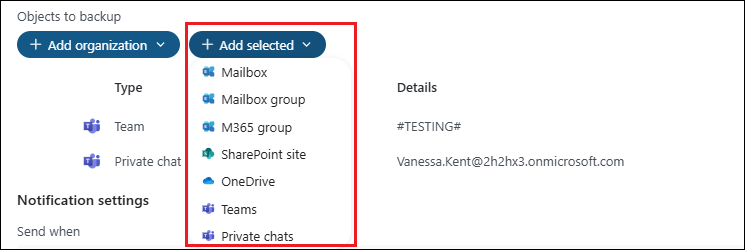
- + Add selected: Processes only the selected mailboxes, mailbox groups, SharePoint sites, OneDrive sites, teams, or private chats.
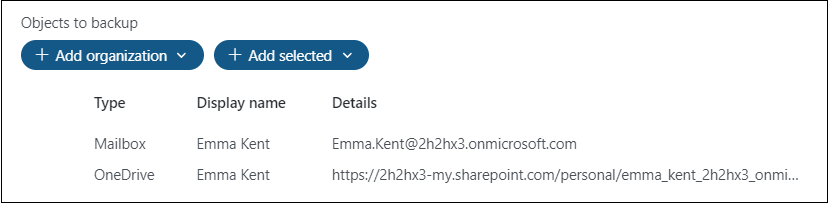
If you select the whole organization or all available entities, the selected entities are listed in the Object to backup section. To back up only selected entities, click + Add selected and select the required entity type from the dropdown menu.
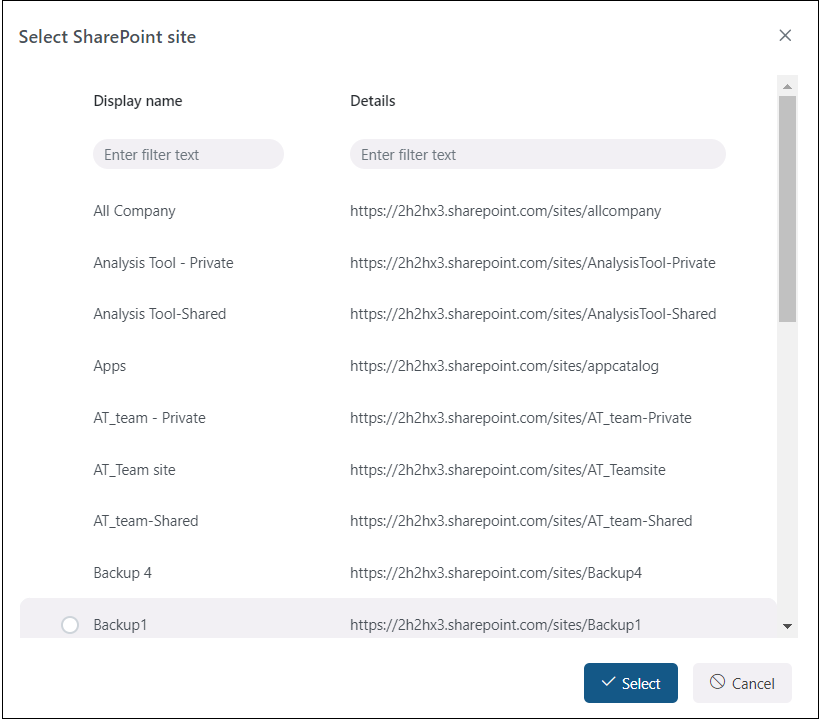
A repository of the available mailboxes, mailbox groups, SharePoint sites, OneDrive sites, teams, or private chats opens in a pop-up window. Select the required entities and click Select.
If Organization, All teams, or Selected teams is selected, the Unlicense users not belonging to any Team option becomes available in the Backup Job configuration window. When enabled, the backup job checks whether users belong to any team within the selected scope. If a user is not a member of any backed-up team, the provisioning job removes their Team license. As a result, the user's status in Address Book → Users → License status changes to Allowed, and the license count on the license server is reduced accordingly.
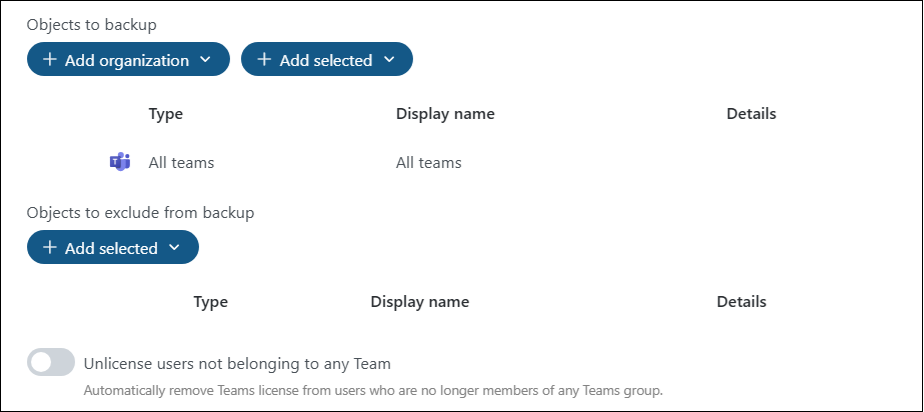
Note: The Unlicense users not belonging to any Team option does not apply to private chats. It only works with backed-up teams.
You can also remove previously selected entities. Select the entity you want to remove, and the Remove option will appear in the Object to backup section.
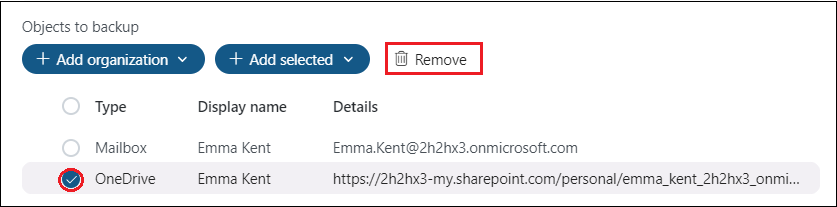
Note: You can select multiple entities of different types. For example, you can back up mailboxes and teams using the same backup job.
Save and run the backup job
After configuring the backup job, click Save at the bottom of the page to be redirected to the Jobs page. If you want to start processing immediately, click Save and run — the backup job starts and you are redirected to the Job progress page.
Monitor job progress
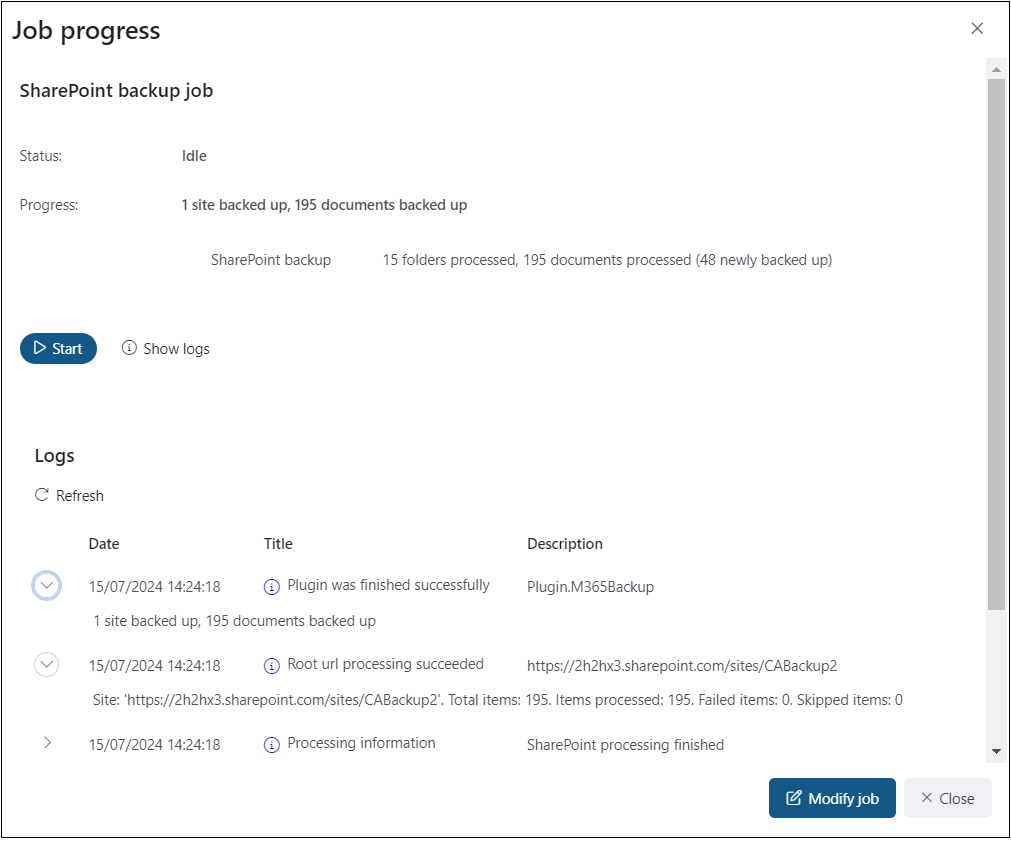
On the Job progress page, you can monitor the backup job and check its current status and progress.
The progress bar shows the current state of the job and the progress of the backup. You can also:
- restart a finished job or stop a running job using the Start/Stop button;
- view the latest logs by clicking Show last logs;
- view the session logs of the currently running job; and
- modify the job by clicking Modify job, which redirects you to the Job configuration page.