Filtering in jobs
Introduction
This page describes the filtering settings available in restore jobs in Backup Administration for Microsoft 365. Filtering allows you to refine which items are processed based on various conditions.
Filtering settings are only available in restore jobs, not in backup jobs. Each job type has its own filtering categories.
Available filter categories
Mailbox restore job
- All text – Body, Recipients, Sender, Subject, Attachment filenames and content
- BCC
- Body – content of the email
- Category
- CC
- End date – the end date of the calendar item or task
- Folder path – folder path of the parent folder where the item is located
- Has attachment – Yes/No
- Importance
- Is from In-Place Archive – present only if at least one In-Place Archive exists in the address book
- Is recurring
- Message class
- Received date
- Recipients
- Sender
- Sensitivity
- Sent date
- Size – the size of the item
- Start date – the start date of meetings, tasks, and other calendar items
- Subject
- Task completed – whether the task is completed or not (Yes/No)
- Task completed date
- Task due date
- To
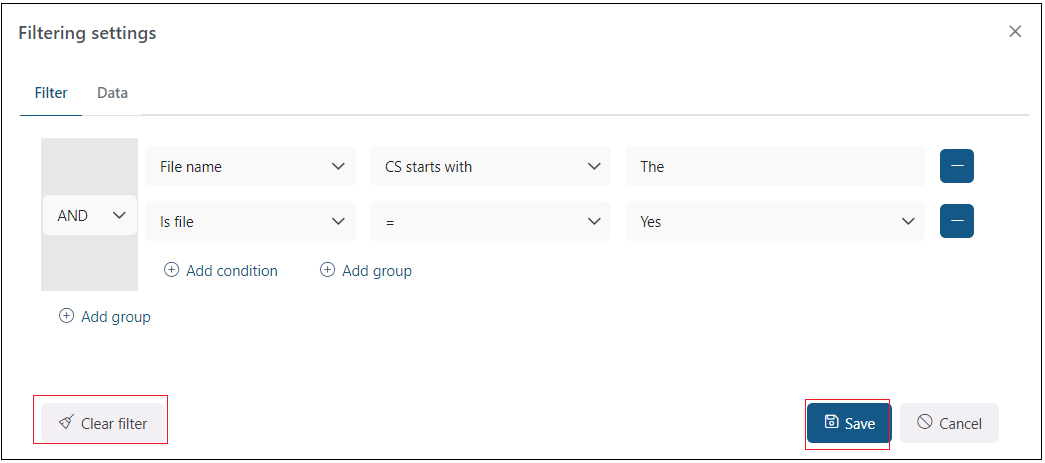
SharePoint and OneDrive restore jobs
- All text – file content and metadata
- Creation date – the creation date of the file
- Extension – must include the dot, for example: .jpg, .docx, .pdf
- File name
- Is file – Yes/No
- Modification date – the modification date of the file
- Path – folder or list path where the item is located
- Size – the size of the item
- URL – the path to the file
Configure filtering settings
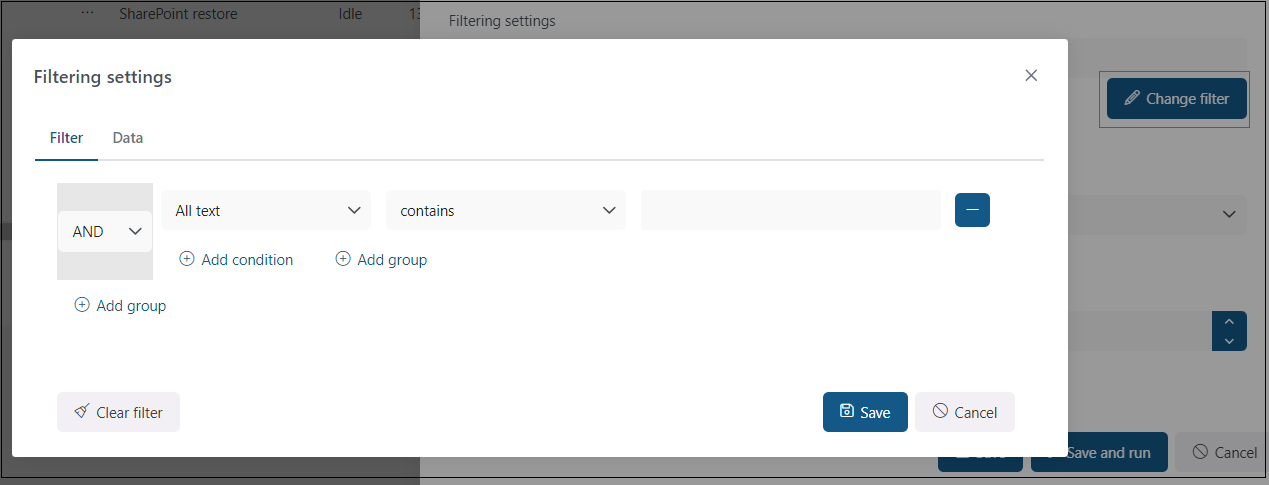
To configure filtering, click the Change filter button in the Job configuration window. The Filtering settings pop-up window opens, where you can set filtering options using the filter tab (user-friendly view) or the data tab (technical view). Changes made on either tab are automatically reflected on the other.
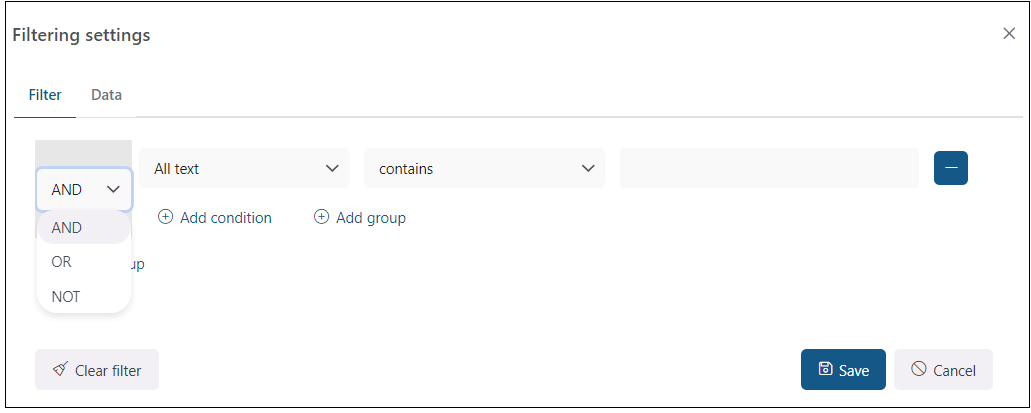
By default, the AND All text (contains) condition is displayed. You can modify it by selecting a type from the first dropdown list, an operator from the second, and entering the value in the third field.
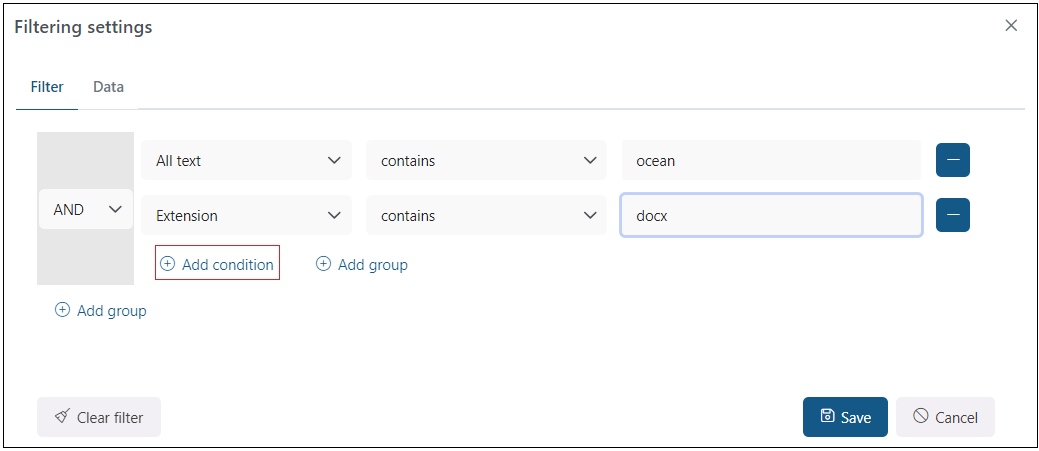
To add a new filtering condition, click + add condition.
Filtering conditions can also be grouped. To add a new group, click + add group.
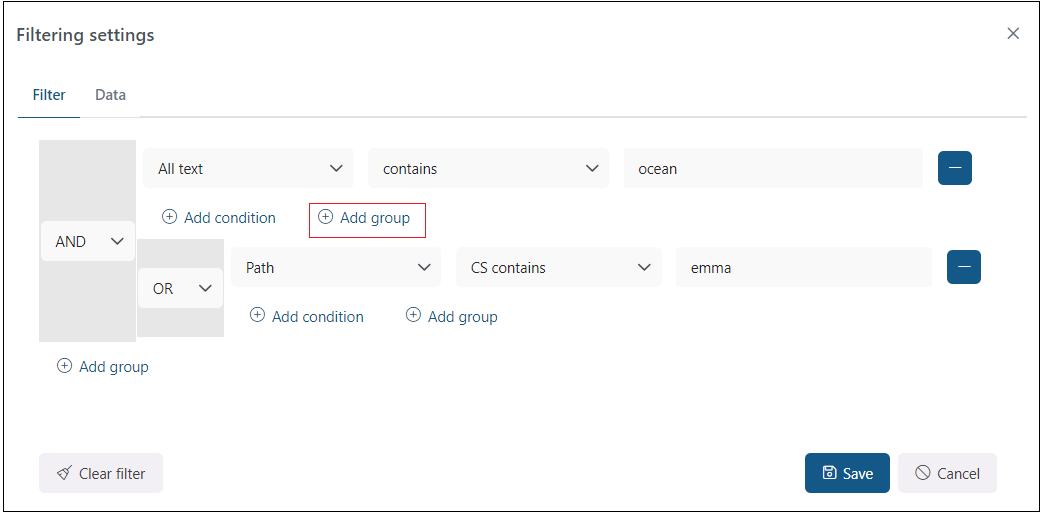
Group operators
Each group can use one of three operators, selectable from the operator dropdown:
- AND – processes items that meet all conditions in the group.
- OR – processes items that meet at least one condition in the group.
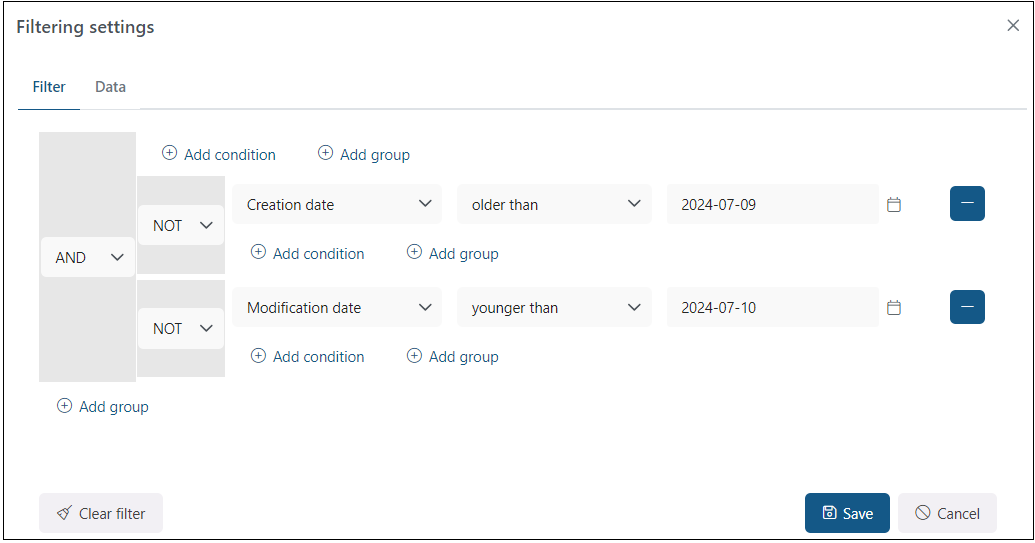
- NOT – excludes items that meet the conditions in the group. To add multiple NOT conditions, add them as shown in the second screenshot below.
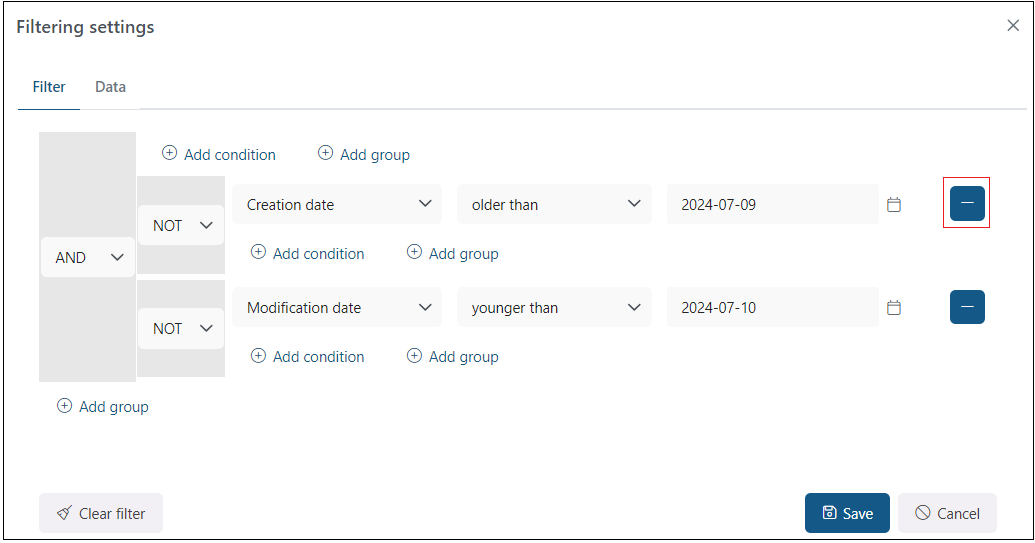
To remove a condition or group, click the – icon.
To save the configured filter, click Save. To remove all filtering conditions, click Clear filter.