Microsoft 365 connection
Introduction
In this section, we will explain how to register an application on the Azure portal, enabling Backup Administration for Microsoft 365 to authenticate and connect to the Microsoft Dataverse environment using modern authentication. Modern authentication is a category of several different protocols, rather than a single method such as username and password, that aim to enhance the security of cloud-based resources. It relies on token-based claims to authenticate with an identity provider and generate an access token. OAuth, an open standard, is used by many applications and websites to grant access to other systems' information without sharing passwords.
Backup Administration uses modern authentication to connect to Exchange Online, SharePoint, OneDrive, and Teams. This requires an Azure App registration configured on the Microsoft 365 tenant.
Manual configuration through the Azure portal is not required. You can either use an existing application to set up the connection, or the Register application process can automatically handle the connection and permissions on the Microsoft 365 connection page in Backup Administration.
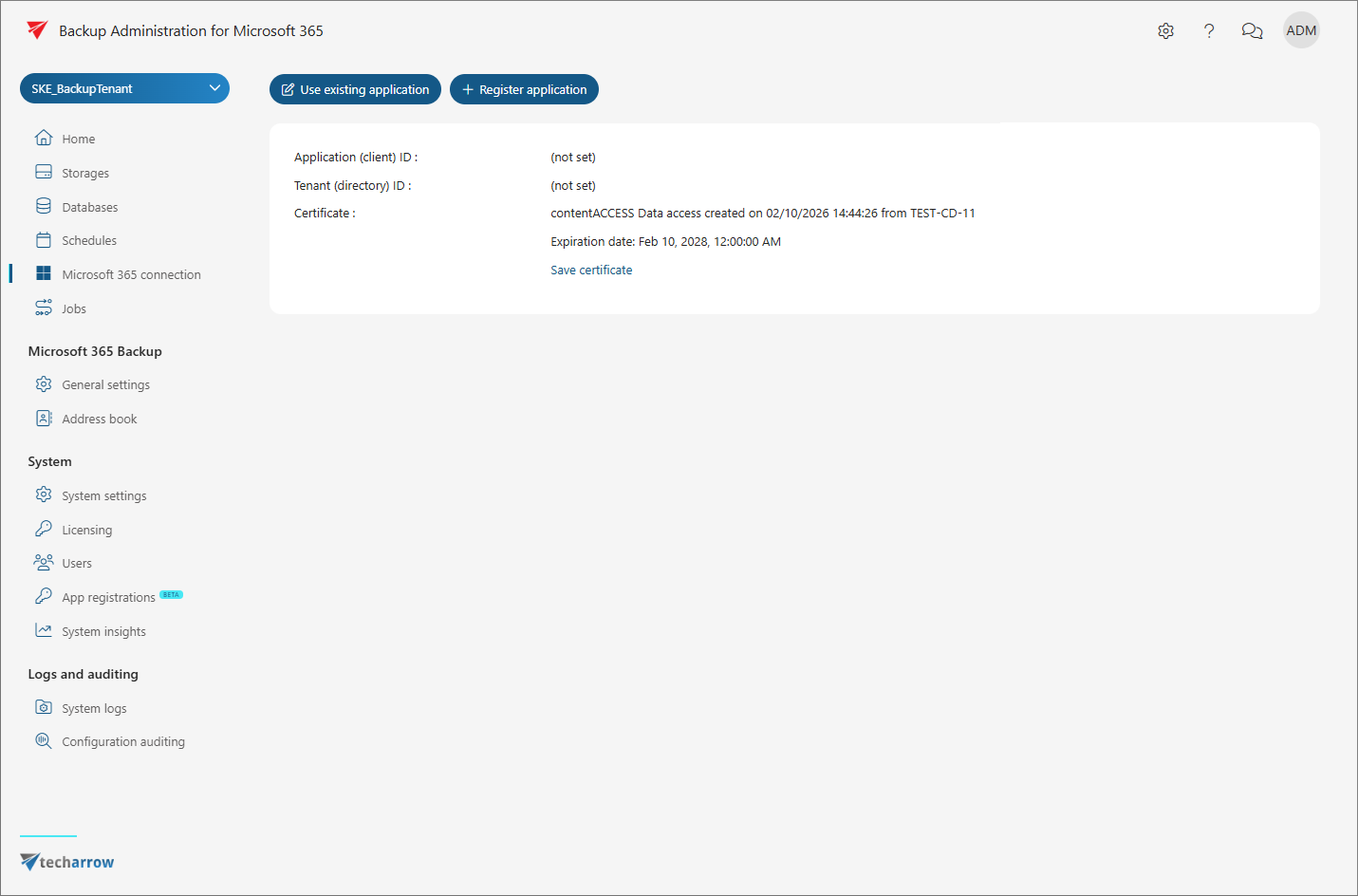
Use an existing application
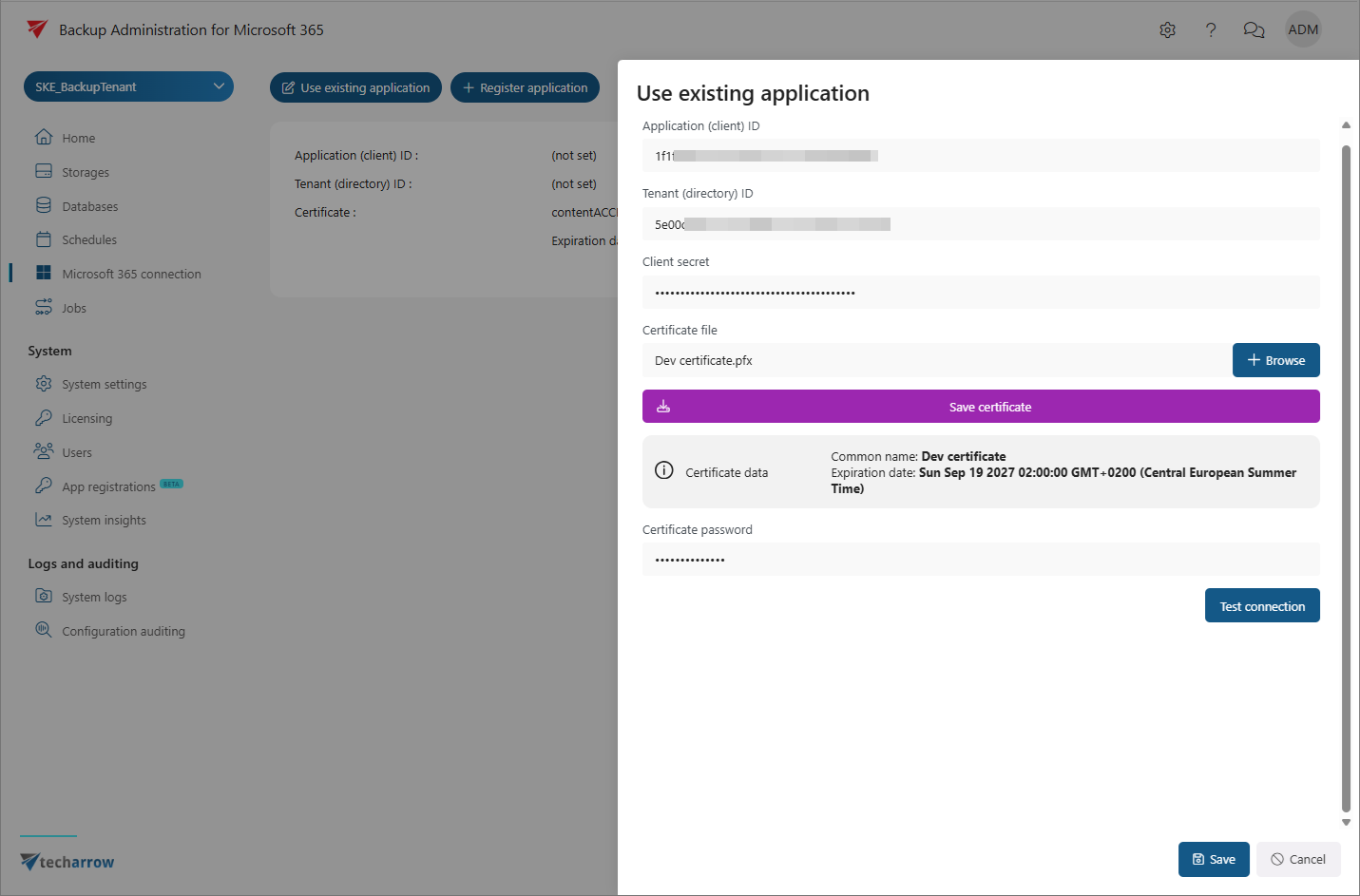
To configure the connection using an application that has already been registered, open the Microsoft 365 connection page and click Use explicit application.
In the pop-up window, configure the connection with the previously registered application.
You can verify the configuration by clicking Test connection.
The application must have the permissions required to authenticate and connect to Microsoft 365 services. The required permissions are described in the Requested permissions for Microsoft 365 connection subsection.
Register an application
You can use Backup Administration to create a new Azure application with the permissions required for contentACCESS.
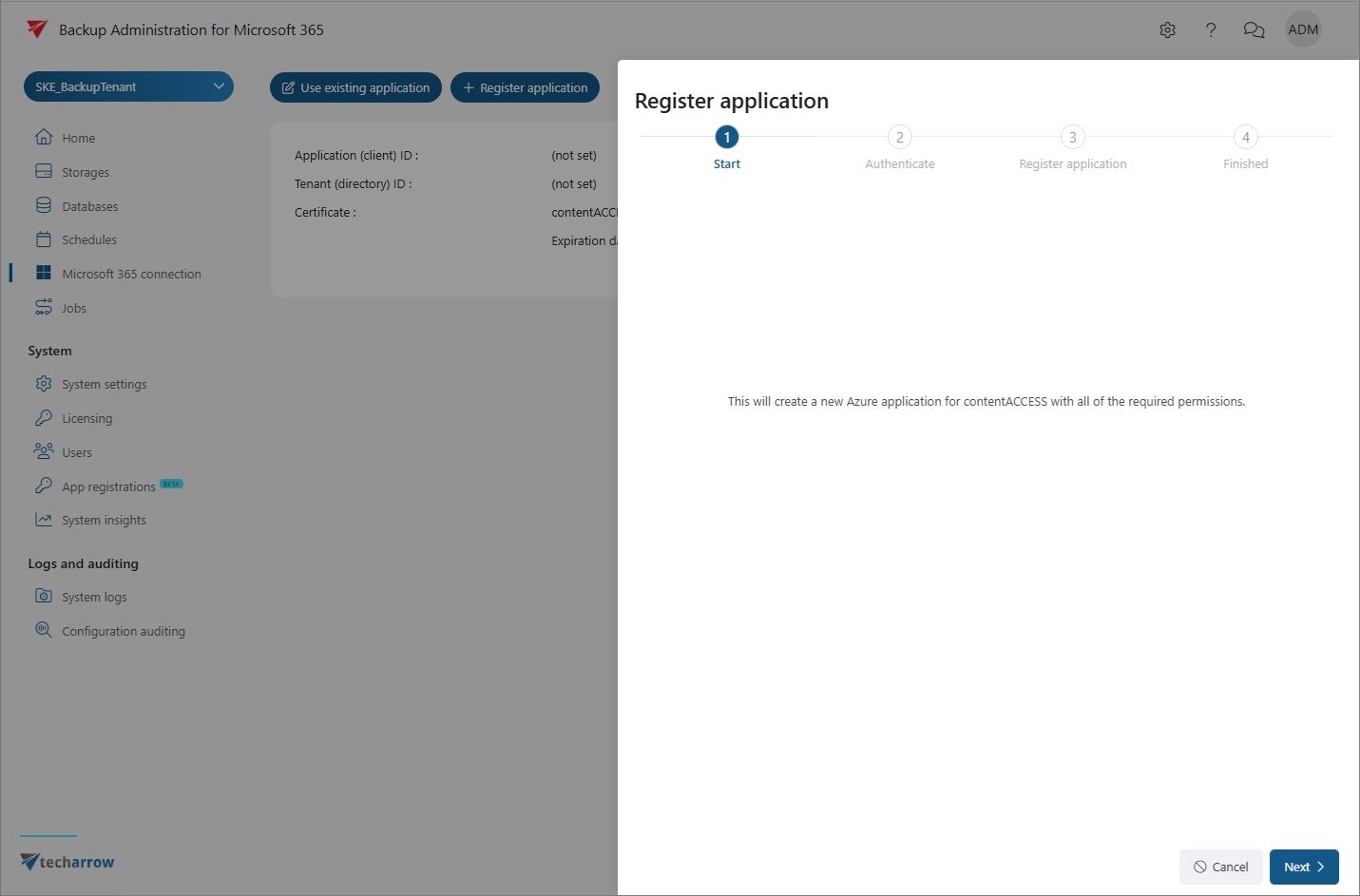
To start the registration process, click + Register application. In the Register application window, click Next.
The next step is authentication. Before clicking Next, copy the generated code or verify it by clicking the here link.
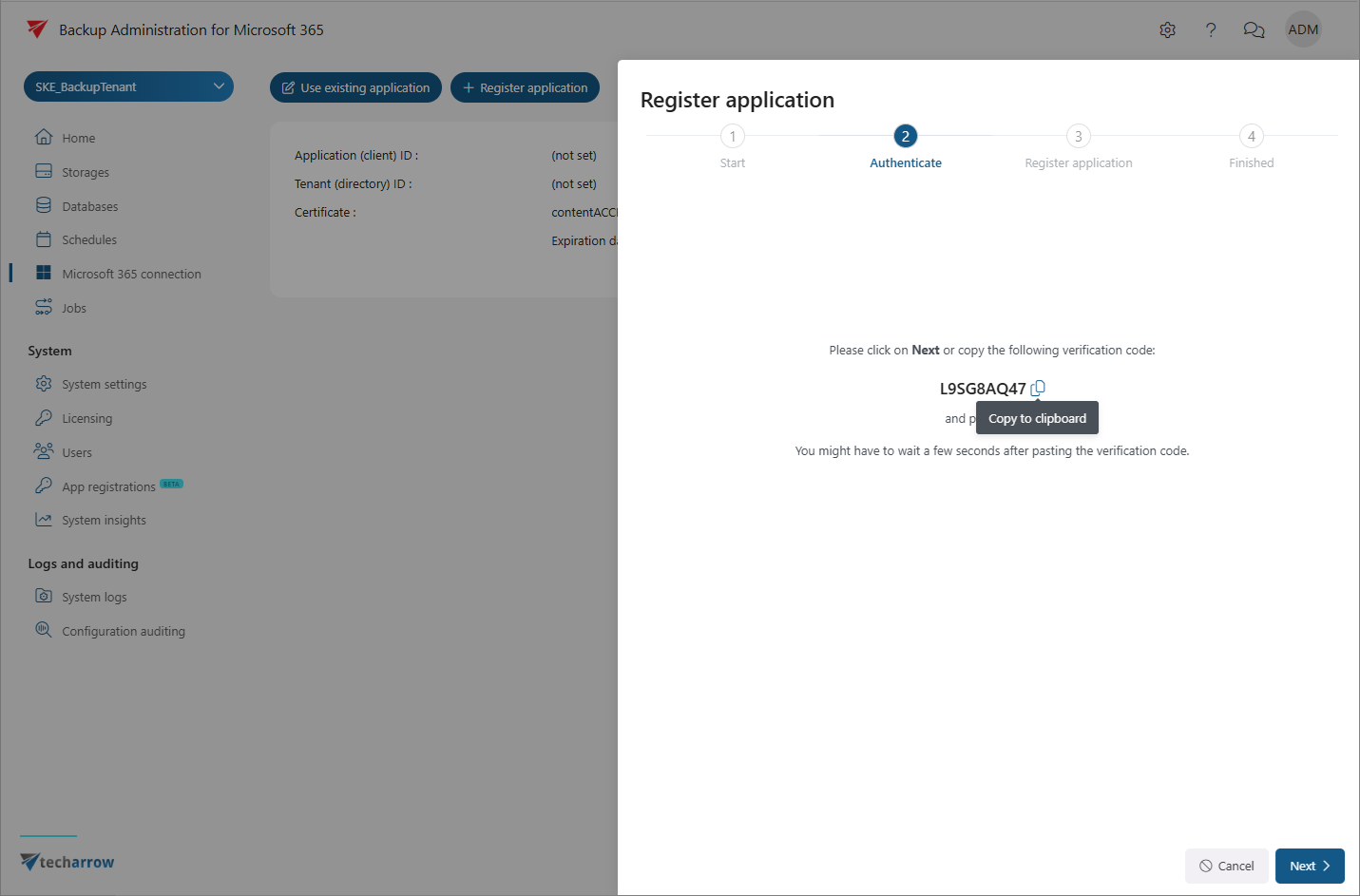
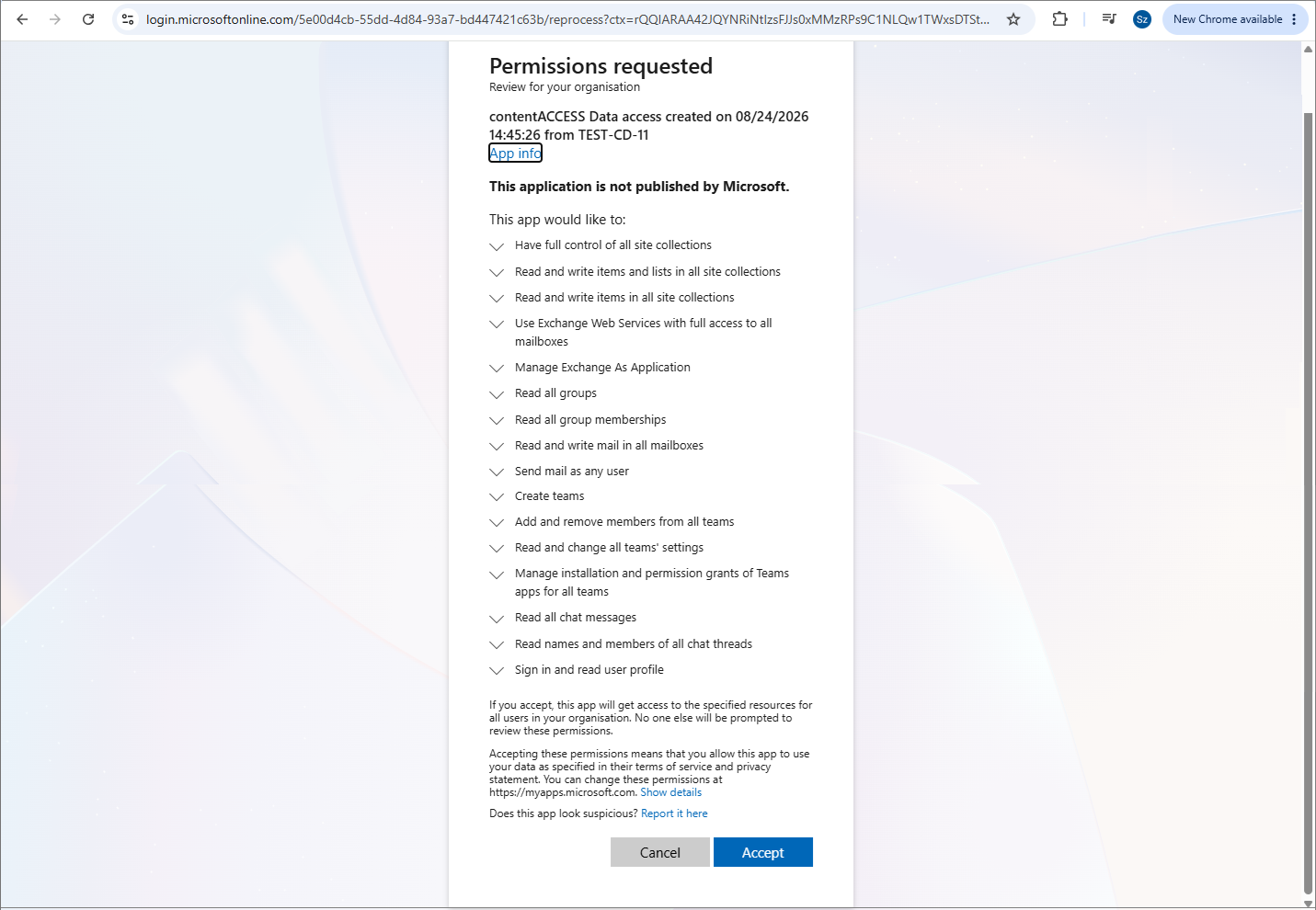
Enter the generated code, sign in to your Azure account, and accept the requested permissions. Use an Azure account with elevated administrative rights that can register applications and grant tenant consent for permissions.
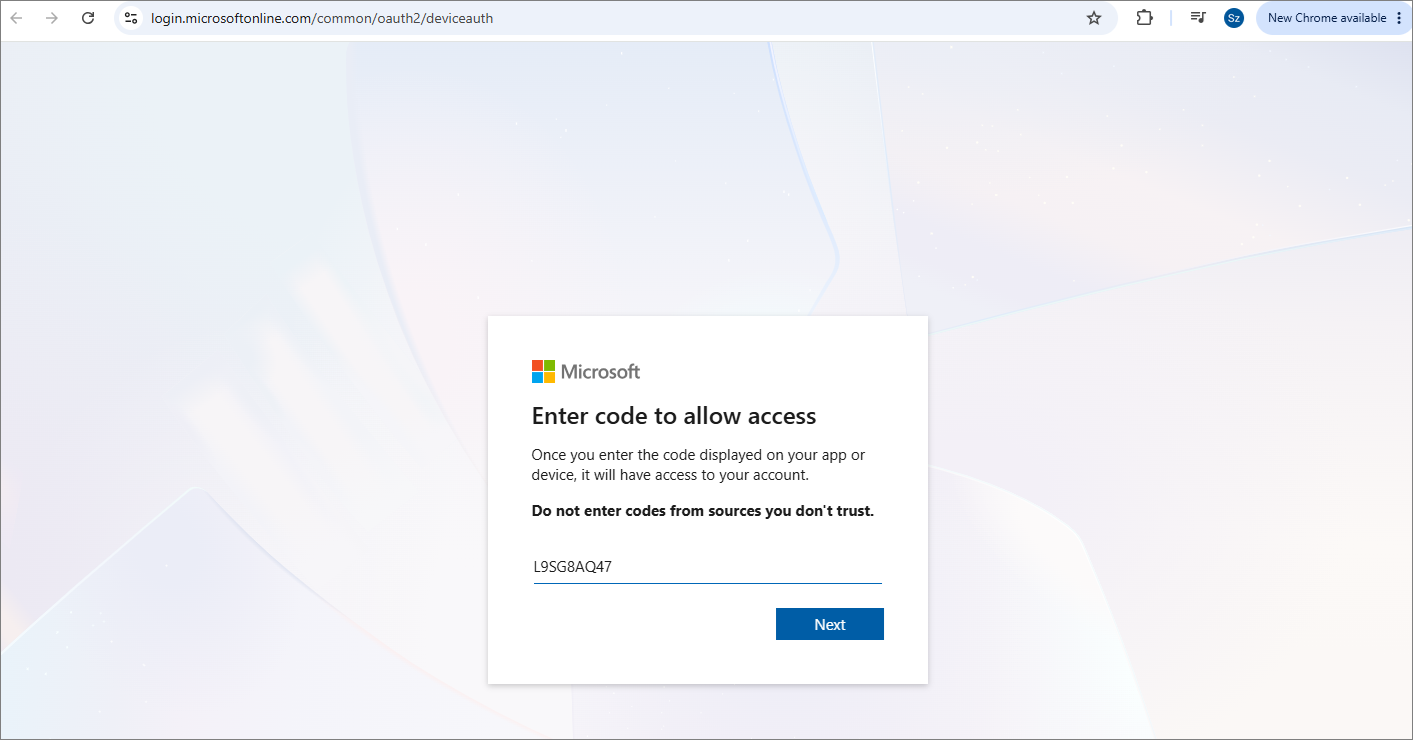
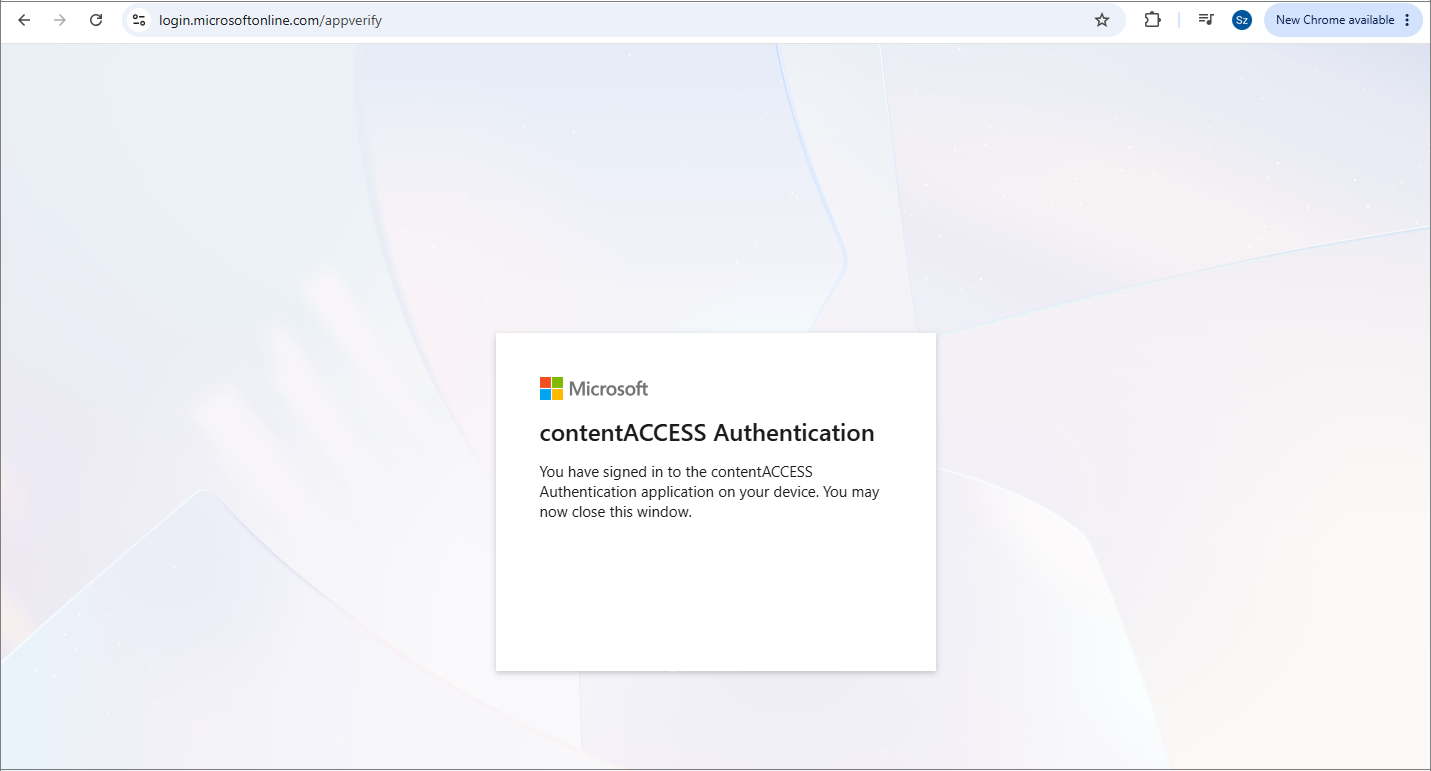
After completing the authentication, return to the Microsoft 365 connection page to continue the registration process.
The third step is app registration. The registration may take some time. Do not close the window or leave the page while the application is being registered.
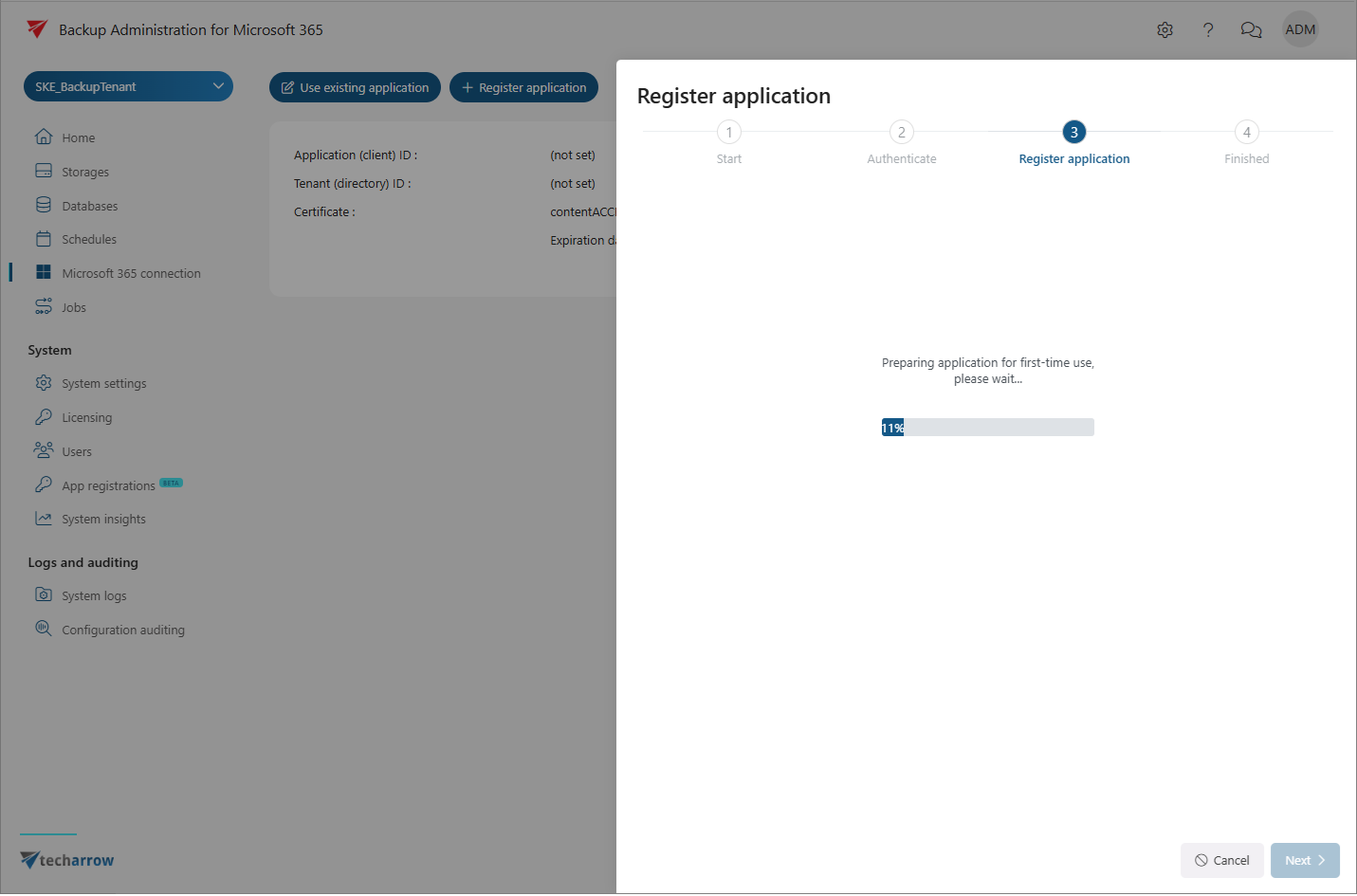
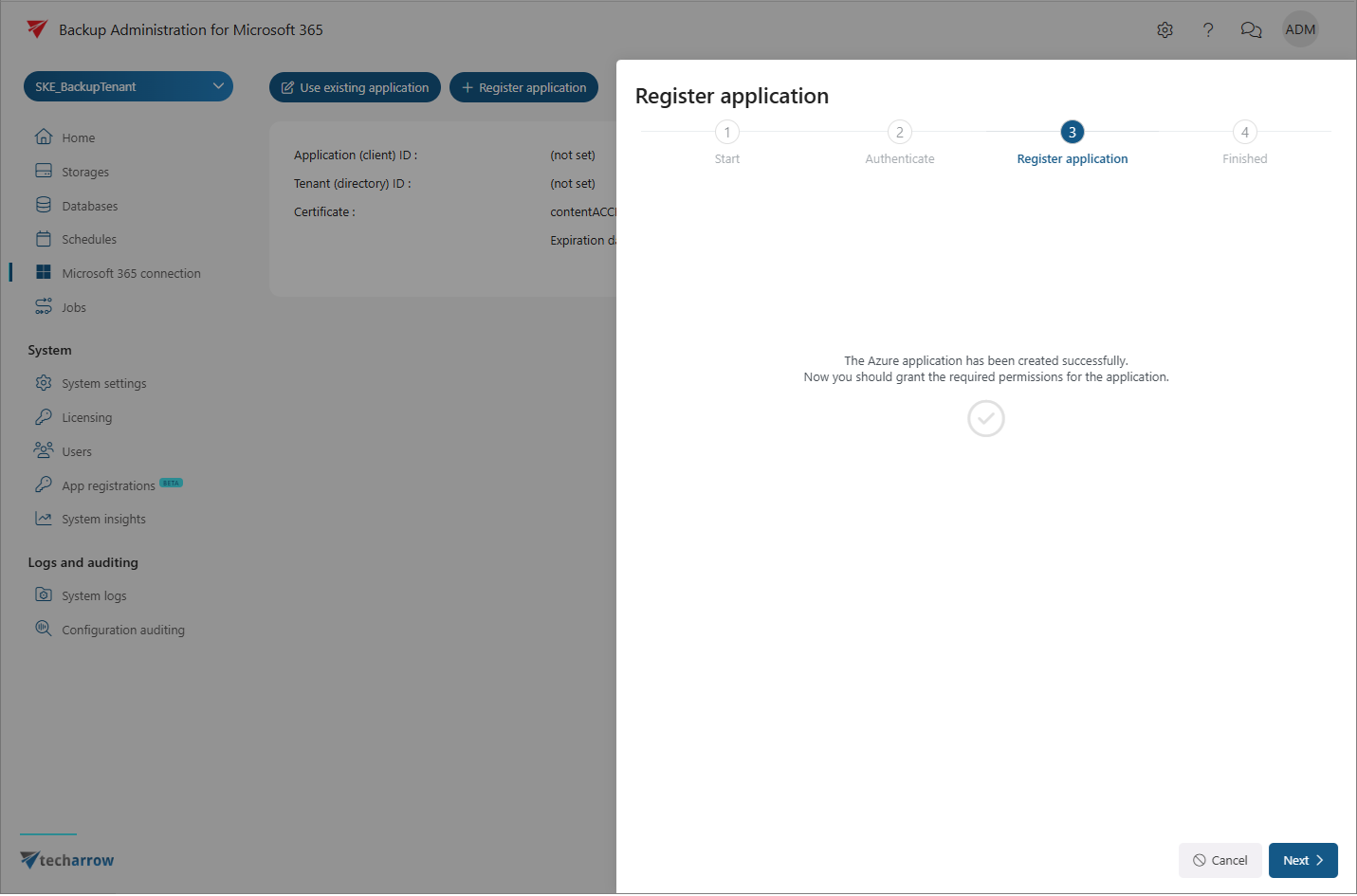
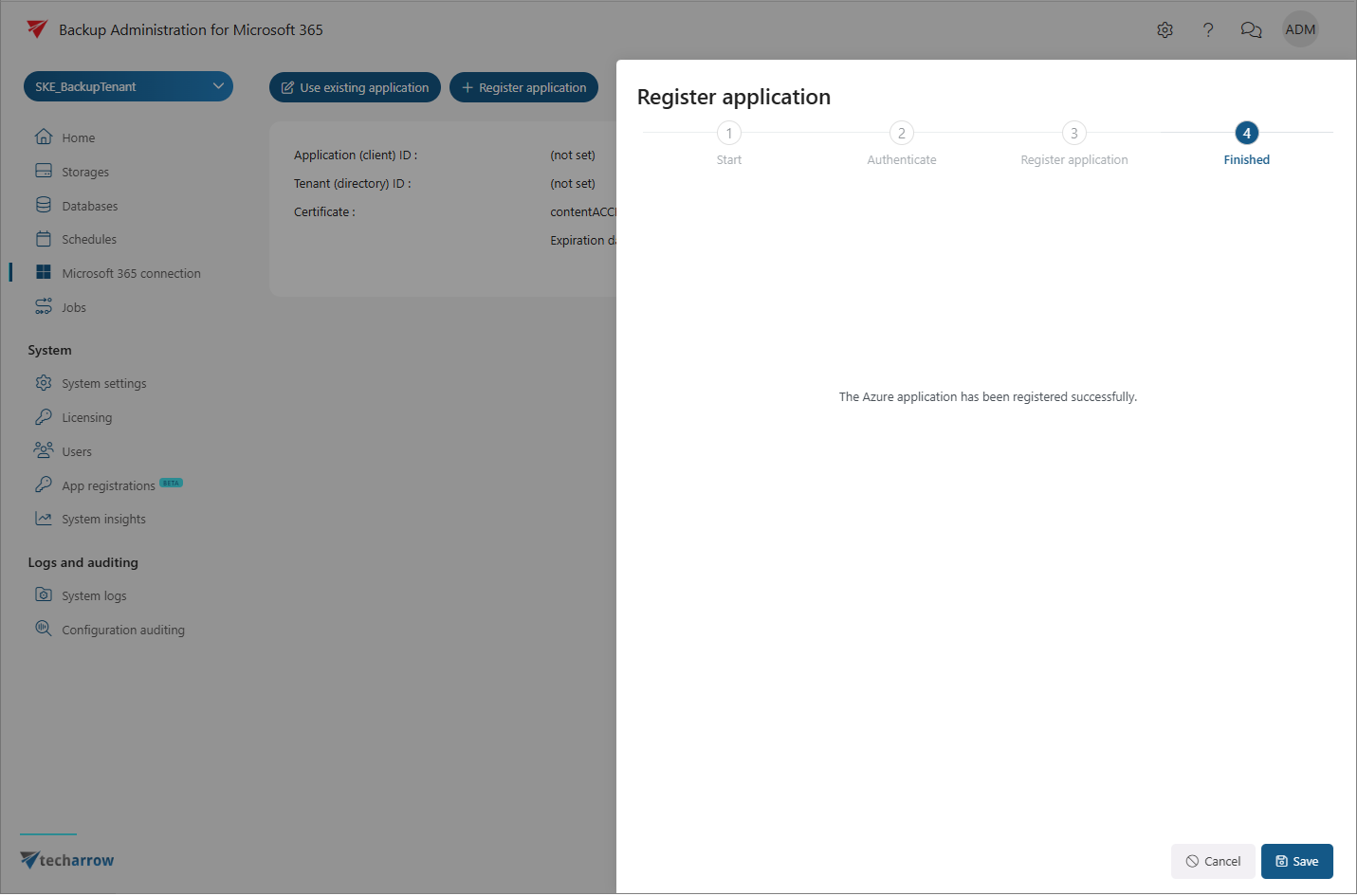
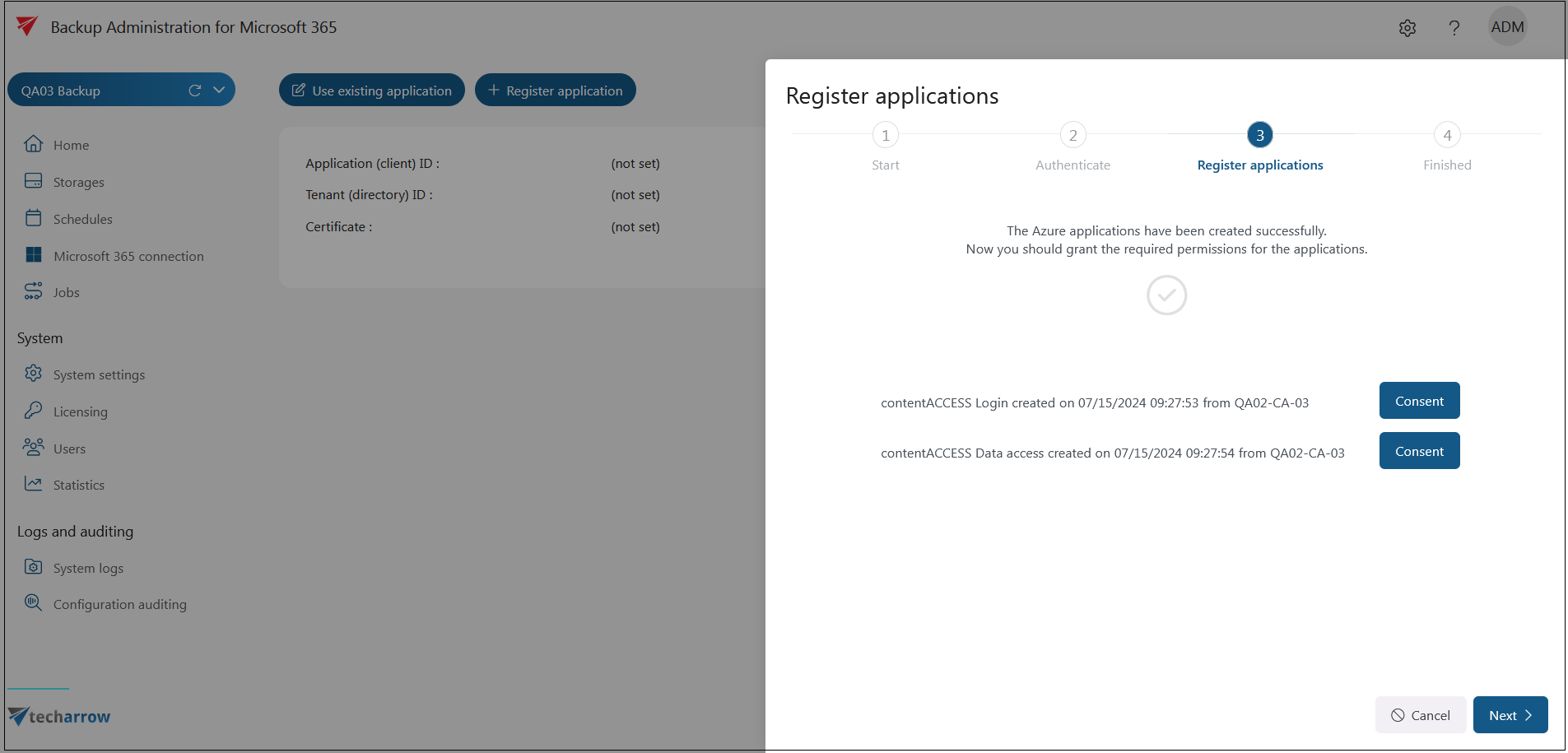
When the registration is complete, the Azure application is created and you must grant the requested permissions for the application.
Configure the Azure login provider
The Microsoft 365 connection can also create an Azure login provider if one does not already exist. This is required so users can sign in to Backup Administration with their Microsoft 365 accounts (single sign-on) and access their backed-up data.
For this functionality, the User.Read.All permission must be consented to in the Azure portal. For more information about Azure App registration, see the Azure app registration for Microsoft 365 archiving article.
When you start configuring the Microsoft 365 connection, the wizard checks whether an Azure login provider is already configured.
If no Azure login provider exists, the wizard creates two Azure applications:
- contentACCESS login: Used by the login provider.
- contentACCESS Data access: Used for the backup itself.
You must consent to the permissions for both applications.
The login provider is created when you save the Microsoft 365 connection settings. This login type is required for processing Azure users.
If an Azure login provider is already configured, the activation process skips this step.
Complete and activate Microsoft 365 Backup
After granting the requested permissions, return to Backup Administration and click Save to complete the registration.
After the registration is completed, the Use explicit application button is replaced by Modify application. You can use this button to modify the registered application if necessary.
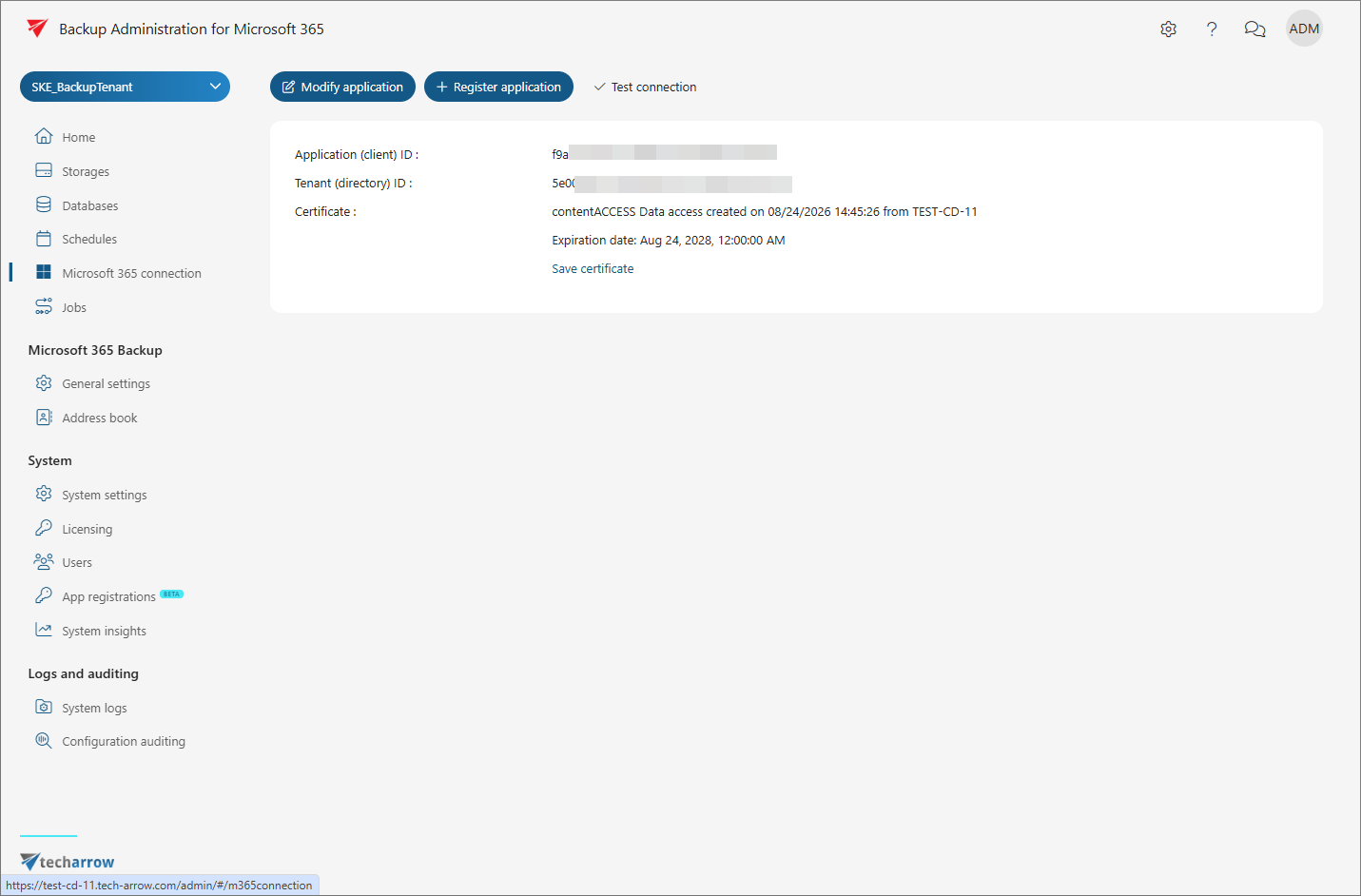
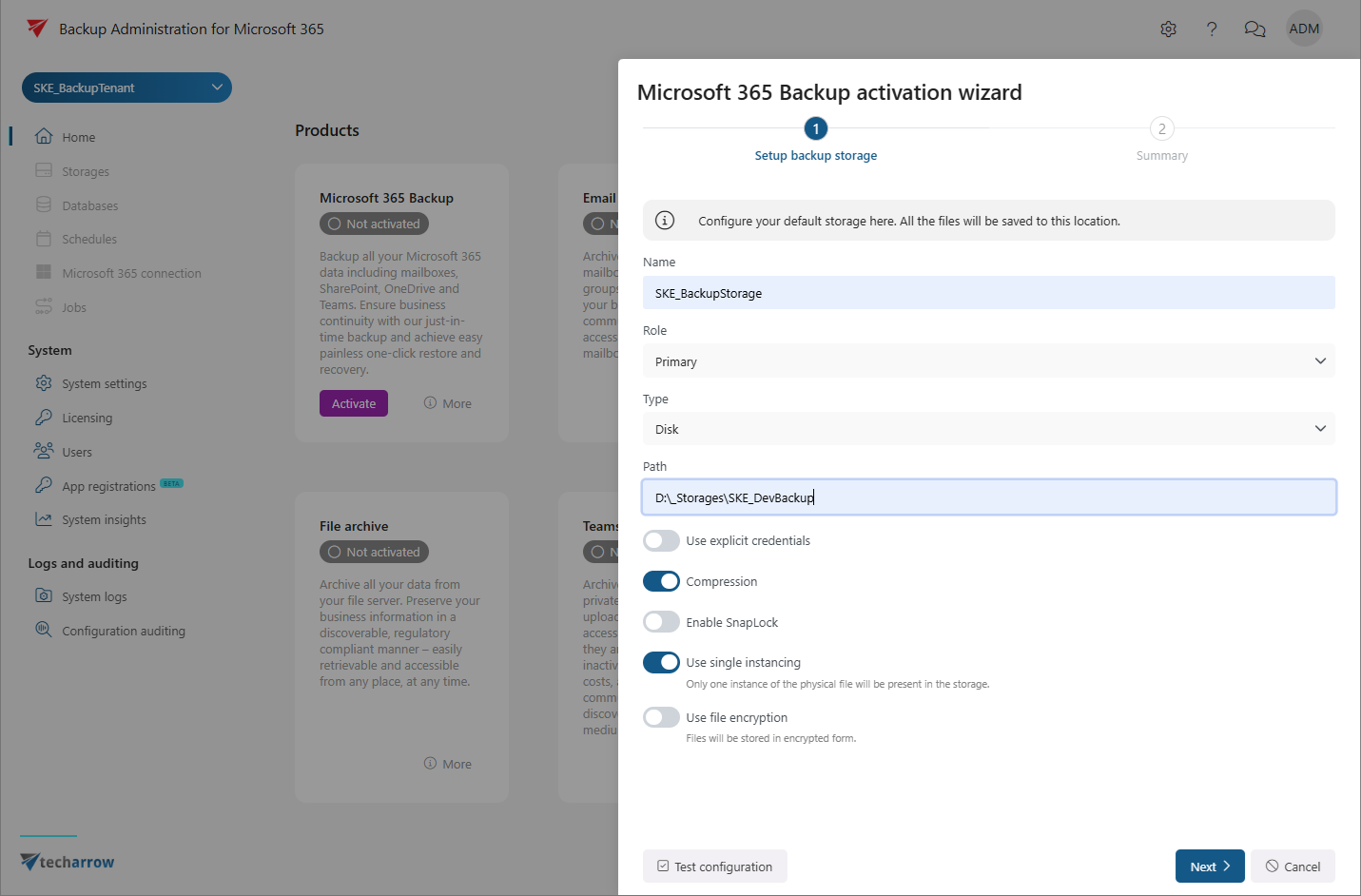
Once the Microsoft 365 connection has been configured, the M365 Backup activation wizard guides you through configuring the backup storage and activating the module.
Click Activate on the Home page to start the activation wizard.
In Step 1, configure the backup storage.
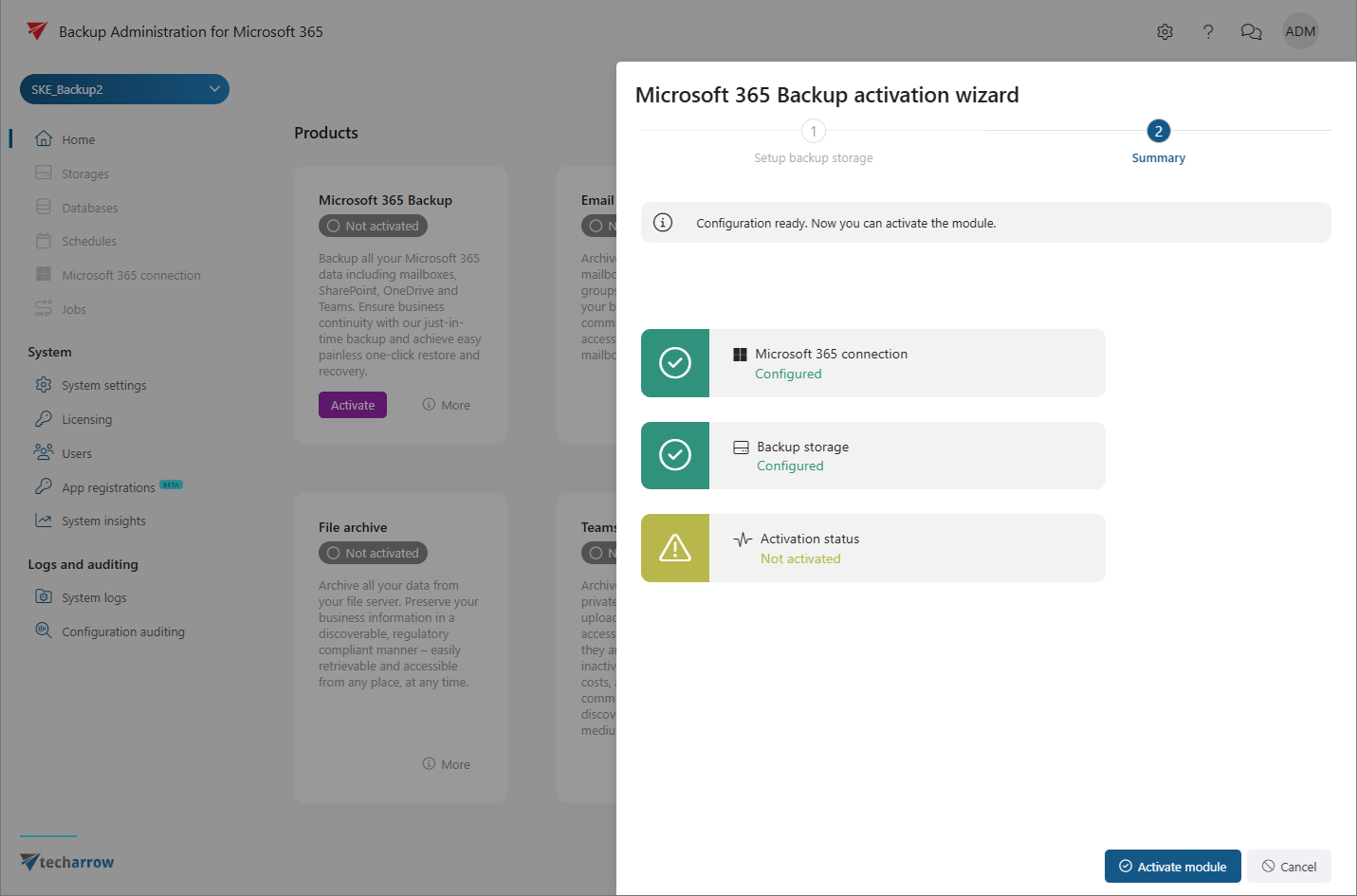
On the Summary page, activate the module.
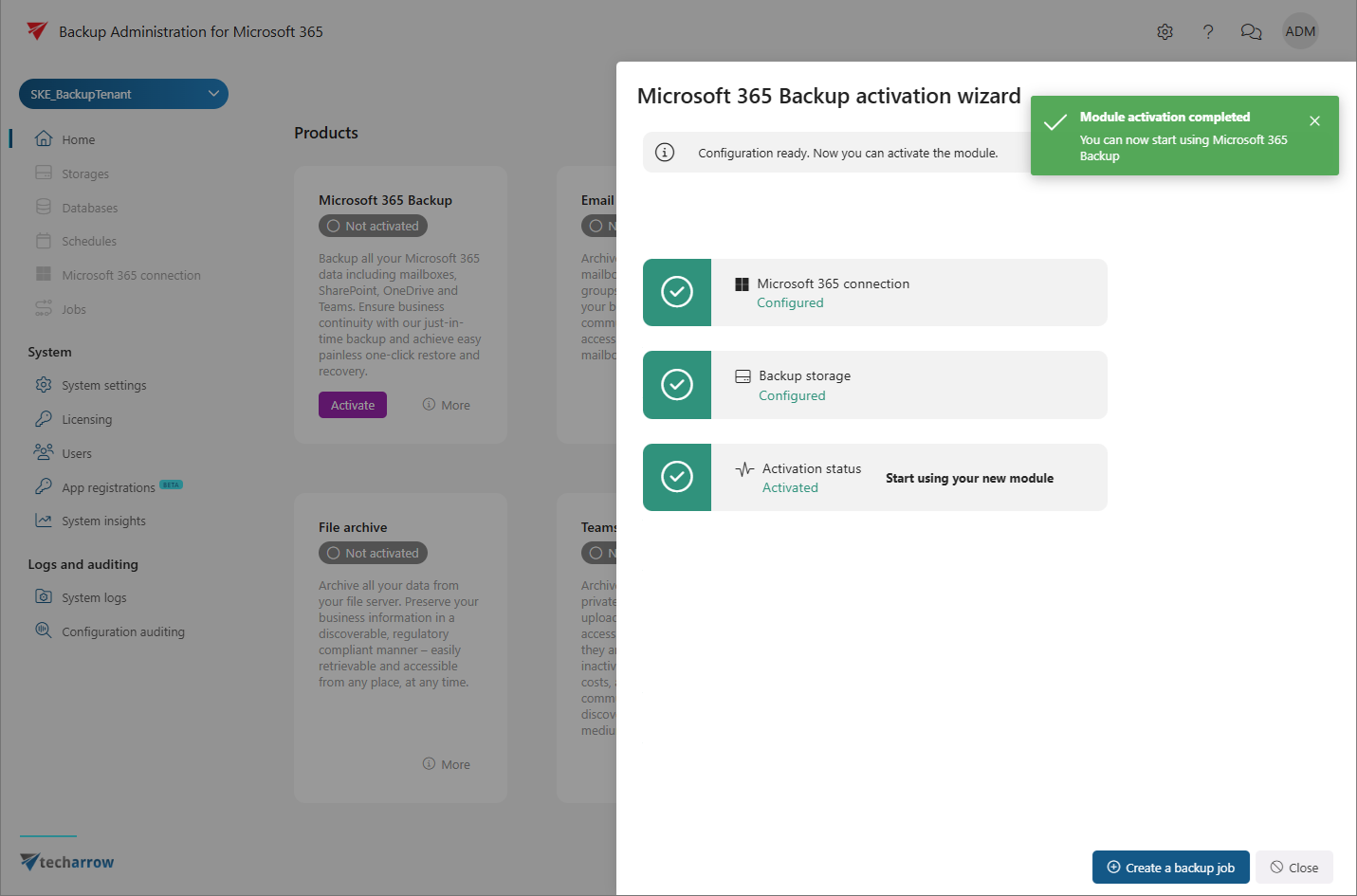
After the module has been activated, you can create a backup job directly from the activation wizard or from the Jobs page.
Once the application registration and Microsoft 365 connection is completed, you can proceed with creating backup jobs.