Schedules
Introduction
The Schedules page in Backup Administration for Microsoft 365 allows administrators to create and manage schedules that control when processing tasks start, end, and restart automatically.
Multiple schedules can be configured, and the appropriate schedule can be selected from a dropdown menu when configuring a job.
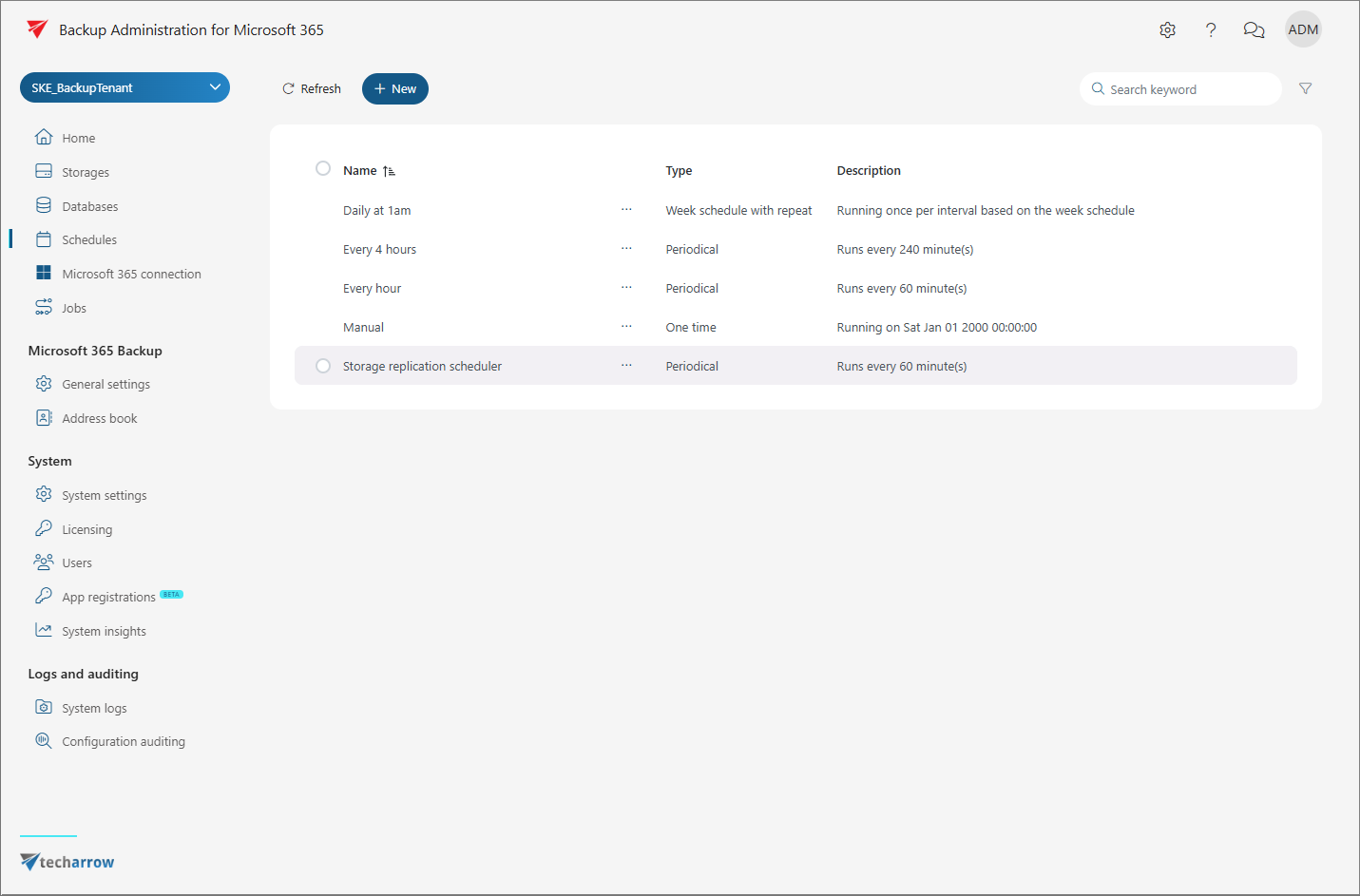
To view existing schedules or create a new one, select Schedules from the left-side menu.
Create a schedule
To create a schedule, click + New. In the Schedule window, enter the schedule Name and select the Type from the dropdown menu.
Backup Administration provides three types of schedules:
- One time
- Periodical
- Week schedule with repeat
One time
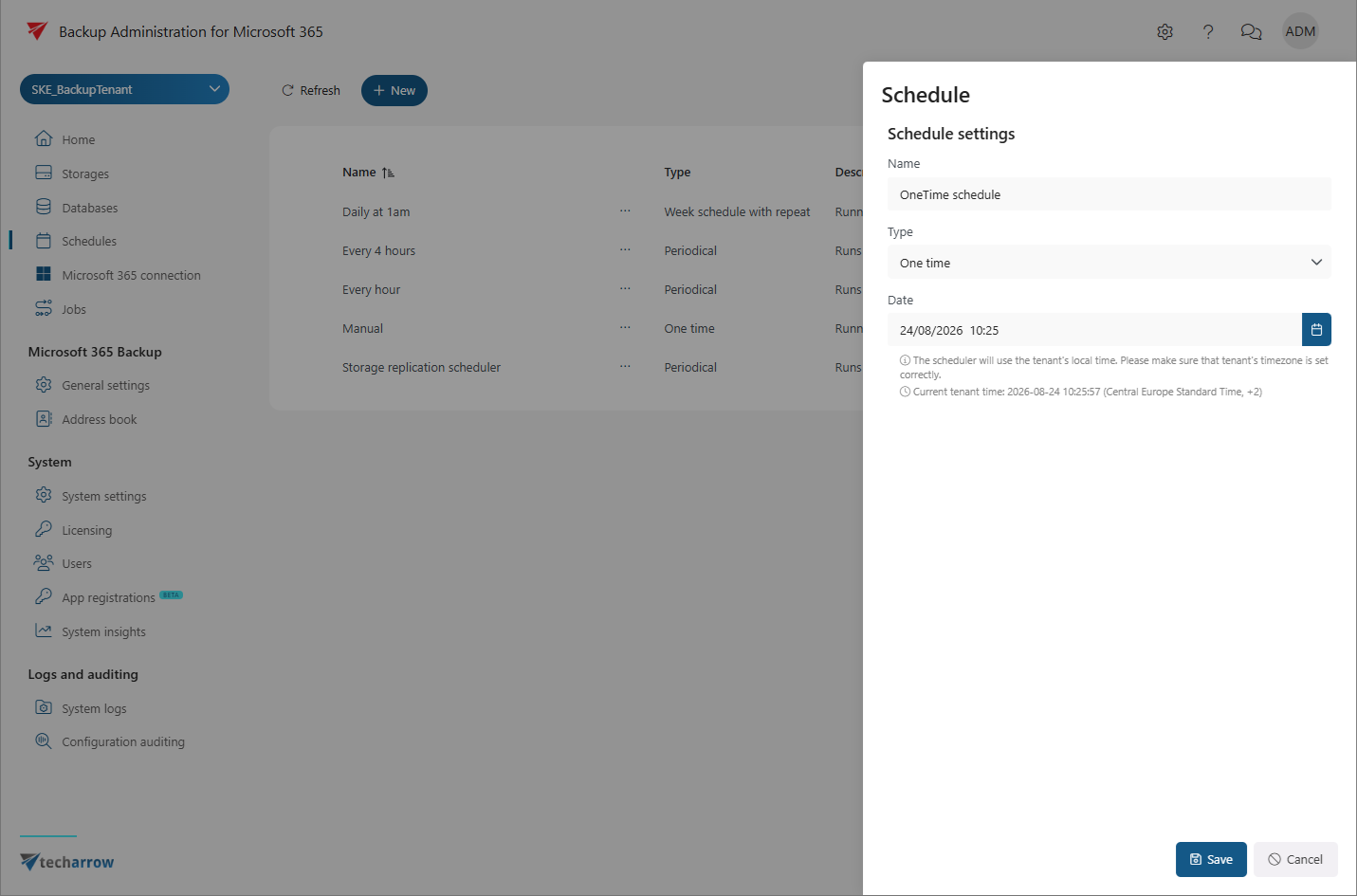
A One time schedule runs only once at the specified date and time.
With this schedule type, specify the start date. The job ends when processing is complete.
One time schedules are commonly used for restore jobs that run occasionally.
Periodical
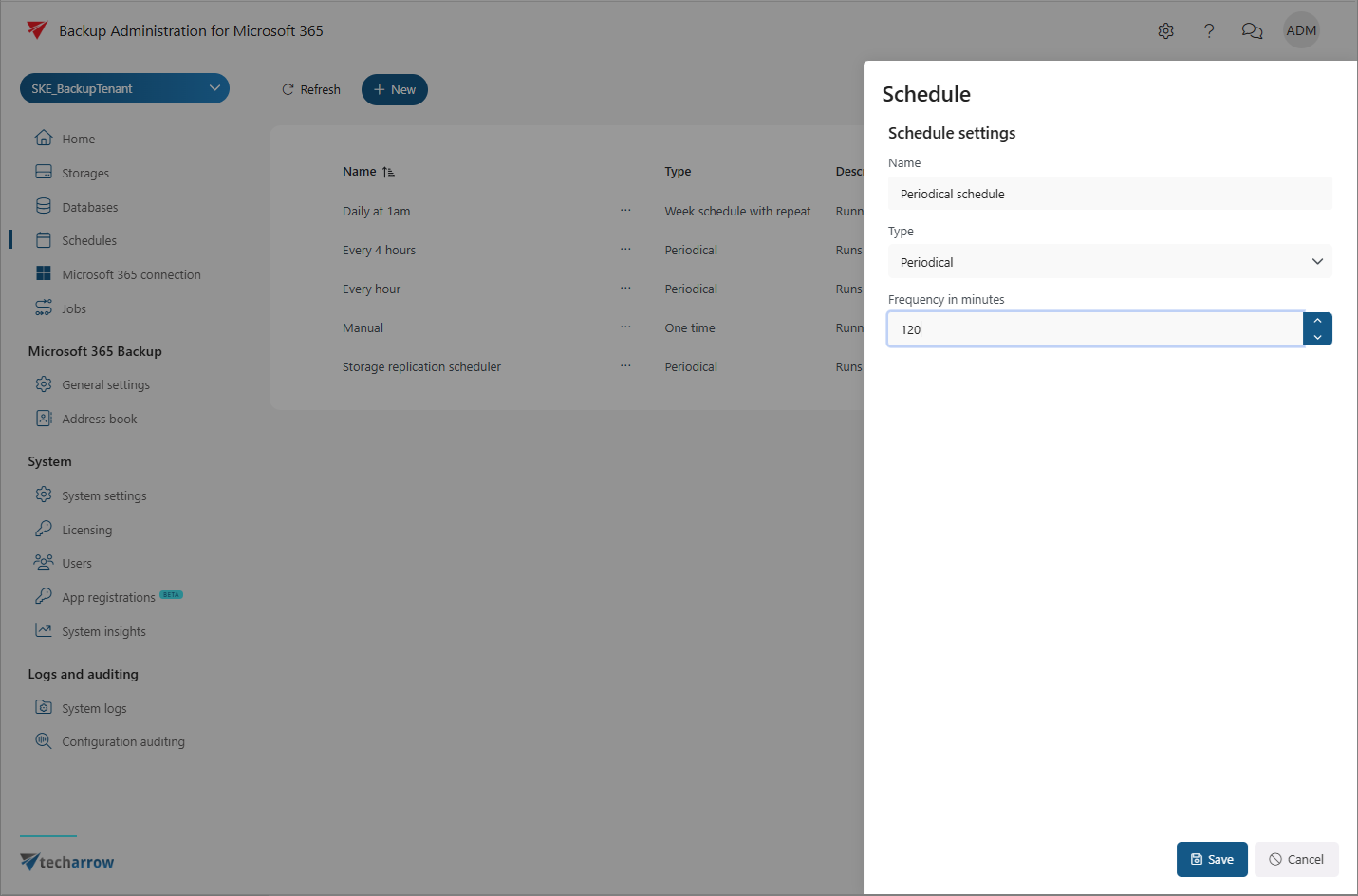
A Periodical schedule runs repeatedly. Jobs using this schedule type start immediately after the schedule is configured and saved.
The Frequency in minutes option defines how often the schedule checks whether the job is running. For example, if the frequency is set to 5 minutes, the schedule checks every five minutes whether the job is still running. If the job is running, the schedule checks again after another five minutes. If the job is not running, the job starts again to process any new items.
This schedule type is most suitable for backup jobs.
Week schedule with repeat
A Week schedule with repeat runs at the same hours on the selected days every week.
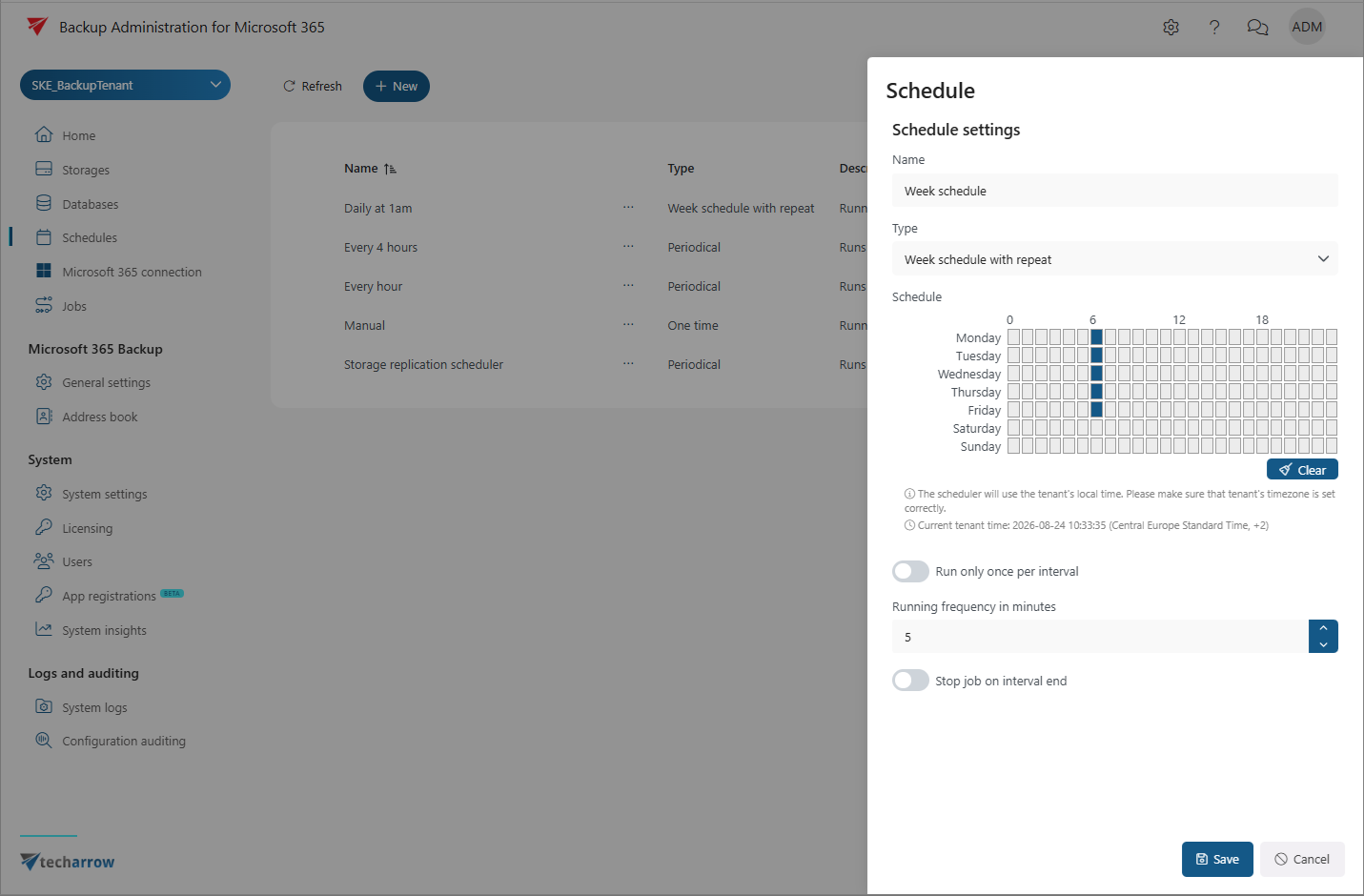
In the scheduling section, select the days and hours when processing should start. Each cell represents one hour.
The Running frequency in minutes option defines how often the schedule checks whether the job is running. For example, if the frequency is set to 5 minutes, the schedule checks every five minutes. If the job is running, the schedule waits and checks again later. If the job is not running, the job starts again.
This schedule type is useful for continuous processing, such as processing that runs from morning to evening.
The Run only once per interval option disables the running frequency and allows the job to run only once during the specified time period. This option is recommended for tasks such as end-of-day processing.
To stop a job after the specified time interval, enable Stop job at interval end. The job is forcibly stopped when the interval ends, even if processing is not complete, and is restarted according to the schedule settings.
In the Schedule section, blue cells indicate the time intervals when the job is scheduled to run. The exact start and end times are displayed below the calendar.
You can set the required time range by clicking the cells or moving the cursor over the desired period.
Manage schedules
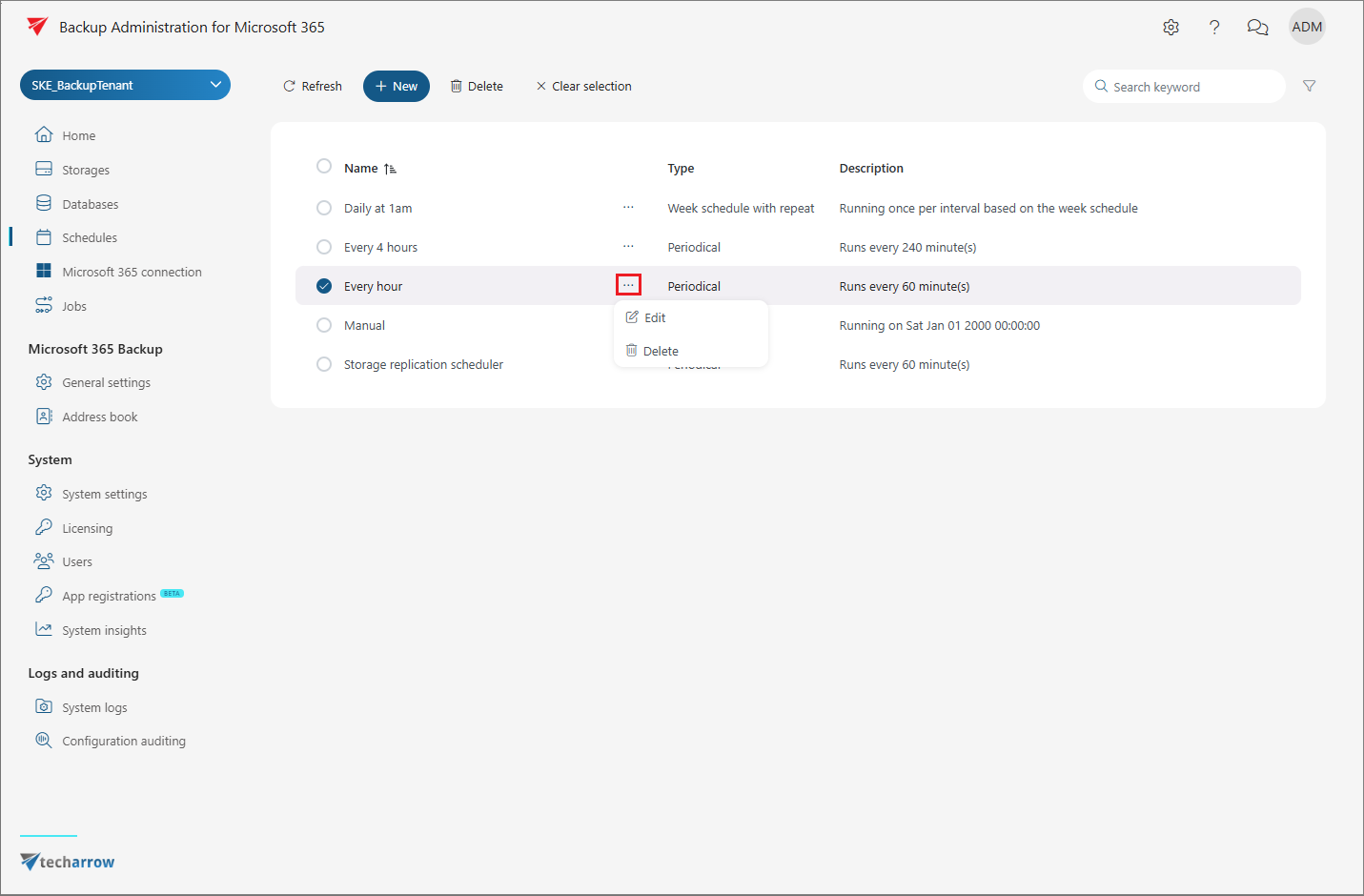
You can edit or delete a schedule from its context menu.
When you select a schedule from the list, the Delete option also appears next to the + New button.
The Schedules page also displays the schedule Type and Description.
Search and filter schedules
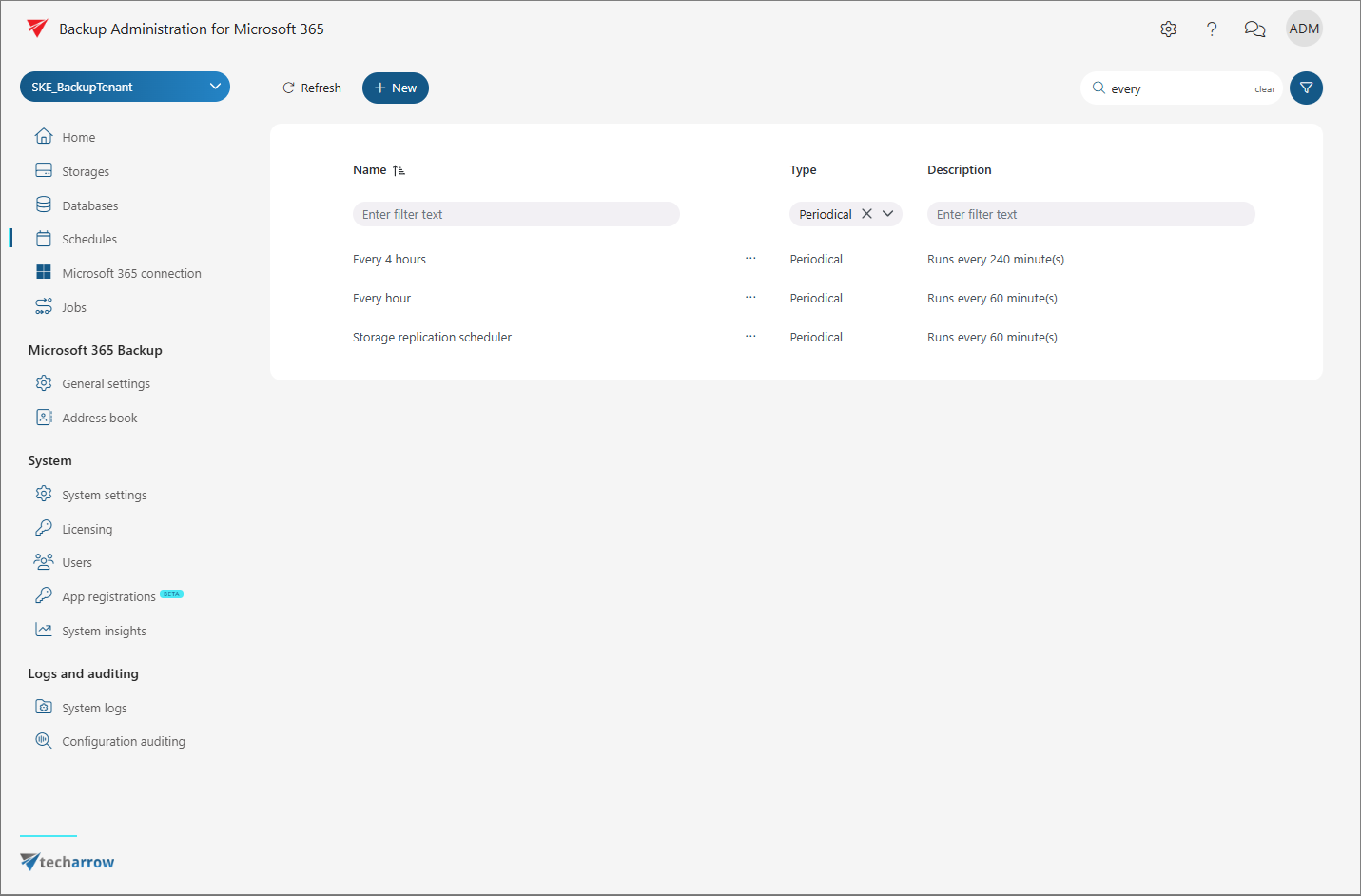
You can search and filter the schedules displayed in the list.
To search, click the search textbox and enter the keyword you want to find.
To filter, click the Funnel icon. You can filter schedules by the Name, Type, and Description columns.
- To filter by Name or Description, enter the required text in the corresponding filter field. The filter is applied automatically.
- To filter by Type, select a schedule type from the dropdown menu or enter the required type manually in the search textbox.