Storages
Introduction
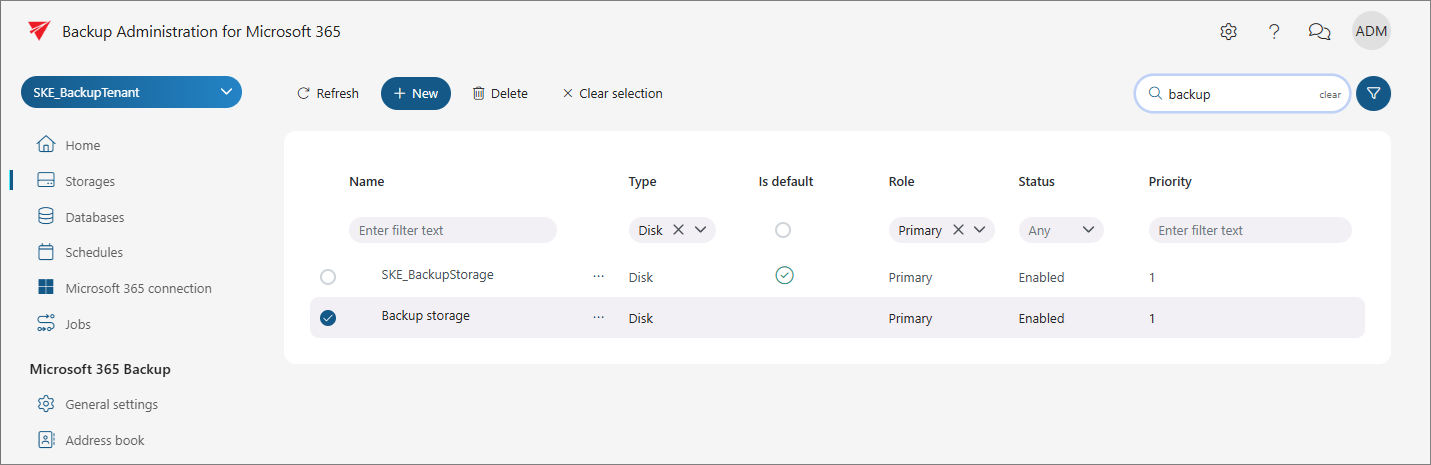
The Storages page in Backup Administration for Microsoft 365 allows administrators to create, configure, and manage storage destinations for processed data, and to search and filter the storage list.
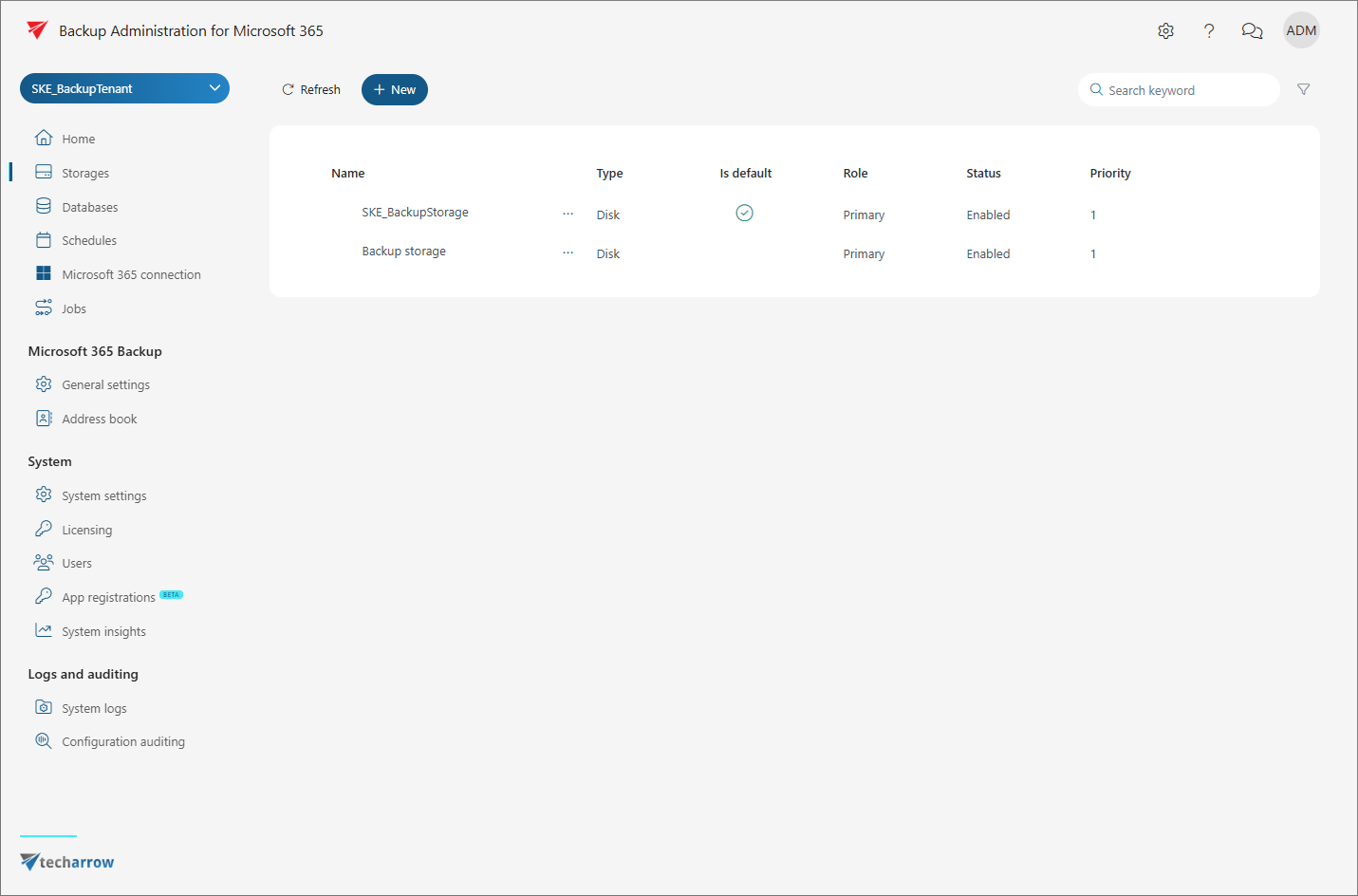
The Storages page is initially empty. The first storage is created automatically after the Microsoft 365 connection has been secured. You can also create additional storages and select them as destinations for processed binaries when configuring a Backup Administration job.
Backup Administration for Microsoft 365 supports the following storage types:
Important: The availability of storages depends on your license. You can configure only the storages included in your license in Backup Administration.
The configuration options available for a storage depend on the selected storage type.
Create a storage
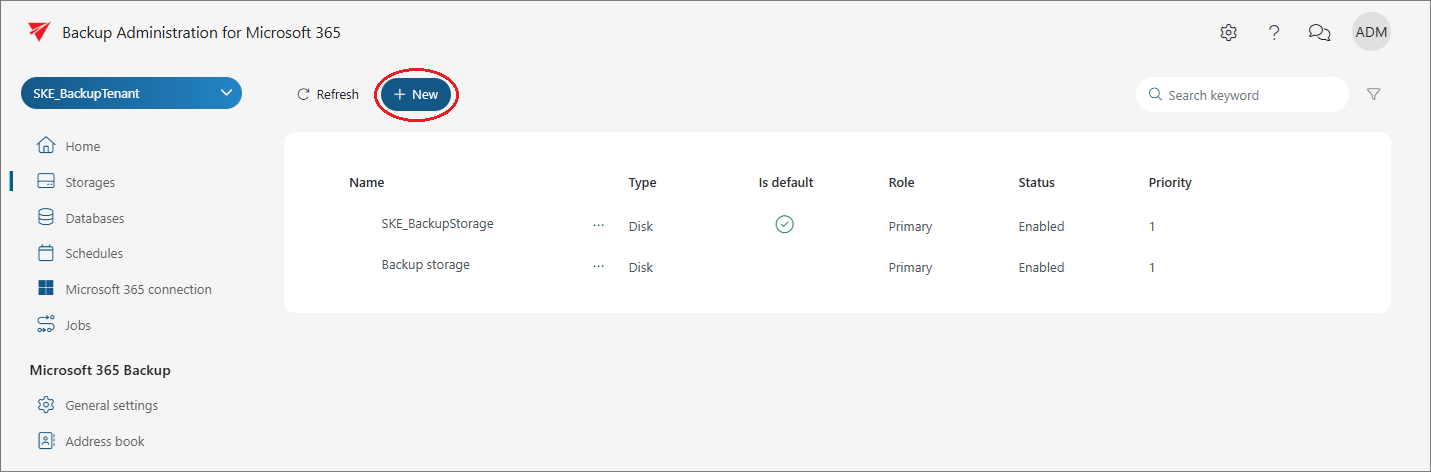
To create a new storage, click + New on the Storages page.
The Storage window opens, where you can configure the following basic settings:
- Name: The name of the storage.
- Role: The role assigned to the storage. For a new storage, you can select Primary.
- Type: The type of storage. You can select Disk, Amazon S3, or Azure.
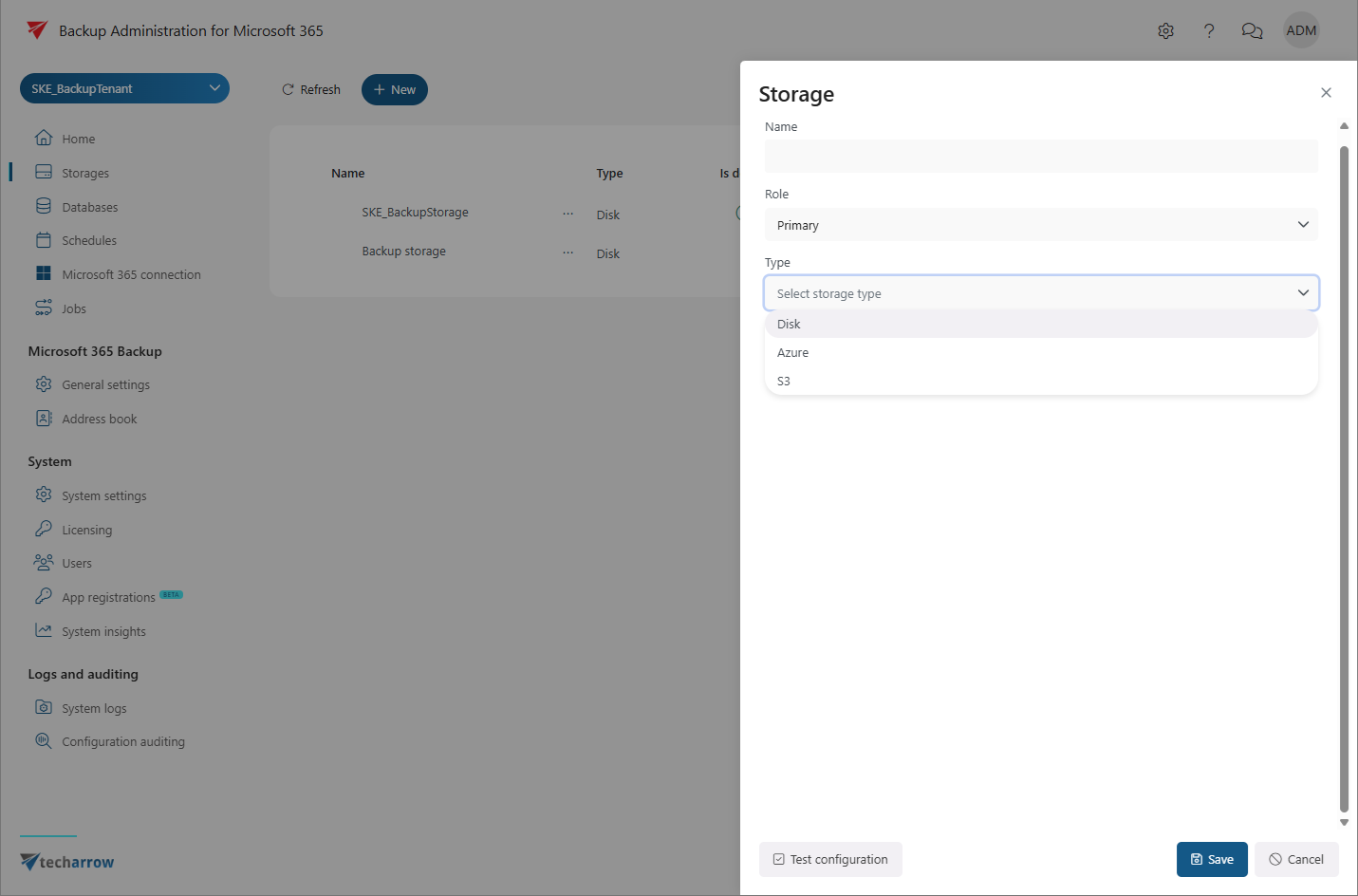
Additional settings are required depending on the selected storage type. The configuration of each storage type is described in the corresponding subsections of this chapter.
Manage storages
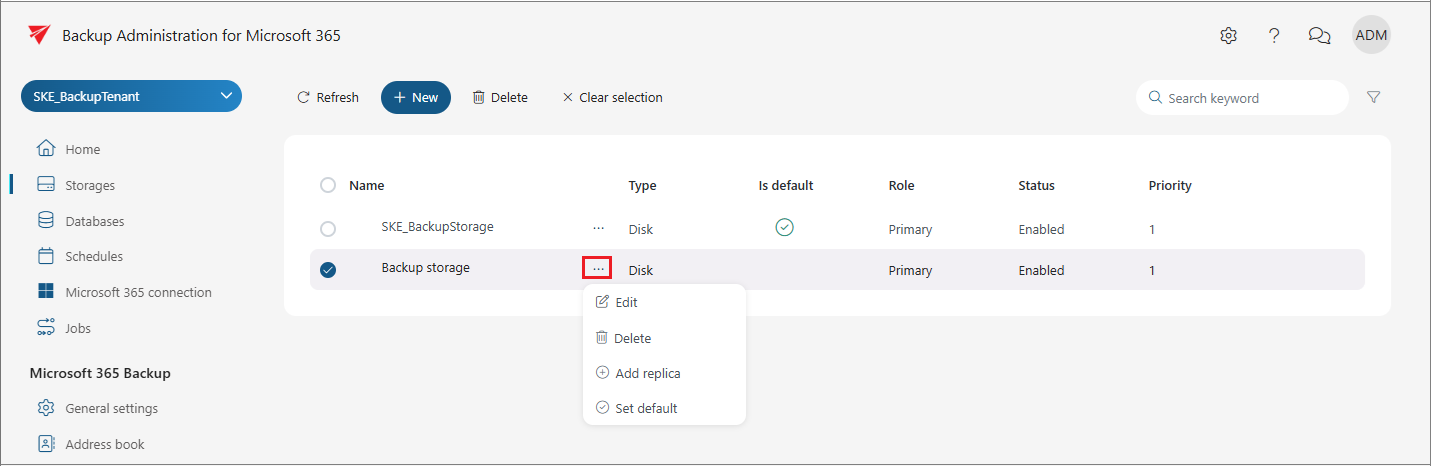
You can manage an existing storage from its context menu.
Select a storage and click the ellipsis (…) to access the available actions:
- Edit: Modify the storage settings.
- Delete: Delete the selected storage.
- Set default: Set the selected storage as the default storage.
- Add replica: Add a replica to the selected storage.
When you select a storage from the list, a Delete option also appears next to the + New button.
Important: You cannot delete the default storage or a storage that is currently used by a backup or restore job. Deleting a storage used by a job can result in data loss.
Search and filter storages
The Storages grid displays the configuration of the available storages. You can search and filter the list to find specific storage configurations.
To search the list, click the search textbox and enter a keyword.
To filter the list, click the Funnel icon. An additional filtering row appears above the list.
You can filter the following columns:
- Name and Priority: Enter the required filter text. The filter is applied automatically.
- Types, Roles, and Statuses: Select the required value from the dropdown menu or enter a value in the search field.
- Default storage: Use the item selector in the corresponding column to filter the default storage.
To close the filtering section, click the Funnel icon again.