Teams tab
Introduction
This page describes the Teams tab of the Address book. It explains the information displayed for each team processed by the backup job, and describes how to view team details and use the sorting and filtering options.
Tab overview
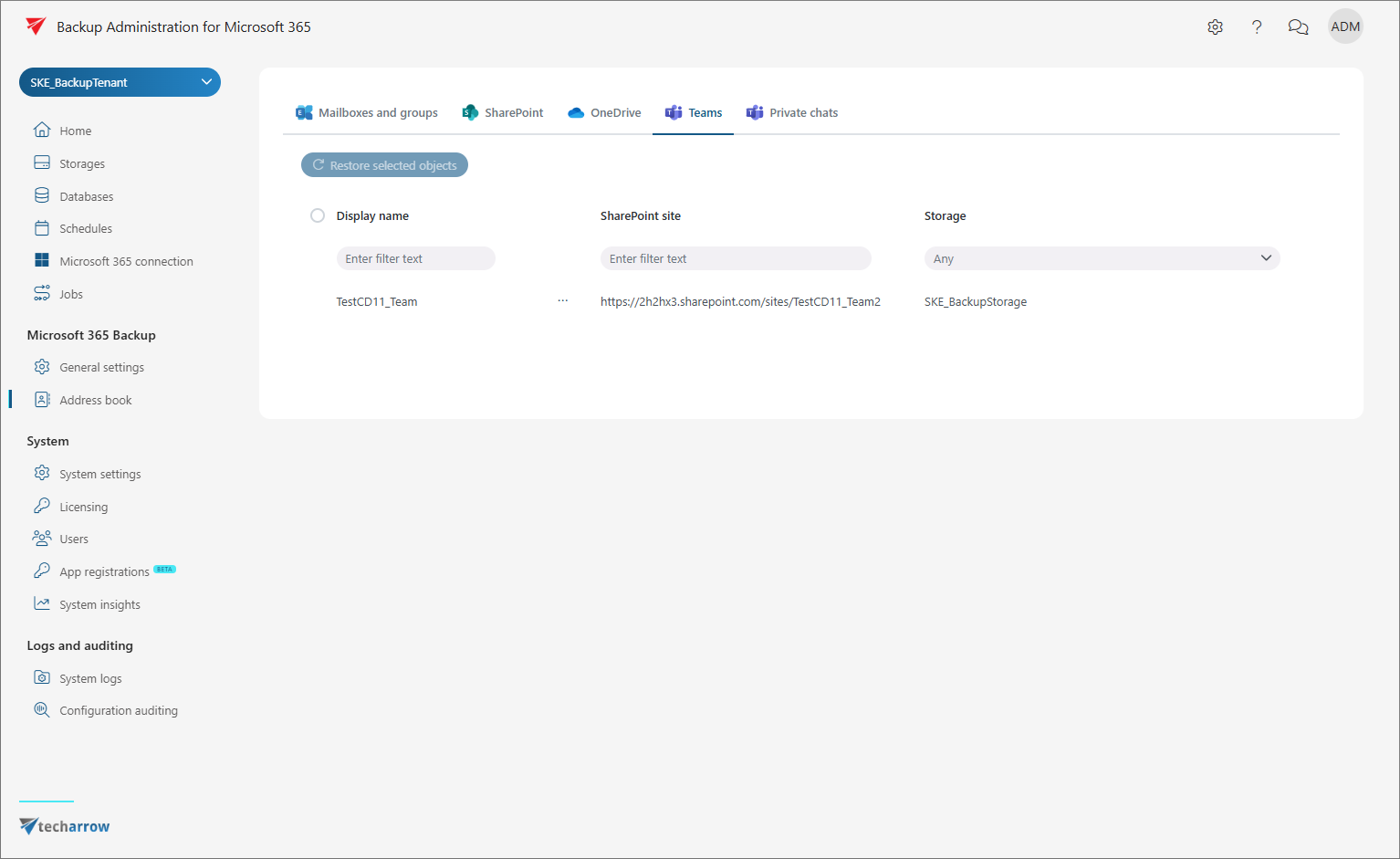
The Teams tab displays all teams processed by the backup job. The following columns are shown:
- Display name – the name of the team. Entities are listed under this name in the Address book and in contentACCESS Portal after the backup job.
- SharePoint site – the SharePoint site where the content of the team is stored.
- Storage – the storage assigned to the objects. Storage is automatically assigned during the initial backup job run.
View team details
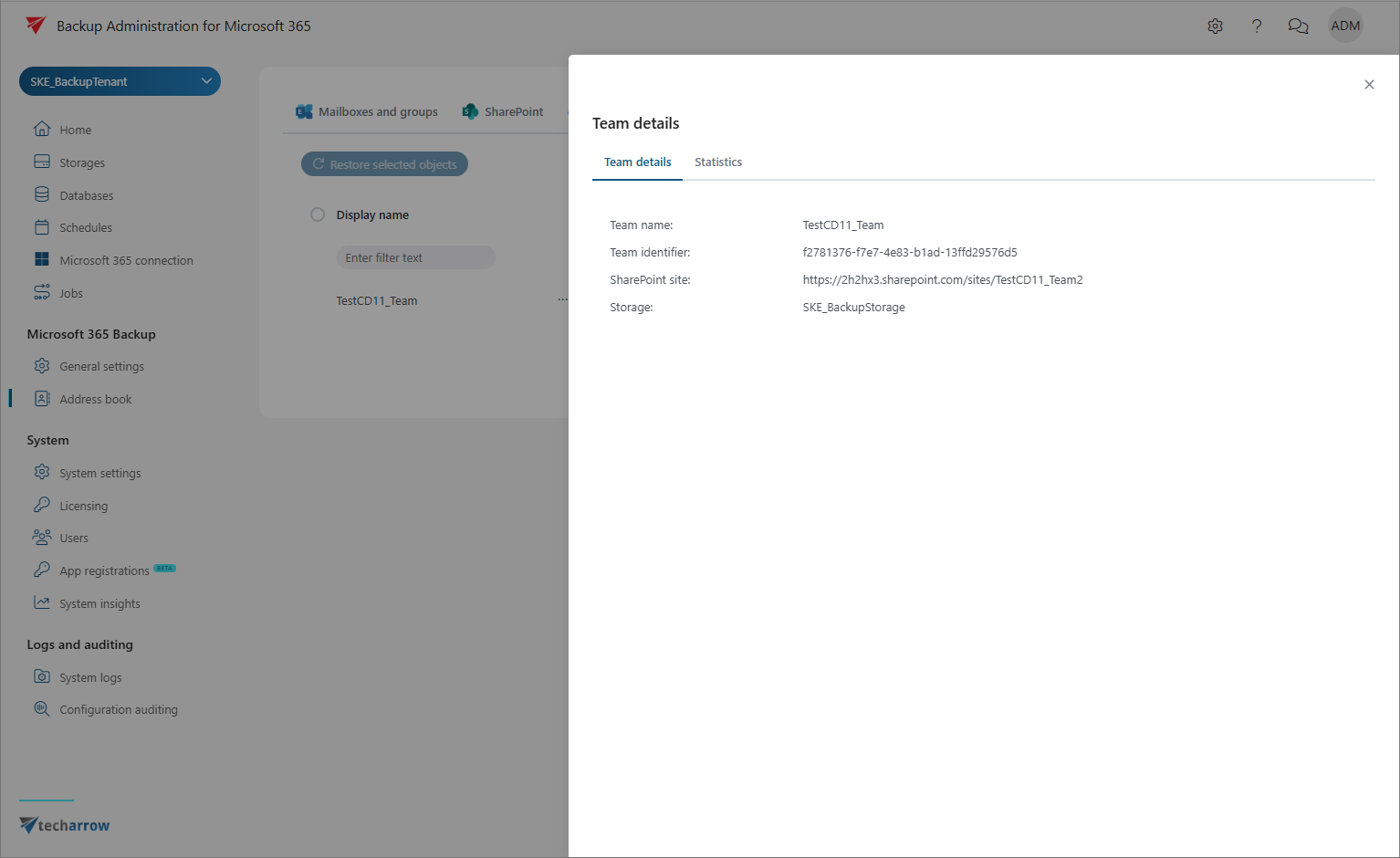
To view details of a team, select it and click Show details from the context menu. A pop-up window opens where team details and backup statistics are accessible.
Sorting and filtering
Both sorting and filtering options are available on the Teams tab.
To sort items, click a column name (Display name or SharePoint site) to switch between ascending and descending order. Sorting on the Storage column is only enabled when multiple storages are present.
Entries can be filtered by:
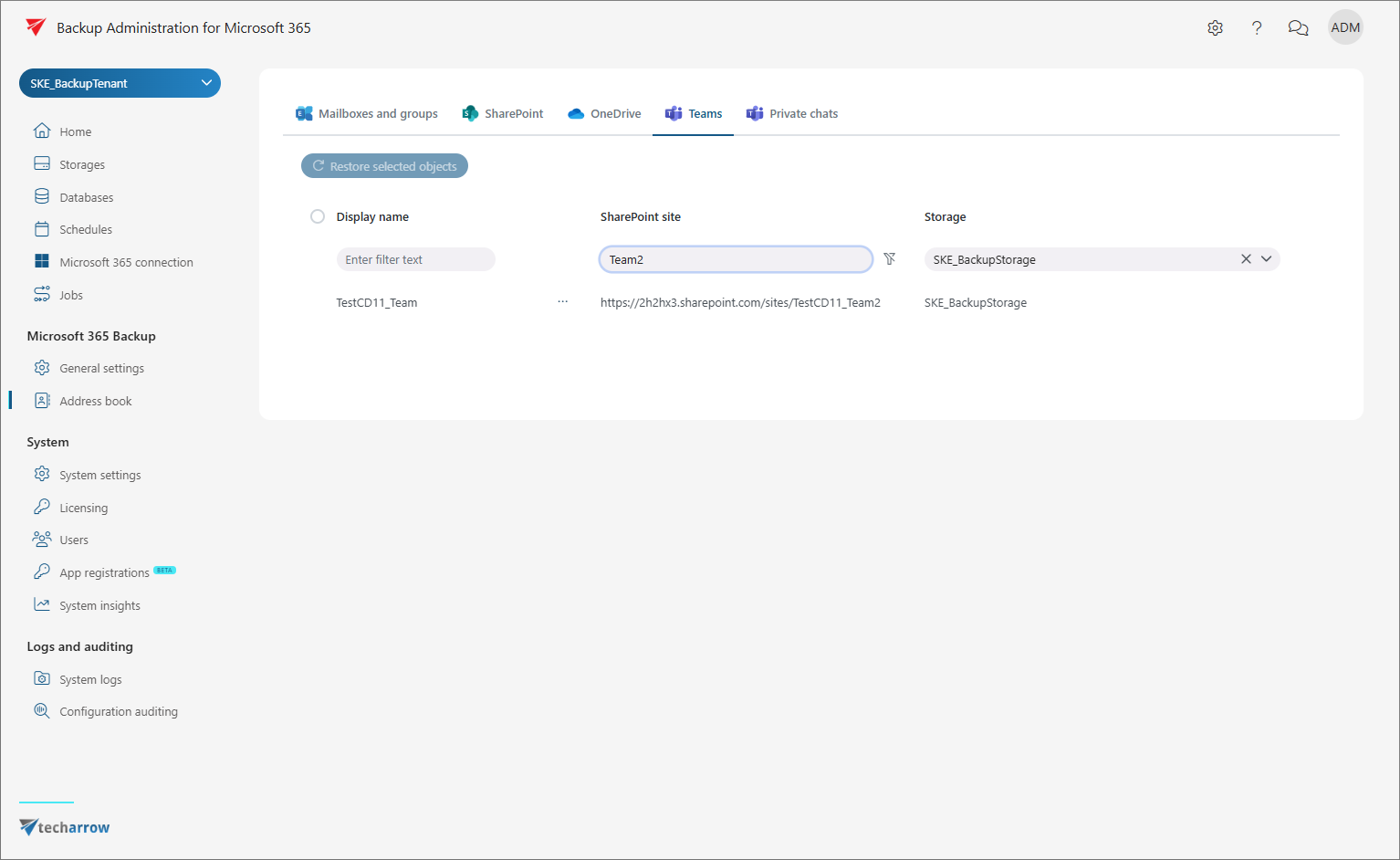
- entering filter text in the Display name or SharePoint site columns;
- selecting a storage from the dropdown menu;