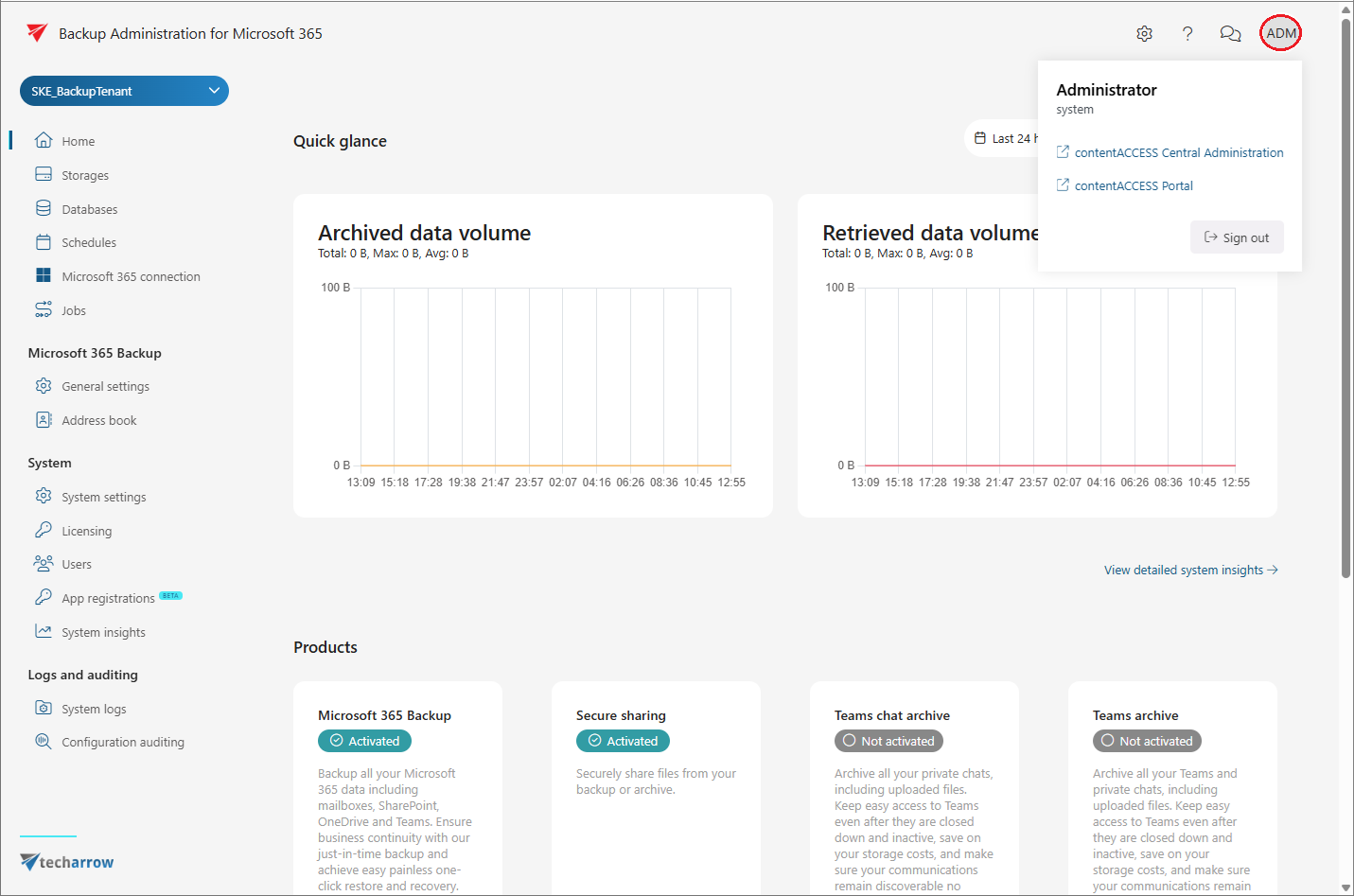
User interface of Backup Administration
Introduction
The Backup Administration user interface shows the main areas used to navigate and manage the application, including the tenant selector, side menu, settings, help, chat, user information, and main content area.
Backup Administration for Microsoft 365 is a user interface for administrators. It allows you to configure the server, create and configure automatically running jobs to process company data, adjust framework feature settings, set up schedulers, manage databases and storages, and create clusters.
The Backup Administration user interface consists of the following main areas:
- Tenant selector for switching between available tenants.
- Side menu for navigating between the available features.
- Settings for configuring user interface preferences and managing logs.
- Help for accessing the Backup Administration documentation.
- Chat for getting AI-powered assistance.
- User information for viewing information about the logged-in user and signing out.
- Main content area for displaying the content of the selected menu item. When the Home page is selected, the main content area displays a Quick glance panel with charts showing archived and retrieved data volumes. It also provides a View detailed system insights link.
Below the charts, the Products section lists the available products (for example: Microsoft 365 Backup, Secure sharing, Email archive, SharePoint archive, etc.) together with their activation status.
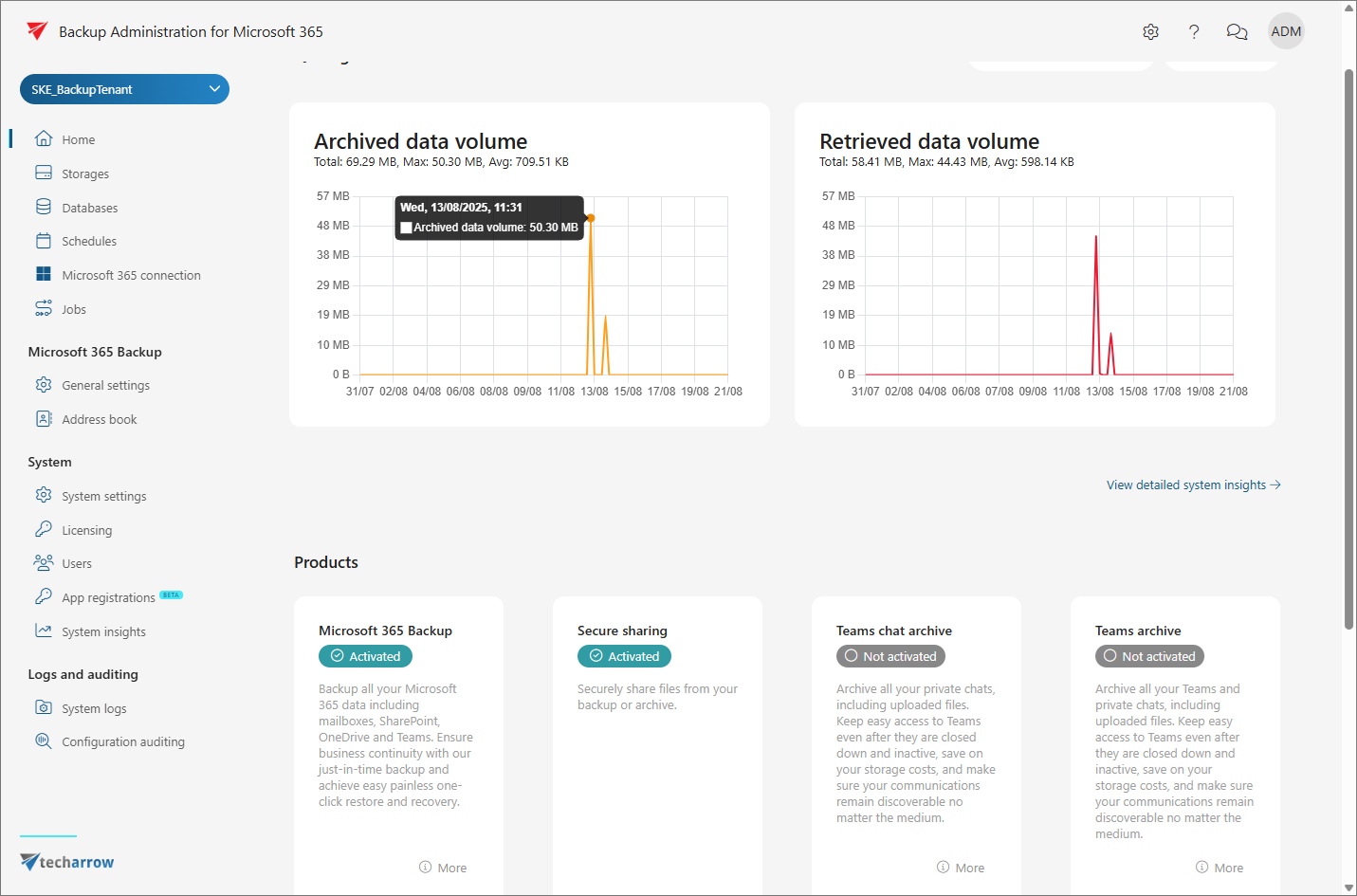
Tenant selector
The Tenant selector dropdown menu on the left side of the page allows you to switch between tenants. Only tenants already configured on the contentACCESS server will appear in the list. Tenants cannot be created in Backup Administration.
You can search for a tenant by typing a keyword into the search box, and the list can be refreshed at any time.
For more information, refer to the Tenants in contentACCESS chapter in the contentACCESS documentation.
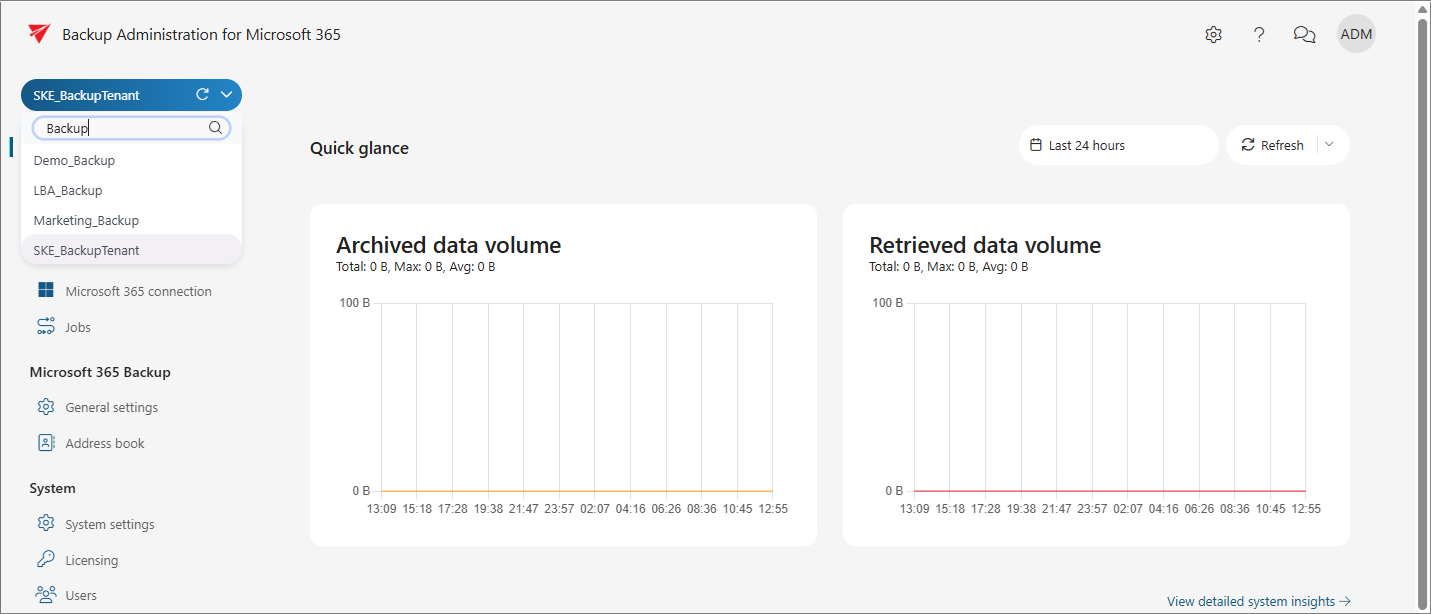
Side menu
The Side menu provides navigation between the different tabs and features available in Backup Administration.
The menu is divided into the following sections:
- Common features: Home, Storages, Databases, Schedules, Microsoft 365 connection, and Jobs.
- Microsoft 365 Backup: General settings and Address book.
- System: System settings, Licensing, Users, App registrations, and System Insights.
- Logs and auditing: System logs and Configuration auditing.
Each feature is described in detail in the corresponding chapters.
Settings
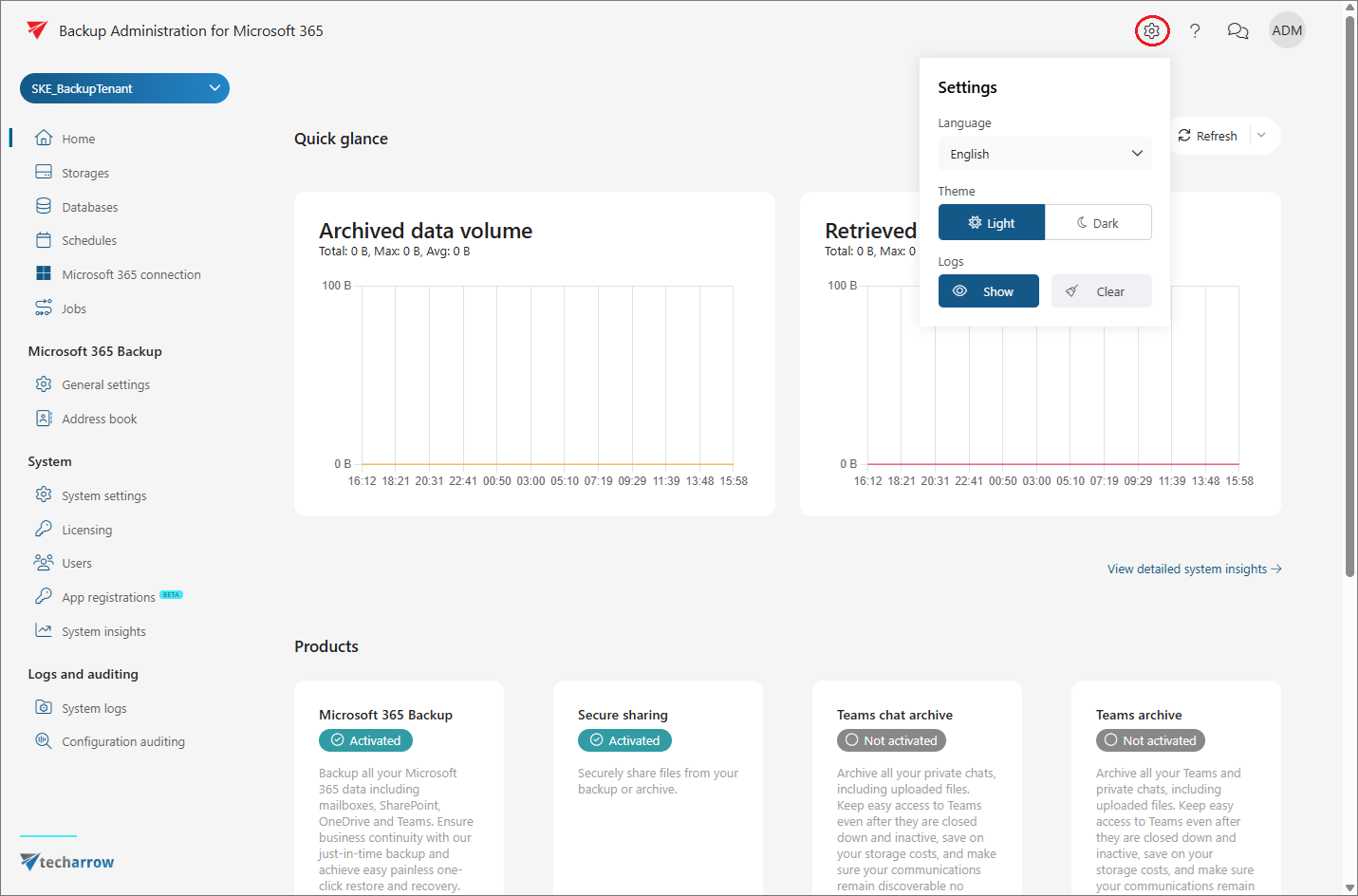
The Settings menu is available from the gear icon.
It opens a pop-up window where you can:
- Set the language of the user interface.
- Switch between Light mode and Dark mode.
- Check or clear the logs.
Currently, only English and German are supported on the server.
 Screenshot: Preview of the Backup Administration user interface in light mode.
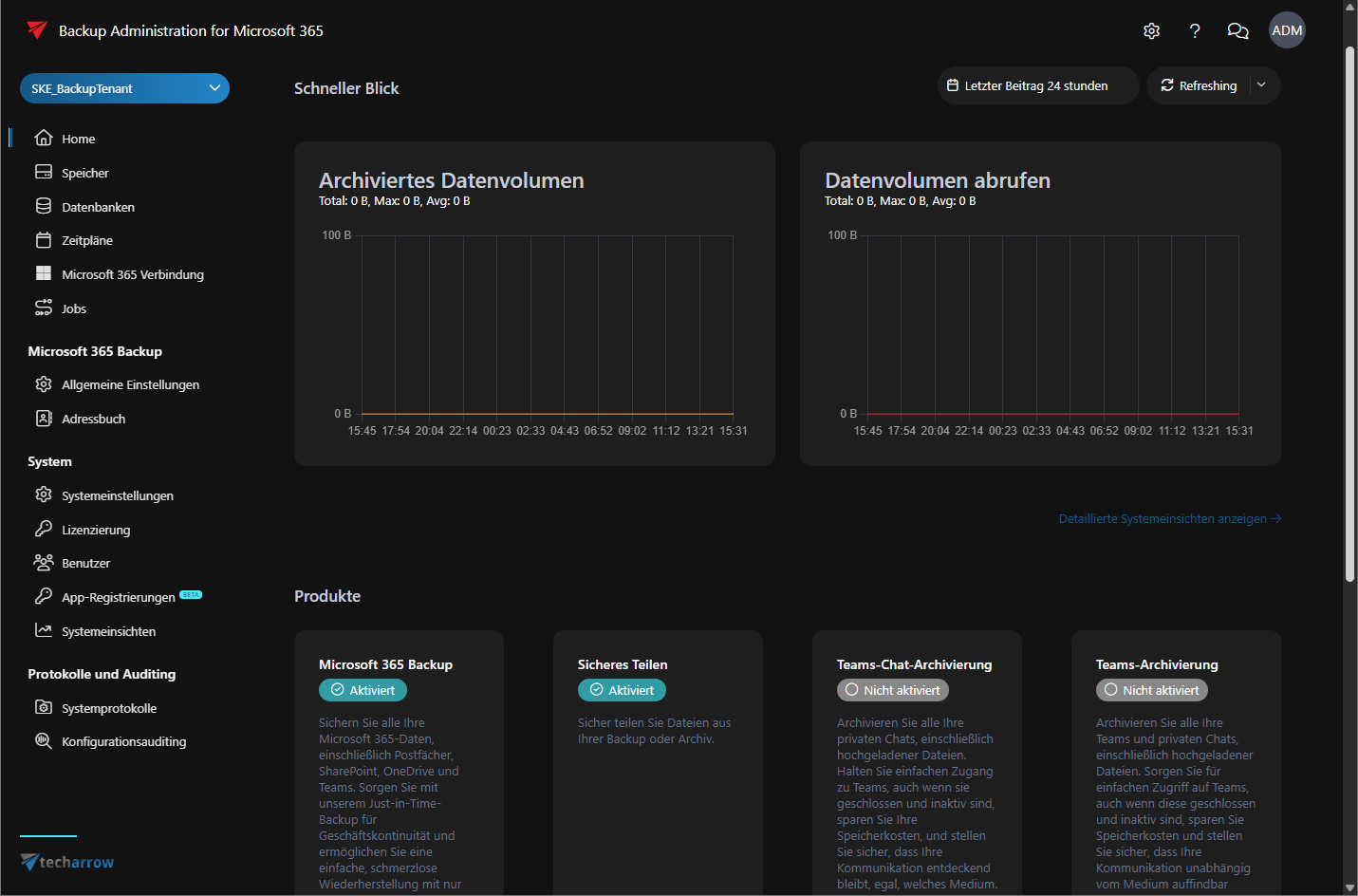
Screenshot: Preview of the Backup Administration user interface in dark mode.
Help
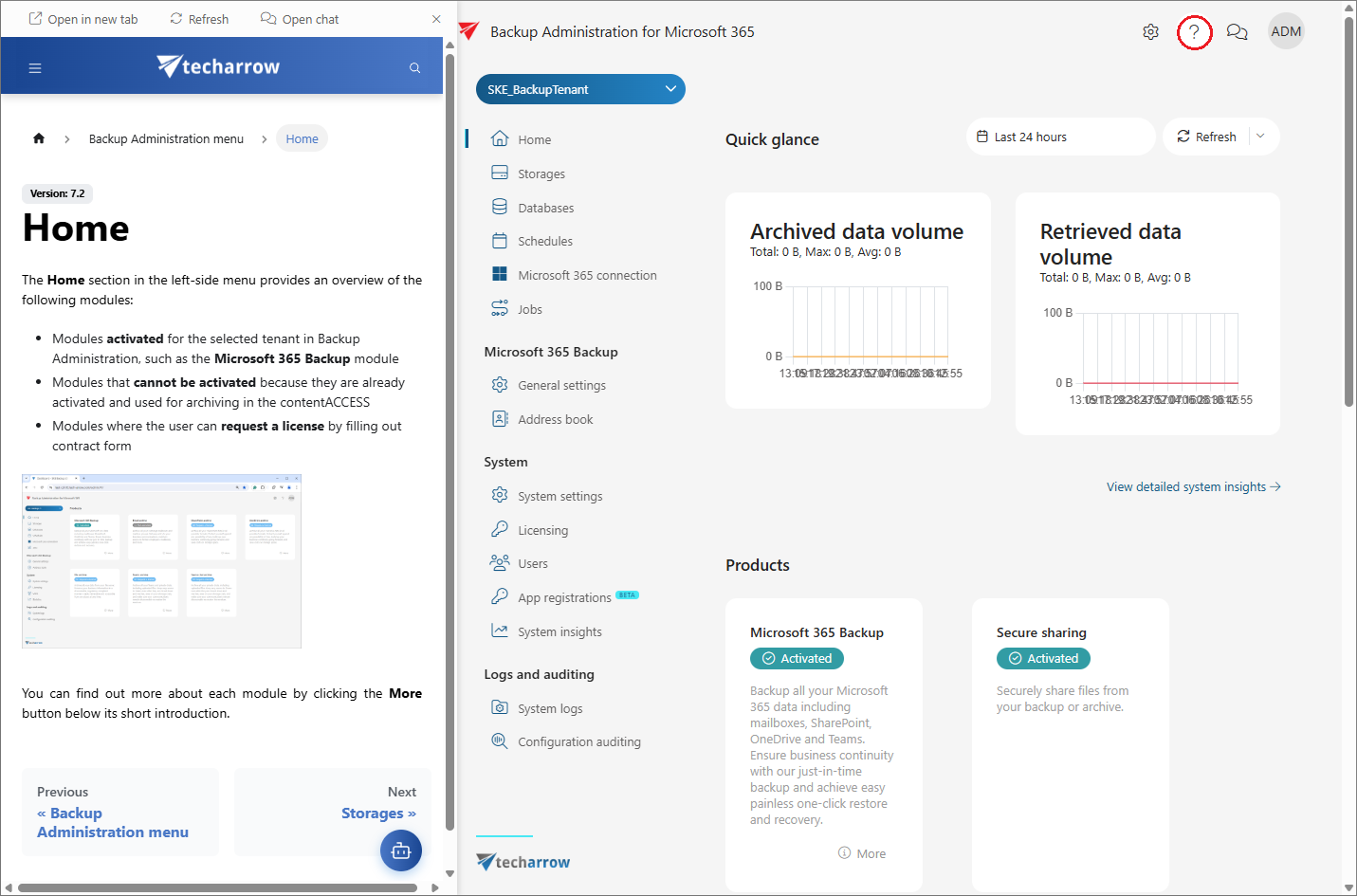
Clicking the question mark icon opens a Help panel on the left side of the interface. The panel is context-aware — it automatically displays the documentation section relevant to the page you are currently viewing.
The following actions are available from the panel:
- Open in new tab — opens the current documentation page in a new browser tab.
- Refresh — reloads the documentation content.
- Open chat — opens the AI-powered Chat assistant.
- Previous / Next — navigate between documentation pages.
Chat
The Chat feature is an integrated AI-powered assistant designed to enhance the user experience within contentACCESS Backup.
It is available in two ways:
- As a standalone chat.
- As a contextual sidebar chat directly within the Backup Administration interface.
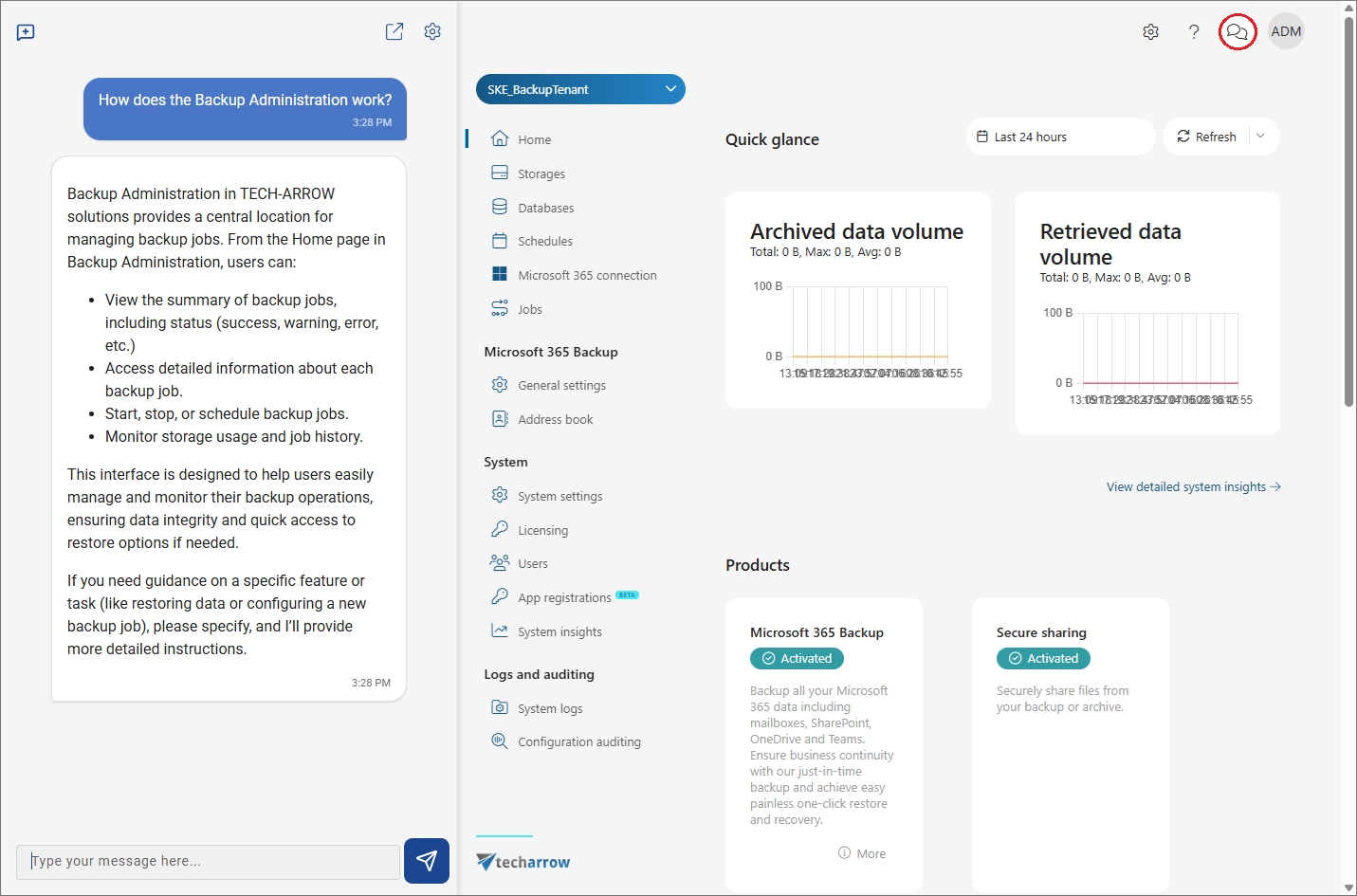
The embedded sidebar assistant provides context-aware support. You can ask questions related to the specific page or function you are currently viewing, making it easier to find relevant guidance and navigate the system.
The following actions are available in the Chat window:
- New chat — starts a new conversation.
- Open in new tab — opens the chat in a new browser tab.
- Settings — allows you to configure the chat appearance and language:
- Theme: choose between Light mode and Dark mode.
- Language: choose between English and German.
User information
The User information pop-up window contains information about the currently logged-in user, including their username and role.
The pop-up also lists the interfaces the user has access to, based on their role assignments. Only those interfaces are shown to which the user has been granted access. For more information about role management, see the Roles page.
The following actions may be available in the pop-up:
- contentACCESS Central Administration — opens the Central Administration interface in a new browser tab.
- contentACCESS Portal — opens the contentACCESS Portal in a new browser tab.
- Sign out — signs out of Backup Administration.