SharePoint shortcut handler
On this page, you can configure the SharePoint shortcut handler to enable the use of modern shortcuts in SharePoint, OneDrive, and Teams archive. Once this component is installed, the modern shortcut appears as a third option on the shortcut configuration page (alongside Keep original and HTML shortcut), allowing files to be archived in this format as well.
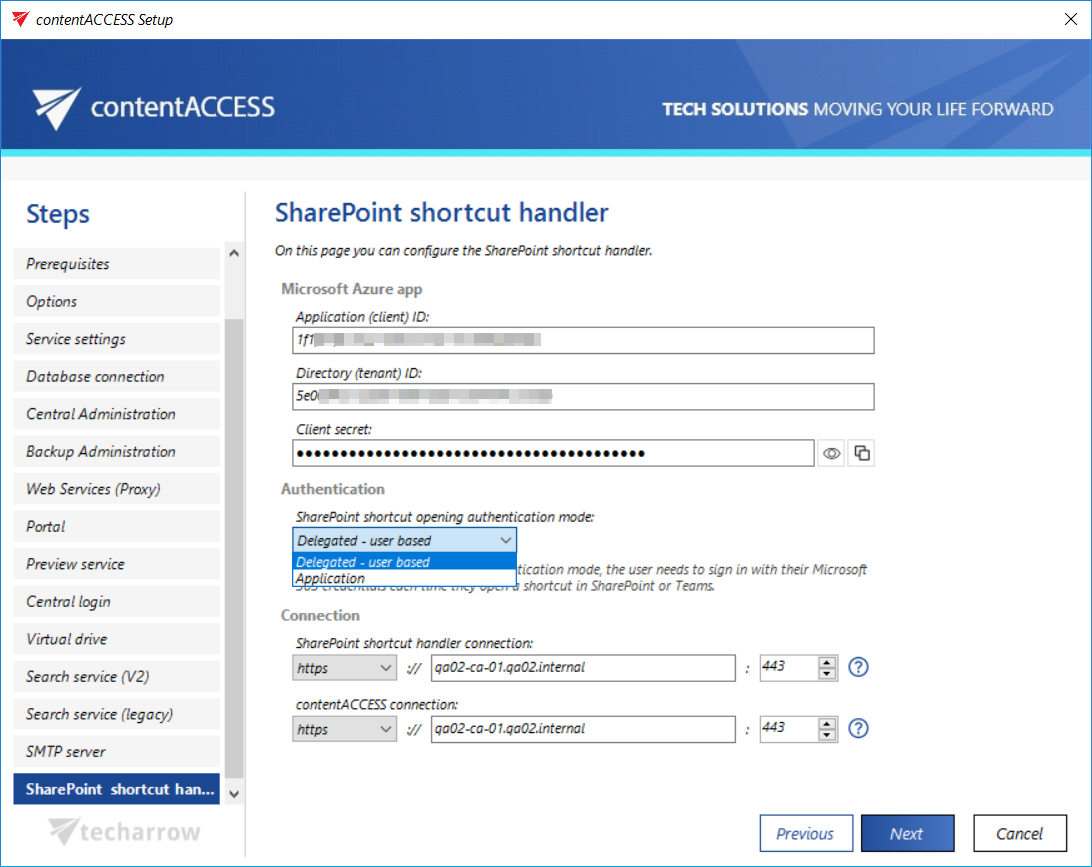
In the Microsoft Azure app section, the connection with the Microsoft SharePoint application is established. Application ID and Directory ID are automatically generated during the App registration on Azure Portal. The Client secret can be manually generated in section Certificates & secrets after the application is registered. The client secret can be copied by the Copy secret icon or verified by the Show password icon.
SharePoint archive registration is described in this section.
In the Authentication section, you need to select the mode for opening shortcuts:
a) Delegated – user-based – if you choose delegated mode, you need to sign in with your Microsoft 365 credentials each time you open a shortcut.
b) Application – this option allows you to connect to the SharePoint endpoint of the Graph API without providing a username and password.
Connection: Here, you can see the specified connection details for both the SharePoint shortcut handler and contentACCESS. Both are automatically filled in based on the information provided on the previous pages. You can review these settings and make any necessary adjustments before proceeding. Ensuring the connection details are correct is essential for proper archiving and seamless integration between SharePoint, OneDrive, and Teams.
Click Next to continue to the next step of the contentACCESS setup.