Email archive retention changer job
This job changes the retention time of emails of the selected mailbox(es) if it's allowed to change the retention on storage level. Storages that support this change are: Disk, Azure, Amazon S3.
Go to Jobs -> click on +new -> select Email archive retention changer.

On the job’s configuration page go through the following sections:
✓ Running mode settings (mandatory)
The job can be run in 3 modes:
- Immediate processing -> collects the emails and changes their retention.

- Create report -> collects the emails and provides a csv file with a list of emails. The administrator can review and edit the list of affected documents.

- Apply report -> a csv file with a list of emails to be processed must be uploaded. The administrator can delete emails from the list before running the job (only emails which are in the list will be processed). The job reads the list and changes the retention of the emails that are on the list.

✓ Scheduling settings (mandatory)
In this section the running times of the retention changer job must be selected. It is possible either to select a scheduler from the list or to create a new scheduler via the "Create new …" option.

✓ Retention settings (mandatory)
Select the new retention to be applied for the emails.

✓ Address book objects to process (mandatory)
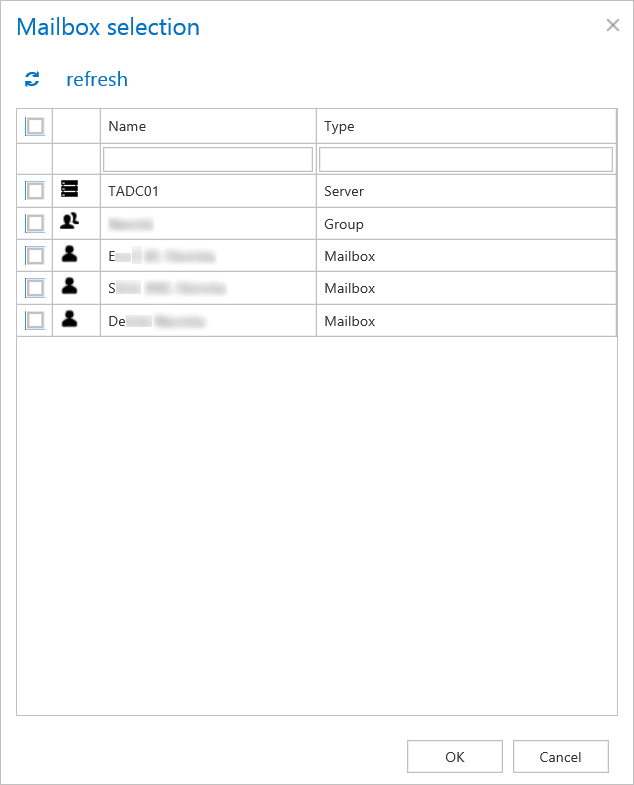
Here the administrator may select the mailboxes, groups or the entire Exchange server, which will be processed by the retention changer job. Click on the  select option and check the desired groups or servers in the Mailbox selection window, then click on OK.
Important: If an on-premise Exchange group is used in a job configuration, the job configuration needs to be updated after the group is moved to the cloud, since the group identifier changes and the job is still using the old identifier.
Steps to take:
- open job’s configuration page
- remove the group from the list of Address book objects to process
- select the group and re-add it to the list
- save the job configuration
✓ Include folders (mandatory)
Email retention changer job is crawling the entire mailbox or recursive folder structures from the mailbox for further processing. Before you enter the folder name(s) to be crawled, it is necessary to select the folder filtering type.

If you set Entire mailbox, then the whole mailbox including all folders will be processed. If you set One single folder type, then only one pre-selected folder will be processed (e.g. if you set %INBOX%Subfolder1, then only Subfolder1 will be processed). If you set Recursive, starting from a single folder filtering type, then all folders starting from the defined folder will be processed (e.g. if you set %INBOX%Subfolder1, then starting from Subfolder1, every subfolder will be processed in the structure). The same rule applies to the Multiple folders, and to the Multiple recursive, starting from a single folder, too, but in this case we can work with more folders simultaneously (e.g.: %INBOX%, %OUTBOX%Folder name 5…or…%TASKS%, %CALENDARS%Folder name 6).
Important: It is highly recommended to specify the root mailbox folders using wildcards (%). Wildcards ensure that the given mailbox folder (e.g. the “INBOX” folder) will be processed, regardless of the language settings of the mailbox. This is important mainly for companies who archive mailboxes using different languages. Subfolders must be added to a root folder with a backslash ().
It is important to bear in mind that by selecting “Recursive, starting from a single folder” filtering type under “Include folders” section and leaving the folder path textbox empty, the whole selected mailbox will be archived:

✓ Filtering settings (optional)
Click on the Change filter button and set the filtering according to your needs and/or regulations. To learn more about how to work with filtering settings, please, check this section of our documentation.
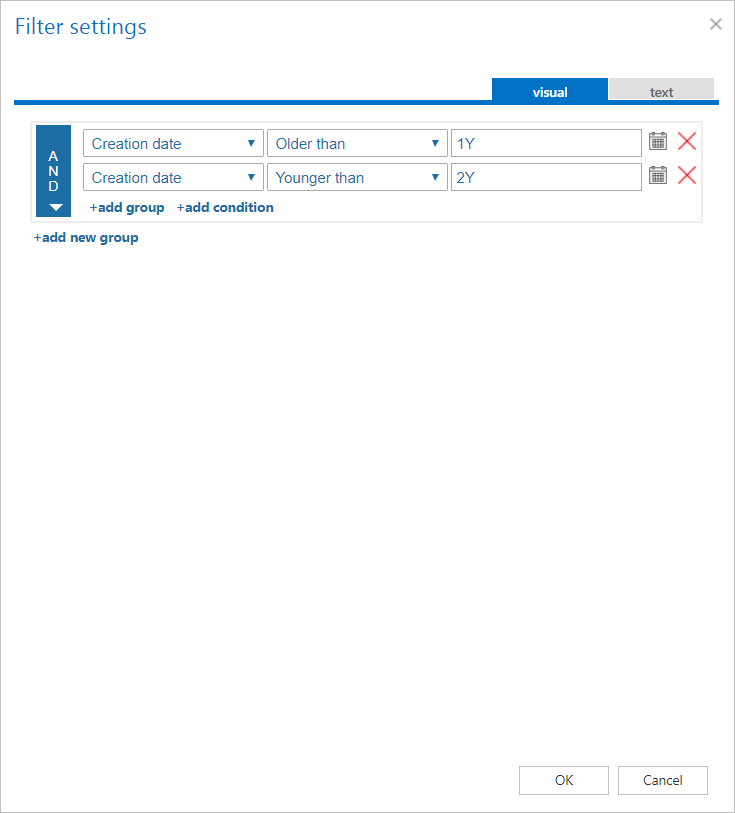
Note: In certain cases, the creation date of a file is set to younger date than the modification date of a file. This happens when a file is copied to another external disk (for example from disk G to disk I). In this case, the creation date will be set to the date of the copy action. Because of this, we recommend to always check Filtering settings if something does not get processed.
✓ Notification settings (mandatory)
Select here, when you will need to get notification emails from the Retention changer job. It is possible to set here if you need a notification email always/never, or you need it only if an error/warning occurred during the process − for example, if the retention change of one or more items failed, then you may get a notification email about this error. Into the Recipient list textbox insert the email addresses of the people whom you would like to send these emails to – if there are multiple recipients, the addresses must be separated by “,” or “;”.

✓ Resource settings (mandatory)
Set the value, which will determine how many items will be processed simultaneously by the Retention changer job. The recommended value is 2, as in our case.

At the end never forget to save your job configurations: click on Save in the left upper corner of UI.