Microsoft 365 journaling
In this section, we will explain how to correctly set up the Journaling in Exchange Online. You can find more information about Microsoft 365 journaling here.
Before starting to set up the Microsoft 365 journaling:
- You need to be assigned permissions before you can perform these procedures. To see what permissions you need, see the "Journaling" entry in the article Feature permissions in Exchange Online.
- You need to have a journaling mailbox and an alternate journaling mailbox configured. For more details, see Configure Journaling in Exchange Online.
- There is a limit to the number of journal rules that you can create in Exchange Online. For details, see Journal, Transport, and Inbox rule limits.
- You can use the Microsoft Purview compliance portal to manage journaling in Exchange Online. Read more about the Manage journaling in Exchange Online here.
The following steps are required to set up the Exchange Online:
-
Log in to the Microsoft Purview compliance portal
-
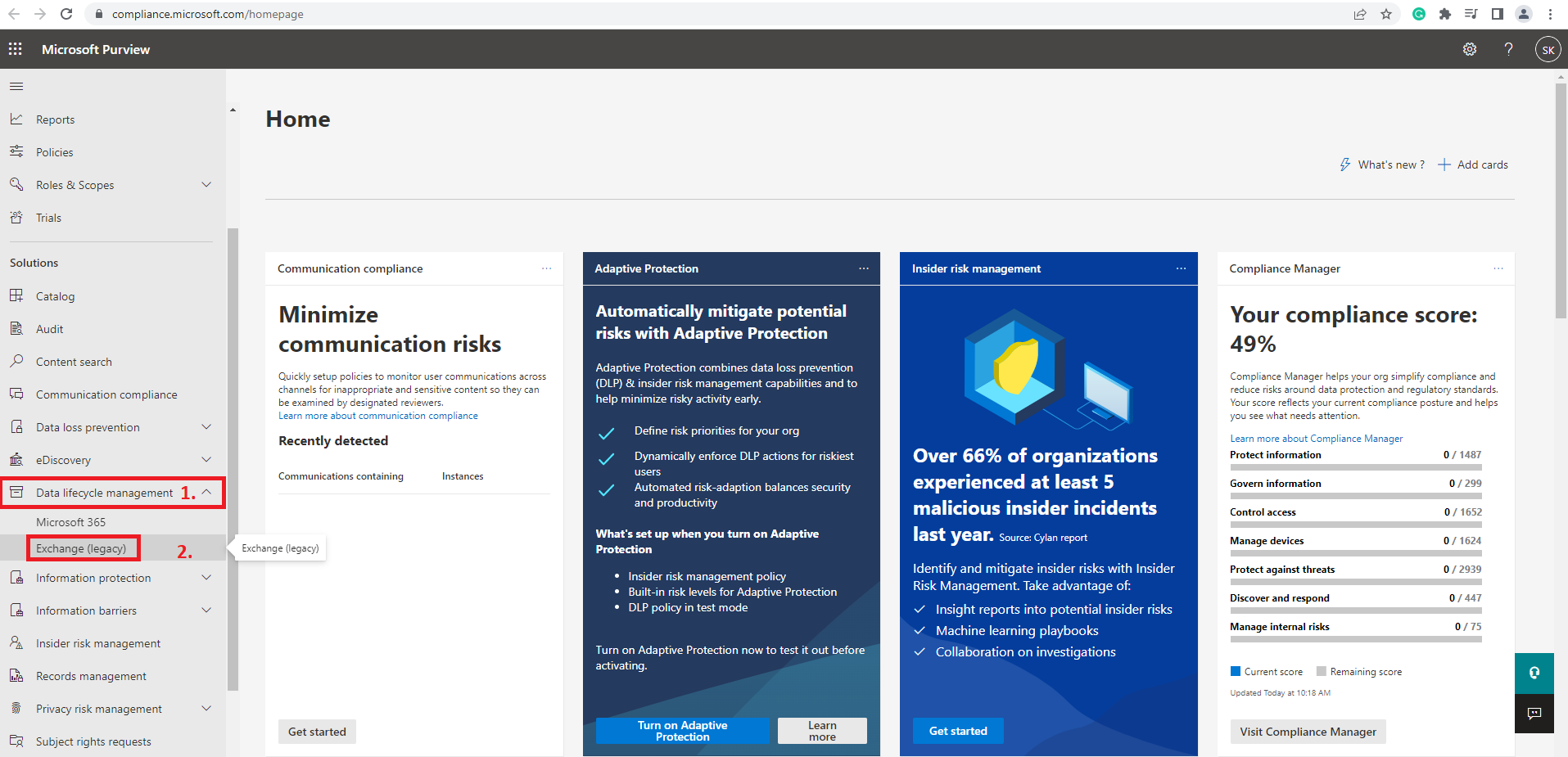
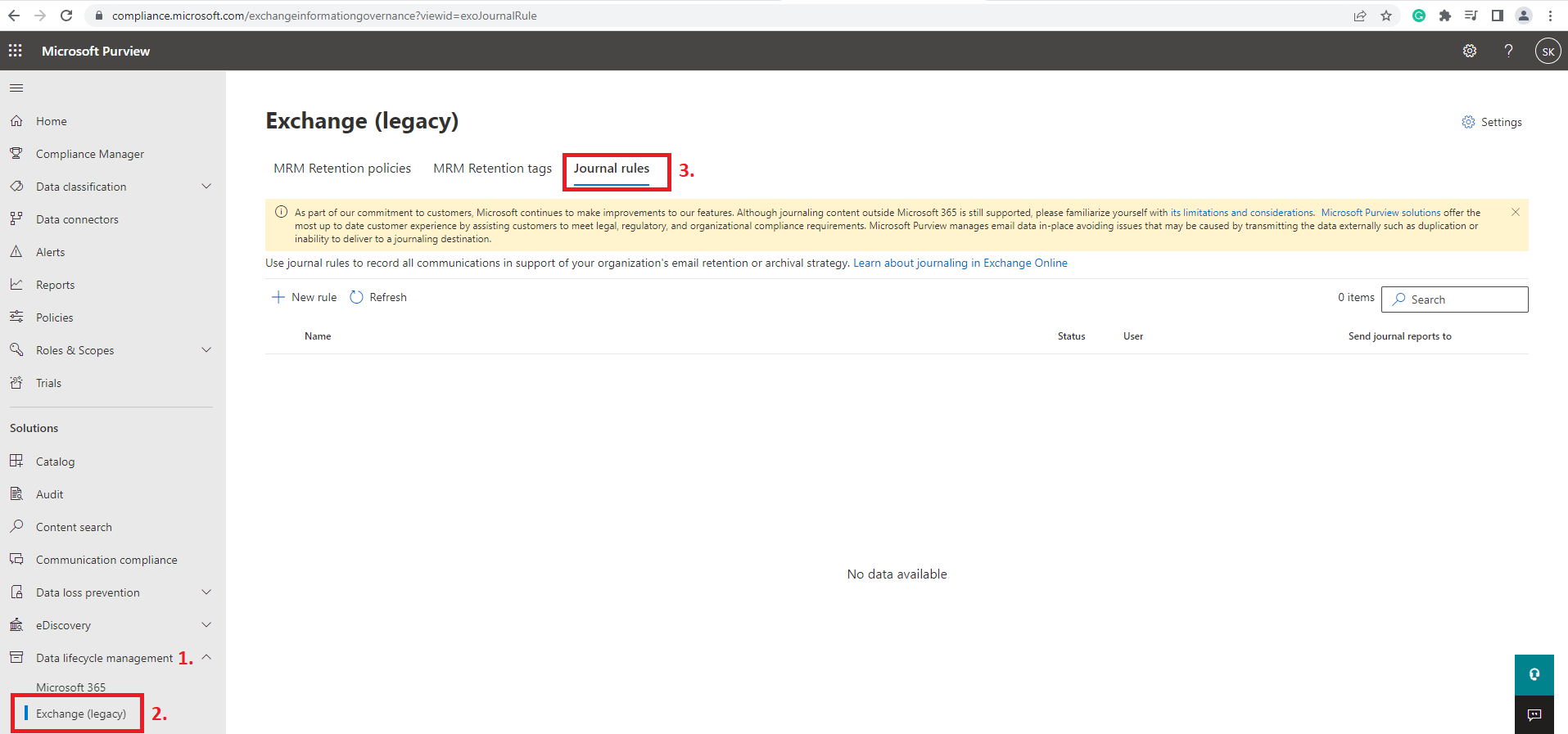
From the navigation menu on the left select Data lifecycle management => Exchange (legacy)
-
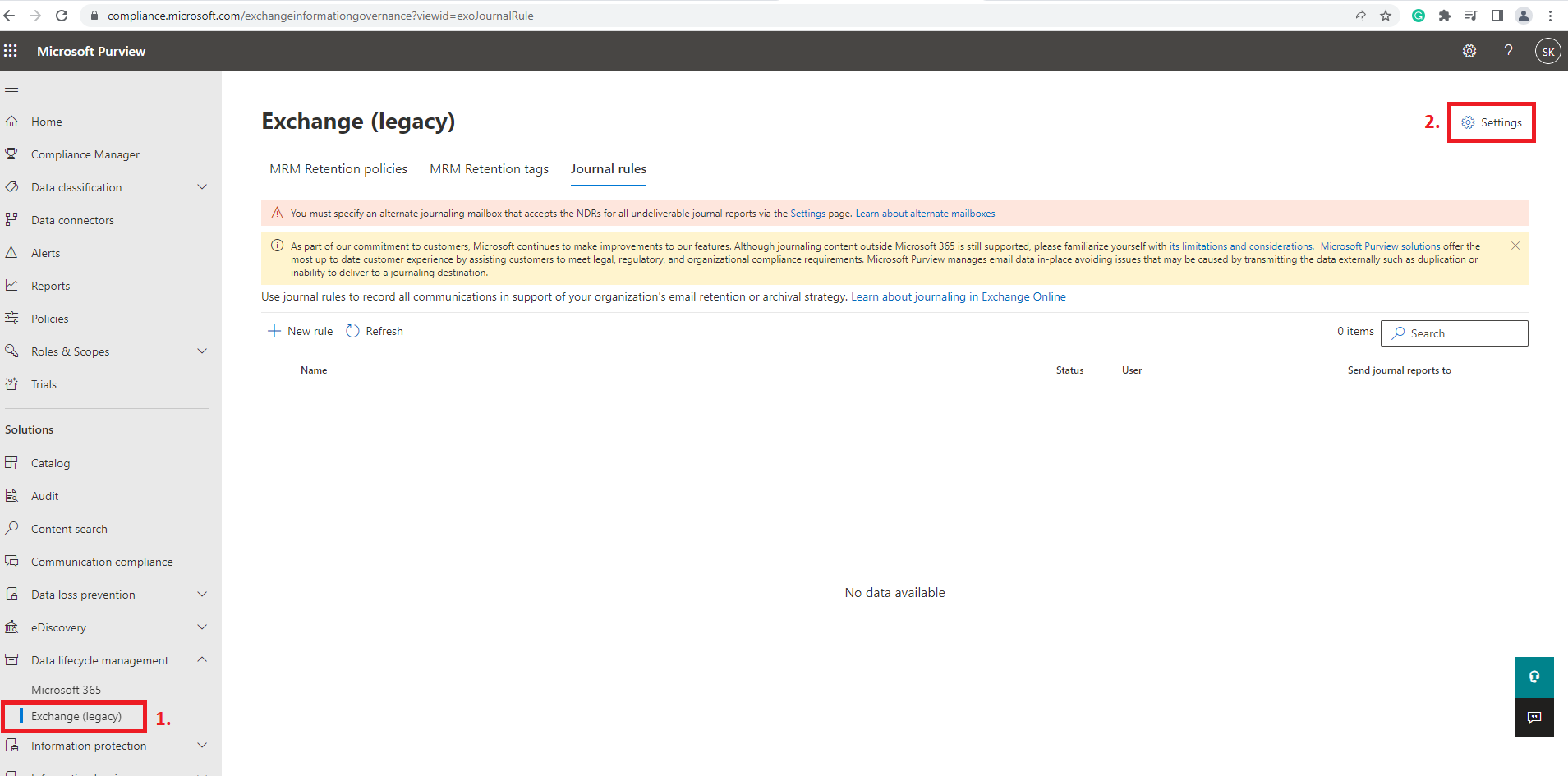
On the Exchange (legacy) tab select Settings (the gear icon)
-
In Send undeliverable journal reports to enter the email address of a valid user account. Note that you cannot use a team or group address. This email address will be used for Undeliverable journal reports when they are not deliverable to the addresses specified in the journal rule. This email address can't correspond with an Exchange Online mailbox.
Note: The emails that are sent to the email address configured to get the undeliverable journal reports will not be sent to the journal. If you configure your mailbox to get the undeliverable reports, then any email sent to you will not be forwarded to the journal, so these emails will not be archived by contentACCESS. This means that a production mailbox, which must be archived, SHALL NOT be set as an undeliverable report receiver.
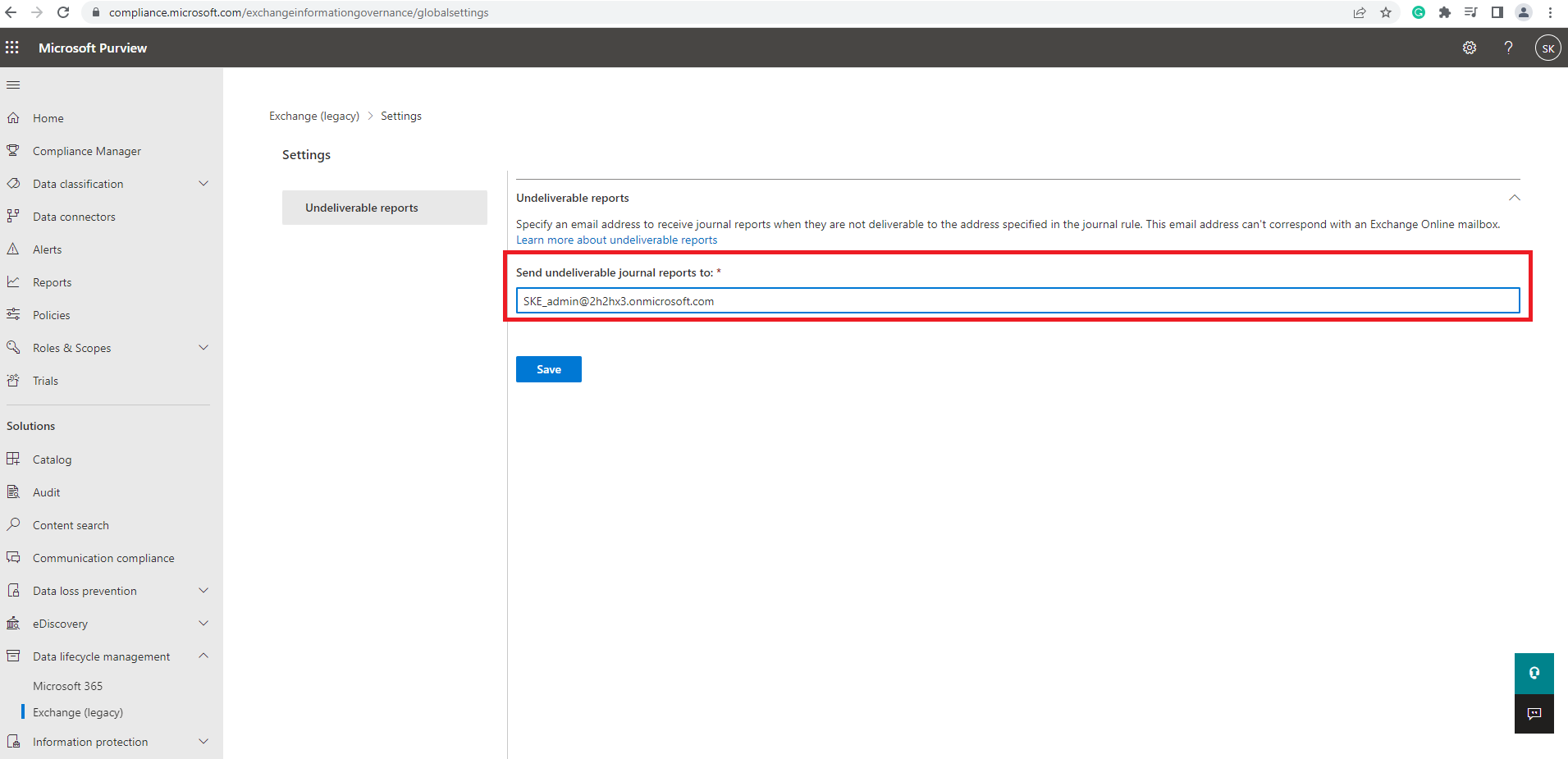
It is also possible to replace this (alternative) mailbox on the same tab:
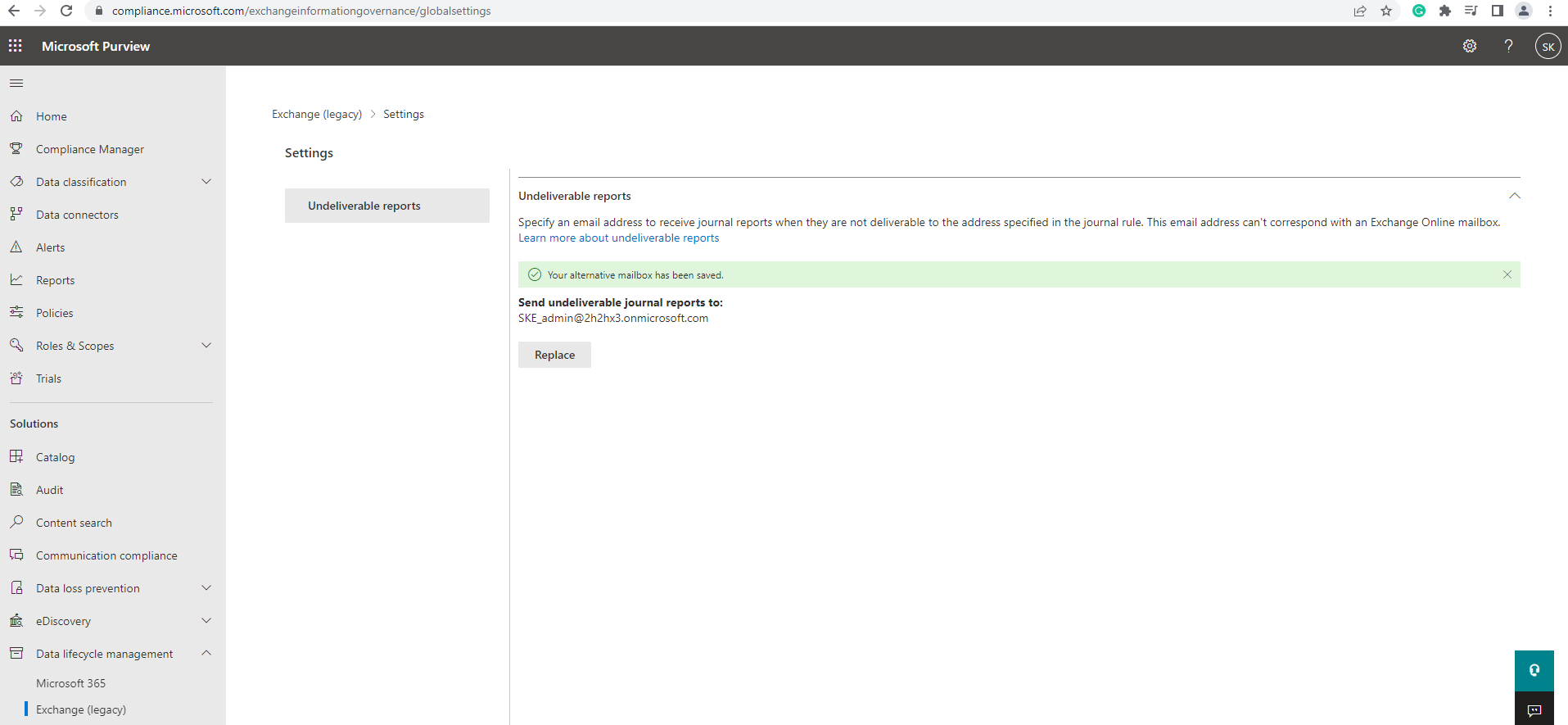
Select Save.
-
Navigate to the Journal Rules tab.
-
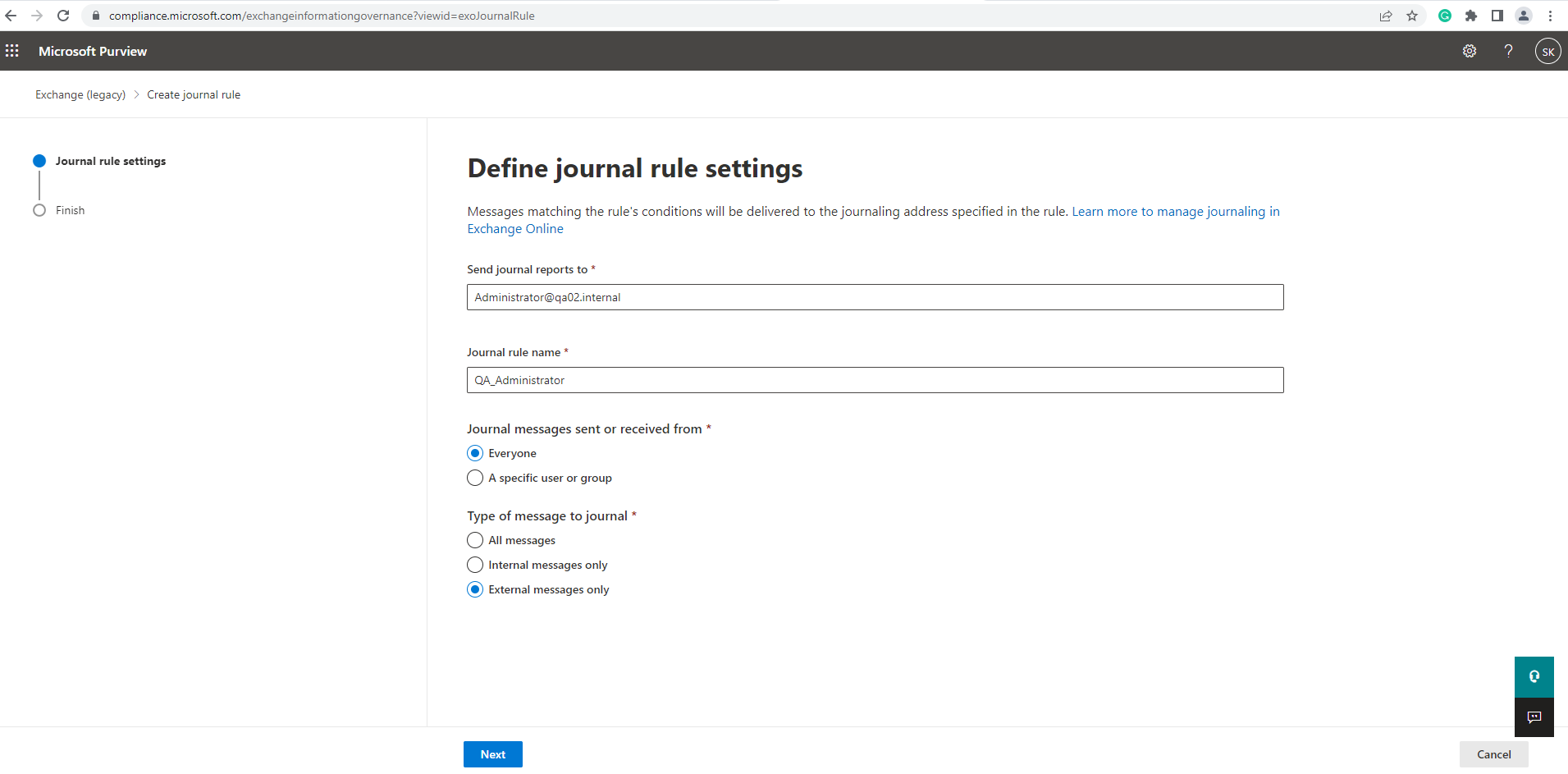
Create a new rule and fill out the following values:
a) Send journal reports to: specify an email address for an on-premises archiving system or third-party archiving service (in case of using the contentACCESS cloud, the journal mailbox domain is @smtp.contentACCESS.cloud)
b) Journal Rule Name: enter a journal name for the rule (recommendation: contentACCESS journaling rule)
c) Journal messages sent or received from: Everyone
d) Type of messages to journal: External messages only
-
Click Next.
-
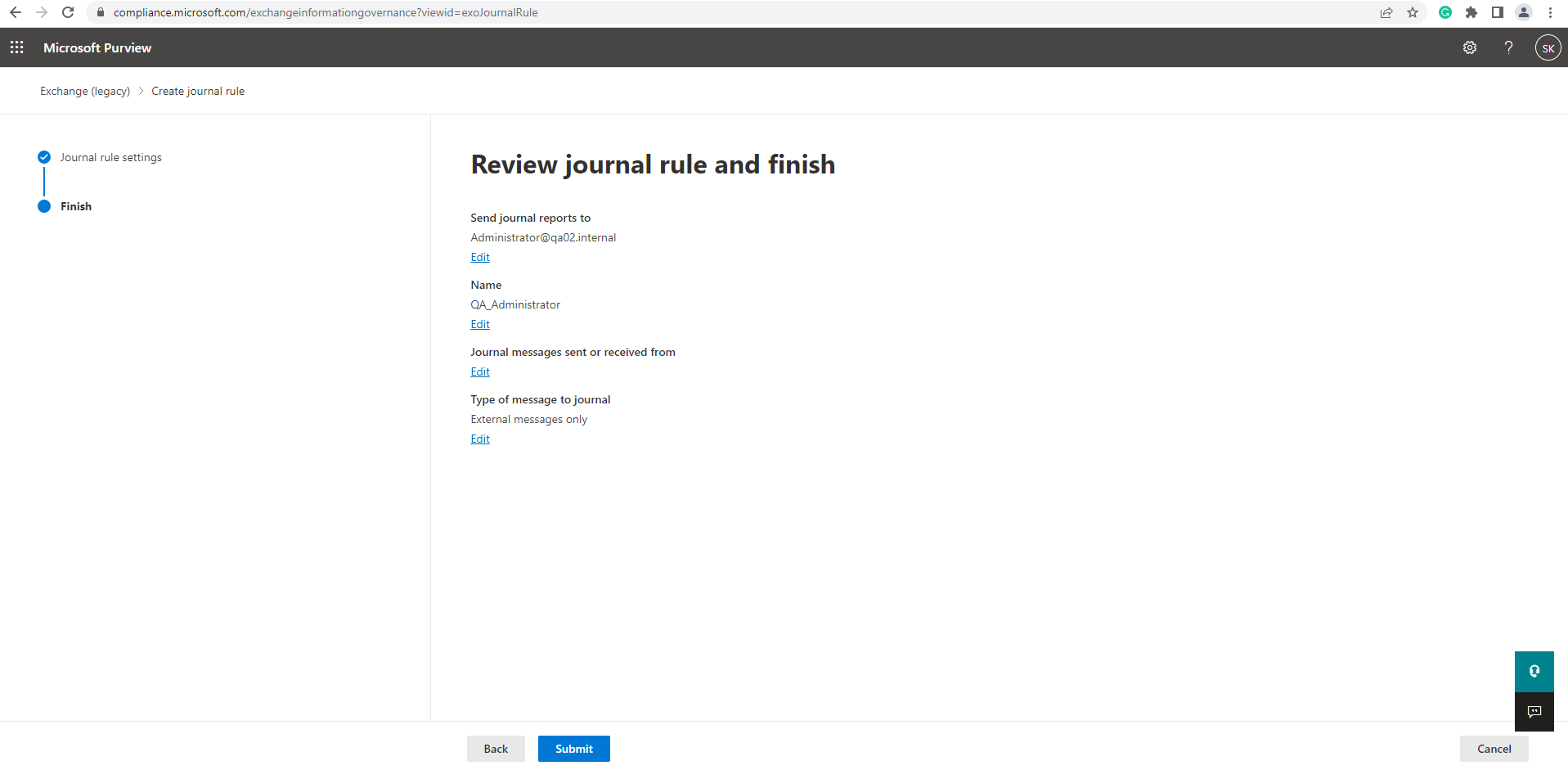
Verify the information is correct and select Submit.
-
Once saved, the rule is automatically active.
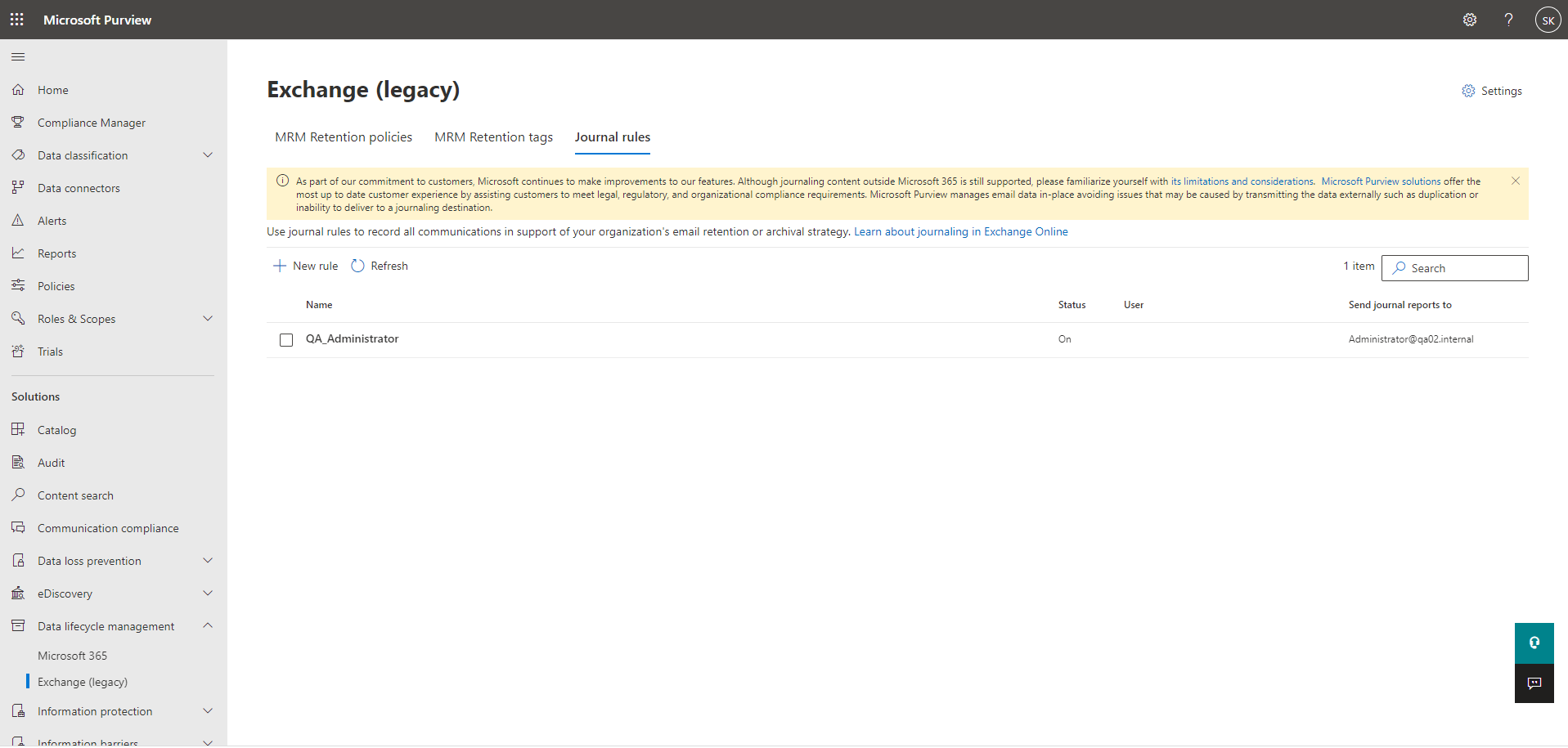
Once the journaling rule is active, the outgoing and incoming emails of the configured Microsoft 365 tenant will be sent to the contentACCESS archive and will be archived.