Multifactor authentication
For the MFA you need to go to https://portal.office.com/adminportal/home#/users (the Microsoft 365 admin portal) and open the More option on the Active users site. Select the Multifactor Authentication (MFA) setup option from the menu.
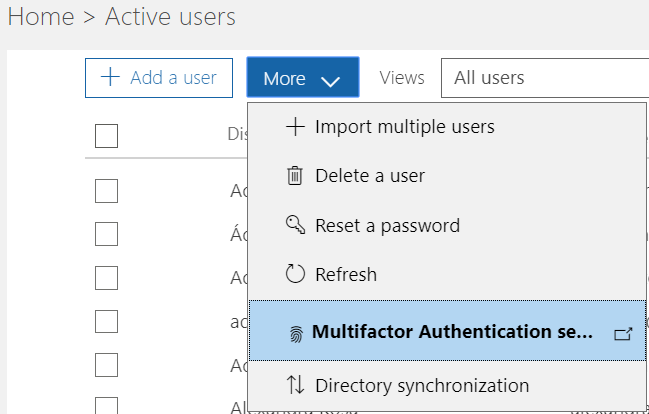
On the MFA site you can see all the users and their configuration – whether the MFA is enabled or not.
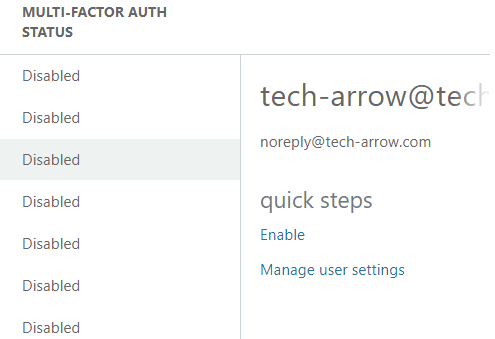
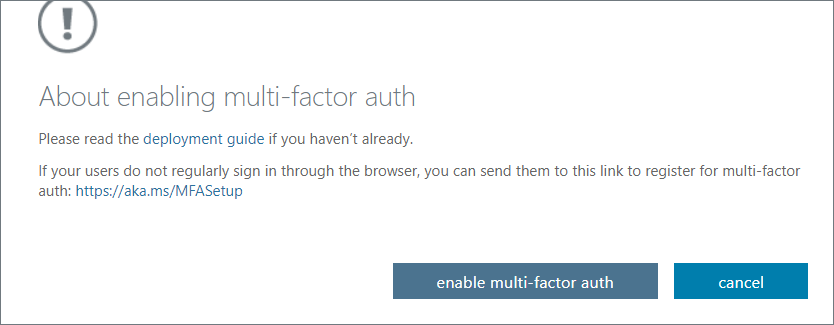
After enabling MFA through the Enable option in quick steps on the right side (see screenshot above), you need to confirm your choice by clicking on the enable multi-factor auth button.
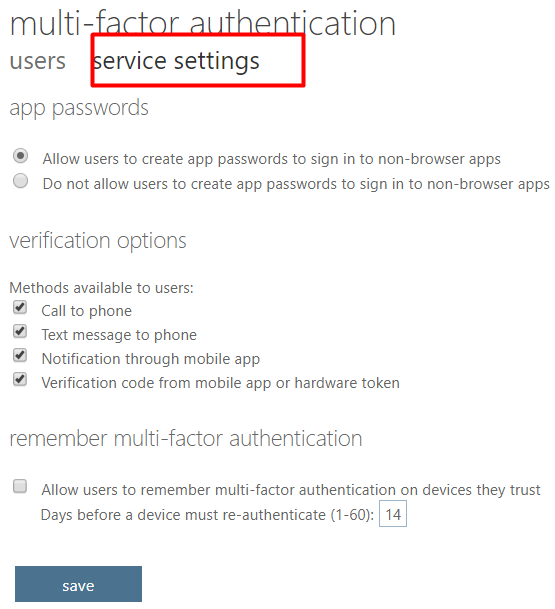
On the MFA site, switch from users to service settings and under app passwords click on Allow the users to create app passwords to sign in to non-browser apps. Click on save.
The user will have the MFA enabled. However, for MFA to work properly, the user needs to log in and create an "app password".
Note: In case the user is also Admin for email archiving, the user must use the app password instead of the regular password in the Email archive -> System settings -> Exchange configuration.