SharePoint archive Address book
Important: The View address book tab is only visible if Microsoft 365 SharePoint is selected on the System settings page.
Navigate to SharePoint archive => View Address Book to open the View address book page:
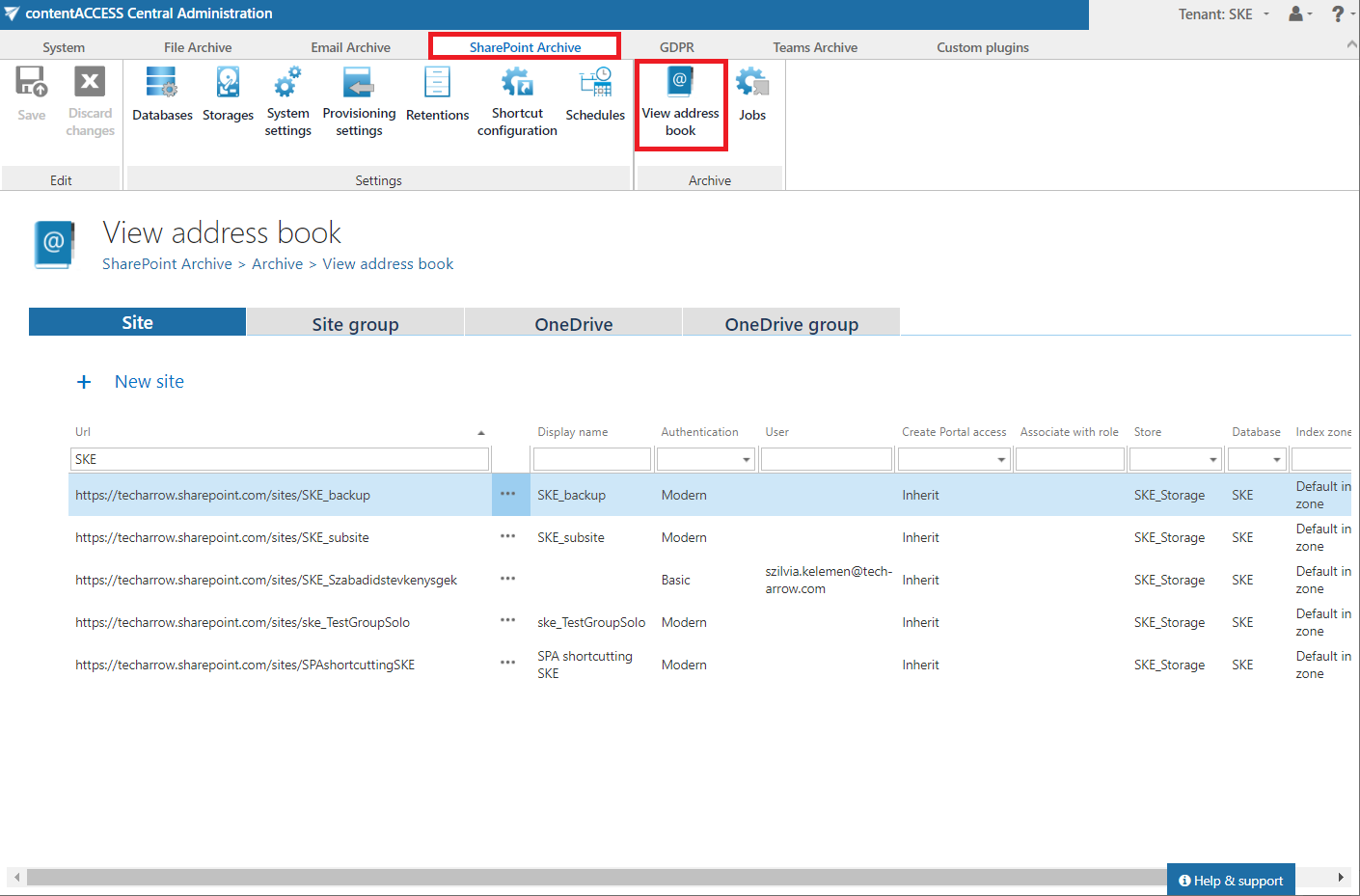
The address book contains a read-only list of objects that are provisioned in the address book. To simplify their management, contentACCESS provides the option to group sites into Site groups. This is especially useful and recommended to do in case that same archiving policies need to be added on multiple sites (same database, store, index zone, contentACCESS user creation policy, etc.).
The objects can be added to the address book:
- by the provisioning job (sites, users, AAD groups)
- created manually from the address book (Site groups)
A site group can be created by two ways:
-
From the Site group tab:
Click on + Create group.
A pop-up window will open. Here you need to name your group and can also write a description.

After clicking on Create, your group will be added to the list of groups in the tab. -
From the Site tab:
Select your desired site and click on Show details in its context menu.
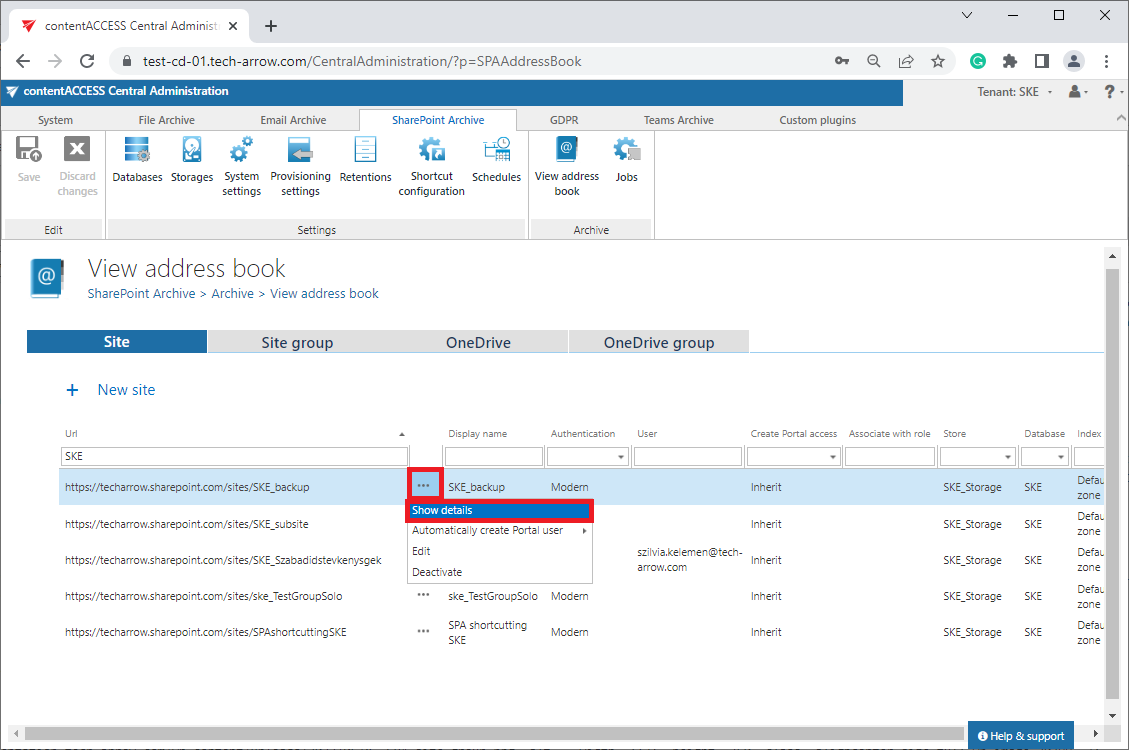
Switch to the "Member of" tab and click on Manage group membership button.
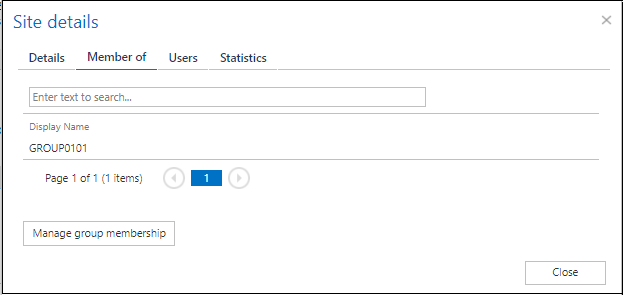
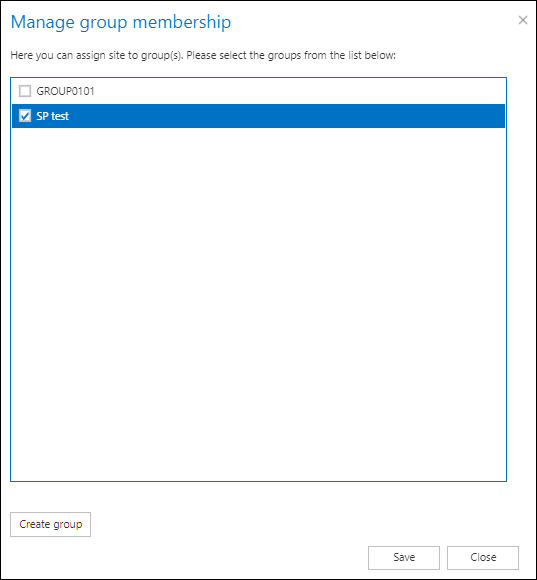
Here it's possible to Create group or assign site to group(s). After creating or assigning group(s) to site(s), click Save.
The address book objects are organized on the page into four tabs:
- Site – shows all provisioned SharePoint sites
- Site group – lists the provisioned or created groups here
- OneDrive – the OneDrive connections are listed in this tab
- OneDrive group – shows the AAD (OneDrive groups to provision) groups which are provisioned if OneDrive archiving is enabled on the System settings page.
Site
Shows all provisioned SharePoint sites. Here the following columns are displayed:
- URL – the URL column displays the SharePoint site’s URL, where the content of the site is stored
- Display name – the name under which the SharePoint site will be listed in the Portal after the archive job.
- Authentication – shows the configured authentication type (from the Site connections tab) for the SharePoint site(s). For more information, please, refer to this chapter.
- User – this column has value only when the basic authentication type in was used for the site connection settings. Here you can see the configured user
- Create contentACCESS Portal access – this column indicates if there is a command for the Provisioning job to create contentACCESS Portal users for the selected object. The Inherit value on the Site level means that the value set for the group of the site will be used. Once a contentACCESS Portal access is granted (provisioning job must be run), every user of the provisioned object will be able to access the archived content of the objects he has necessary permissions for.
- Associate with role – displays the role assigned/to be assigned for the object by the next running Site provisioning job. By default, the objects inherit the default role specified in the SharePoint archive Provisioning settings, but the administrator can decide to assign custom roles for the objects.
- Store, Database, Index zone – these columns show the assigned database, store, and index zone to the objects. Database and storage are assigned automatically by the first running archive job, or manually using the object’s context menu (this option is used when the selected site to archive does not have associated database and storage). If a site does not have an index zone assigned, the next running index job will assign the index zone set in its configuration.
- Type – simply shows whether the selected object is site, or something else (for example, OneDrive account)
- Active – shows, if the respective object is active in contentACCESS. With this feature it is possible to deactivate no longer used objects, keeping the licenses under control. Deactivated objects are not touched by the SharePoint archive job, nor are they counted to the licensed objects. To set an object to active/inactive, the telemetry job must be run, too. It is running automatically every day or can be started manually on the Licensing page (System tab => Services group => Licensing, option “update telemetry“).
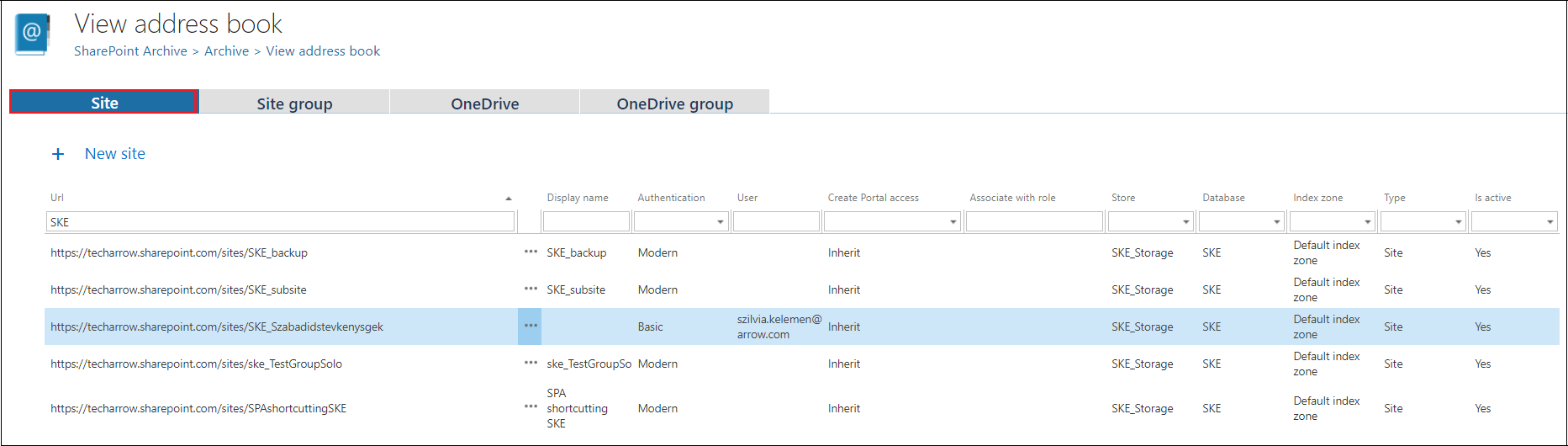
Using the sites’ context menu, the Administrator with the necessary permissions can:
- View object details
- Automatically create contentACCESS Portal user (with custom permissions)
- Edit the site’s connection (authentication, database, storage, and index zone)
- Activate/Deactivate the site directly from the context menu
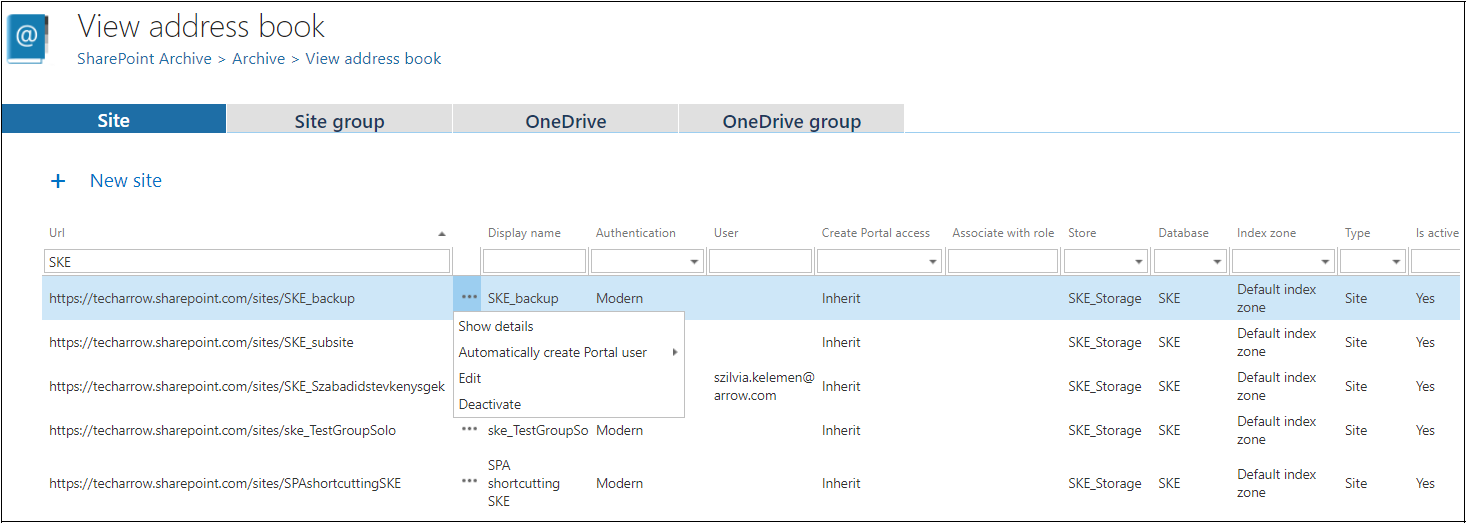
After clicking on Show details, a pop-up window opens. Here it is possible to view the following details:
1. Site details
On this tab, it is possible to view the basic information about the site (for example, name, storage, index zone, etc.).
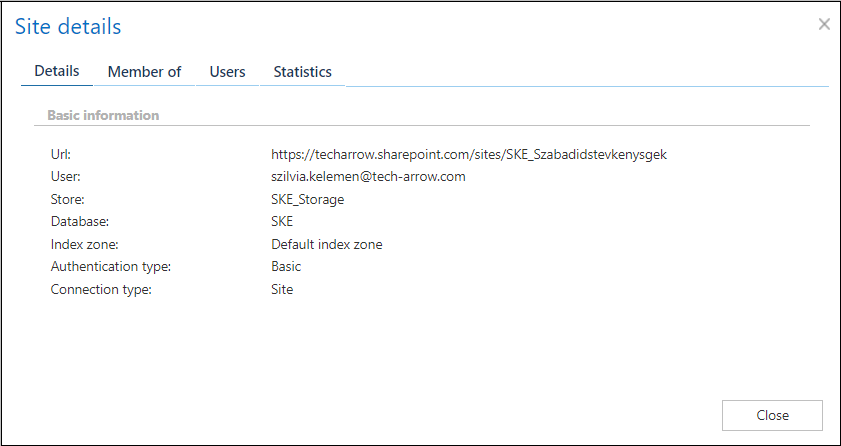
2. Members of
Shows the list of groups where the site is a member. It is also possible to create a new group or assign site to group(s) by clicking on the Manage group membership button.
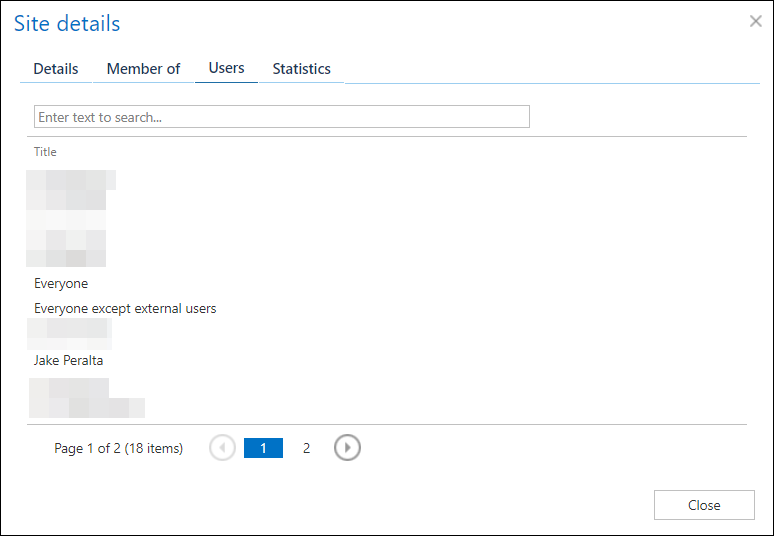
3. Users
Here you can see what members belong to the currently selected site. Please be aware, that these members only appear on the Users tab if the site was previously archived and the provisioning job for the mentioned site was restarted.
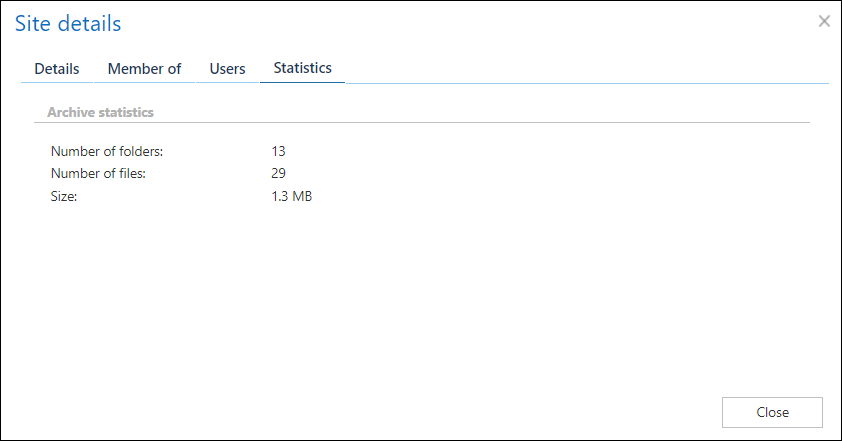
4. Statistics
On this tab, you can view the Archive statistics and Index statistics of the currently selected site.
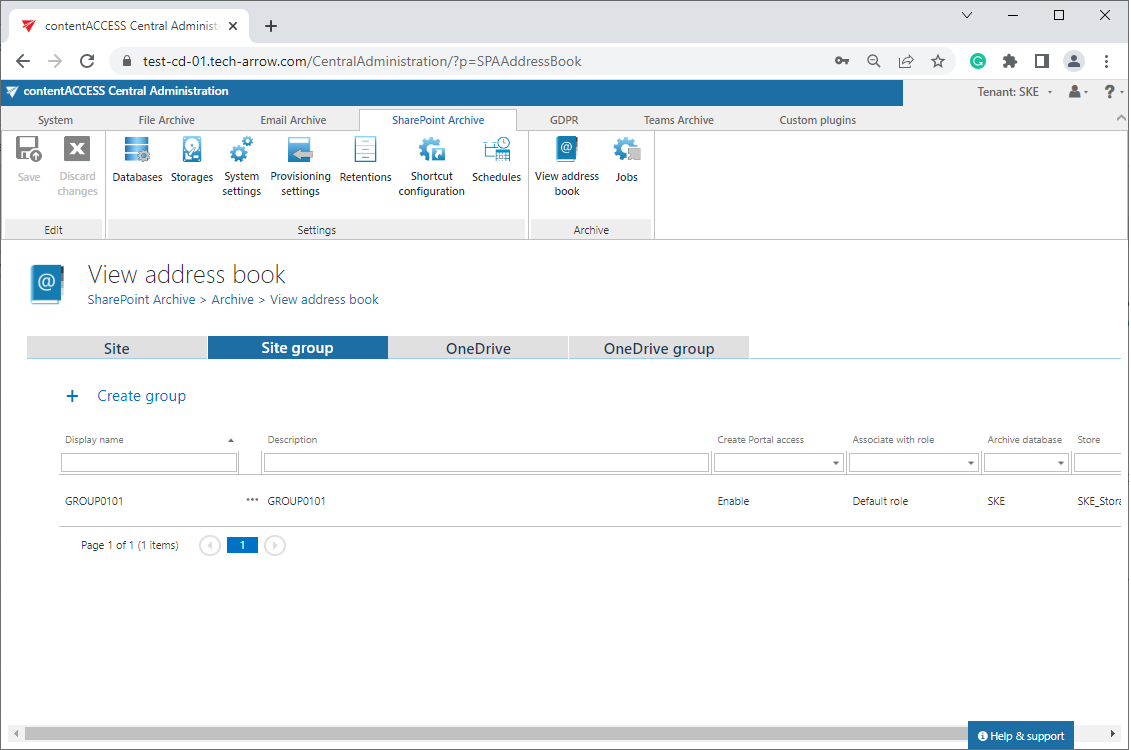
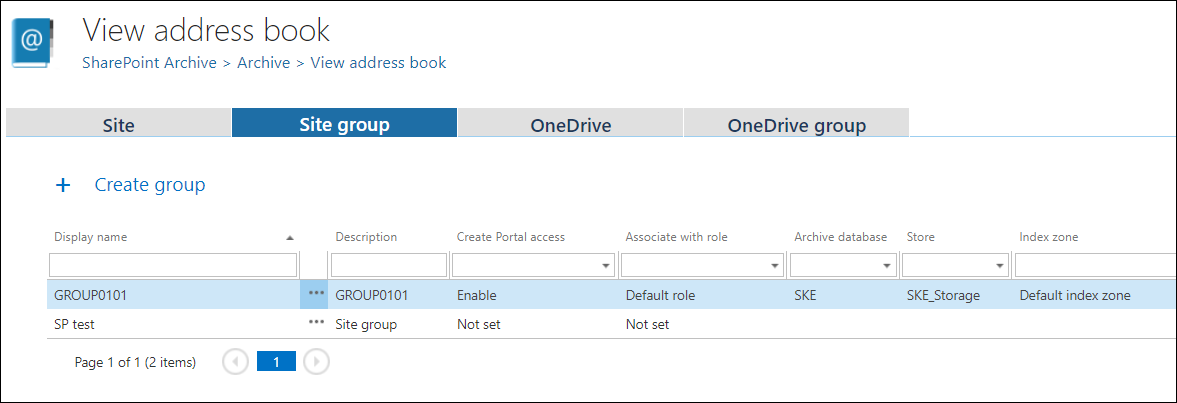
Site group
Lists the provisioned or created groups here. The following columns are displayed here:
- Display name – the name of the group
- Description – shows the description that was written for the selected group
- Create Portal access – this column indicates (as on the Site tab) if there is a command for the Provisioning job to create contentACCESS Portal users for the selected object
- Associate with role – displays the role assigned/to be assigned for the object by the next running provisioning job
- Archive database, store, index zone – these columns show the assigned database, store, and index zone to the objects
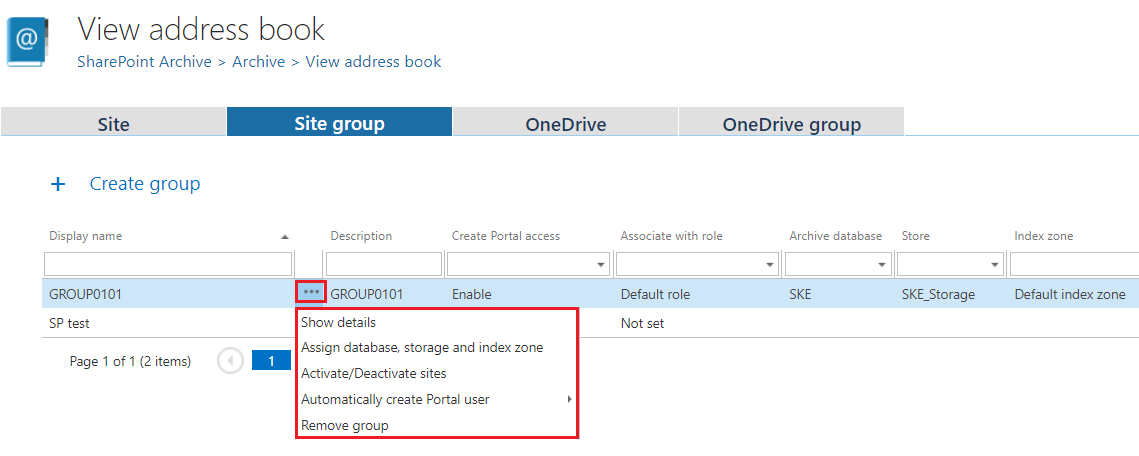
Using the groups’ context menu, the administrator – with the necessary permissions – can:
- Show details
- Assign database, storage and index zone
- Activate/Deactivate sites
- Automatically create Portal user
- Remove group
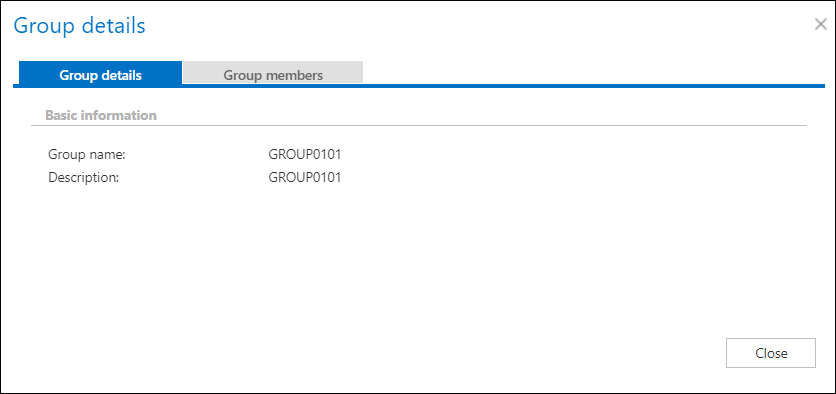
After clicking on Show details, a pop-up window opens. Here it is possible to view the following details:
1. Group details
Here you can view the name and description of the currently selected group.
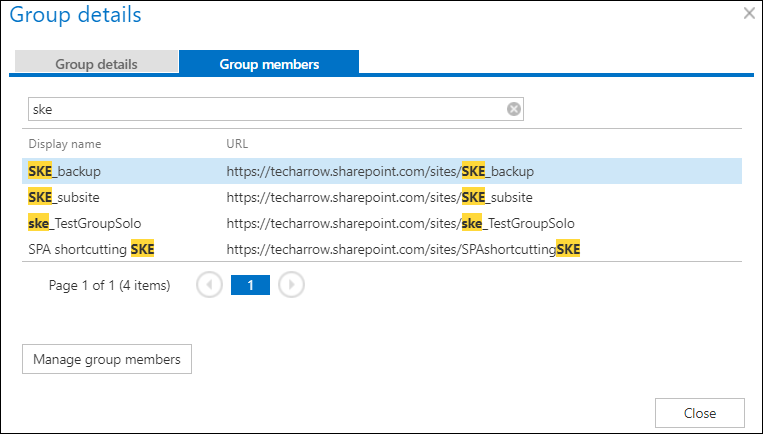
2. Group members
On this tab, you can see the members of the currently selected group and their SharePoint URL. It is also possible to create a new group from here by clicking on the Manage group membership button.
OneDrive
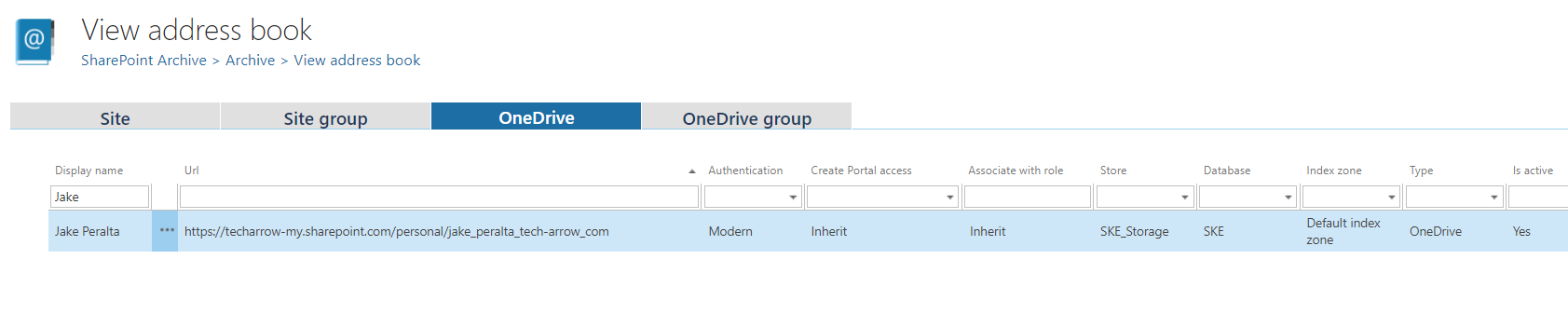
The OneDrive connections are listed in this tab. The following columns are displayed here:
- Display name – owner of the OneDrive account. The OneDrive entity will be listed under this name in the Portal after the archive job
- URL – the URL of the OneDrive account’s, where the content is stored
- Authentication – shows the configured authentication type: modern, basic, or integrated. (Find out more about the authentication here.)
- Create contentACCESS Portal access – this column indicates if there is a command for the Provisioning job to create contentACCESS Portal users for the selected object. The Inherit value on the OnDrive level means that the value set for the object will be used. Once a contentACCESS Portal access is granted (provisioning job must be run), every user of the provisioned object will be able to access the archived content of the objects he has necessary permissions for.
- Associate with role – displays the role assigned/to be assigned for the object by the next running provisioning job. By default, the objects inherit the default role specified in the SharePoint archive Provisioning settings, but the administrator can decide to assign custom roles for the objects.
- Database, Store, Index zone – these columns show the assigned database, store, and index zone to the objects. Database and storage are assigned automatically by the first running archive job, or manually using the object’s context menu (this option is used when the selected OneDrive to archive does not have associated database and storage). If a OneDrive does not have an index zone assigned, the next running index job will assign the index zone set in its configuration.
- Type – simply shows whether the object is a OneDrive, or something else (for example, SharePoint site).
- Is active – shows, if the respective object is active in contentACCESS. With this feature it is possible to deactivate no longer used objects, keeping the licenses under control. Deactivated objects are not touched by the OneDrive archive job, nor are they counted to the licensed objects. To set an object to active/inactive, the telemetry job must be run, too. It is running automatically every day or can be started manually on the Licensing page (System tab => Services group => Licensing, option “update telemetry“).
Using the OneDrive’s context menu, the administrator (with the necessary permissions) can:
- Show details
- Automatically create Portal user

After clicking on Show details, a pop-up window opens. Here, the following details are available:
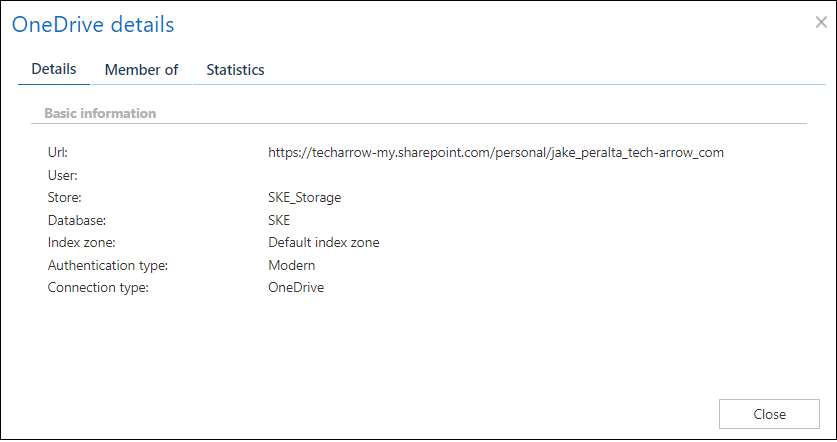
1. OneDrive details
On this tab, it is possible to view the basic information aobut the OneDrive (name, storage, index zone, authentication type, etc.)
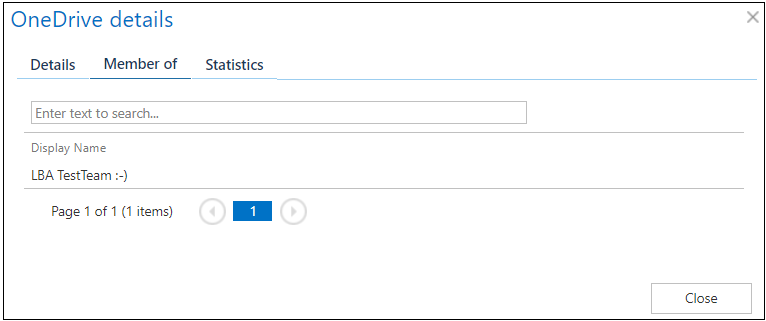
2. Member of
Shows the list of groups where the OneDrive object is a member.
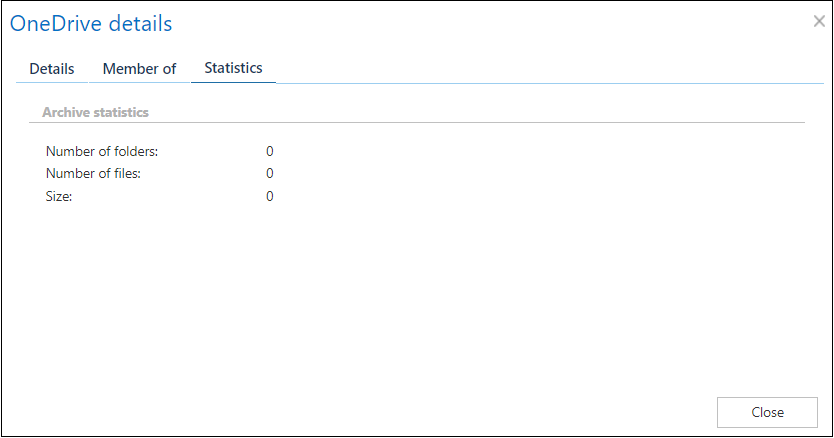
3. Statistics
Here you can view the Archive statistics and Index statistics of the currently selected OneDrive.
OneDrive group
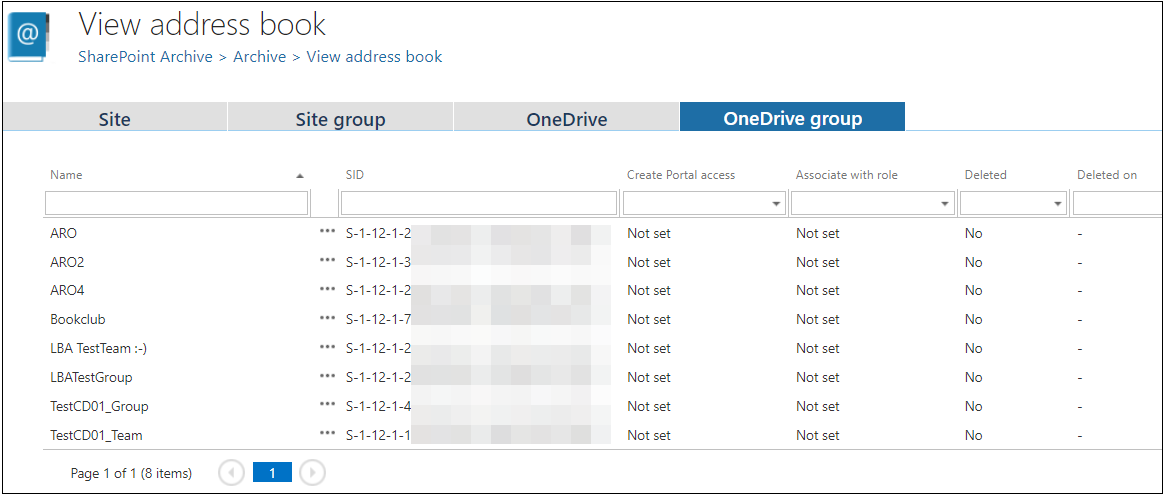
The OneDrive group tab shows the list of AAD (OneDrive groups to provision) groups which are provisioned if OneDrive archiving is enabled under the System settings.
On this tab, the following columns are visible:
- Name – the name of the selected group
- SID – shows the security identifier of an AAD group
- Create Portal access – indicates if there is a command for the Provisioning job to create contentACCESS Portal users for the selected object
- Associate with role – displays the role assigned/to be assigned for the group by the next running SharePoint provisioning job
- Deleted – the column shows if the selected OneDrive group was deleted
- Deleted on – if the selected OneDrive group was deleted, this column shows the time of deletion
Using the OneDrive group’s context menu, the administrator can:
- Show details
- Automatically create Portal user
- Remove group
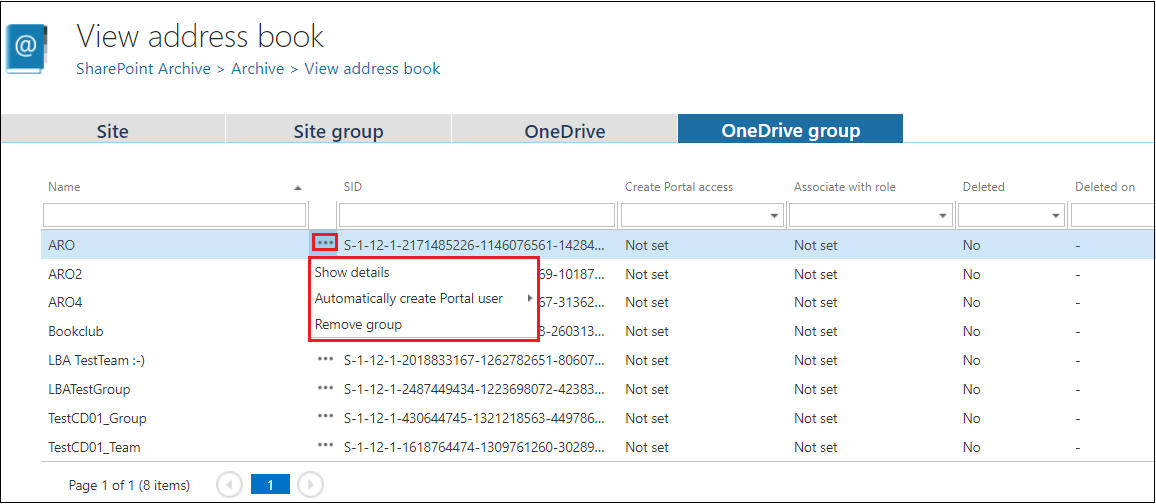
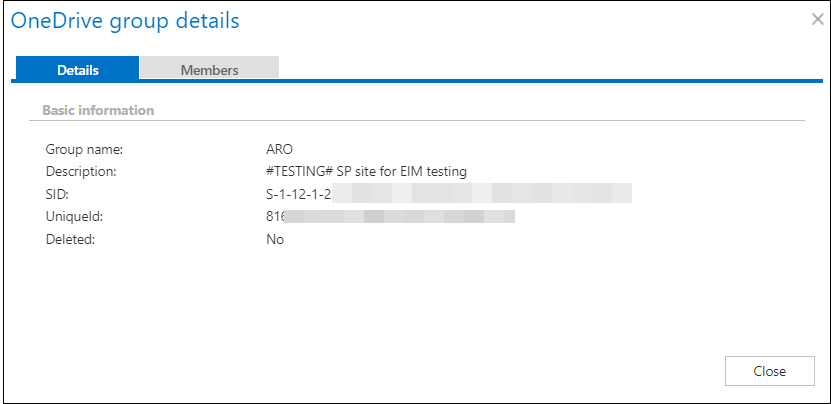
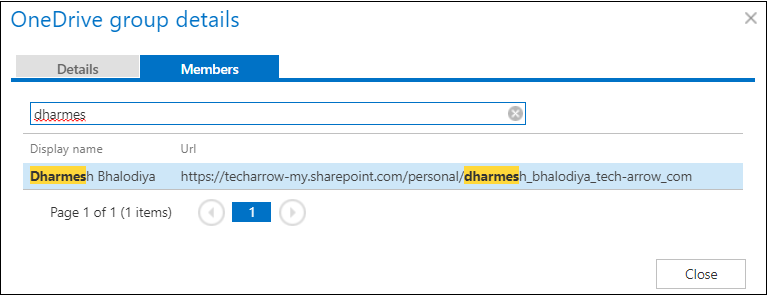
After clicking on Show details, a pop-up window opens, where the user can see basic information on the Details page, and check the members of the group on the Members tab.