SharePoint Publishing job
The purpose of this job is to publish data into SharePoint from a third party store.
Note: Currently the Kendox store type supports this. Read more in chapter Storages.
There are 2 publishing methods to be used:
-
The job can create a document library with real documents or
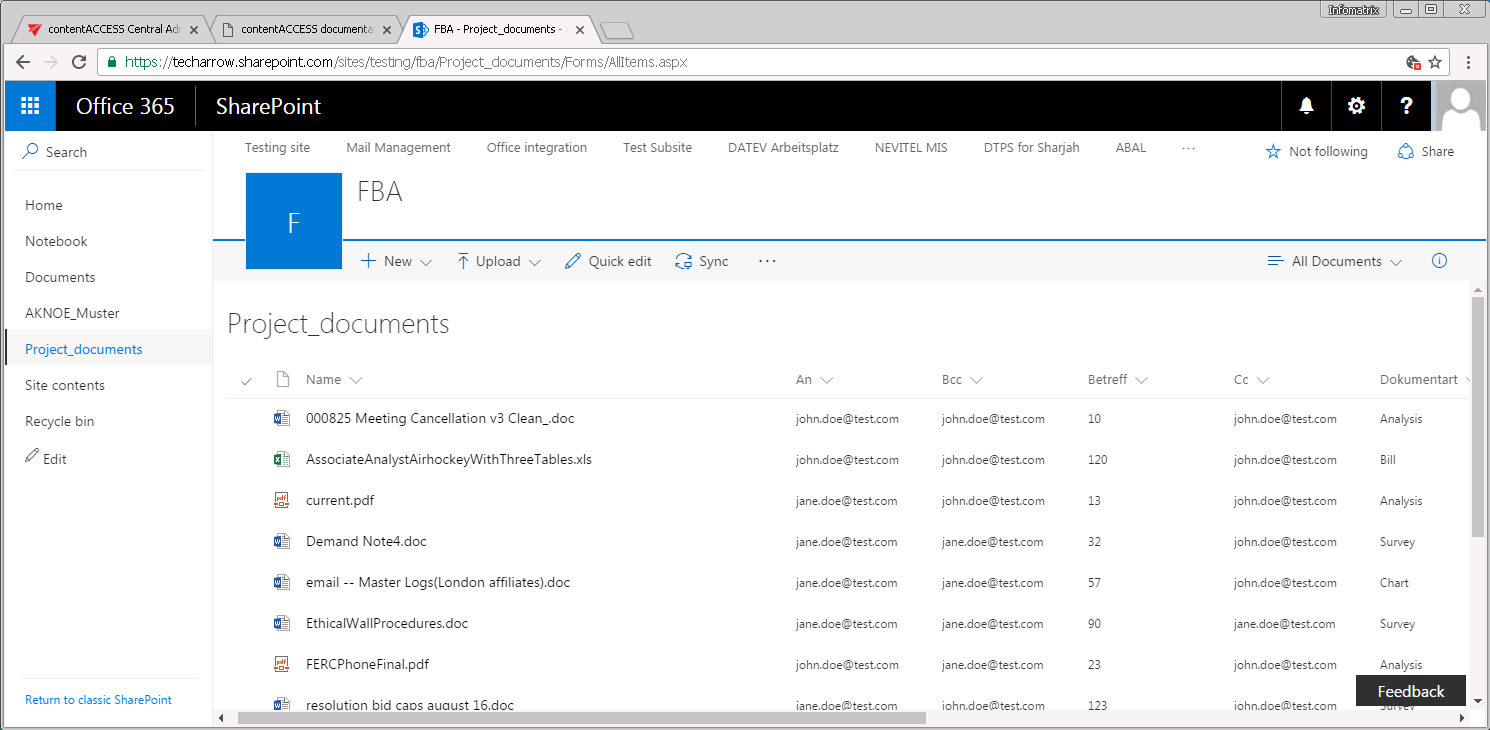
Screenshot A: Project_documents library with real documents -
It can create a custom list with "placeholder" items that have an extra metadata field with an URL pointing to the document residing in the 3rd party document system (column “External Document URL”). The custom list using the link option is like a shortcut, there's no real binary data stored in SharePoint. Only the metadata of the original documents and the links to access them are available.
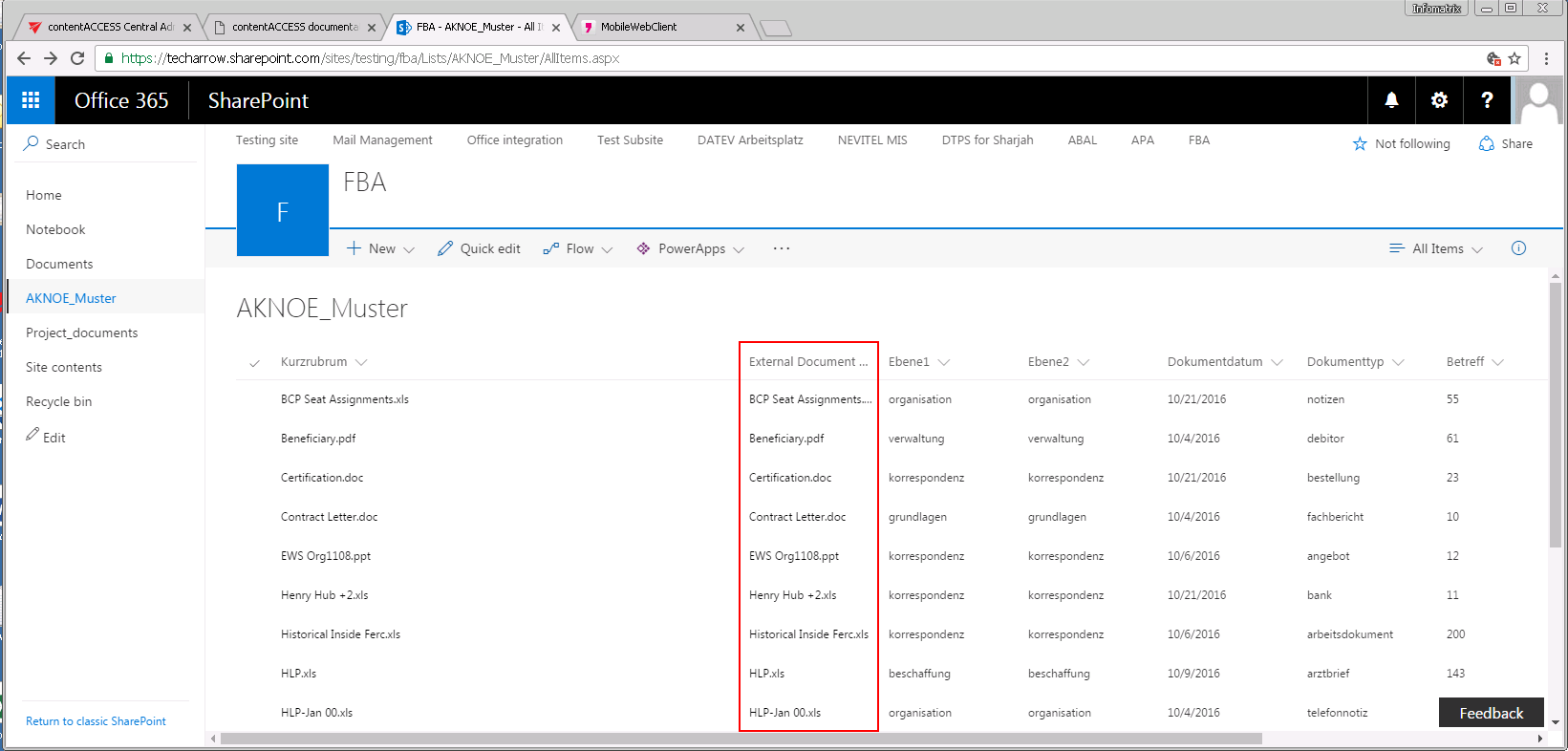
Screenshot B: AKNOE_Muster custom list with links
The document library/custom list names (“Project_documents” and “AKNOE_Muster” on the pictures above) are inherited from the source folder.
To create a new SharePoint Publishing job, click + new on the Jobs page (SharePoint Archive tab => Archive group => Jobs) and select this job type in the Add new job instance dialog:
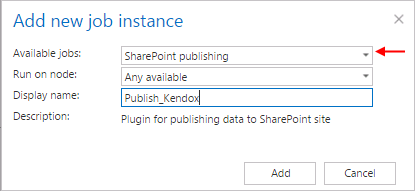
When a new job is created, the user is asked to configure the job immediately. On the SharePoint Publishing job’s configuration page the following must be set:
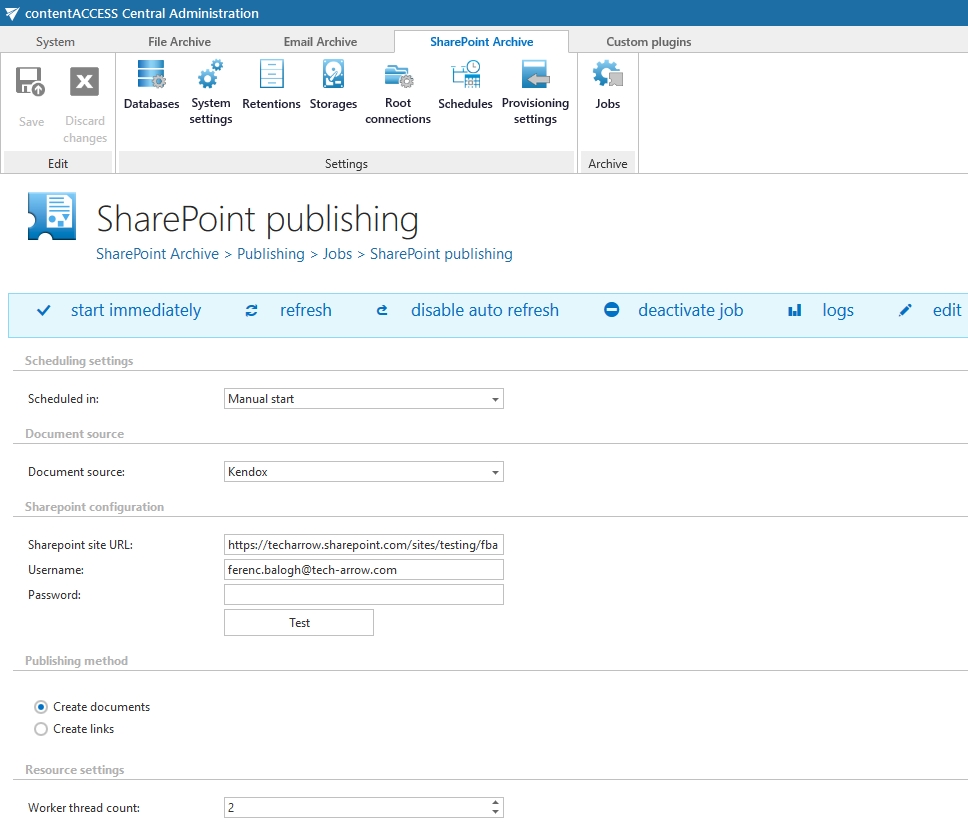
- Scheduling settings: Set the time when the job should run.
- Document source: Select the configured 3rd party storage from where you want to publish the documents into SharePoint. The storage must be first configured on the “Storages” page. (Read more in SharePoint Archive settings.)
- SharePoint configuration: Set there the URL of the site collection or sub web where you want to create the document library/custom list based on the folder from the 3rd party storage. The URL must be a site collection or a subweb, it cannot be an existing document library/list or a subfolder of a document library/list.
- Publishing method: The documents from the source storage can be either published as a
a) document – option “Create documents” or
b) as a link – option “Create link”.
If the “Create documents” option is selected, then the publishing job will create a document library based on the source folder with a content type created by the source folder’s content type. The documents will be uploaded to this document library.
If the “Create links” option is selected, then a custom list will be created with a content type based on the source folder’s content type and a new list item will be created for each document in the source folder. The new list item will have the original metadata and an additional column will be added to it with name “External Document URL”. This column will contain the link pointing to the actual document in the 3rd party system (refer to Screenshot B above).
- Resource settings: set here the number of workers threads running in parallel during the publishing process.