How to edit and disable a tenant
Edit a tenant
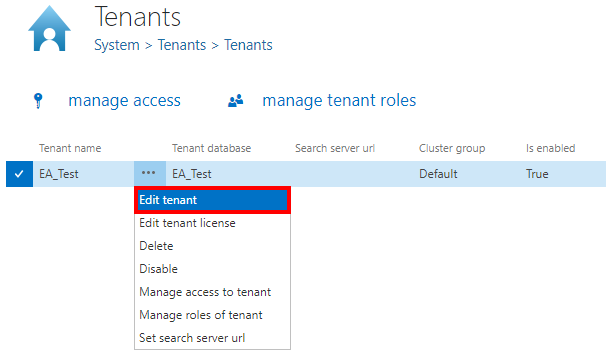
To edit a tenant, click on the ellipses and the context menu will open. Select Edit tenant.
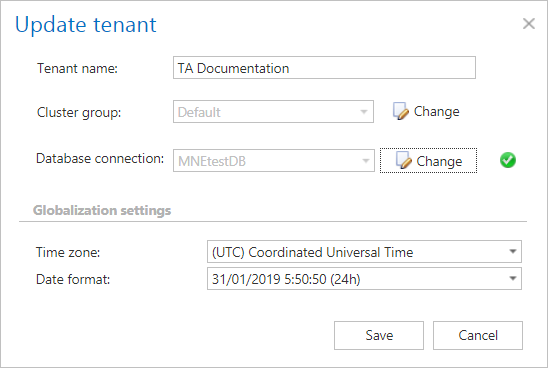
The Update tenant window will open. Here it is possible to change the tenant name, cluster group, database, time zone and date format.
If the user tries to change the cluster group and/or database, a warning pop-up window will open.
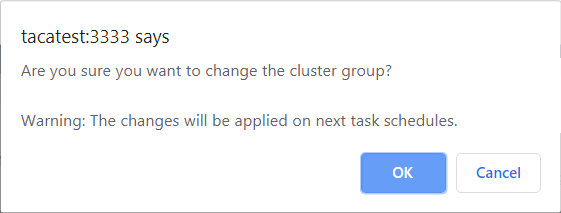
Screenshot: Cluster group change warning

Screenshot: Database change warning
Disable a tenant
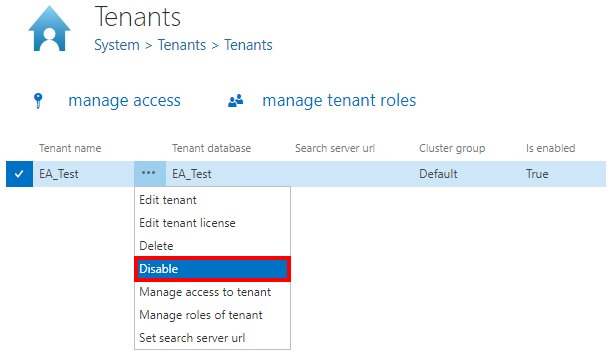
To disable a tenant, click on the ellipses and the context menu will open. Select Disable.
A warning window will pop up, saying that the tenant won't be accessible by client applications and its jobs will be disabled, too. If you agree, click OK.

Note: If you want to enable the tenant again, you can do it by selecting Enable from its context menu.