Application settings
Introduction
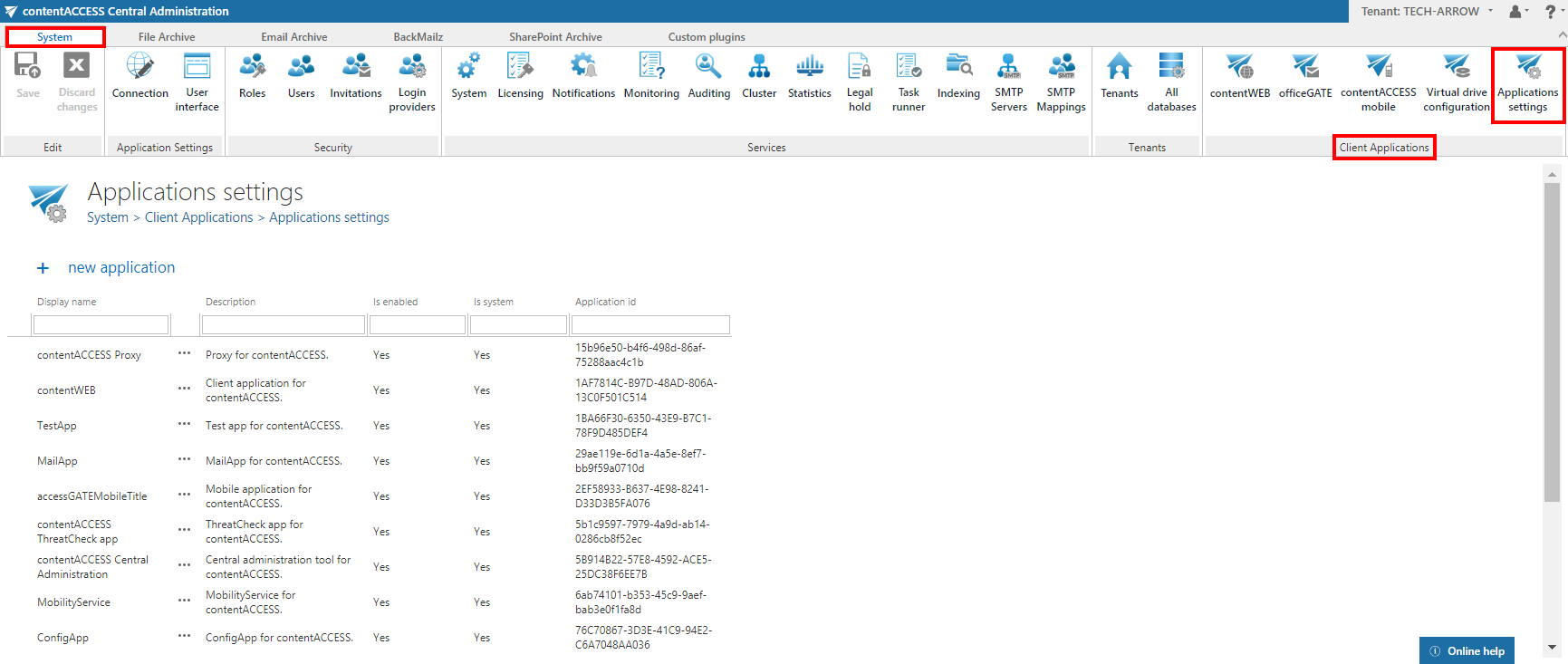
The Application settings page allows the system and/or tenant administrator to manage the list of contentACCESS client applications. It is accessible from System tab => Client applications group => Application settings button.
From this page, administrators can edit existing application settings, enable or disable applications, delete applications, and register new client applications.
Manage client applications
The settings of the client applications listed on this page can be managed using the given application's context menu options.
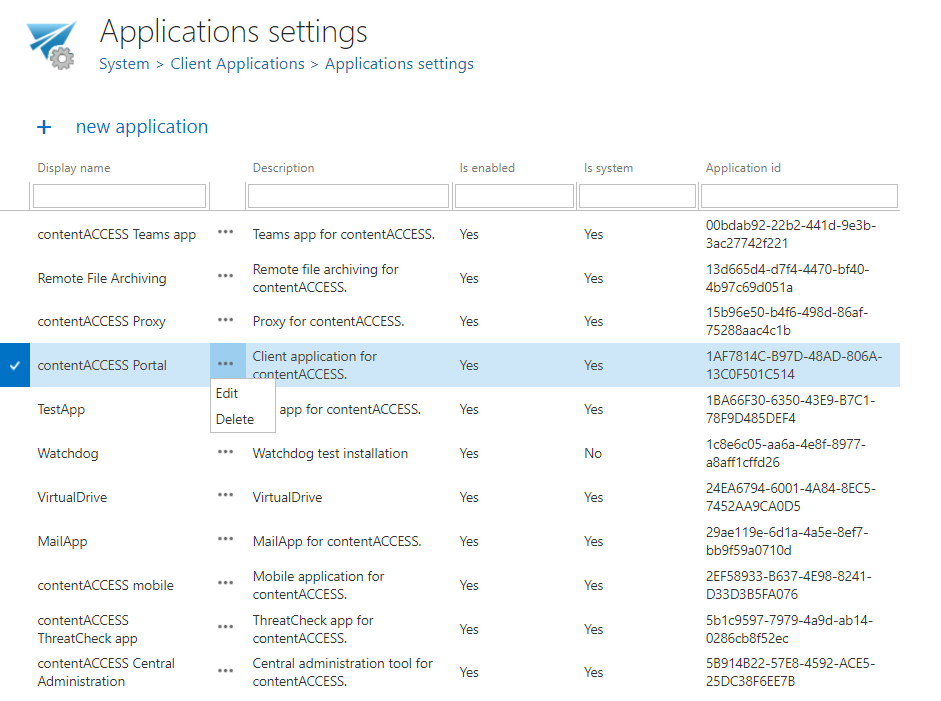
The context menu options allow you to:
- Delete the application. Applications with the Is system flag cannot be deleted.
- Edit the application settings. The user can change the application URL, modify the application name and description, and enable/disable the given application.
- The disable option is not allowed for Central Administration.
- The configuration of the Central login page URL is also disabled here. It can be changed under System => Services => System page.
If an application is disabled, users cannot log in to this application from the central login page. For example, if contentACCESS Portal is disabled, the contentACCESS Portal login option won't be available on the central login page, and nobody will be allowed to log in to the archive.
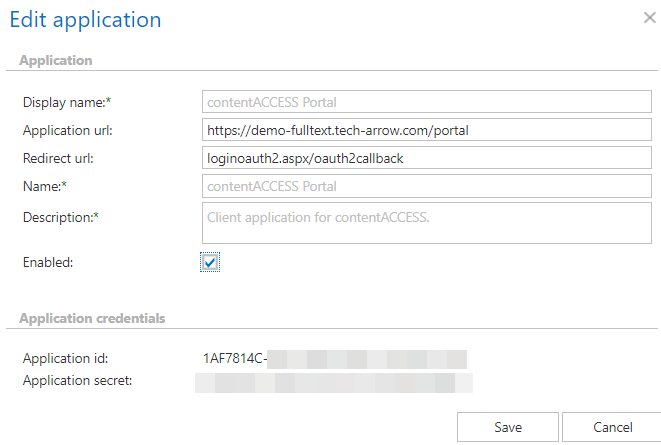
Note: In Central Administration, the contentACCESS Portal URL is taken from the Application settings table. The following locations use the contentACCESS Portal link: System => contentACCESS Portal and User menu (upper right corner in contentACCESS Portal).
At first install of the product, the Application URL is written to the given application's window by the contentACCESS setup. It is highly recommended to create an alias and use an FQDN form in the application URL, because by using this URL the end user should be able to access the given application from everywhere (from home, from office, etc.). During each update of the product, the setup reads the application URL from the Application settings, i.e. from the settings specified in the Edit application window.
Add a new application
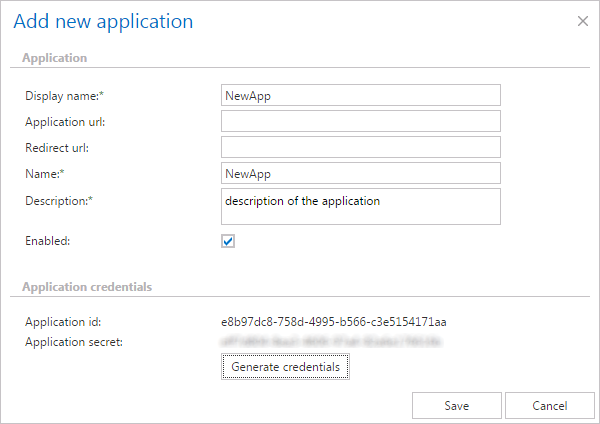
It is also possible to add new applications using the + new application button on the same page.
- Click + new application.
- Fill in the fields in the Add new application dialog.
- Generate application credentials.
- Add it to the list.