Databases
Introduction
The Databases page allows administrators to configure and manage the database connections used to store processed metadata for a selected tenant. Each job type provides access to this page through its own menu path:
- Email Archive ⇒ Settings ⇒ Databases button
- File Archive ⇒ Settings ⇒ Databases button
- SharePoint Archive ⇒ Settings ⇒ Databases button
- Teams Archive ⇒ Settings ⇒ Databases button
- Custom jobs ⇒ General ⇒ Databases button
From this page, administrators can view existing database connections, configure a new connection for the tenant, test connectivity, and manage or designate the default database used for archiving.
Important: It is required to set the SQL Server as Collation – Insensitive (the used collation must be CASE-INSENSITIVE (CI)) for contentACCESS. The recommended collation is SQL_Latin1_General_CP1_CI_AS.
Databases grid
Open the Databases page from the  Databases button. The databases configured for the selected tenant are displayed in the database grid, which contains the following information:
- Server name: the server where the database is installed.
- Type: the database type (MSSQL or PostgreSQL).
- Database name: the name of the database on SQL.
- Schema: the database schema.
- User name: the database user name.
Configure a database connection
Use this procedure to configure a connection on which the processed metadata of this particular tenant will be stored.
- Click + configure existing.
- In the Database repository window, fill in the required fields:
- Use system database server: Check this box if the system database server will be used.
- Database: Type the name of an already existing SQL database. If the database has not been created yet, refer to + create new in How to create/configure databases — All databases.
- Use explicit credentials: By default, contentACCESS connects to the database using the credentials of the user under whom contentACCESS is running. If you want to use different credentials, check this checkbox and enter the User and Password to be used for connecting to the tenant database.
- Click Test database connection, in the left corner of the window, to verify the connection.
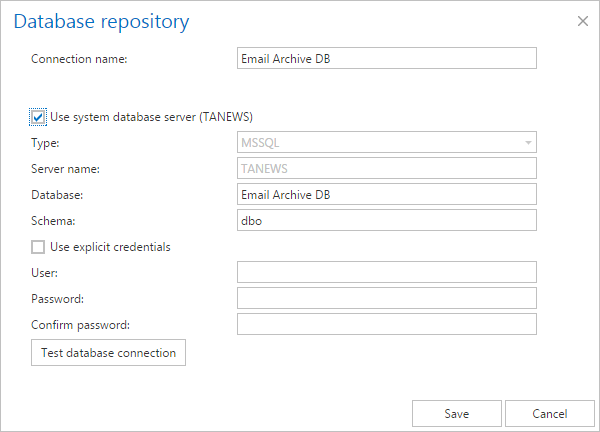
Manage existing databases
On the Databases page, use the database's context menu to modify its settings, delete the database, or set it as the default database, as shown below:
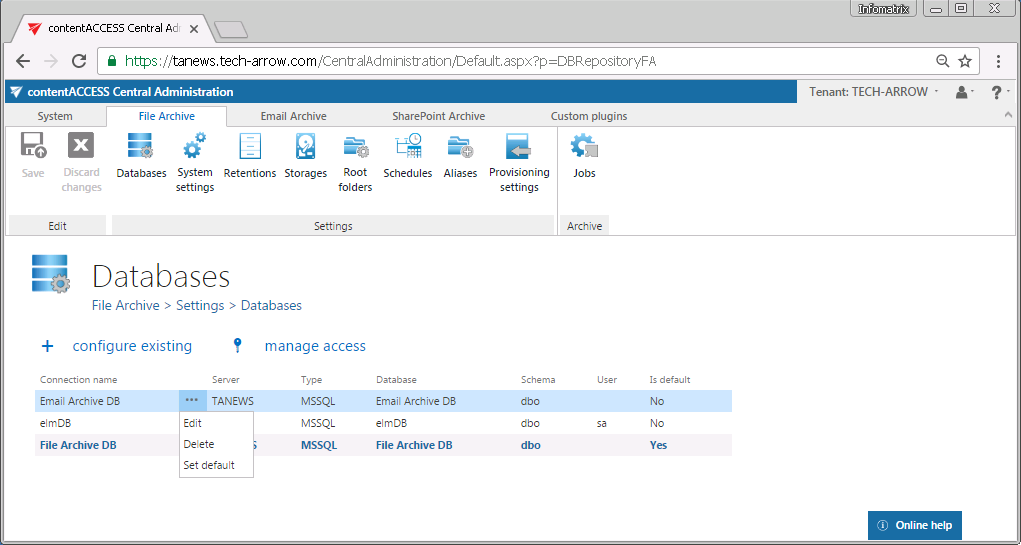
Default database
In contentACCESS, the default database serves as the system-wide default for data processing and storage. This setting determines which database is primarily used for storing and retrieving archived data. Since no database is configured directly on the contentACCESS archive job pages, jobs automatically use the database set as default.
The default database is configured and selected during tenant configuration. This database is used for storing and retrieving archived data unless a new database is created and set as the default.
Note: The configure existing option (i.e., to configure an existing database connection) is unavailable to a logged-on user if the Add repository item permission on the tenant is not allowed in their role assignment.
The manage access option allows access permissions on the selected database connection to be granted to a second user. This option is available to a logged-on administrator if their role assignment contains the Edit repository item – All allowed permission on the tenant. Read more in Managing access to contentACCESS objects.