Mixed Exchange environments in the Email Archive system
Introduction
The Email Archive system in contentACCESS supports a wide range of Exchange Servers, from Exchange 2007 SP1 up to Exchange 2016. A company can use multiple Exchange server versions simultaneously, in which case contentACCESS must be able to process and archive mailboxes hosted across all of these versions.
Configuring archiving in a mixed Exchange environment requires following specific rules. This page provides an overview of these configurations using a practical example, covering:
- Sorting mailboxes into Exchange groups.
- Configuring EWS settings for the highest Exchange server version in use.
- Provisioning Exchange groups into the contentACCESS Address book.
- Adjusting per-server EWS settings for individual Exchange servers.
Example scenario
In this use case, the domain contains the following Exchange versions:
- Exchange Server 2013
- Exchange Server 2010
Some mailboxes to be archived are hosted on Exchange 2013, while others are still on Exchange 2010. This is a common scenario when a company is in the process of migrating mailboxes from a lower to a higher Exchange version.
As a first step, it is recommended to sort the mailboxes to be migrated into Exchange groups. These groups will later be provisioned into the contentACCESS Address book by the Email Archive Provisioning job.
Configure EWS settings
Configure the EWS (Exchange Web Services) settings as follows:
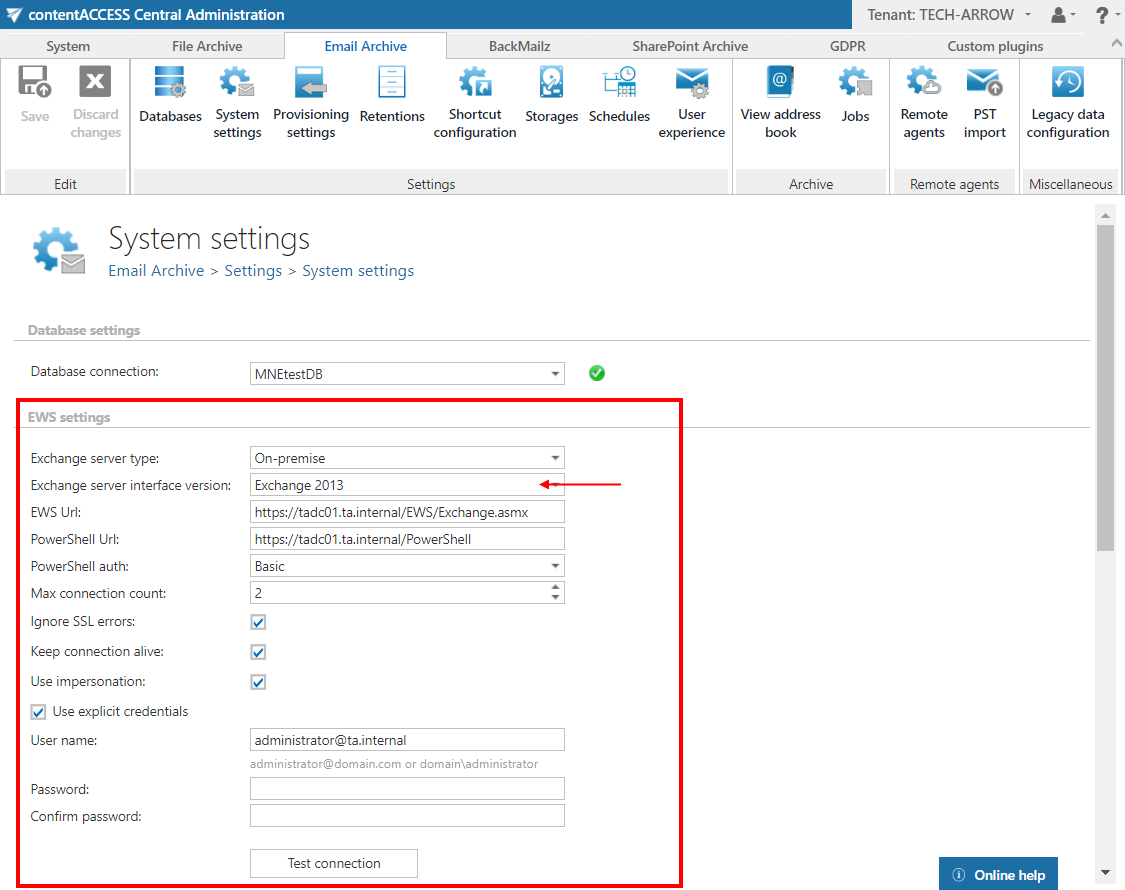
- In Central Administration, open the System settings page (Email Archive tab → Settings group → System settings).
- Go to the EWS settings section.
- Select your server type (On-premise) and select the highest Exchange server version in use — in this use case, Exchange 2013.
- Set the remaining parameters as required, test the connection, and save your settings.
Configure provisioning settings
Set the Exchange groups to be archived in the Email Archive Provisioning settings:
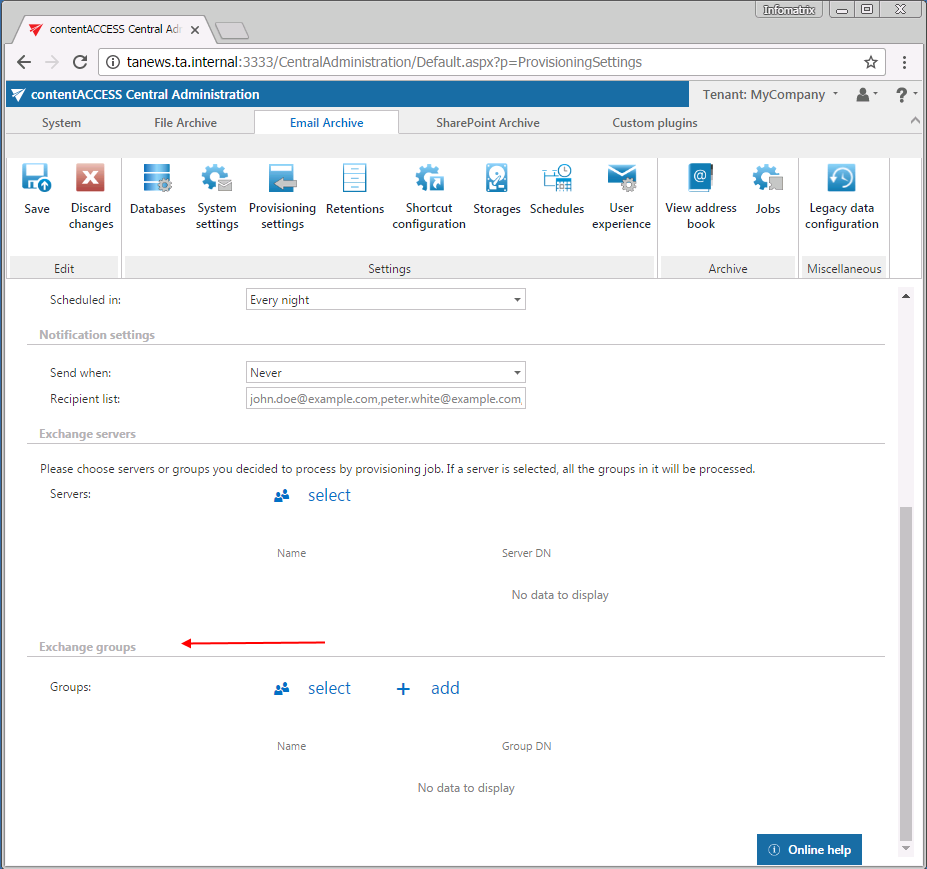
- Open the Provisioning settings page (Email Archive → Settings → Provisioning settings).
- Select the specific Exchange groups (or entire Exchange servers, including all groups) that should be archived.
- Start the provisioning job to synchronize the selected groups to the contentACCESS Address book.
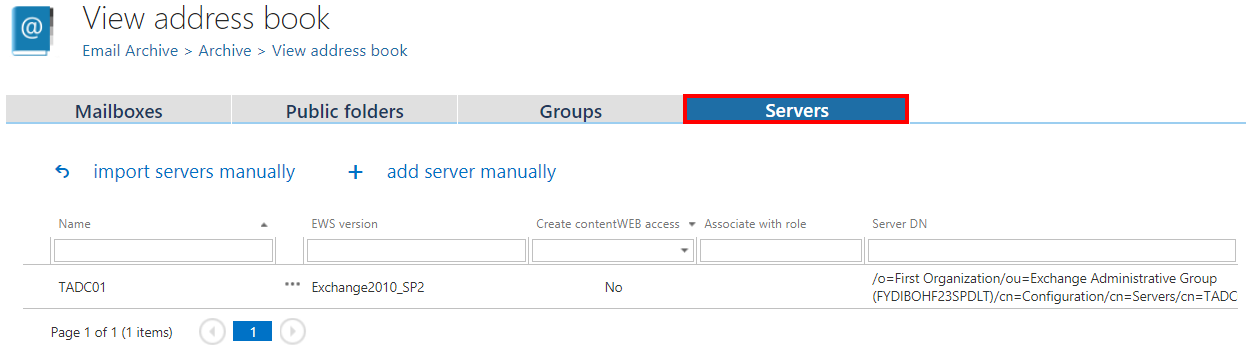
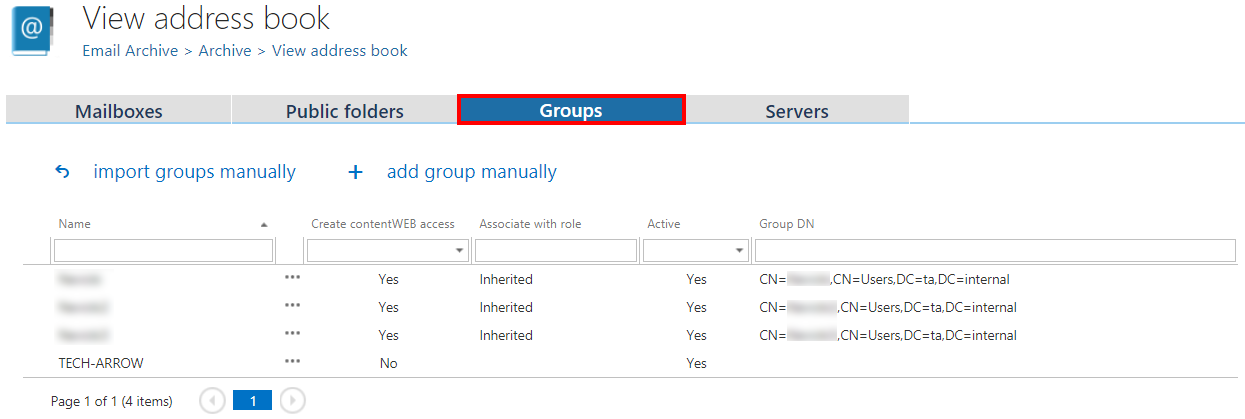
Once the provisioning job has finished, both Exchange versions (2010 and 2013) and their provisioned Exchange groups will appear in the Address book (Exchange 2013 is not shown in the screenshot below):
Configure per-server EWS settings
The context menu of an Exchange server in the Address book allows you to change the server-specific settings:
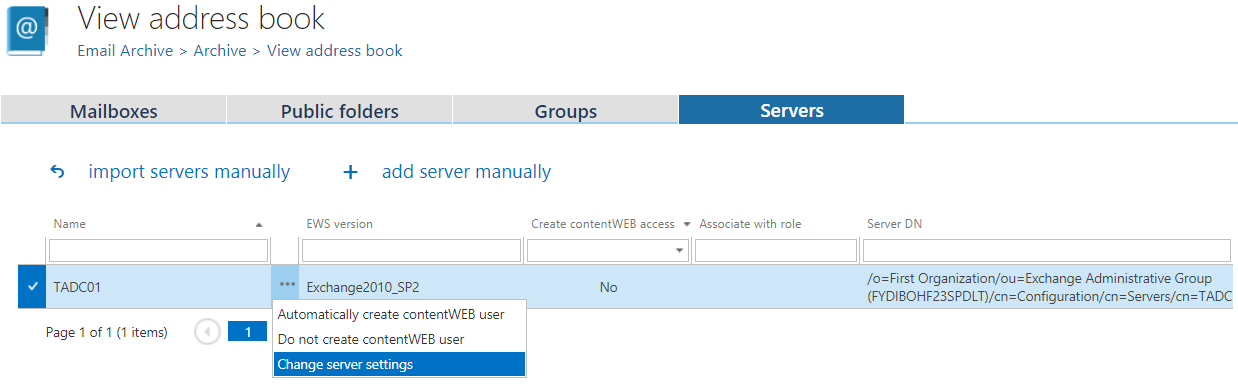
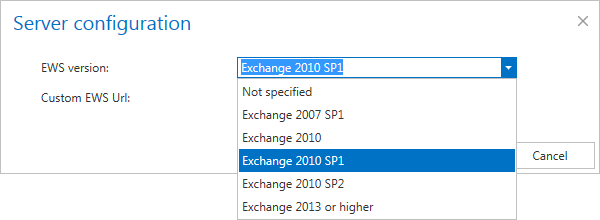
Clicking this option opens the Server configuration window, which allows you to change the EWS version for the server and to define a custom EWS URL for the server. Settings defined here apply to all mailboxes belonging to that server. This is useful in mixed environments — for example, when Exchange 2010 and 2013 coexist in one domain, you can define a different EWS URL for each server.

The combo box also provides a Not specified option. Selecting this resets any custom settings for the server and applies the global setting instead, as defined on the System settings page under EWS server interface version.