Importing File Archive Root Folders to Be Archived
Introduction
The Import root folders function on the Root folders page in Central Administration allows administrators to import multiple File Archive root folders to be archived at once, using a CSV file. This function is available from the File Archive tab, in the Settings group, via the Root folders button.
This page explains how to prepare the CSV import file and how to import root folders into the root folders grid.
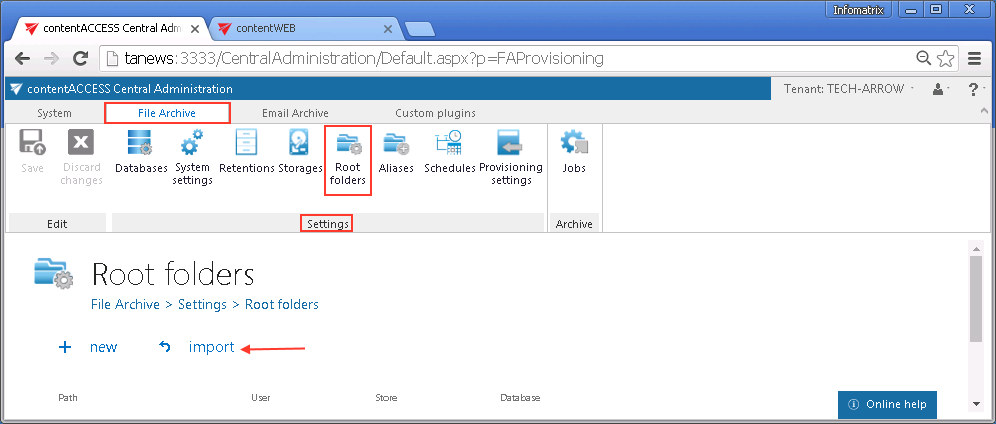
Import root folders
To import root folders, create a CSV file matching the required format. Use the sample file provided in the import dialog as a reference.
- Open the import dialog and select the import method.
- Associate the importable root folder(s) with an archive storage and an archive database.
- Click Show sample to view the expected CSV file format.
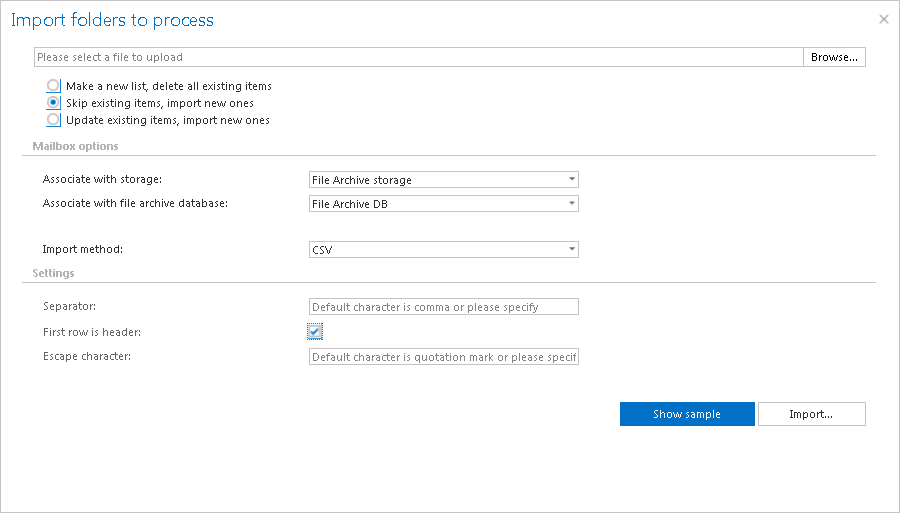
Each row in the CSV file must contain the following values:
- Root folder(s) to be archived
- User name
- Password
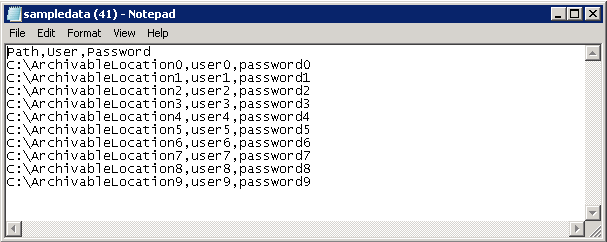
Once the CSV file is ready, browse for the file and import it into the root folders grid.
Note: One importable file can have only one archive database and archive storage associated with it. If you have multiple root folders to archive and want to archive them to different archive databases and storages, you must prepare multiple import files with different database and storage settings, and import them into contentACCESS one by one.