Schedules
Introduction
The Schedules page allows administrators to define when jobs in contentACCESS should automatically start, stop, and restart their processing. Instead of manually logging into the software to trigger processing, administrators can configure schedules once and assign them to jobs, allowing tasks to run automatically according to a defined time pattern.
An unlimited number of schedules can be created. Each schedule can then be selected and applied when configuring a specific job.
The Schedules page is accessible from:
- Email Archive ⇒ Settings ⇒ Schedules
- File Archive ⇒ Settings ⇒ Schedules
- SharePoint Archive ⇒ Settings ⇒ Schedules
- Custom jobs ⇒ General ⇒ Schedules
This page explains the available scheduler types, how to configure each of them, and how to manage existing schedules.
Create a scheduler
To create a new scheduler:
- Navigate to the Schedules page using the
 Schedules button on the ribbon.
 - Click + new.
- In the Add new scheduler dialog window, enter the scheduler Name.
- Select the Type of scheduler from the dropdown list.
- Configure the type-specific settings, as described below.
contentACCESS supports three scheduler types:
- One time
- Always run
- Week schedule with repeat
Scheduler types
One time
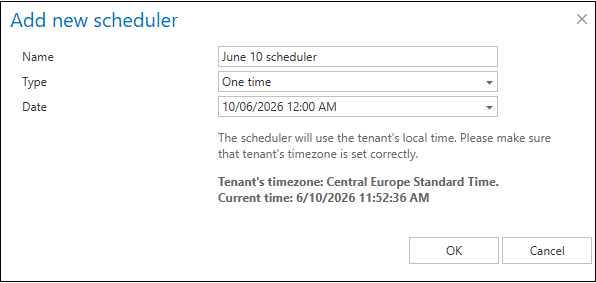
A One time scheduler runs only once. Only a start date is specified; the job ends automatically once processing is complete.
This scheduler type is commonly used for restore or recovery jobs, or other jobs that run occasionally rather than on a recurring basis.
The example below starts on 7th of September at 6 PM and ends once the job has finished processing:
Always run
An Always run scheduler runs continuously, without interruption. A job using this scheduler type starts immediately after it is configured and saved.
The Frequency in minutes setting defines how often the scheduler checks whether the job is currently running:
- If the job is running, the scheduler checks again after the configured interval.
- If the job is not running, it is started again.
In the example below (the "Non-stop" scheduler), the running frequency is set to 1 minute, so the scheduler wakes up every minute to verify whether the job is still running.

This scheduler type is typically used for archiving from journal mailboxes.
Week schedule with repeat
A Week schedule with repeat scheduler runs at the same hours every week, repeatedly.
On the scheduling grid, click the fields to define the days and hours during which processing should run. Each cell represents one hour.
Available options:
- Running frequency in minutes: Defines how often the scheduler checks whether the job is still running.
- Example: If set to 5 minutes, the scheduler checks every 5 minutes whether the job is still running. If it is, the scheduler checks again after 5 minutes; if not, the job is started again.
- This option is useful when processing should run continuously over an extended period (for example, from morning to evening) and new items to process are added continuously.
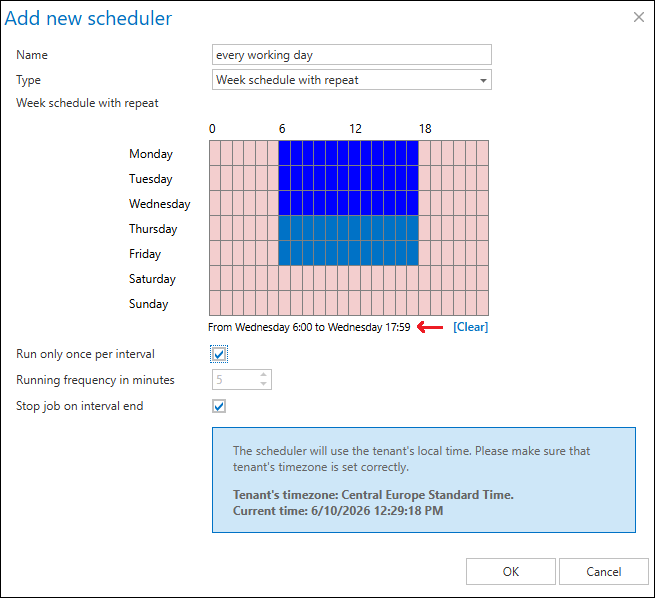
- Run only once per interval: When checked, the running frequency is automatically deactivated, and the job runs only once during the defined time interval. This is recommended when processing should occur only once per interval, for example at the end of each working day.
- Stop job at interval end: When checked, the job is forcibly stopped at the end of the configured time interval, regardless of whether processing has finished. The job will be started again according to the scheduler settings, so unfinished processing does not need to be manually managed.
Cells shown in red in the Add new scheduler grid indicate time intervals during which the job is not running.
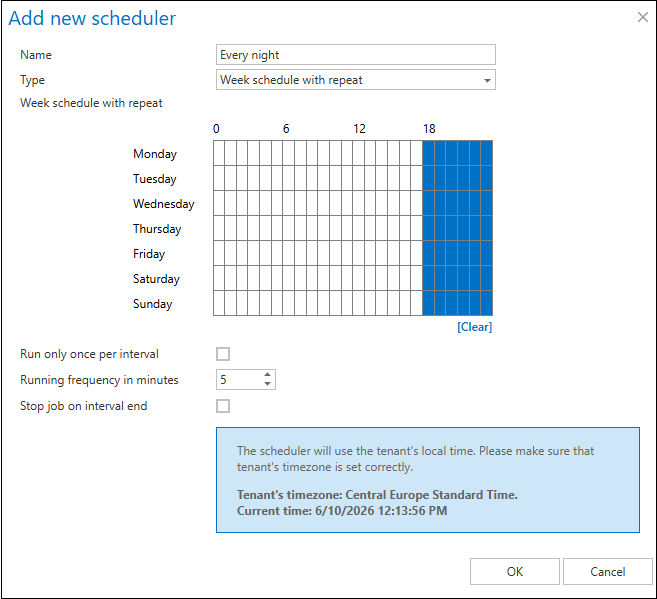
Example — "Every night" scheduler:
Runs the job from 7 PM until midnight, stops processing at midnight even if not finished, and runs only once during this interval. This type of scheduler is suitable for archiving old company documents, since no new files are typically added to the archive location overnight, making a running frequency unnecessary.
Example — "Every working day" scheduler:
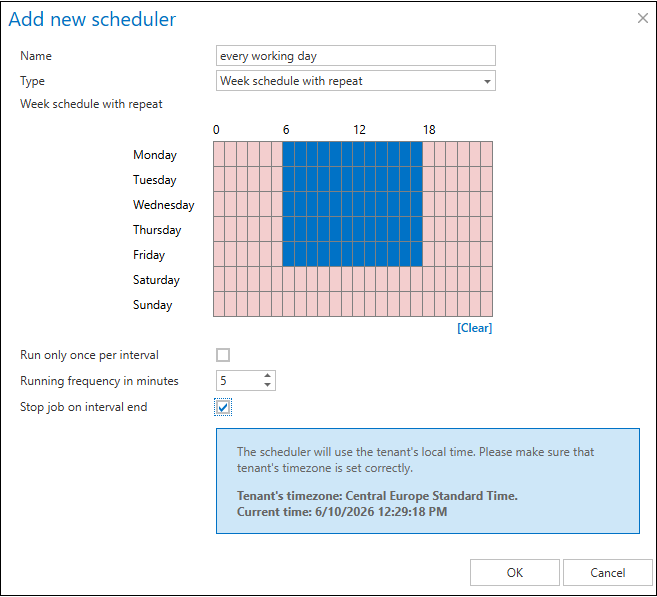
Setting the Running frequency in minutes option is useful when new items to process accumulate continuously, for example when archiving from an Exchange journal mailbox.
The "Every working day" scheduler below processes email records from 7 AM until 6 PM. The archiving process runs from 7 AM until all current tasks are completed, and the scheduler checks every 5 minutes for any new items to process. Archiving ends at 6 PM each day, even if some items remain unprocessed.
This scheduler type is also commonly used to run provisioning jobs.
If processing should not stop at 6 PM, uncheck Stop job at interval end.
Tip: When setting or hovering over a time range on the Weekmap scheduler, the selected range is highlighted, and the exact start and end times are displayed beneath the calendar.
Manage schedulers
Existing schedulers can be edited or deleted using the context menu, available by clicking  next to the scheduler's name.
The scheduler type and its description are also displayed in the grid.
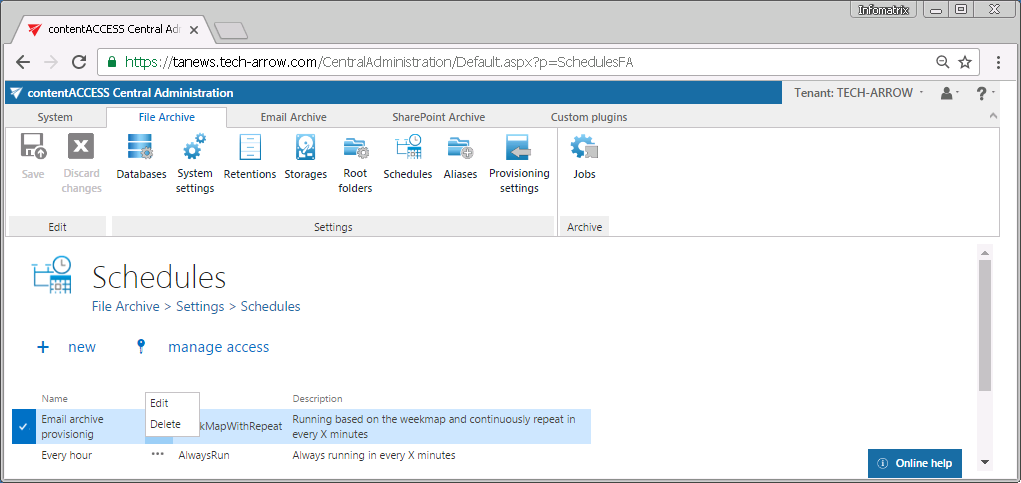
Note: The + new option above the item list is unavailable to a logged-in user if the Add scheduler permission is not enabled in their role assignment on the tenant.
The manage access option allows access permissions on a selected scheduler to be granted to another user. This option is available to a logged-in administrator only if their role assignment includes the Edit scheduler – All allowed permission on the tenant. For more information, see Managing access to contentACCESS objects.