Storages
Introduction
The Storages page allows administrators to configure the storage repositories used by contentACCESS to store and retrieve processed binaries. Storages configured on this page can be selected as a destination when configuring a contentACCESS job.
The Storages page can be accessed from several modules:
- Email Archive ⇒ Settings ⇒ Storages button
- File Archive ⇒ Settings ⇒ Storages button
- SharePoint Archive ⇒ Settings ⇒ Retentions button
- Custom jobs ⇒ General ⇒ Storages button
From this page, administrators can create new storages, configure storage roles and statuses, set a default storage, and add replicas to ensure data redundancy.
Access the Storages page
To open the storage configurations, navigate to the  Storages button on the ribbon.
contentACCESS supports the following storage types:
- Disk (the most frequently used type)
- Amazon S3
- H&S Hybrid Store
- Perceptive
- Datengut
- and other storage types
The table of storages is initially empty.
Create a new storage
To configure a new storage:
- On the Storages page, click + new.
- In the Storage repository window, type in the Store name.
- Select a Store type from the list.
- Choose the Role (None or Primary).
- Set the Status (Enabled, Disabled, Unavailable, or Removed).
- Set the Priority.
The required storage settings depend on the selected storage type. Configurations of the most frequently used storage types are detailed in the following subsections of this chapter.
The roles and statuses of a storage repository define how it functions and its availability within the system.
Storage roles
Two roles can be selected in the Create new storage window:
- None: The storage has no specific role assigned. It can be used for general purposes or as a secondary/backup repository. This role is typically used when the storage does not need to handle critical functions such as archiving or serving live data.
- Primary: The storage acts as the main repository for the selected workflow or task (for example, email archiving or document management). It is prioritized for data storage and retrieval. If multiple storages are defined, the one marked as Primary takes precedence over others (for example, for storing live or frequently accessed data).
Storage statuses
Four statuses are available in the Create Storage window:
- Enabled: The storage is active and ready for use in the system. It can accept new data, perform retrieval operations, and serve as part of workflows like archiving, backup, or file storage.
- Disabled: The storage is temporarily turned off and will not be used by contentACCESS. It remains in the system but cannot accept new data or participate in workflows until re-enabled. The archive will still function if there is an allowed writable replica storage. In this case, documents will be stored in the replica storage, and when the storage is re-enabled, the Storage Replication job will duplicate the files to the primary storage.
- Unavailable: Use this status when you no longer wish to use the storage. In this case, it will not be able to receive anything. No operations can be performed with this storage until the issue is resolved and its status returns to Enabled.
- Removed: The storage has been deleted or disconnected from the system. It is no longer available for any operations or workflows.
Manage existing storages
From a storage's context menu on the Storages page, click the ellipsis (…) to modify the storage settings (Edit, Delete, Set default) or add a replica to the store.
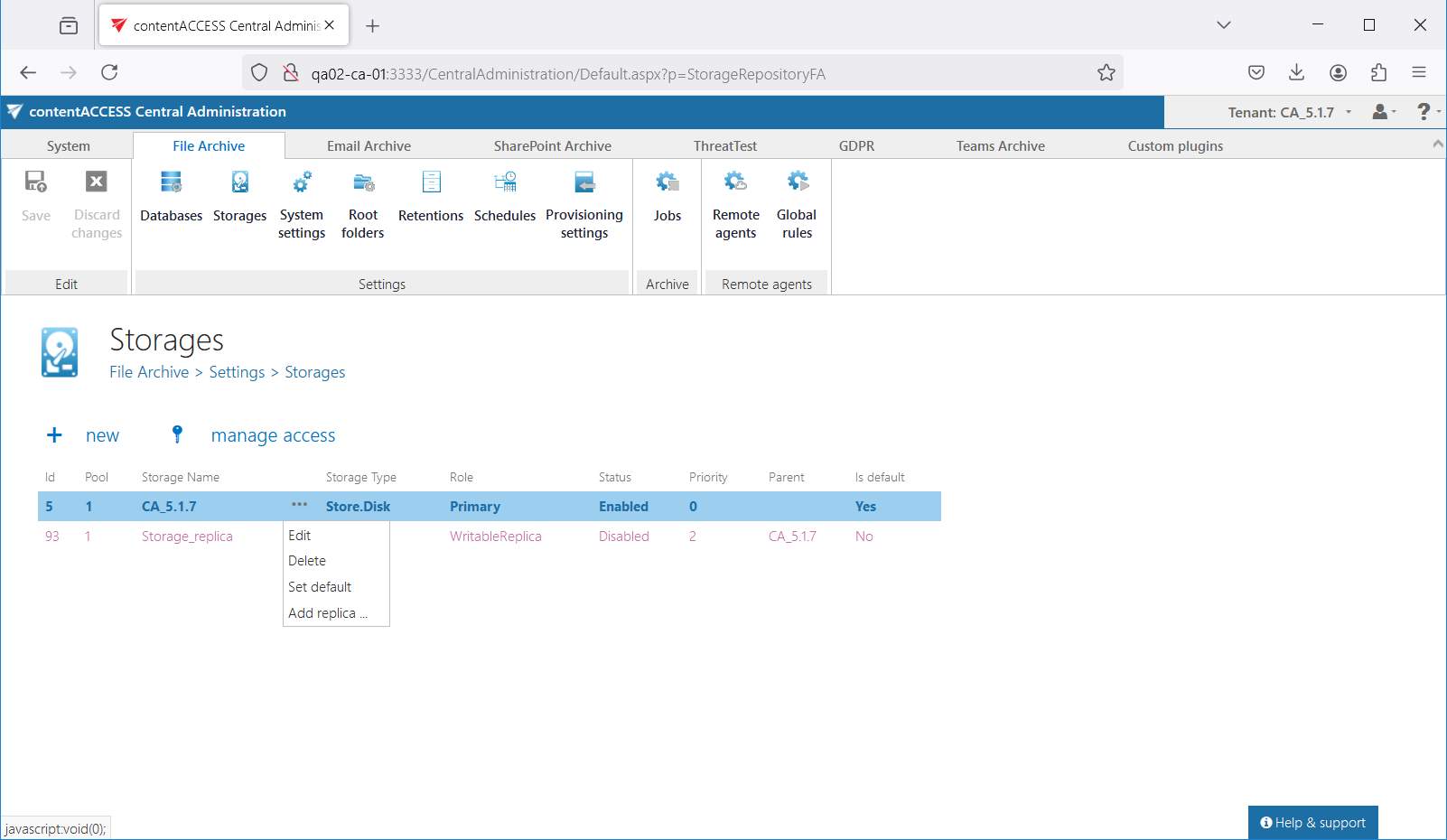
Set default
In contentACCESS, the default storage serves as the system-wide default for data processing and storage. This setting determines which storage is primarily used for storing and retrieving archived data.
Available storage locations are listed globally in contentACCESS, and the default storage setting designates the storage location to be used if no other storage location is explicitly assigned. This means that regardless of whether you switch between the File, Email, SharePoint, or Teams archive, the list of available storage locations remains the same, and the default storage does not change dynamically based on the module you are viewing.
The "default" designation indicates which storage location the system uses for new configurations or automatic operations, but it does not restrict the use of other storage locations.
The first (and default) storage is created when you activate and configure the first module, or the selected module you wish to use, in contentACCESS. This storage remains set as the default until you configure another storage location as default.
Add replica
Replicas are used to ensure data redundancy and high availability. This means that if the primary storage location becomes unavailable, the system can still:
- Retrieve the data — this works with both the replica and writable replica options.
- Archive new items — this works only with the writable replica option.
The replication is performed by the Storage replication job.
It is also possible to set the replica storage as the primary. To do this, lower the priority of the previous primary storage and assign a higher priority to the replica.
Important: The archive will only proceed from this point if the writable replica is set as the primary storage.
If neither the primary nor the replica storage is available, the data will not be retrievable, and archiving will be unable to continue.
The configurations set in the Storage repository window can be viewed in the grid.
Note: The + new option above the item list is unavailable to the logged-on user if the "Add repository items" permission on the tenant is not allowed in their role assignment.
The manage access option allows access permissions on the selected storage to be granted to a second user. This option is available to the logged-on administrator if their role assignment contains the "Edit repository items – All" allowed permission on the tenant. Read more in Managing access to contentACCESS objects.