Disk storage
Introduction
Disk storage is a store type used to store binaries on a single local or remote disk. It is the most frequently used store type among the available storage options. This page explains how to configure a disk storage, including path and credential settings, compression, SnapLock, single instancing, file encryption, and database settings. It also describes how to safely change the storage path or relocate storage data.
Configure disk storage
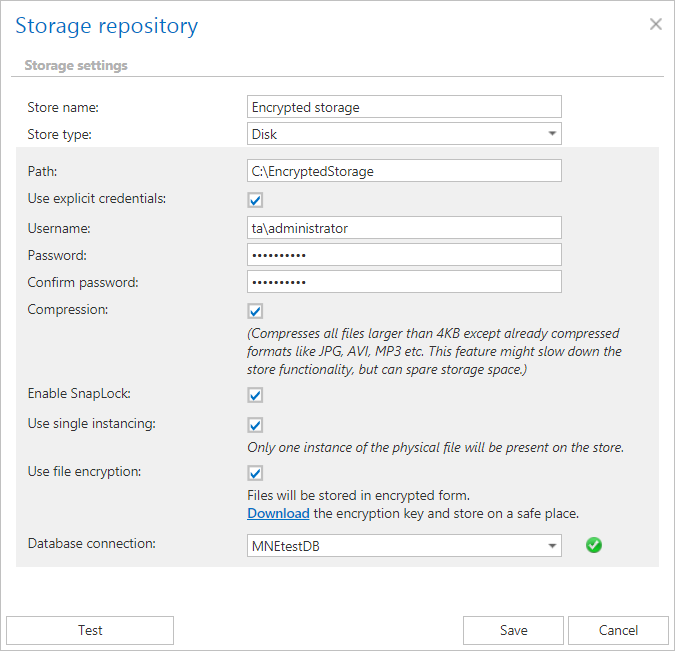
After selecting the disk store type, fill in the following settings:
- Path: The target destination for the binaries.
- Credentials: Enter credentials if required by the target location.
Compression
You can enable the Compression function by checking the corresponding checkbox. When enabled, all files larger than 4 kilobytes are compressed, except for file formats that are already compressed, such as JPG or MP3. This feature may slow down the store functionality, but it saves storage space.
SnapLock
You can enable SnapLock for the disk store by checking the Enable SnapLock checkbox. This allows the storage system to prevent deletion of files until the specified retention period has expired. This feature can be used only with storage systems that support this function, such as NetApp.
Single instancing
Check the Use single instancing checkbox if you want to keep only one copy of the physical file in the store.
File encryption
To enhance storage security, you can store files in encrypted form by checking the Use file encryption checkbox. When enabled, files are encrypted using the AES encryption algorithm and stored in one go.
The encryption key must be saved in case of database failure — without it, the stored files will be unreadable. Download the key by clicking the Download link in this section. If you try to save the storage configuration without downloading the encryption key, the system displays a warning.

Note: The file encryption option may slow down the storage functionality, both for archiving and retrieval.
Database settings
Under Database settings, select a Database connection. This configuration plays an important role when using the Storage replication job, which can also be used to run a test control.
We recommend not changing the database already configured for the disk storage. However, if needed, it can be changed using the Change button. This button appears only when editing an existing storage.
We also advise verifying the connection using the Test button. The test checks whether the correct credentials have been specified and whether the connection with the database has been established.
When using the Disk storage type, consider the requirements for data deduplication. Data deduplication finds and removes duplication within data on a volume while ensuring that the data remains correct and complete, making it possible to store more file data in less space on the volume.
Deduplication is not supported on:
- System or boot volumes.
- Remote mapped or remote mounted drives.
- Cluster shared volume file system (CSVFS) for non-VDI workloads, or any workloads on Windows Server 2012.
- Files approaching or larger than 1 TB in size.
- Volumes approaching or larger than 64 TB in size.
Change the path or relocate store data
The administrator can either change the path of the disk store or relocate the store data through Central Administration:
- Changing the path causes the disk store to create a new root folder (volume) inside the same store, and archives new files into this new root folder.
- Relocating the data means moving all existing data to a new location and reconfiguring the store to use that new location.
Change the path (attach a new volume)
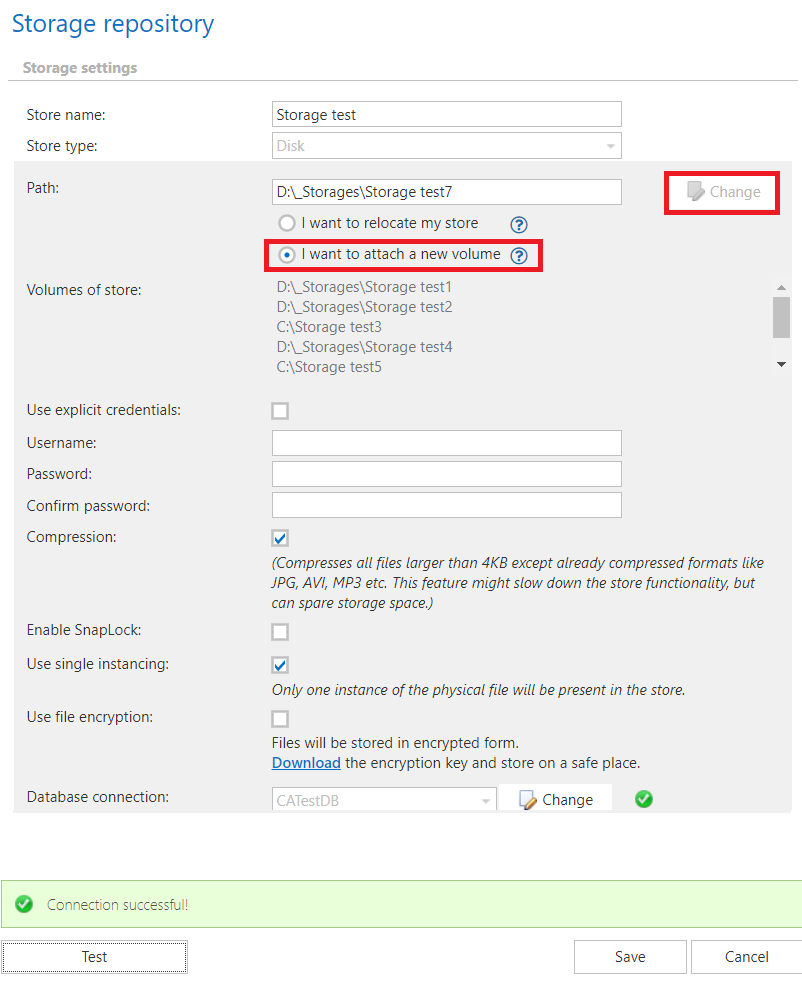
Use this option if you want to attach a new volume.
A new, empty root folder (containing no subfolders or files) needs to be added. Newly archived files will be stored in this new root folder, while old files remain in the old root folder.
To change the path:
- Select Edit from the context menu of the existing storage.
- Click the Change button next to the Path field.
If the new volume (folder) is not empty, an error message appears during the test or when the changes are saved. Previously configured (and used) volumes/paths are also displayed in the Storage repository window. If there are more than 4–5 volumes, they appear in a scrollable list. However, these previous volumes cannot be reconfigured if files were already archived in them (that is, if the root folder is no longer empty).
Relocate the store data
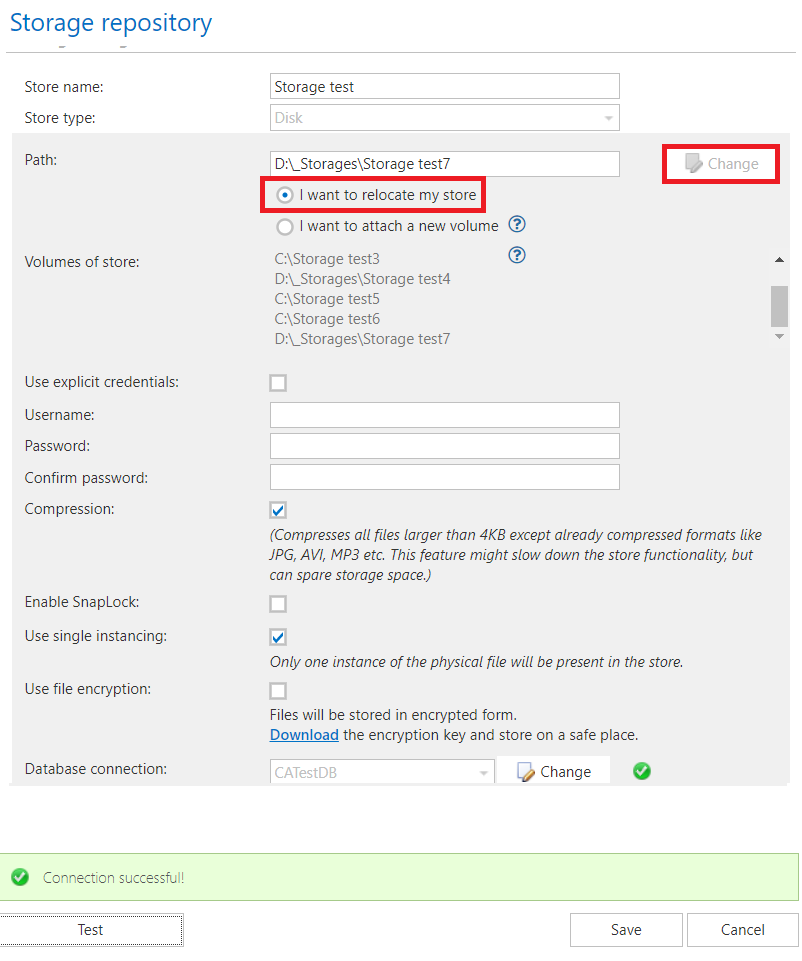
Use this option if you want to relocate an existing store.
In this case, the path needs to be updated for the existing root folder. The administrator must move all data to the new location before reconfiguring the store to use it. If some data is still missing from the new volume, an error message appears during the test or when the changes are saved, reminding the user to copy the store data before changing the path.
Considerations before changing a disk storage location
In some cases, the administrator may need to move an already configured storage to a new location — for example, if disk "C" is full and the storage should be moved to disk "D". To ensure continued access to already archived data and to continue archiving new data, perform the following steps:
- Stop all running jobs.
- Move the old storage location manually into the new storage location (for example, move the folder from disk "C" to a new location on disk "D").
- Open the Storages page on the contentACCESS Central Administration ribbon, locate the old storage in the list, and double-click it to open the Storage repository window for that storage.
- In the Storage repository window, specify the new storage path (the location where the old storage was moved).
These settings ensure that archive and restore jobs automatically use the new storage path. The administrator is not required to change the storage settings on the jobs' configuration pages — the new value is automatically used by any jobs where the previous storage was already configured.