Google Drive storage
Introduction
The Google Drive storage type allows contentACCESS to store archived data in Google Drive using a Google service account. Setting up this storage type requires creating a Google Cloud project, enabling the Google Drive API, creating a service account with API credentials, and then configuring the Google Drive storage in contentACCESS using these credentials.
Setting up a Google Drive storage involves the following steps:
- Creating a Google account and Google Cloud project.
- Enabling the Google Drive API.
- Creating a service account and generating its credentials.
- Creating and configuring the Google Drive storage in contentACCESS.
Create a Google Cloud project
- Create a Google account, if you do not already have one.
- Log on to https://console.developers.google.com with your Google account.
- Create a new project with an arbitrary name.
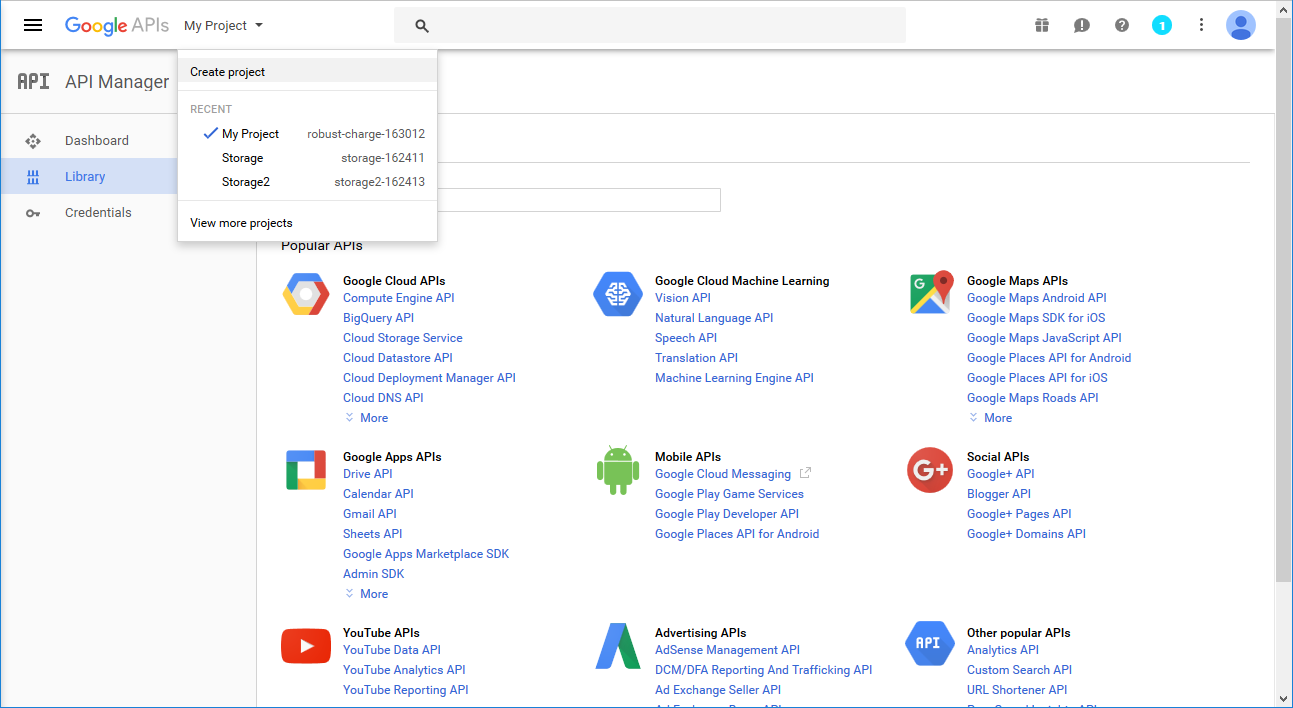
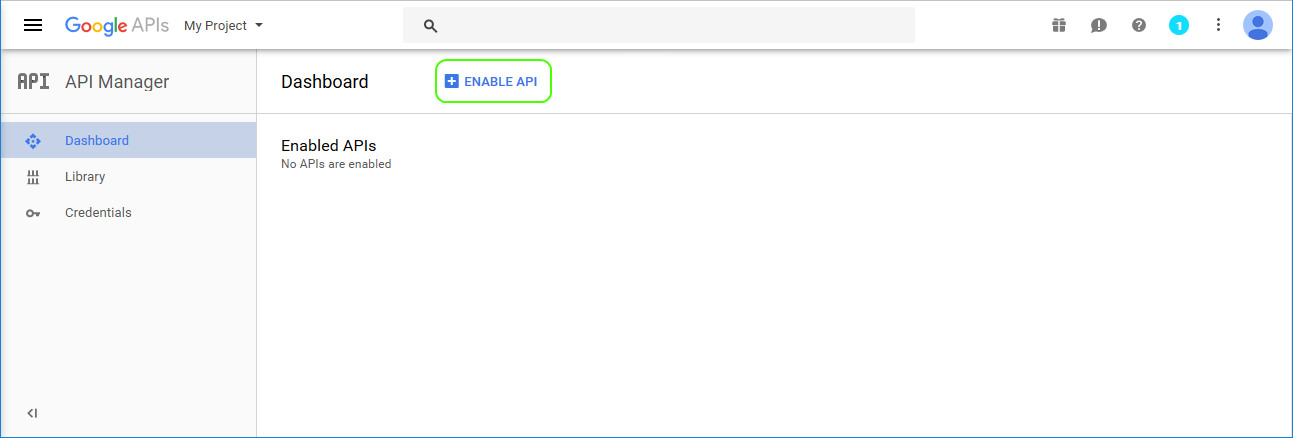
Enable the Google Drive API
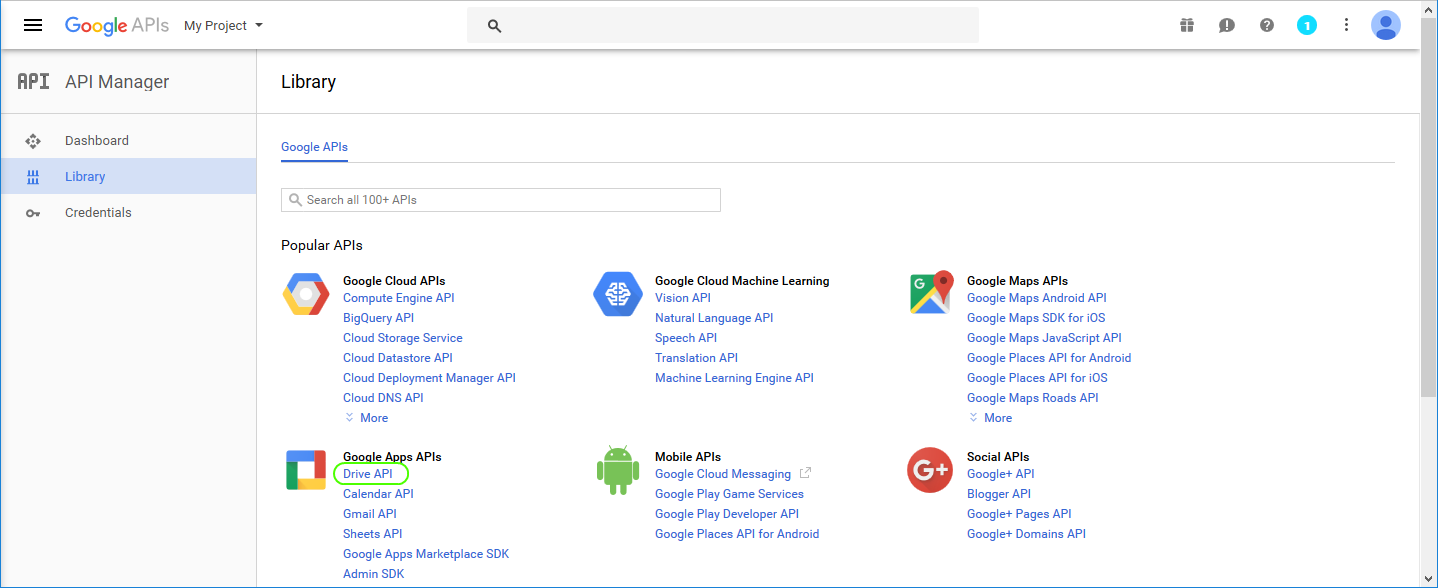
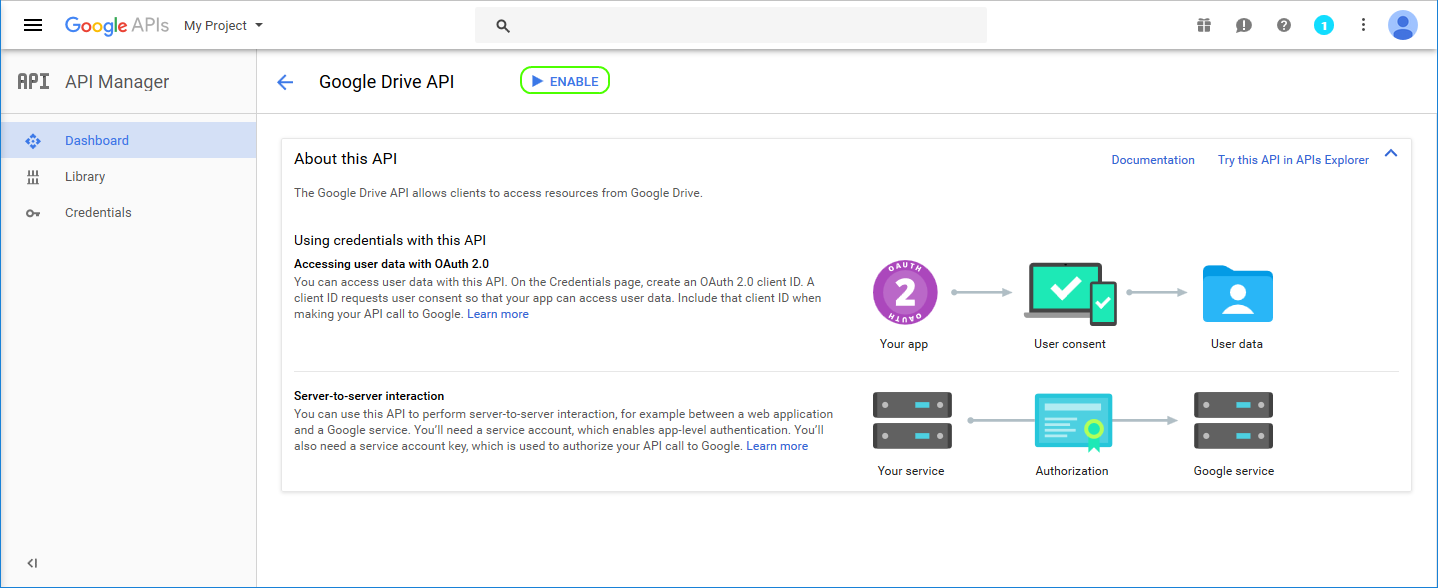
Enable the required Drive API for the project:
Create the service account and credentials
- Create a service account.
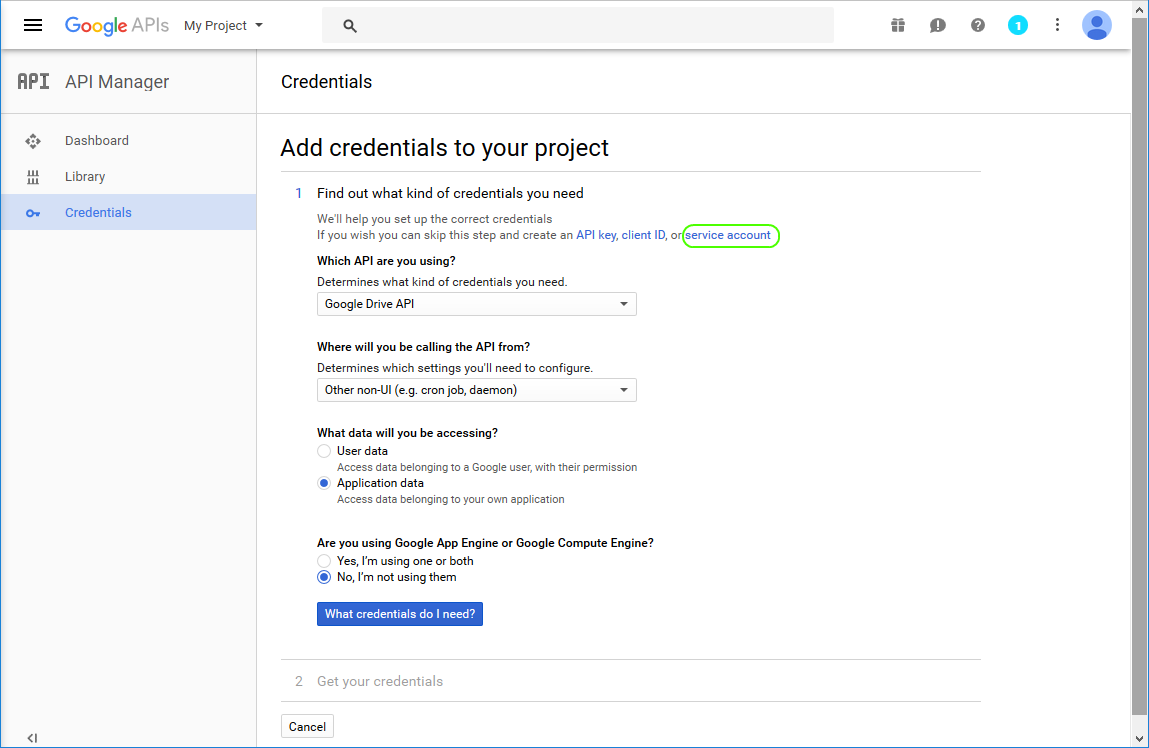
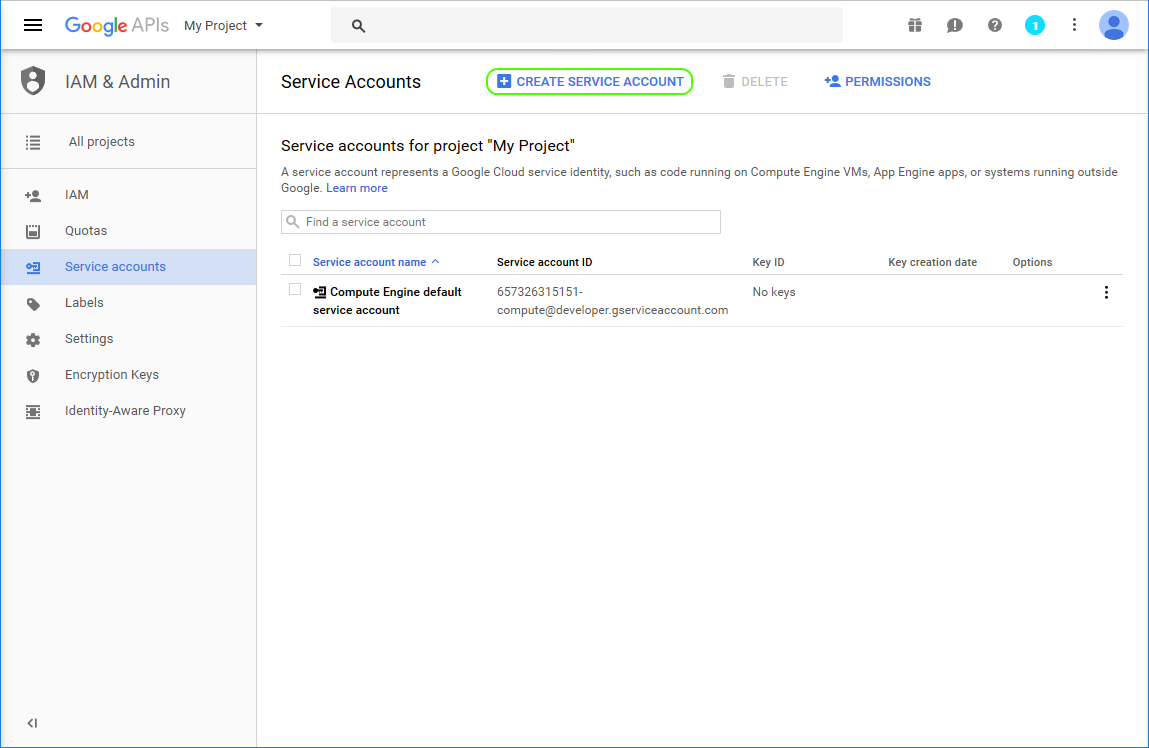
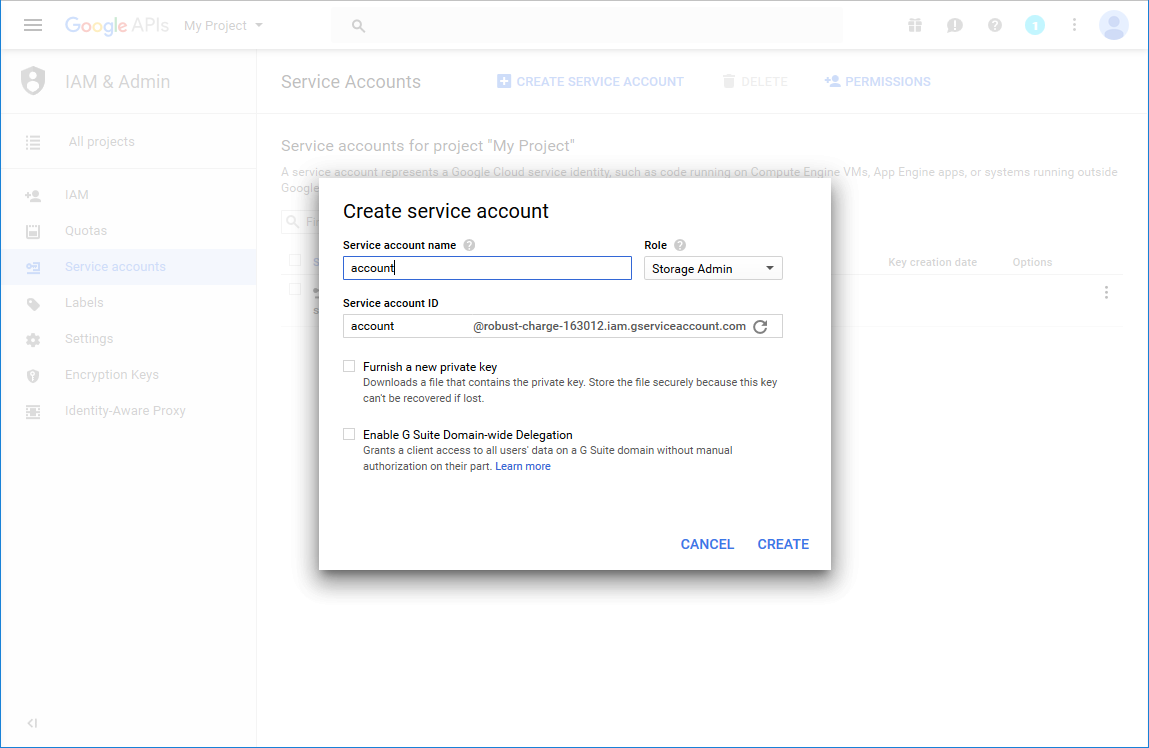
- Create a key for the service account.
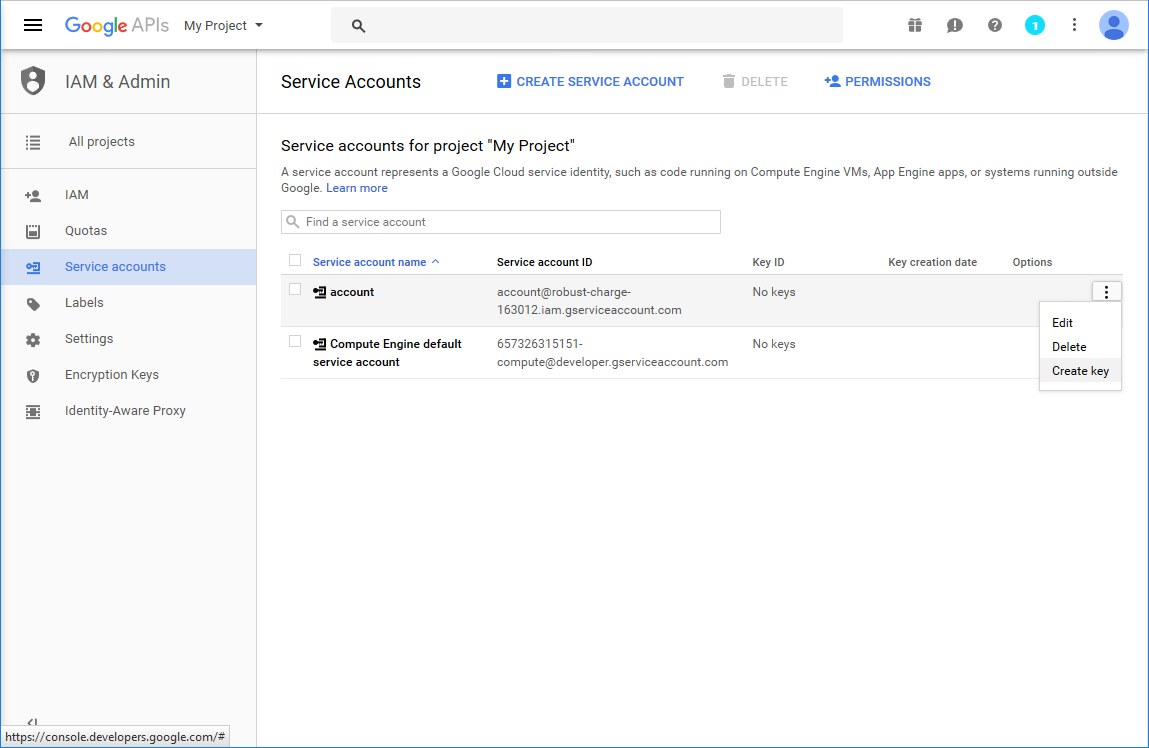
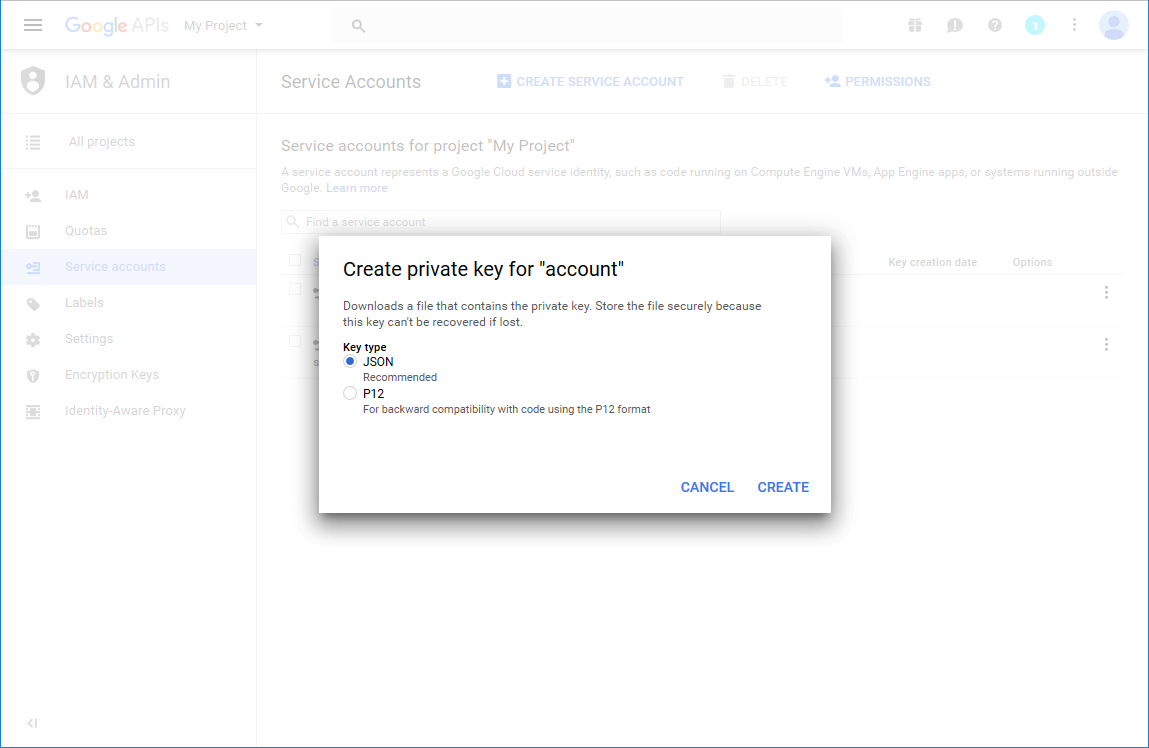
- Download the key and store it securely. It is required when calling the Google API from the storage provider.
Create and configure the Google Drive storage in contentACCESS
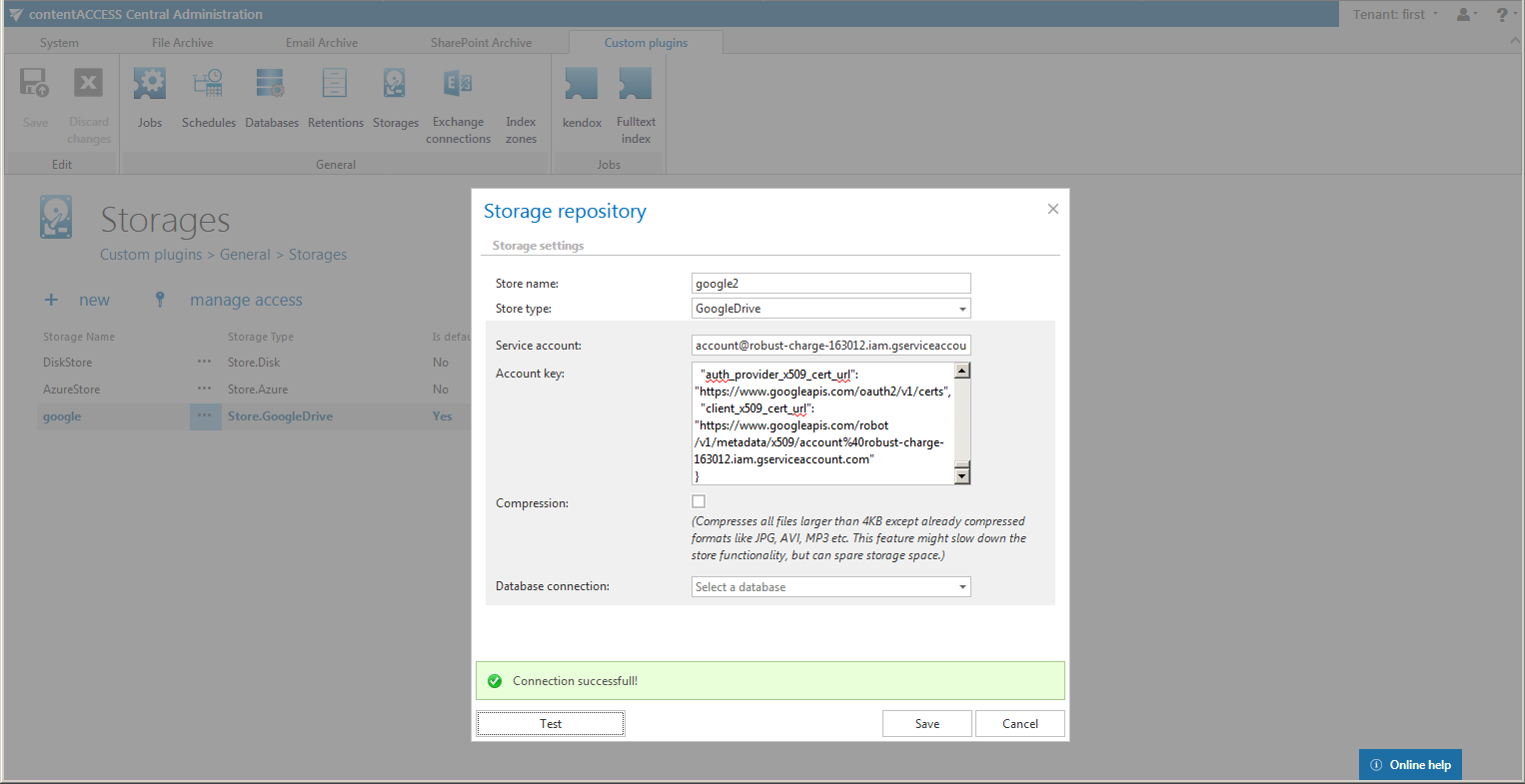
- Create a new storage of type GoogleDrive.
- Enter the name of the created service account (for example,
account@robust-charge-163012.iam.gserviceaccount.com, which can also be taken from the downloaded JSON key file) into the Service account field. - Paste the entire content of the downloaded JSON key file into the Account key field.
- Test the connection. If the connection test succeeds, the storage is configured and ready for use.
Important: You will not be able to see the archived files in your Google Drive web UI, as they are stored under a different account. If access through the Google Drive web UI is required, explicit sharing rights must be set on the stored files.
As explained in this article:
"A few important things to note about a service account is that it is not you. Just because you created the service account does not mean that it has access to the files you have stored in your Google drive. You can take the service account email address and give it access to a directory on your Google drive. It will then be allowed to upload to that directory, but you won't have access to the files. You will need to complete a second step and give yourself personally permission to access those files by updating or patching the file permissions.