contentACCESS Central Administration user interface
Introduction
The Central Administration user interface is the main interface used to configure and manage contentACCESS. After a successful login, the Central Administration page loads with a ribbon divided into main tabs, a tenant selector, a user menu, and a help menu.
From this interface, administrators can:
- Configure general system settings and manage tenants.
- Configure File Archive, Email Archive, SharePoint Archive, GDPR, Teams archive, and Custom jobs modules.
- Switch between tenants and users.
- Access documentation, check for updates, report issues, and sign up for product news.
Ribbon and main tabs
The ribbon is divided into 7 main tabs: System, File Archive, Email Archive, SharePoint Archive, GDPR, Teams archive, and Custom jobs. Each tab is divided into several groups, which also contain several buttons.
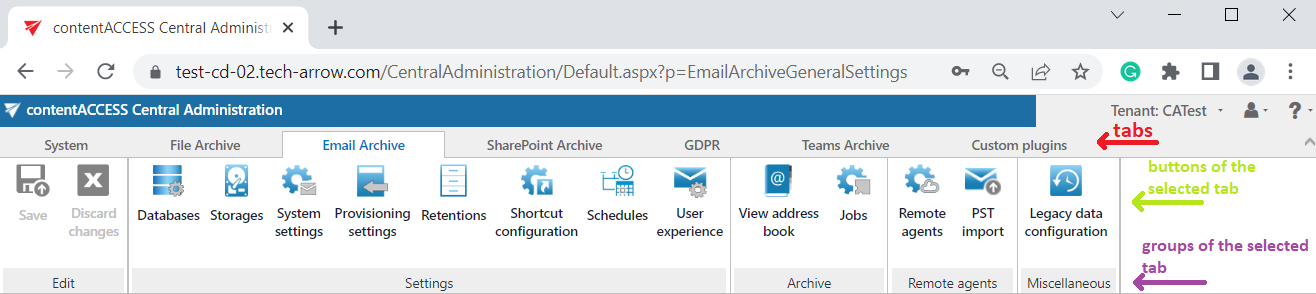
General system settings (application settings, security settings, system database settings, external accessibility, license activation, clusters, statistics, setting up new databases, etc.) are accessible under the System tab (marked with a red frame in the screenshot above). Configurations for File Archive, Email Archive, SharePoint Archive, GDPR, Teams archive, and Custom jobs can be adjusted on their respective tabs on the ribbon.
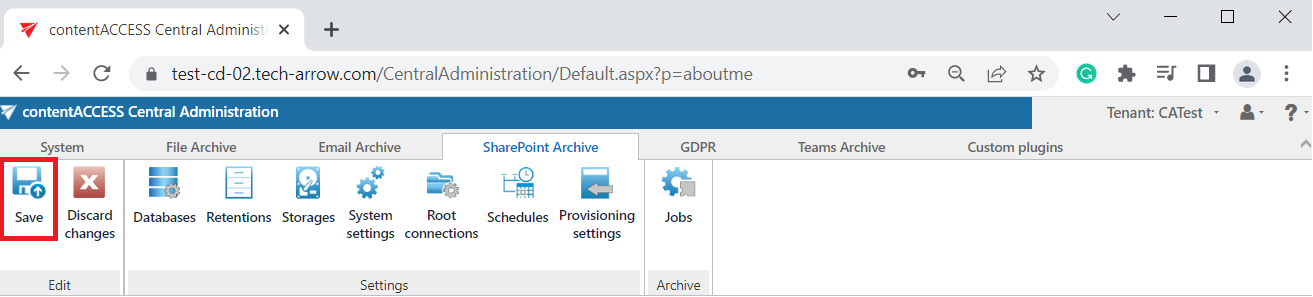
Important: Any changes made in the Central Administration must be saved using the Save button, accessible in the upper-left corner of the ribbon.
If the user has any unsaved settings, the system will display a warning:

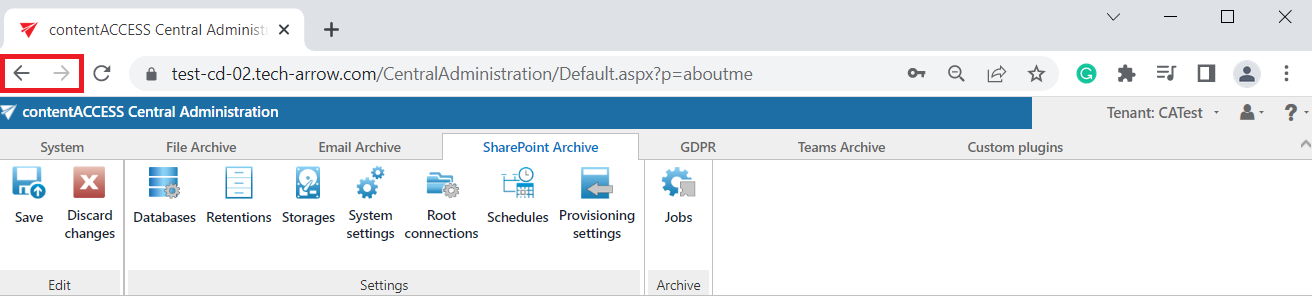
In contentACCESS, the back/forward button is also supported:
Tenant selector
You can switch between tenants using the tenant selector in the upper-right menu of the Central Administration user interface.
When you open contentACCESS Central Administration for the very first time, you need to create a tenant first. For more information, see Tenants in contentACCESS. Afterwards, you need to adjust the system settings; see General system configurations.
User menu
The user menu displays the currently signed-in user and provides the following options:
- About me — displays detailed information about the signed-in user.
- Change the currently logged-in user.
- Sign out from Central Administration.
- Log in to the contentACCESS Portal archive interface.
Note: In the About me menu, under Security information in the Role name column, you can see the role assignment(s) of the signed-in user. The Flags column shows whether the rights were granted by a provisioning job (flag name Automatic) or manually (flag name Manual).
Help menu
Click the "?" question mark icon to open the help menu.
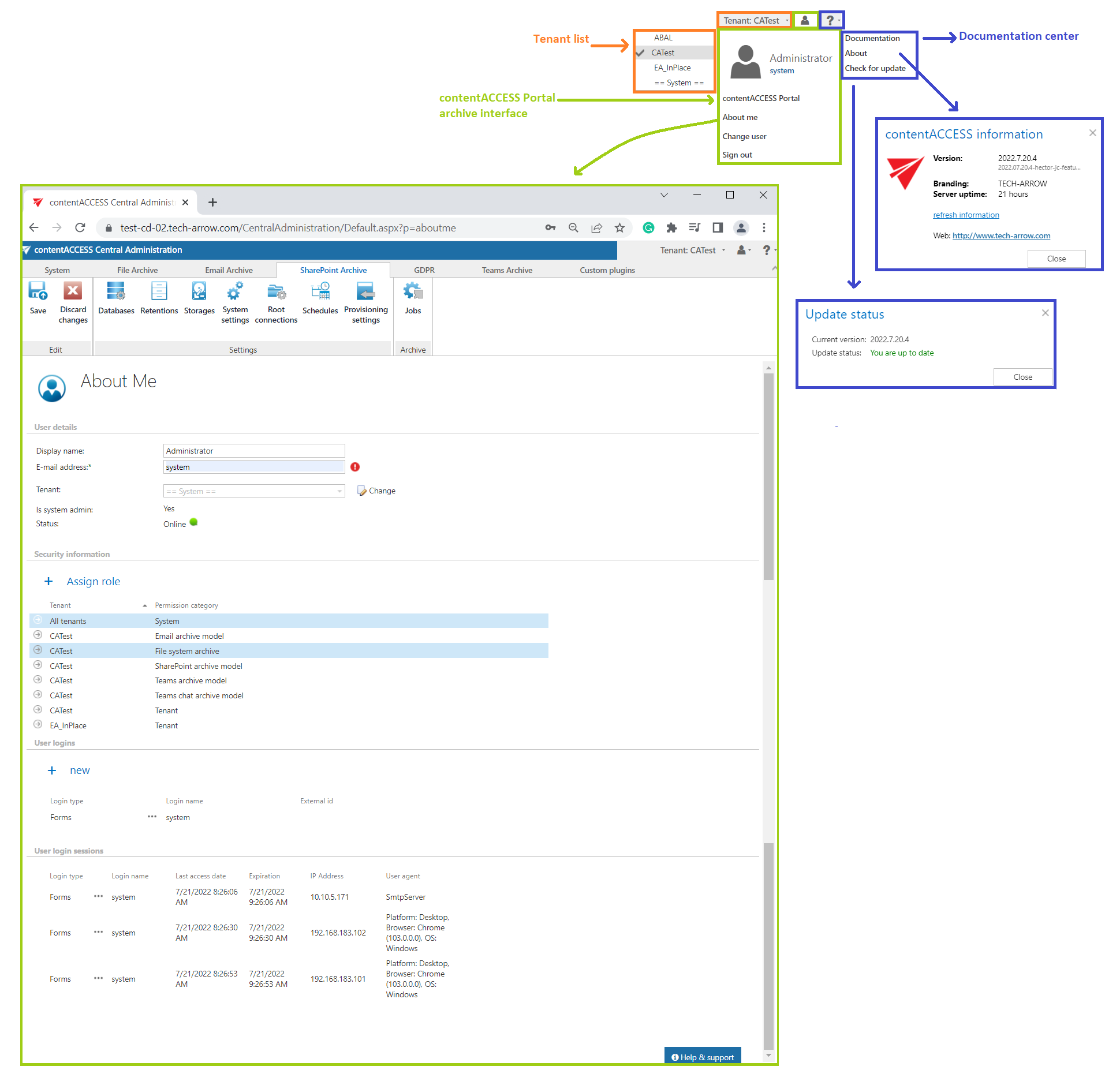
The help menu contains the following options:
- About — displays information about the installed contentACCESS version, shows the system uptime, and provides a link to the company's website.
- Documentation — provides access to all documentation related to the contentACCESS software.
- Check for update — allows a user with the manage system permission to check for the latest available contentACCESS version.
Check for update
This function checks for the latest available contentACCESS version through the licensing system and notifies users who have the manage system permission about available updates. The Update status window can be displayed in 3 different ways:
-
Up to date — the pop-up shows the Current version (example: 5.4.7) and the Update status: "You are up to date."

-
Update is available — the Update status notifies the user about the latest version and provides a link to the release notes, where the user can read more about the new features in the latest version. If a new version is available, the Get an update quote button is also shown in the pop-up.
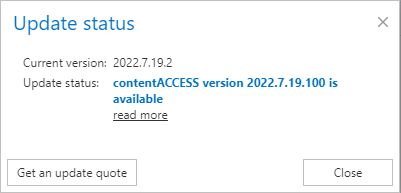
When the user clicks this button, a contact form appears, pre-filled with the currently logged-in user's name, email address, and a predefined message body requesting an update quote, including details about the current contentACCESS version. This pop-up contains the same "I accept sending detailed system information" checkbox as the Report an issue pop-up. If enabled, a JSON file with the client settings is sent along with the request.
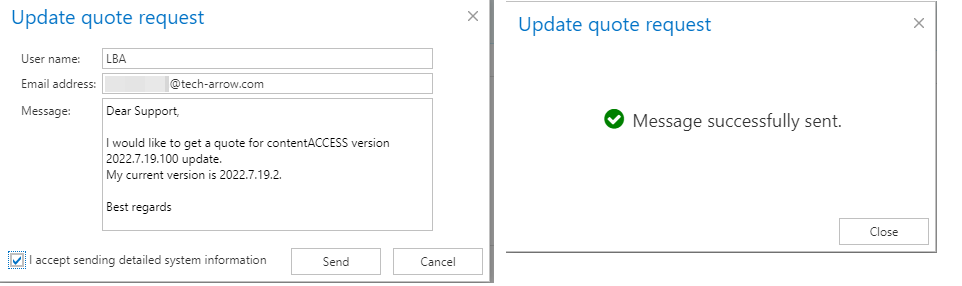
-
Update verification is not available — this error message indicates that the license server is not available, so an update notification cannot be sent to the user. In this case, the user can visit the release history webpage for information about the latest versions.

Note: The update notification is displayed only for the following users: System Administrator, Configuration Administrator, and Junior Configuration Administrator. If a new version is published on the license server and one of these users is logged in, a blue notification ribbon appears at the top of the page. The user can click More information to read the release notes and send a Get an update quote request, or Dismiss the notification to skip the update.

Important: Notifications are displayed only for users whose license has not yet reached the maintenance expiration date (the maximum allowed software version). Example: if the maintenance expiration date is 2022-07-21, the user will not receive a notification about versions published after 2022-07-21.
Help & support menu
At the bottom of the page (and on every other page), there is a Help & support menu. Clicking this button opens a menu with the following options:
- Open online help — opens the contentACCESS support site for the current configuration page (example: Open online help for Retentions).
- Report an issue — opens a report pop-up form where the user can fill out information and send a report.
- Get informed — opens the newsletter sign-up pop-up.
The menu closes automatically when the user clicks away from it.
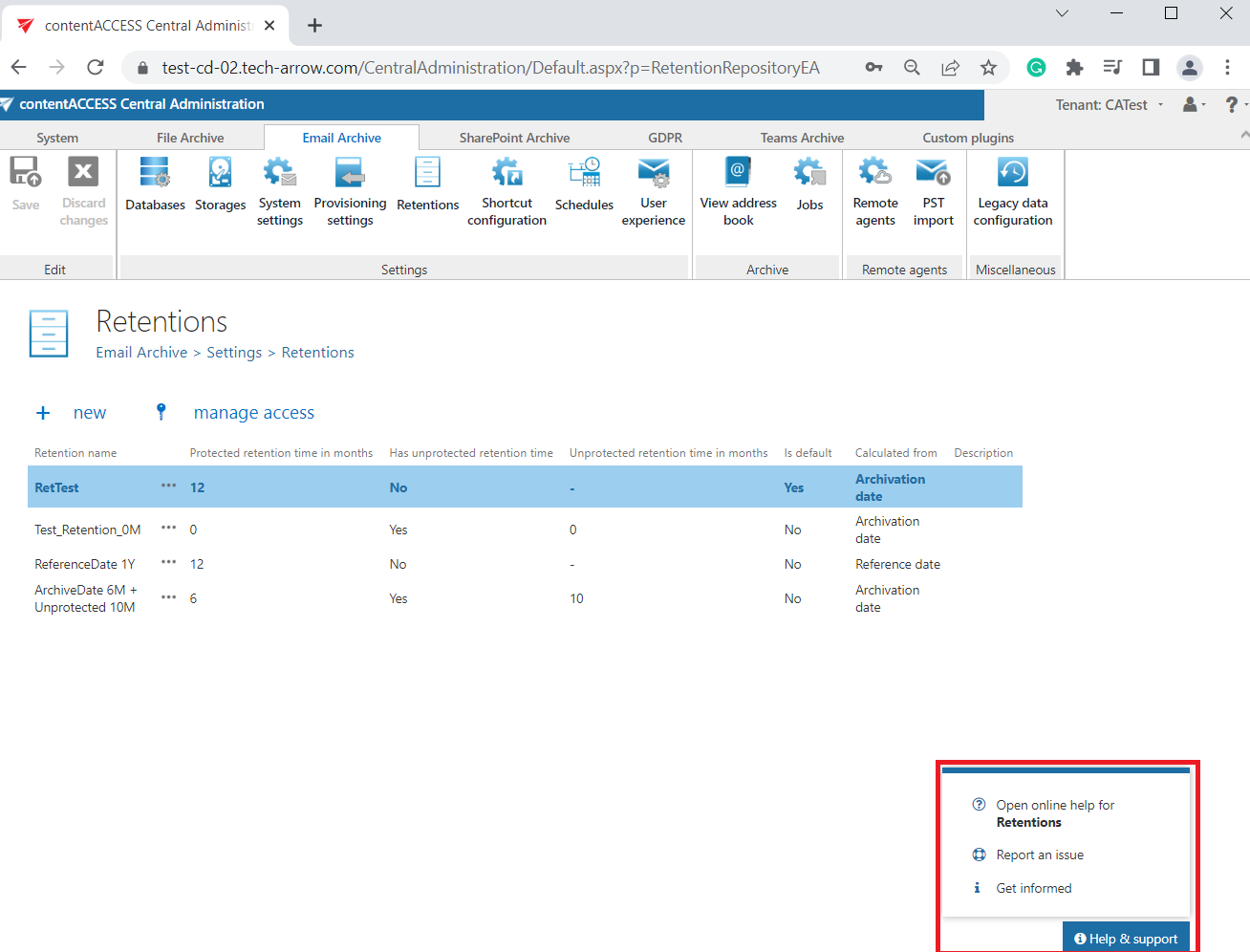
Report an issue
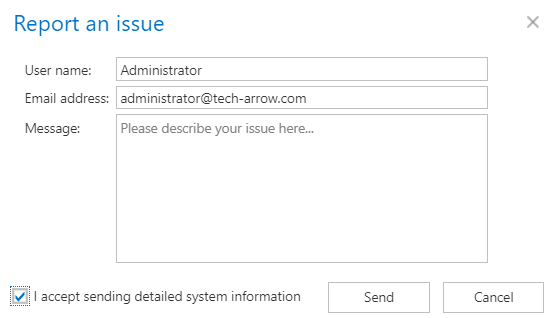
This feature allows the administrator to report an issue directly from Central Administration. The pop-up form contains the following fields:
- Username — automatically pre-filled with the current (logged-in) user's name (the administrator).
- Email address — automatically pre-filled with the current user's email address (if assigned), or can be entered manually.
- Message — the user can write the details of the issue.
- "I accept sending detailed system information" checkbox — if enabled, a JSON file with the whole configuration is sent along with the report, making it easier to check the client settings via PowerShell.
- Send / Cancel — sends the ticket automatically to the Zammad system, or closes the pop-up form without sending the report.
If the logged-in user is the system administrator and notification settings are not configured, a pop-up window appears with the message: "Notifications not configured! Please configure email sending." Click Configure to be automatically redirected to the Notification settings page. For more information, see Notification settings.

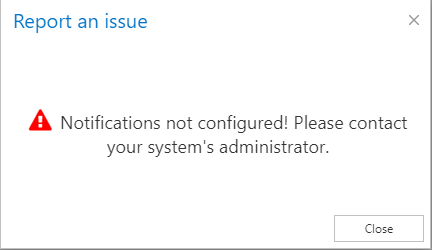
If the logged-in user is the tenant administrator, a different message appears: "Notifications are not configured! Please contact your system administrator." without the Configure button. In this case, the tenant administrator does not have access to the notifications and must contact a user with the appropriate permissions.
Get informed
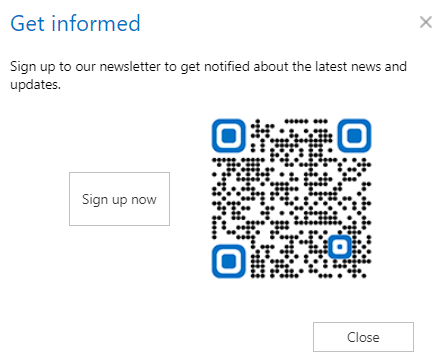
This feature allows the administrator to sign up for the newsletter to receive more information and updates about the product(s). The pop-up window contains the following elements:
- Information string — "Sign up to our newsletter to get notified about the latest news and updates."
- Sign up now button — redirects to the newsletter sign-up page.
- QR Code — works the same as the Sign up now button, redirecting to the webpage.
- Close button.