Logging in to contentACCESS Portal
Introduction
The contentACCESS Portal is the end-user interface for accessing archived content. This page describes the different ways users can log in to contentACCESS Portal, depending on their role — system administrator, tenant administrator, or end user — and outlines the permissions required to access archived content once logged in.
Log in as a system administrator
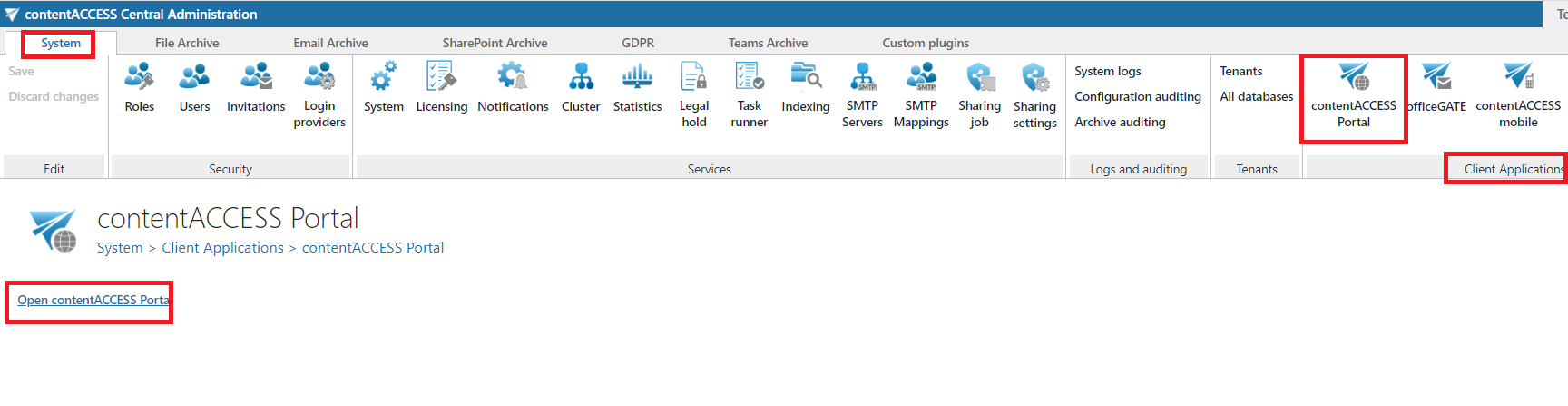
System administrators can log in to contentACCESS Portal directly from Central Administration:
- Go to the System tab.
- In the Client Applications group, click the contentACCESS Portal button. This opens the "contentACCESS Portal" page.
- Click Open contentACCESS Portal. The login page opens.
- Enter your credentials and log in.
Log in as a tenant administrator
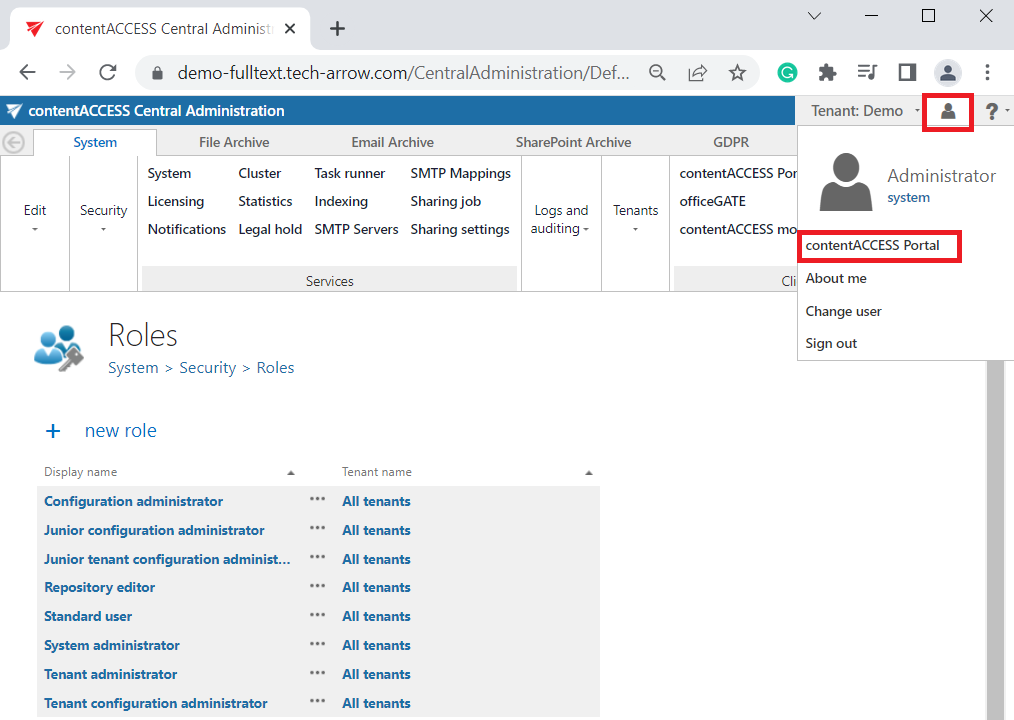
Tenant administrators (and also system administrators) can log in to contentACCESS Portal directly from Central Administration using the login menu:
- Click the login menu in the upper right corner of the interface.
- Select contentACCESS Portal. The login page opens.
Log in using the central login page
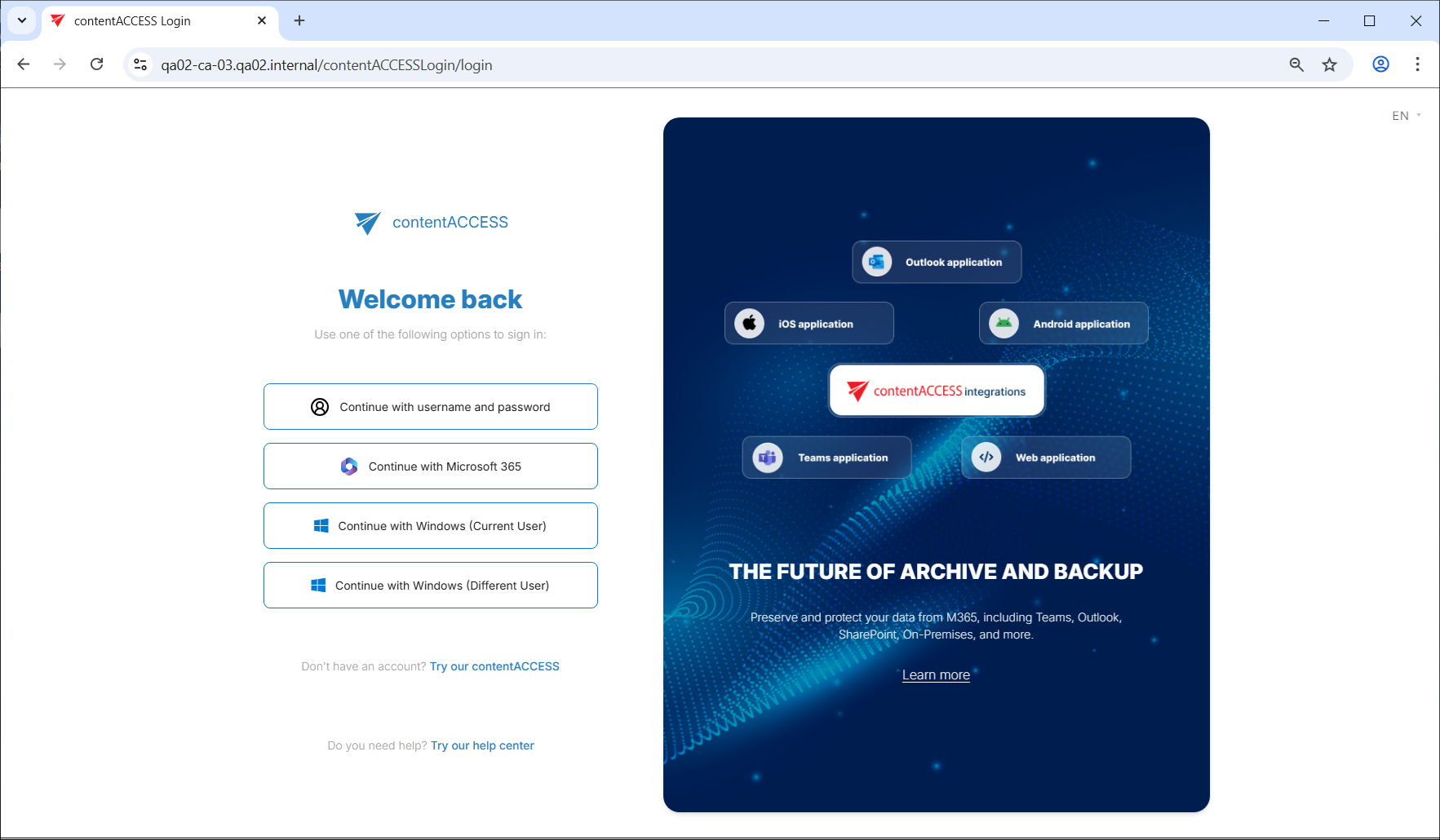
End users who do not have access to the contentACCESS Central Administration page, as well as system and tenant administrators, can log in to contentACCESS Portal using the central login page. From this page, users with the necessary permissions (roles) are automatically redirected to the contentACCESS Portal application.
Central login URL: https://[ServerName]/contentACCESSLogin/login
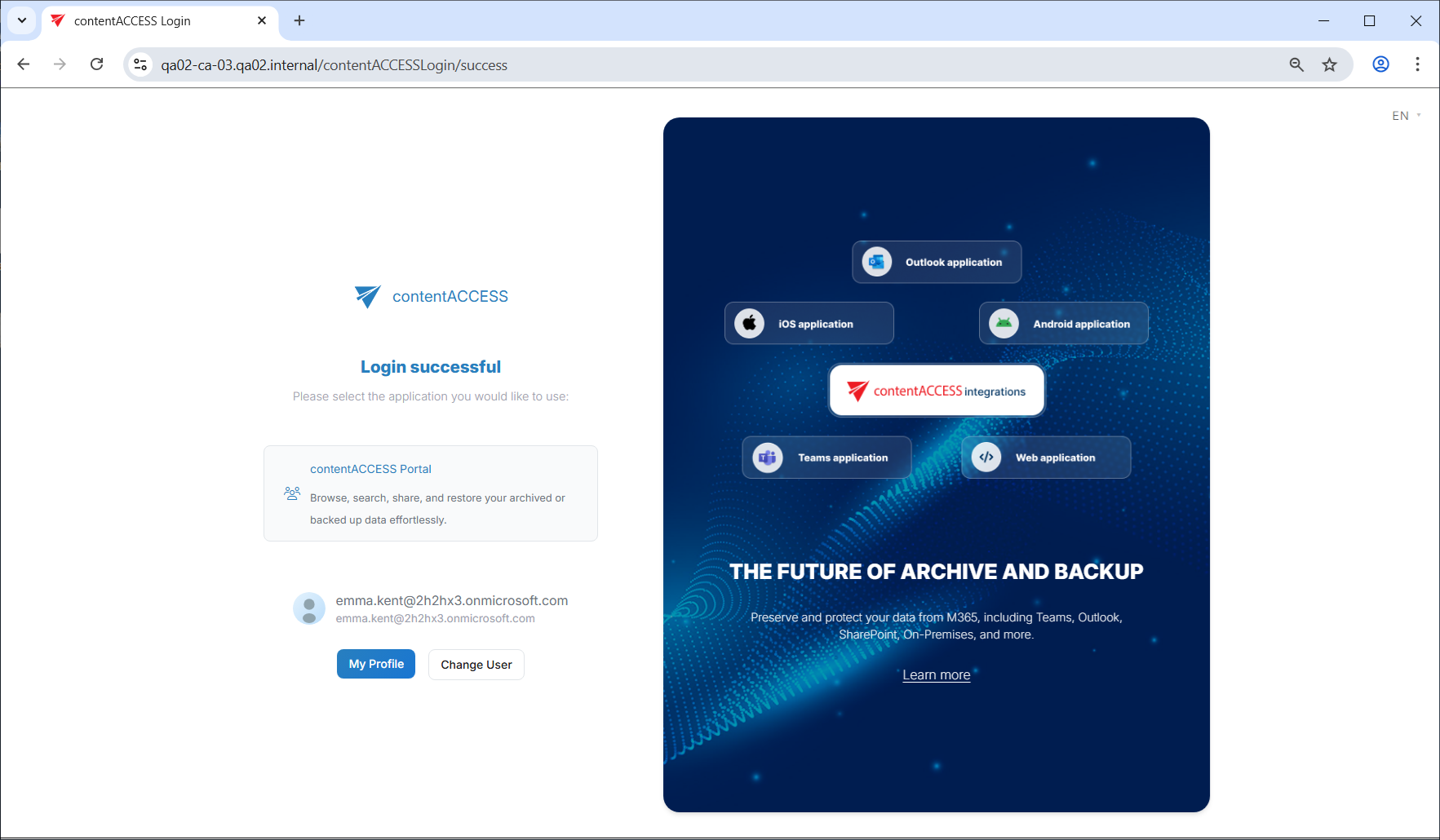
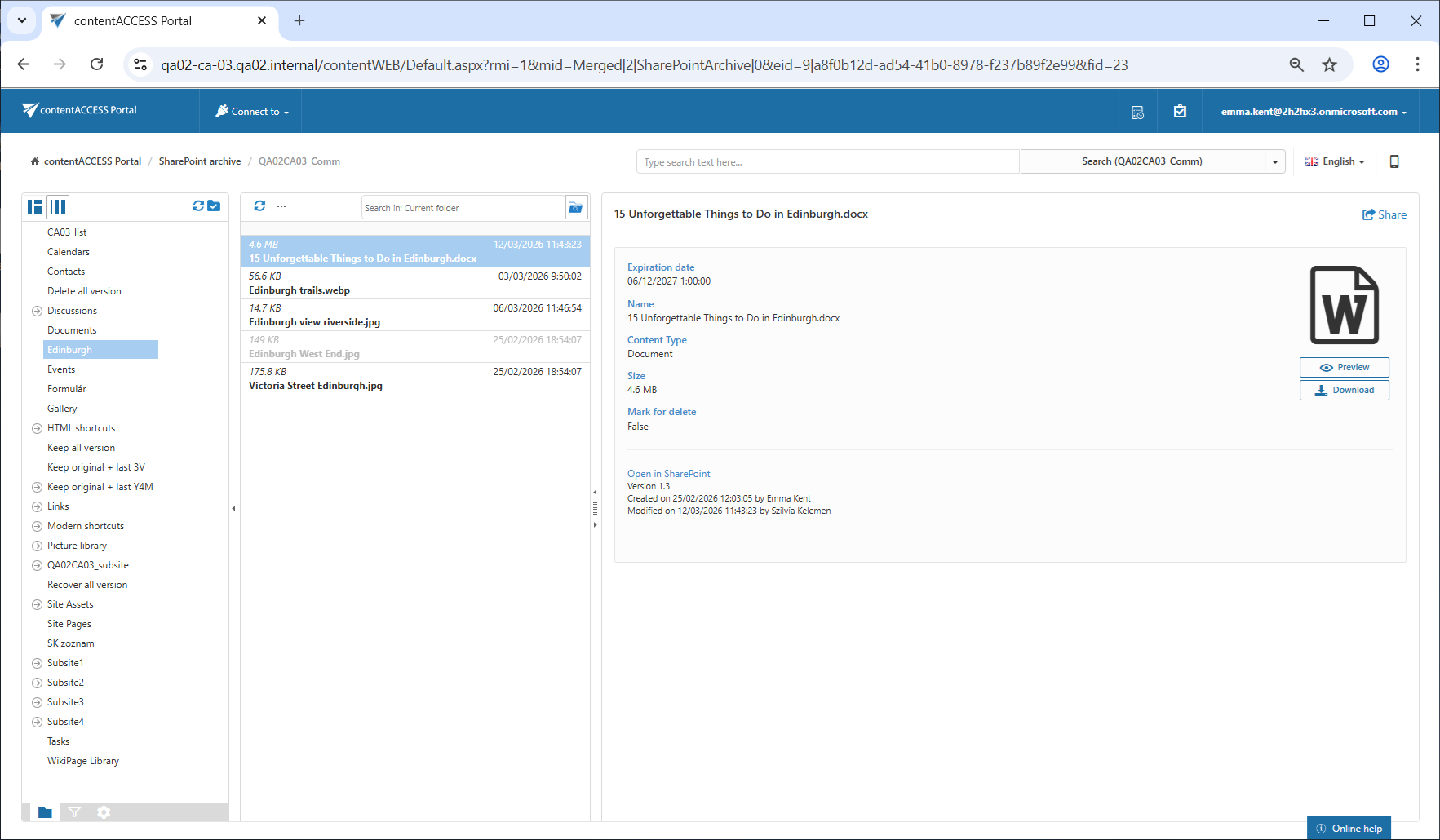
Once logged in centrally, click contentACCESS Portal to open the application:
Required permissions
To log in to contentACCESS Portal and access the desired content, a user must have the necessary permissions. These can be granted in one of the following ways:
- In the Email archive/File archive settings.
- On the Users page, by assigning the necessary role to the user (Standard user role, with Specific rights in the archive).
Note: A system or tenant administrator can also create roles with specific permissions for a given user. For example, it is possible to create a role that allows the assigned user to view the archived emails of x@domain.com, while the emails of y@domain.com remain unavailable to that user in the archive.