contentACCESS Web Services (Proxy)
Introduction
The contentACCESS Proxy is a component included in the contentACCESS setup package that enables secure, HTTPS-based communication between clients (such as the Outlook form) and the contentACCESS server. This page explains why a secure connection is important, how the proxy relates to HTTPS, and how to configure the contentACCESS Proxy to use HTTPS on Internet Information Services (IIS).
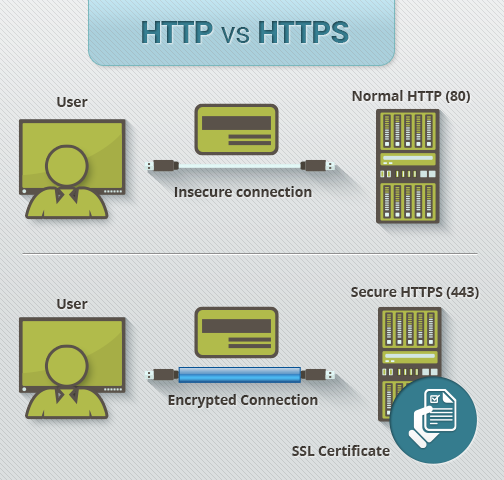
Most companies require sensitive data to be transmitted over a secure connection. To support this, contentACCESS offers HTTPS connectivity between the user and the contentACCESS server. Enabling HTTPS requires installing a proxy server, which allows the user to communicate securely with the contentACCESS server.
Note: Hyper Text Transfer Protocol Secure (HTTPS) is the secure version of HTTP, the protocol over which data is sent between a client (in this case, the Outlook form) and the contentACCESS server. The "S" at the end of HTTPS stands for "Secure," meaning all communications between the client and the server are encrypted. HTTPS is often used to protect highly confidential online transactions.
HTTPS pages use one of two secure protocols to encrypt communications: SSL (Secure Socket Layer) or TLS (Transport Layer Security). The proxy installed in this scenario uses SSL. Both protocols rely on an asymmetric Public Key Infrastructure (PKI) system, which uses two keys to encrypt communications: a "public key" and a "private key." Anything encrypted with the public key can only be decrypted with the private key, and vice versa.
Prerequisites
- The contentACCESS Proxy must be installed with the "https" connection option from the contentACCESS setup package. If the proxy is not installed with this option, it is not possible to establish an HTTPS connection between the proxy server and contentACCESS.
- The contentACCESS setup package cannot configure the contentACCESS Proxy to use HTTPS on IIS automatically; this configuration must be performed manually after installation.
Configure HTTPS on the proxy server
Once the contentACCESS Proxy is installed, configure HTTPS access as follows:
- Open Internet Information Services (IIS) Manager on the server where the proxy server is installed.
- Import the company's SSL certificate.
Import the SSL certificate
-
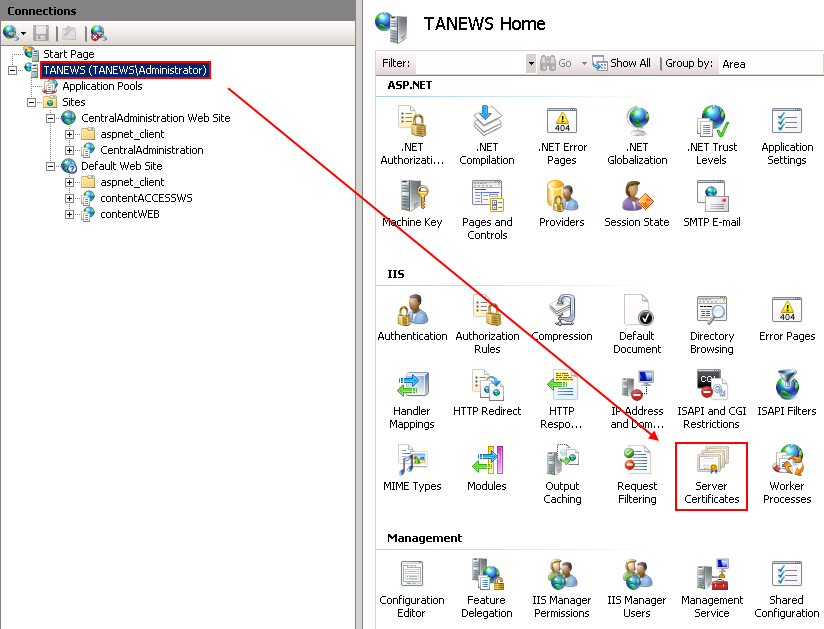
In the Connections pane, click on the server name (for example, "TANEWS (TANEWSAdministrator)"), and under the IIS section, double-click Server Certificates.
-
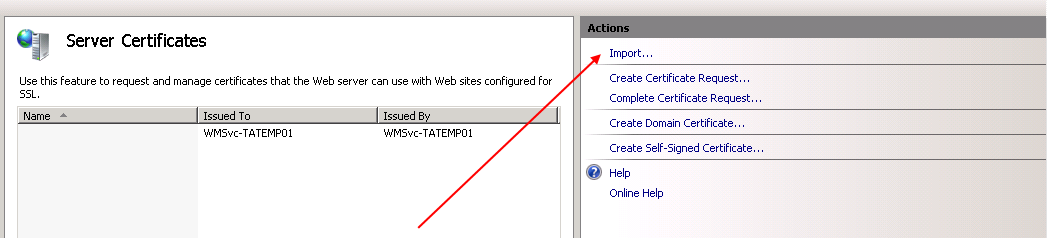
In the upper right corner of the Actions pane, click Import.
-
In the Import Certificate window, browse for the company's certificate, open it, enter the certificate password, and click OK.

Configure bindings
-
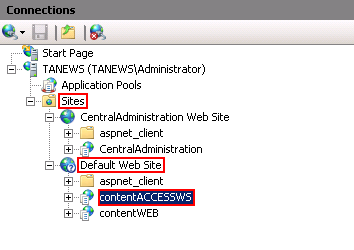
In the Connections pane, search for the contentACCESSWS node.
-
Double-click Default Web Site.
-
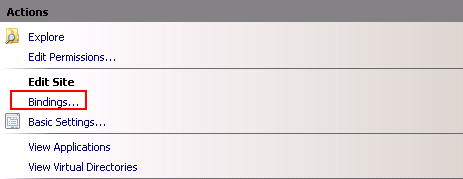
In the upper right corner of the Actions pane, click Bindings.
-
In the Site Bindings window, click Add.
-
In the Add Site Binding window:
- Under Type, select https from the dropdown list.
- Enter the Host name.
- Select the SSL certificate from the dropdown list.
-
Click OK.

Disable HTTP access
If you want to stop allowing HTTP connections and require HTTPS only:
-
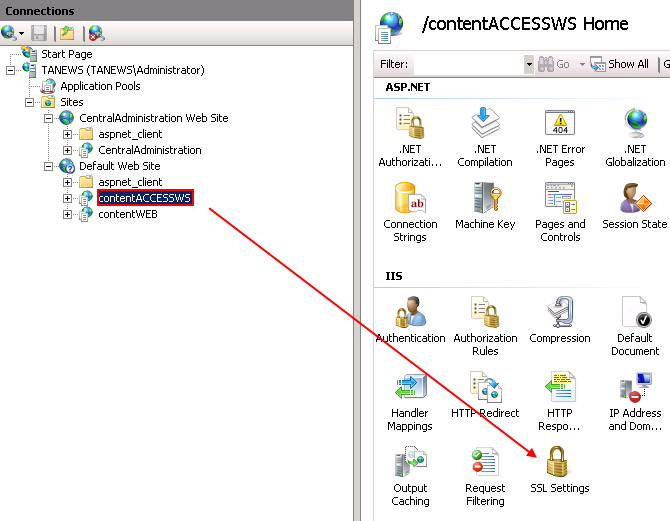
In the Connections pane, expand the appropriate site and click on the proxy (contentACCESSWS).
-
Under the IIS section, double-click SSL Settings (Screenshot A).
-
On the SSL Settings page, select the Require SSL checkbox (Screenshot B).

-
In the upper right corner, click Apply to save the changes.

Verify the connection
To check whether the communication between the proxy and contentACCESS is properly established, enter the following URL into a browser:
https://[HostName]/contentACCESSWS/MobilityService.svc/ping
If the connection is established successfully, the ping result will display OK.