Advanced installation mode
Introduction
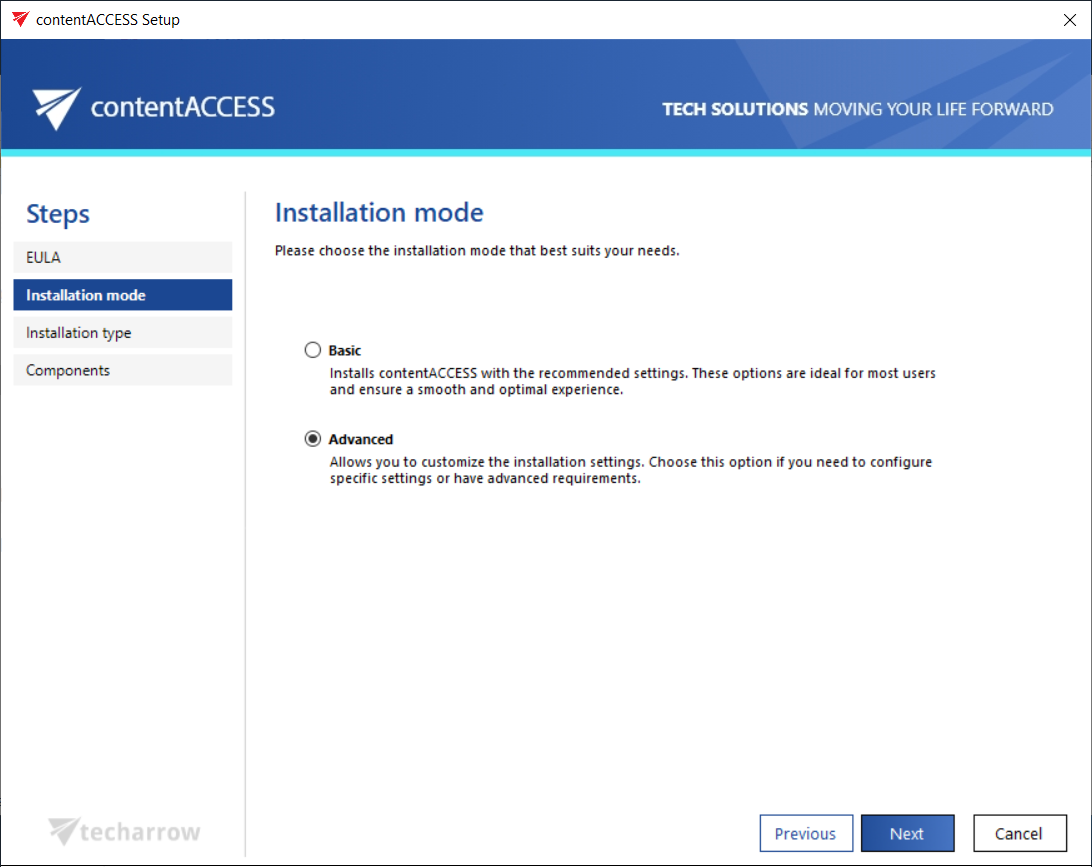
The Advanced installation mode allows you to customize the contentACCESS installation by manually configuring each component on separate pages. This option is intended for advanced requirements, providing full control over component selection, system checks, and detailed configuration before the installation proceeds.
This page describes the steps involved in the Advanced installation mode and the conditions for switching between installation modes during updates.
Installation steps
The Advanced installation mode consists of the following steps:
- Accept the terms on the EULA page.
- Select the installation type (this step appears only during the first installation).
- Choose the components you want to install.
- On the Prerequisites page, the wizard checks whether all software requirements are met. If any prerequisites are missing, they are installed directly by the wizard during the installation.
- In the following steps, manually configure the components selected on the Components page. The configuration of these components is detailed in the corresponding subsections.
- Once the component configuration is complete, proceed through the Overview and Installation steps, just like in Basic mode, to finalize the installation.
Important: If the first install is performed in Basic mode, there is an option to switch to Advanced mode during an update. However, after switching, the user will no longer be able to switch back to Basic mode. From that point forward, updates can only be performed in Advanced mode.
On the other hand, if the first install is performed in Advanced mode, there is no option to switch to Basic mode during the next (and first) update. The contentACCESS version must be updated in Advanced mode.