Prerequisites
Introduction
The Prerequisites step of the contentACCESS installation wizard checks whether your system fulfills the required software requirements before installation continues. Some missing prerequisites can be installed directly from the wizard during this step. This page describes the checks performed at this stage and how to proceed once they are complete.
Software requirement checks
During this step, the wizard verifies that all required software components are present on the system.
To use the Search service (legacy or V2), the Java component must be present on the computer. You do not need to download and install it separately, as it will be installed directly from the setup.
Important: The setup will change the value of the JAVA_HOME variable to point to the version installed by setup. This may cause other already installed applications (using the older Java version) to fail, so please check their functionality after the setup is completed. If the server is already running a newer version than the one included in setup, it will not be touched/downgraded.
Note: For the Indexing job to also work for PDF files using the Adobe PDF iFilter, the Path environment variable for the PDF iFilter must be set manually. For more details, see this FAQ section.
Note: The MS Outlook prerequisite is checked only if the license supports email-based jobs.
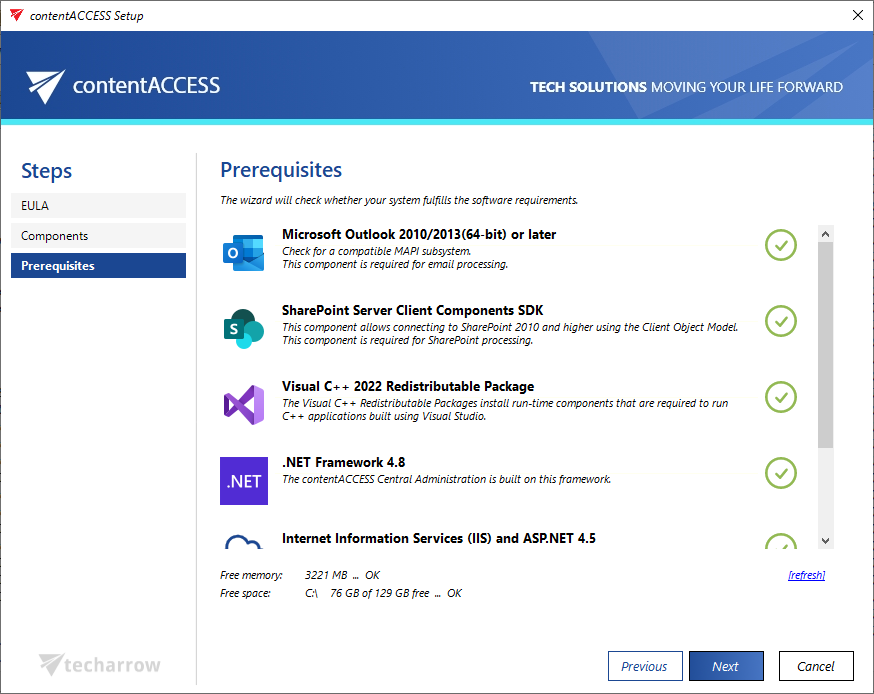
Complete the prerequisite check
- If any prerequisites are missing, install the required software as indicated by the wizard.
- Use the refresh button to update the prerequisite information after the missing software has been installed.
- If the wizard still does not recognize the installed software, restart the PC and start the contentACCESS installation again.
- Once all prerequisites are satisfied, click NEXT to continue with the installation process.
For more information about these requirements, see Software requirements.