SMTP server
Introduction
The SMTP server is a contentACCESS component responsible for receiving incoming emails and archiving them into contentACCESS. This page describes the configuration options available during installation, as well as the settings and tools available through the SMTP server configuration tool after installation, including database configuration, TLS encryption, contentACCESS connection settings, import/export of non-archived emails, and service management.
Configure the SMTP server during installation
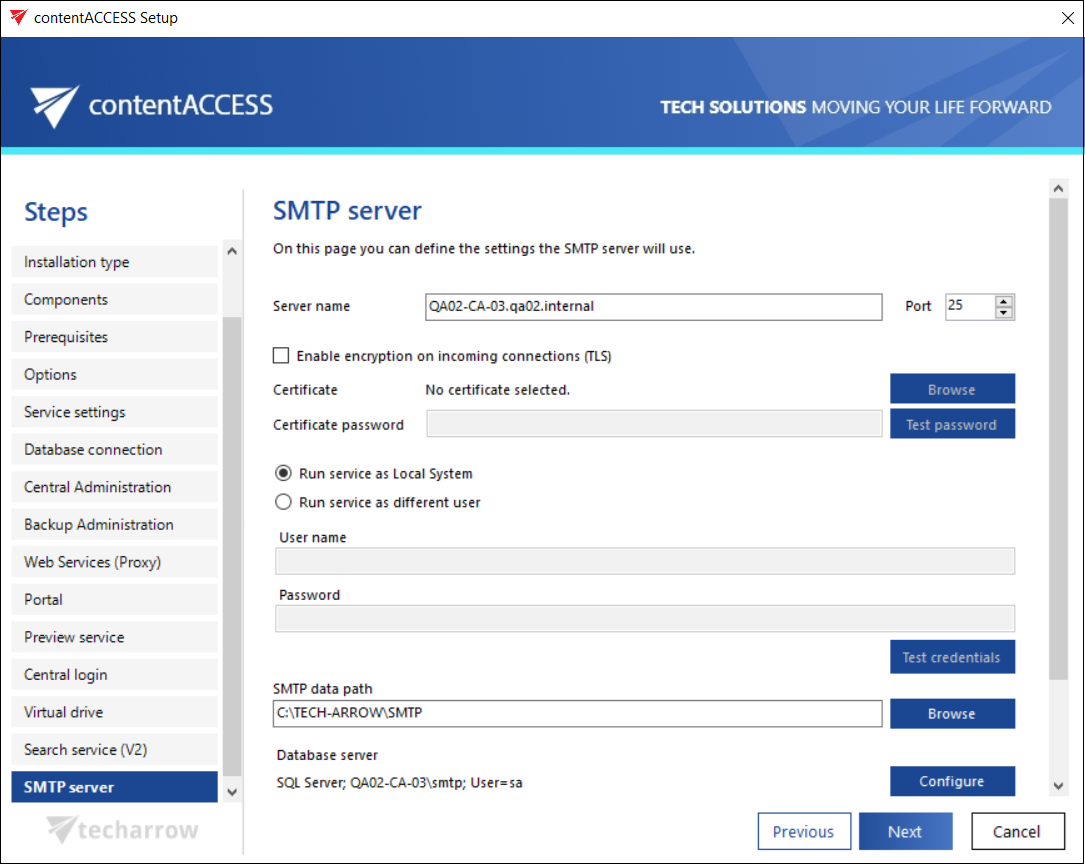
The following options can be set on the SMTP server configuration page:
- Server name: The name of the server that the SMTP server will be listening on.
- Port: The port the SMTP server will be listening on for incoming emails.
- Enable encryption on incoming connections (TLS): Enables the secure connection between the sender and the recipient servers.
- Certificate: The
.pfxcertificate file must be selected here if Enable encryption on incoming connections (TLS) is checked. - Certificate password: The password for the
.pfxcertificate. Use the Test password button to check whether the entered password for the given.pfxcertificate file is correct. - Service parameters: The credentials for the service user, under which the SMTP server will run, can be set here.
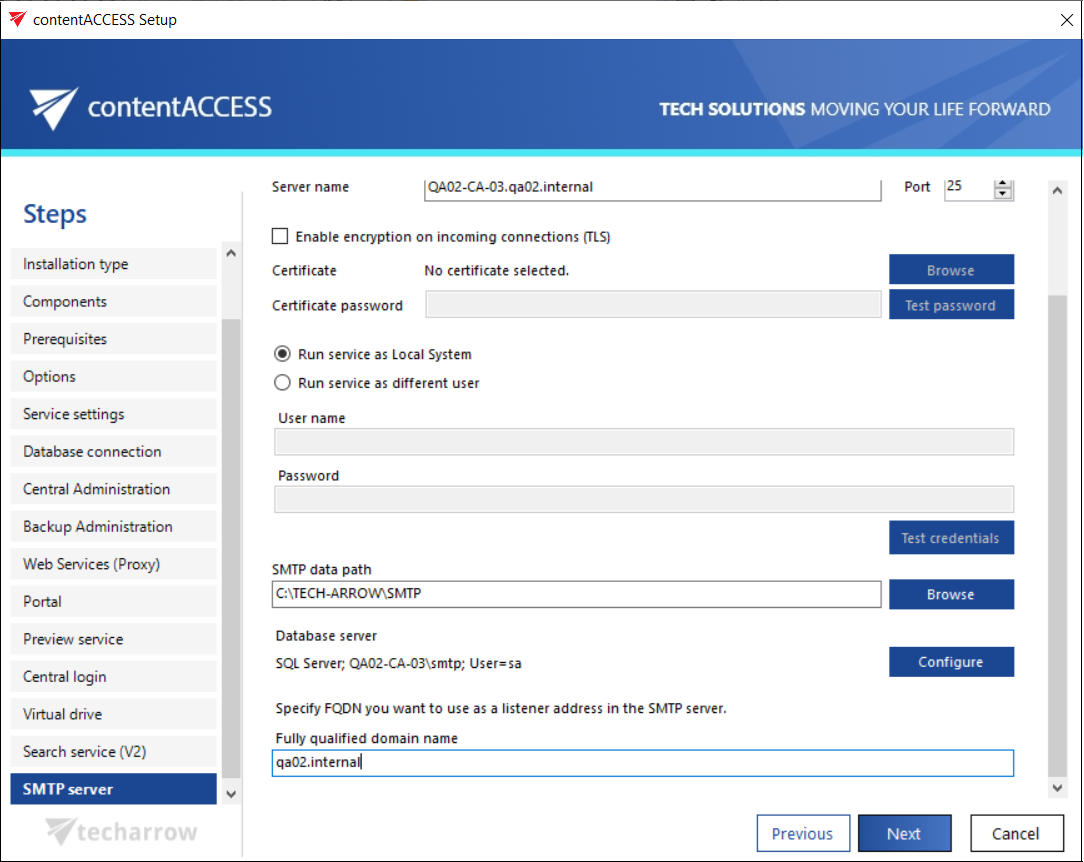
- SMTP data path: The location where the system files regarding the SMTP server will be stored.
- Fully qualified domain name (FQDN): A domain name that can later be used to create new SMTP mappings. This domain will be usable as the domain for an incoming SMTP listener address and is added to the SMTP domains list in Central Administration, where it is also possible to add more domains later. The FQDN can be the same as the Server name.
- Database server: An SQL database can be configured for the SMTP server. The SMTP server will store its data here.
Note: It is mandatory to set a SQL connection for the SMTP server, otherwise you will not be able to continue the setup process.
- Enter the name of the database server into the Database server text box, or use the three-dot button to locate it.
- Type the Database name into the next text box. An SMTP database will be created with the name entered here.
- Type in a schema (with an optional name).
Note: If the SQL option was set up properly before and you are updating to a higher version, all of the above settings will be preselected and you will not be allowed to change them. If the option wasn't set properly before, the fields will be enabled and you will need to fill them in.
Continue by setting the user credentials to connect contentACCESS with the SQL server. Enter the SQL username and password into the text boxes. You have multiple options here:
- Use an SQL user, or
- Use WIA (Integrated Windows Authentication) by checking the Use Windows integrated authentication checkbox. In this case, contentACCESS will connect to SQL with the service credentials specified in the service parameters settings.
After the installation, the SMTP server is automatically registered into contentACCESS and can be used immediately after setting up some mappings.
In case of updating the SMTP server from version 3.3, the server is automatically registered into contentACCESS as soon as the service starts up. The previously specified mappings are injected into contentACCESS, and the Available domains are filled in based on the domains from the already existing domain mappings.
The only case when registration is not done automatically and requires manual configuration is when version 3.4 is installed from the .exe file (C:\TECH-ARROW\contentACCESS_Package\Setups\contentACCESS.SMTPServer_x64.exe).
SMTP server configuration tool
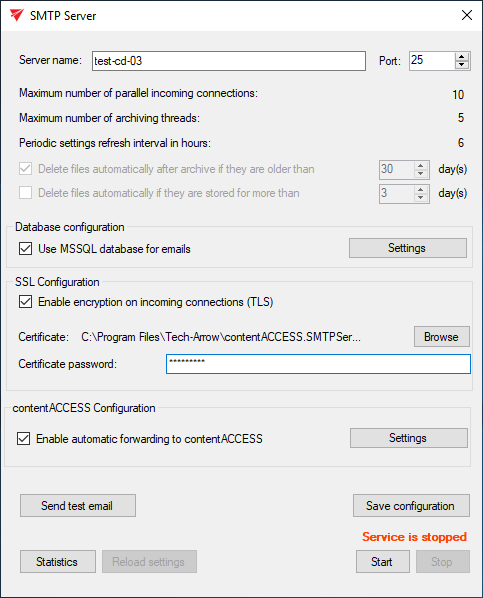
After the SMTP server has been successfully installed, you can use the SMTP server configuration tool (default location: C:\Program Files\TECH-ARROW\contentACCESS.SMTPServer\EmailServer.exe) to manage its configuration.
Important: The configuration can be changed only when the service is stopped (bottom right corner).
Database configuration
If necessary, an MSSQL database can be used for emails. Check the checkbox and configure your database connection.

Enable TLS encryption
If you would like the TLS protocol to be used to encrypt incoming connections, check the Enable encryption on incoming connections (TLS) checkbox. Next, you will need to upload a certificate in .pfx format and specify a password for the certificate.

contentACCESS Configuration settings
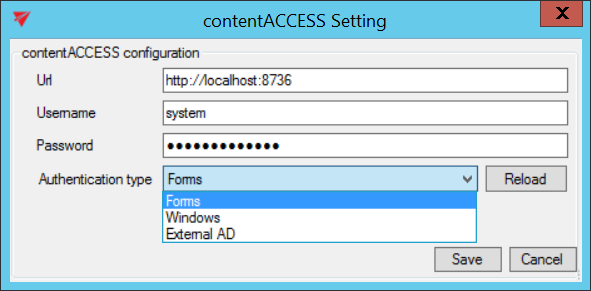
In case of manual configuration of the SMTP server or a change in the target contentACCESS server's URL, the changes can be set under the contentACCESS Configuration section's Settings page:
- URL: URL of the contentACCESS server.
- Username: Username used to connect to contentACCESS.
- Password: Password for the specified user to connect to contentACCESS.
- Authentication type: Authentication type for the specified user.
Export and import non-archived emails
The configuration tool also allows you to export and import non-archived emails. This option enables you to move emails between SMTP servers for various reasons. If the SMTP server is running in read-only mode, it receives the emails and saves them to disk (and to the database).
- When you perform an export, it creates a ZIP file and a DB file for each exported day. This export contains only emails that have not yet been archived.
- You can then import the same data into a different SMTP server with similar settings. The only requirement is that the SMTP mappings must be the same.
- When selecting the mappings, you can either choose all mappings or select specific ones by pressing the Transformation button on the Import tab.
Note: You first need to configure the Import Folder section before you can open the Transformation window.
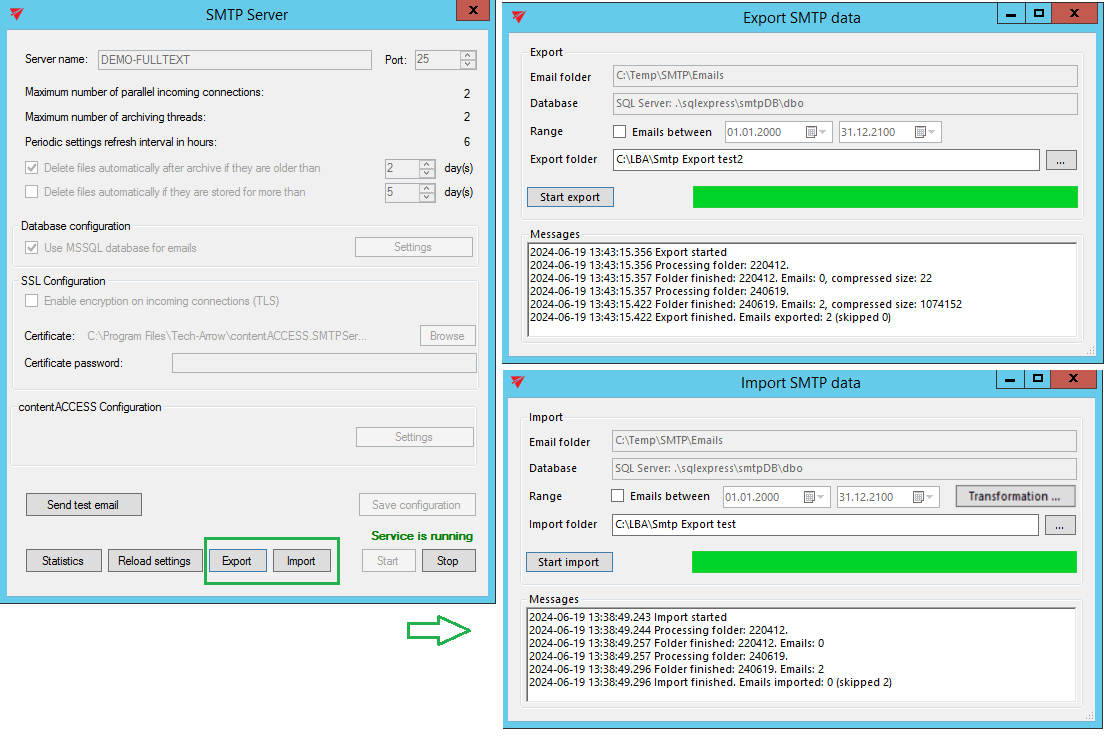
Note: The options about threads and delete options are read-only and disabled in this tool. They can only be set in Central Administration, in the SMTP Servers section.
Test email, statistics, and service control
- Send test email: Sends a test email to the first specified SMTP mapping set in Central Administration.
- Save configuration: Saves any change made in the configuration tool.
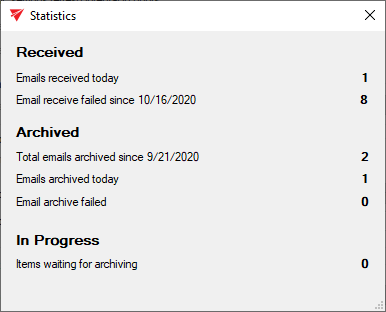
- Statistics: Displays statistics about the emails received and archived by the SMTP server.
- Start and Stop: Starts or stops the underlying service, which handles the incoming emails and archives them into contentACCESS.