How to use contentACCESS Outlook add-in
Introduction
The contentACCESS Outlook add-in allows users to forward or reply to messages that have been archived using the HTML or Normal shortcut type, while keeping the archive and the shortcuts in the mailbox synchronized.
When a user forwards or replies to an archived message, the add-in:
- updates the corresponding records in the archive database with the appropriate changes;
- updates the shortcut in the owner's mailbox to reflect the action taken.
The add-in's behavior depends on where the shortcut is located: in the primary mailbox, in an additional mailbox or shared folder, or in a public folder. Each scenario is described below.
Note: The contentACCESS Outlook add-in currently works only with Windows authentication. Windows authentication must be set up correctly, and the Windows user must be present in contentACCESS.
Shortcut in the primary mailbox
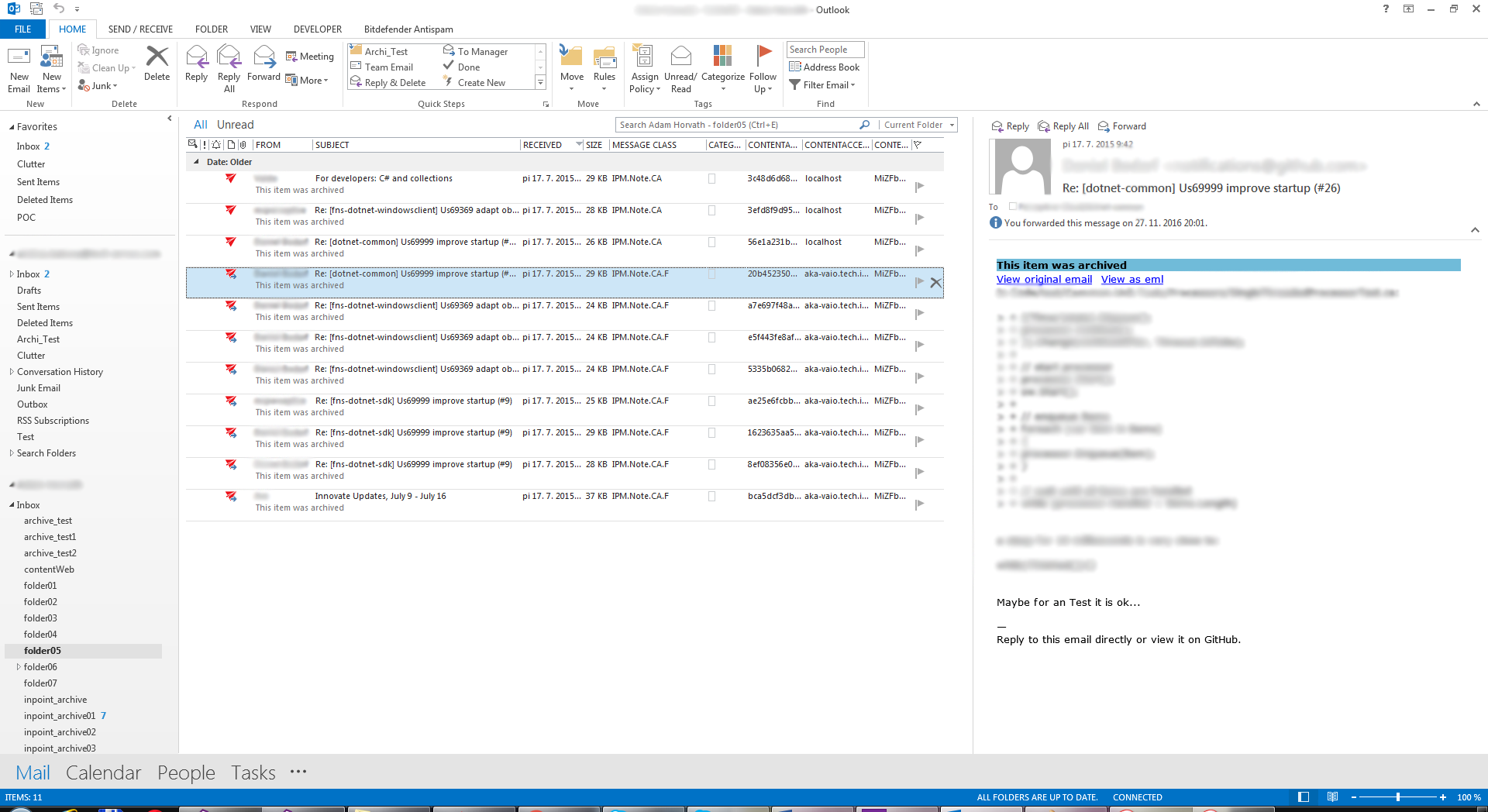
When the shortcut is located in the primary mailbox, the add-in updates the shortcut directly in the primary mailbox.
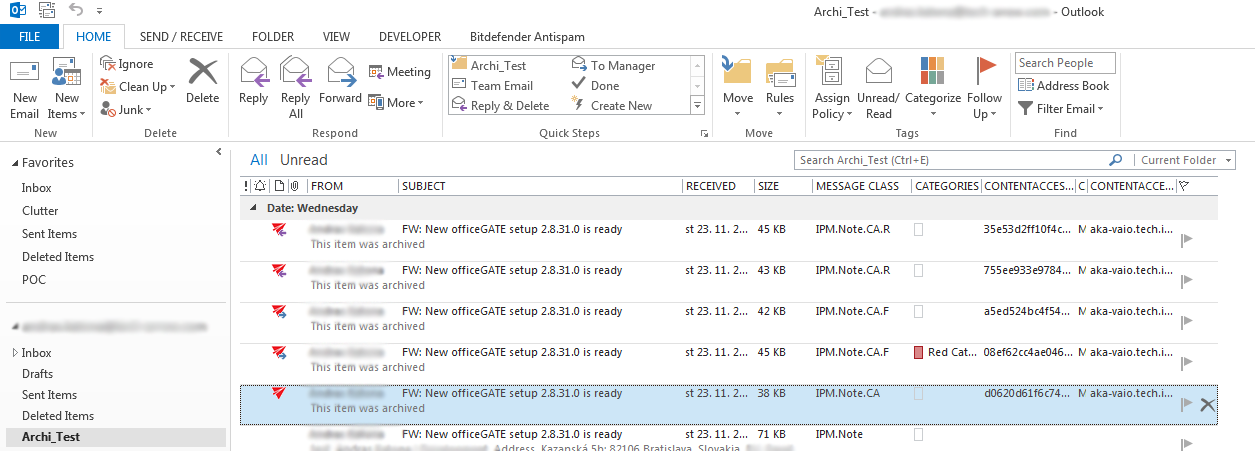 Screenshot 1: Shortcut in primary mailbox (message class
 IPM.Note.CA).
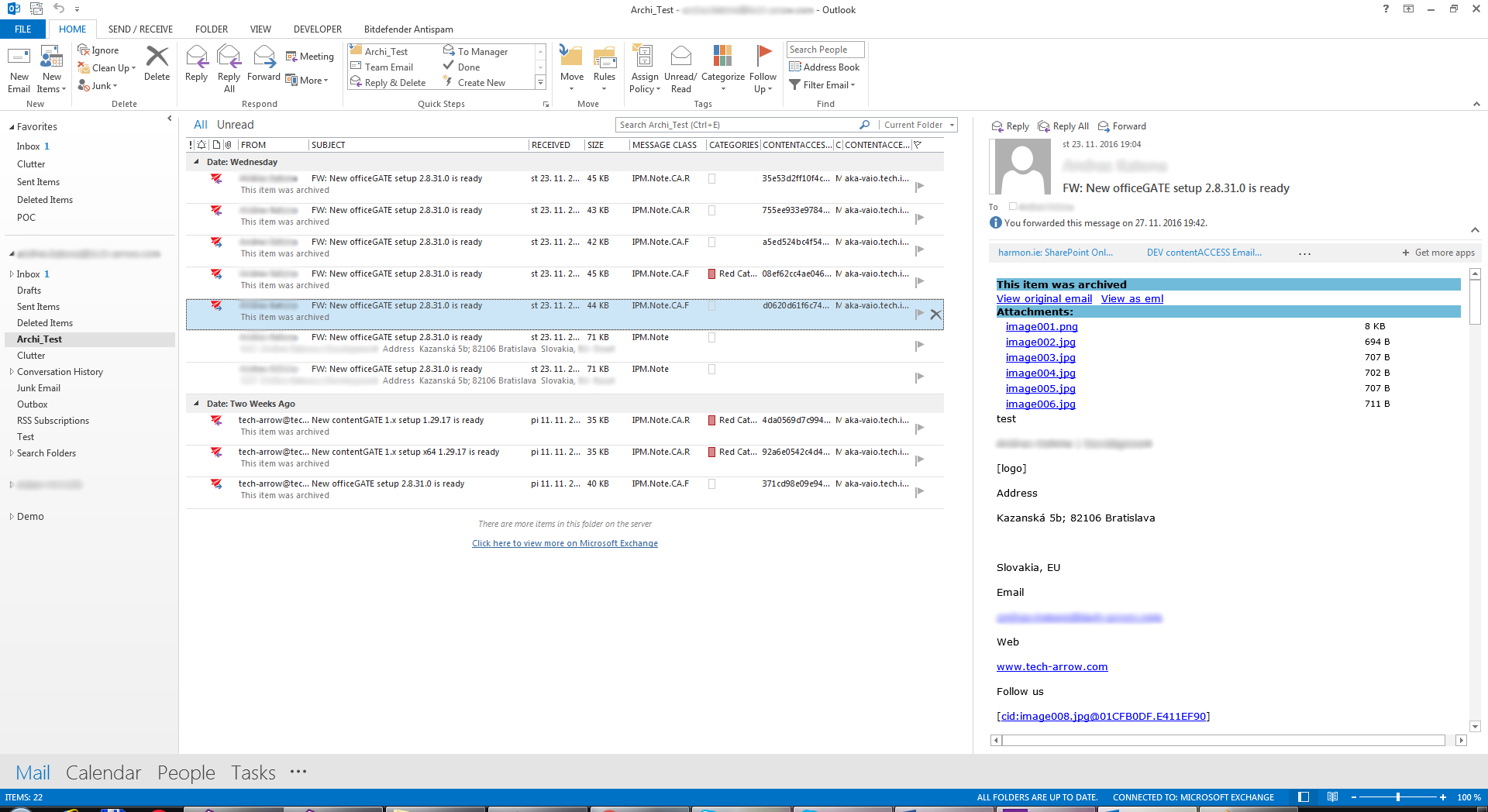 Screenshot 2: Shortcut in primary mailbox after retrieve and forward (message class
 IPM.Note.CA.F).
Shortcut in an additional mailbox or shared folder
When the shortcut is located in an additional mailbox or a shared folder, the add-in updates the shortcut in the shortcut owner's mailbox.
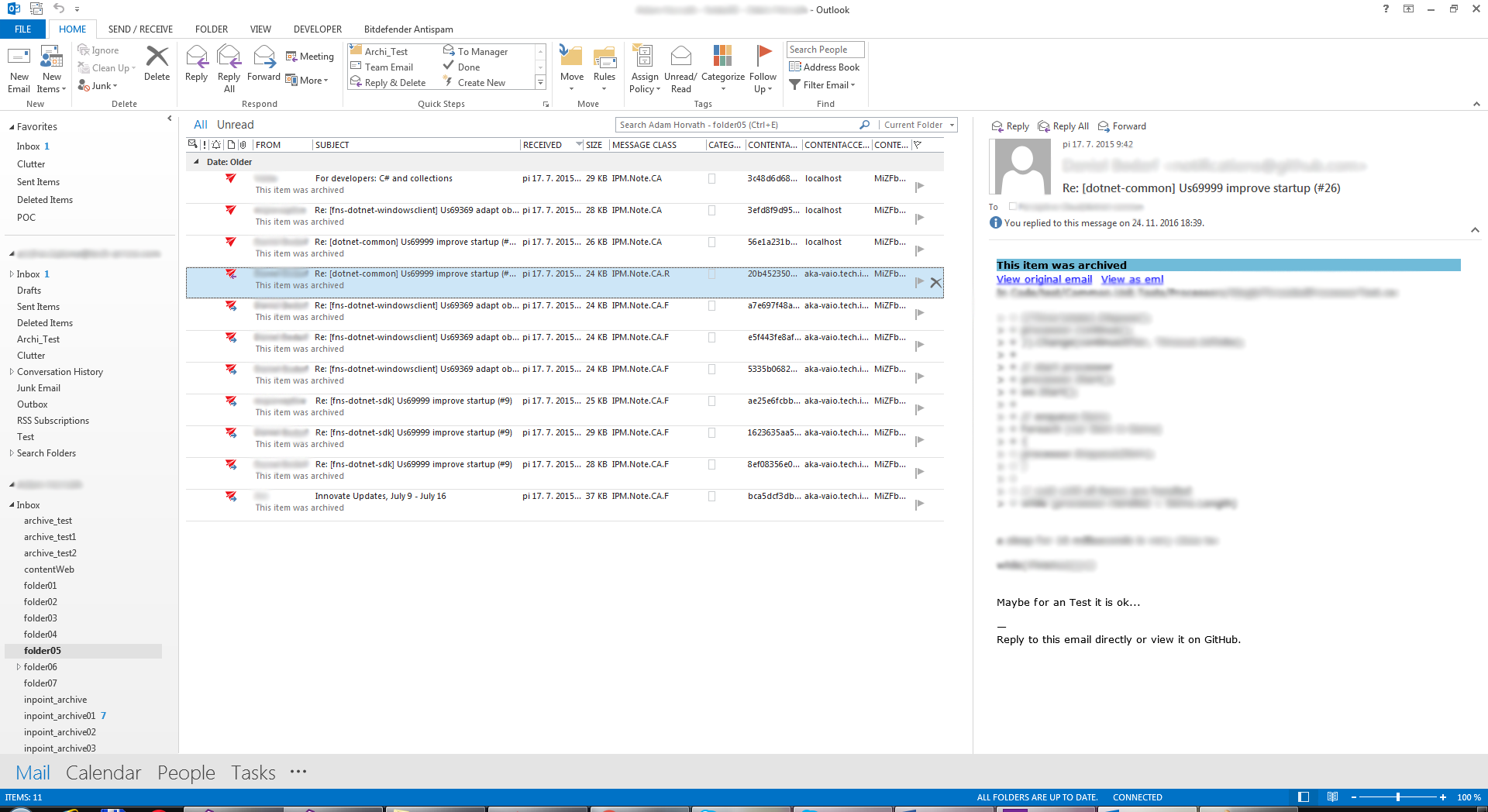 Screenshot 3: Shortcut in additional mailbox (original message class is
 IPM.Note.CA.R).
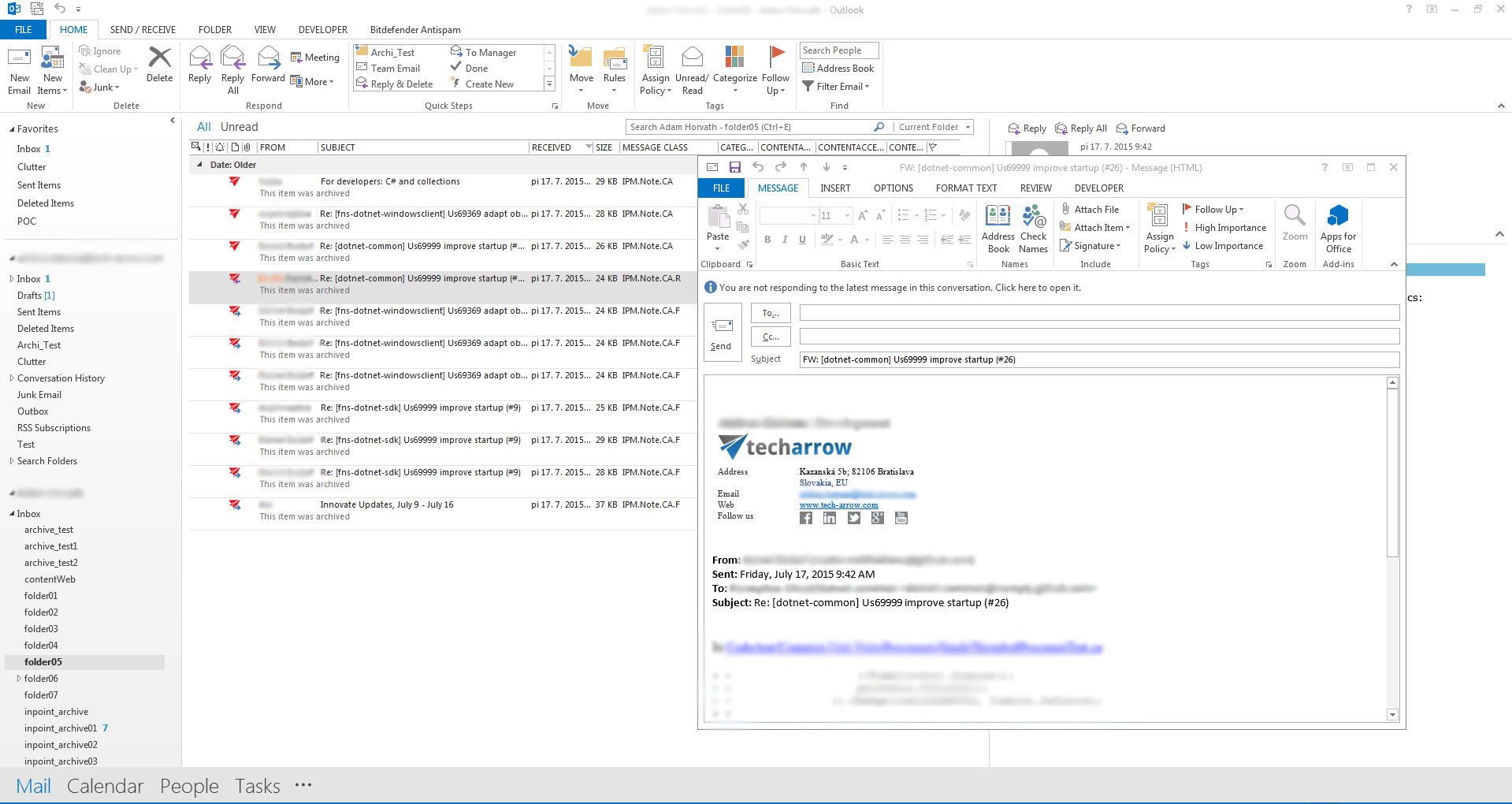 Screenshot 4: Calling forward directly on the shortcut item opens the Forward inspector.
 Screenshot 5: Shortcut in the additional mailbox after forwarding (message class is
 IPM.Note.CA.F).
Shortcut in a public folder
When the shortcut is located in a public folder, the add-in updates the shortcut in the public folder.
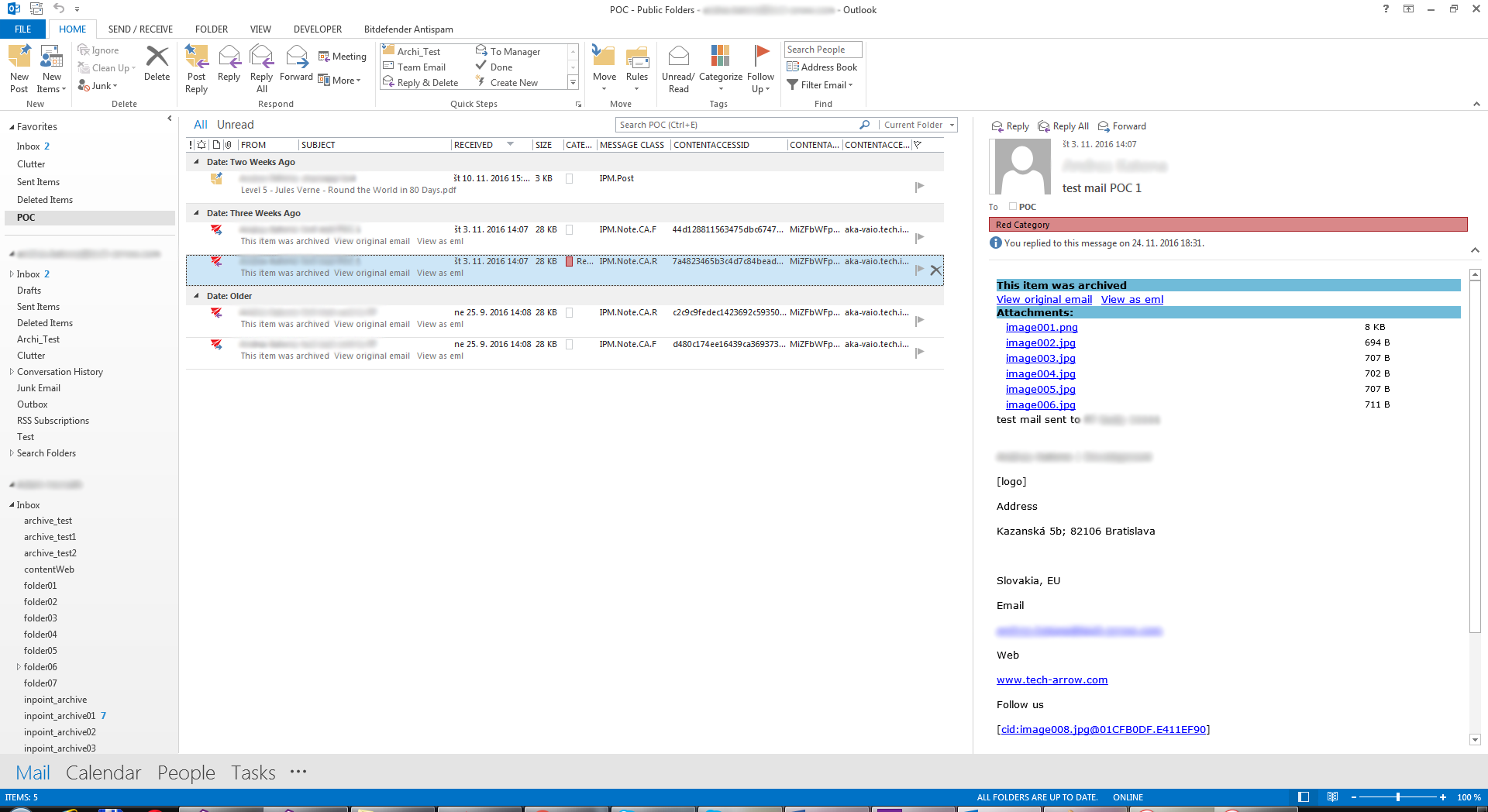 Screenshot 6: Shortcut in Public Folders (original message class is
 IPM.Note.CA.R).
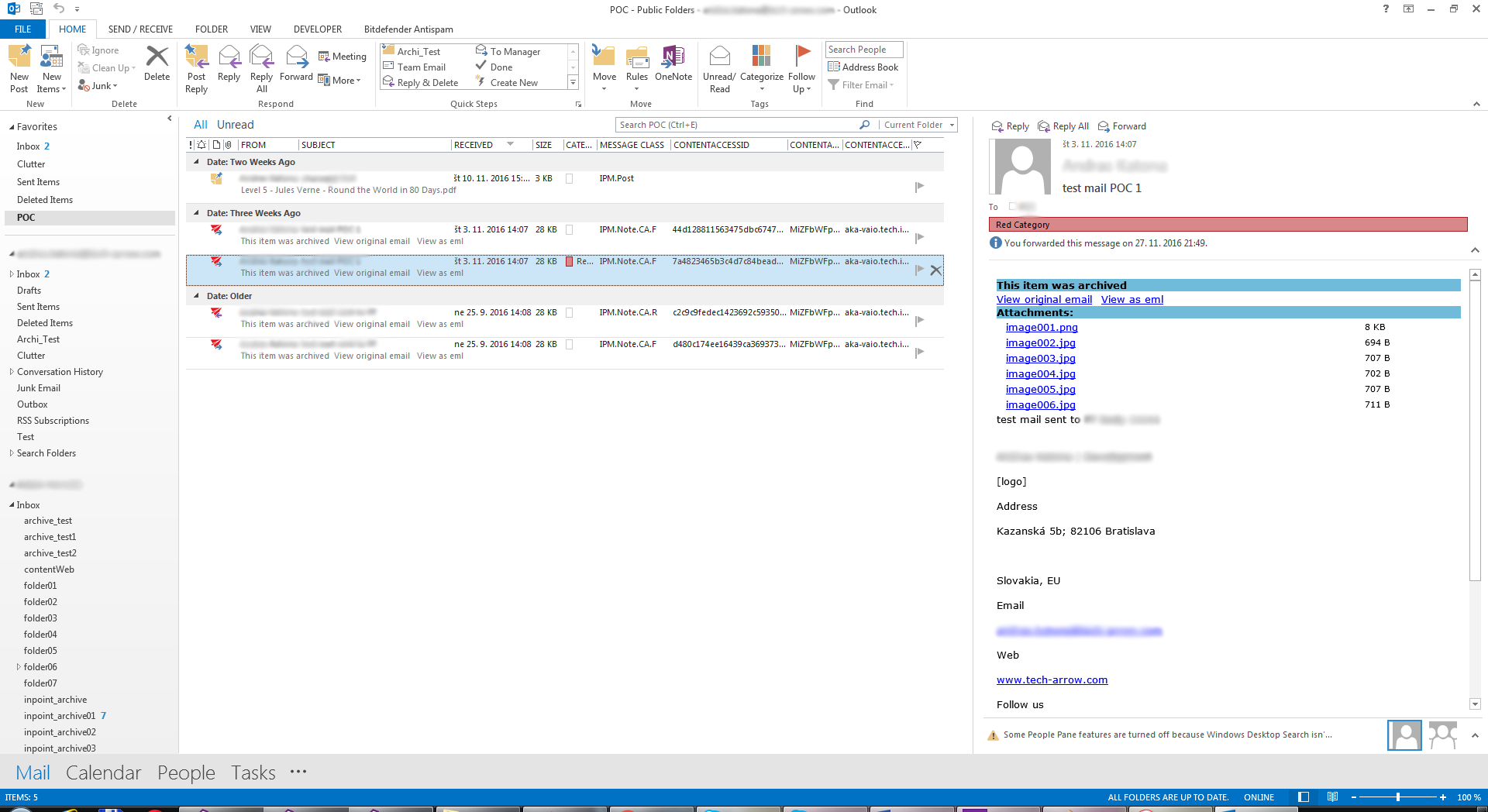 Screenshot 7: Shortcut's message class changed to
 IPM.Note.CA.F.