Installation of contentACCESS Outlook add-in
Introduction
The contentACCESS Outlook add-in integrates contentACCESS functionality directly into Microsoft Outlook. This page covers the prerequisites and steps required to install the add-in, including how to configure the connection to the contentACCESS server, and how to perform a silent installation.
Note: To use the add-in, the user must also install the Outlook forms.
Prerequisites
Before installing the Outlook add-in, complete the following steps:
- Install contentACCESS by following the Installation of contentACCESS guide.
- Ensure the following components are present on the machine(s) where the Outlook add-in will be used:
- .NET 4.8
- Visual Studio 2010 Tools for Office Runtime 10.0.60724 (can be downloaded here)
Note: The Outlook add-in is installed using an Administrator account and does not need to be installed separately for every user profile.
Start the installation
Go to C:\TECH-ARROW\contentACCESS_Package\Setups, or locate the folder to which you unzipped contentACCESS_Package when installing contentACCESS. Find and run the following file, depending on your Outlook version:
contentACCESS.OutlookAddin_x64(for 64-bit Outlook)contentACCESS.OutlookAddin_x86(for 32-bit Outlook)
-
Choose the language you will be using — English or German.

-
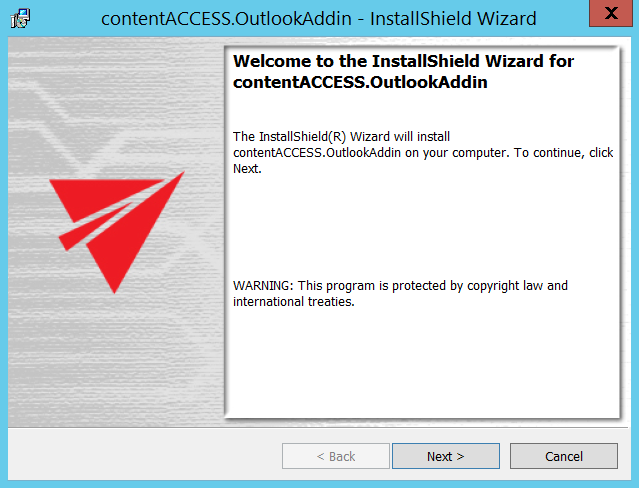
Click Next.
-
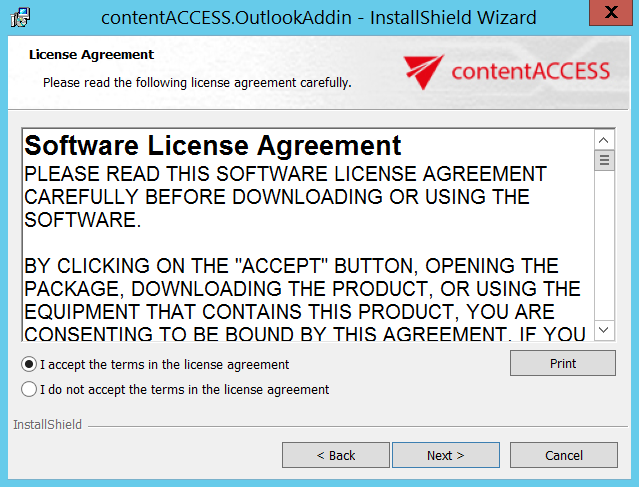
Select I accept the terms in the license agreement and click Next.
-
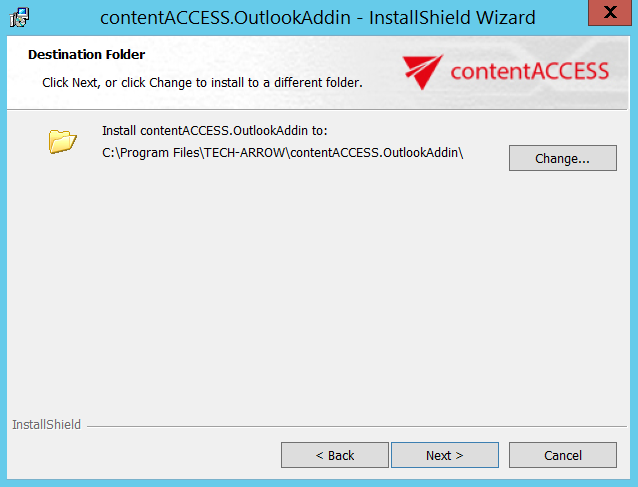
Choose the folder to which the Outlook add-in will be installed. It is recommended to leave the default folder. Click Next.
-
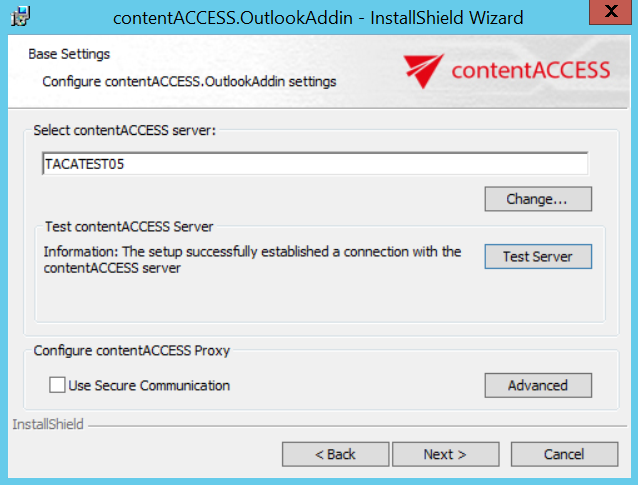
Enter the name of the contentACCESS server you are using (in this example,
TACATEST05).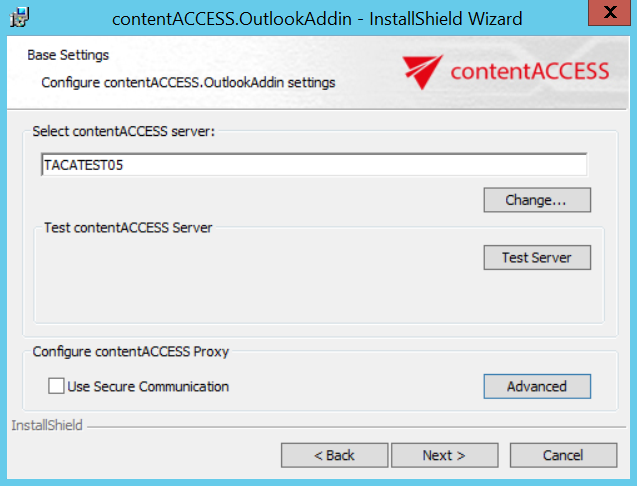
Click Test Server to verify that the connection to the contentACCESS server can be established.
-
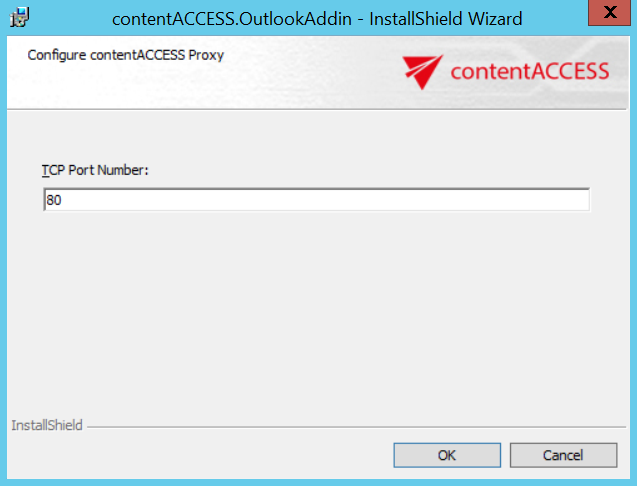
Click Advanced to specify the TCP port number.
- If you select Use Secure Communication, the port number is
443. - If not selected, the port number is
80. - You can also specify a custom port number.
Click OK, then click Next.
infoNote: These settings must match the settings used when configuring the contentACCESS Proxy settings. If you used HTTPS for the proxy, the Use Secure Communication option must be checked here as well. If you specify a custom port number, you must also update it in Central Administration, under System tab → Services group → System page, section External accessibility settings: Retrieve server FQDN. Otherwise, the contentACCESS Outlook add-in will not work.
- If you select Use Secure Communication, the port number is
-
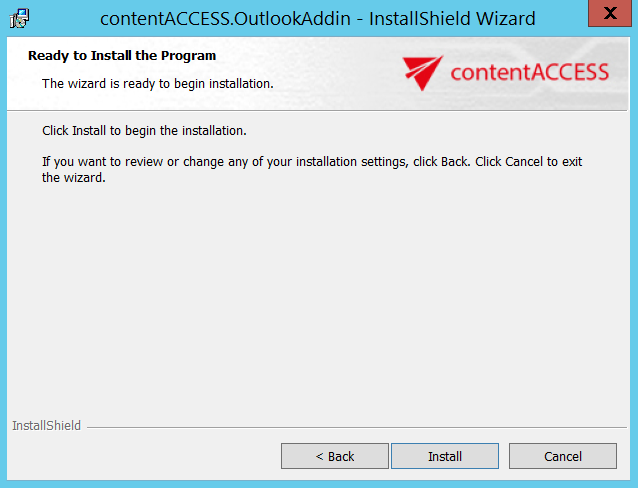
Click Install.
-
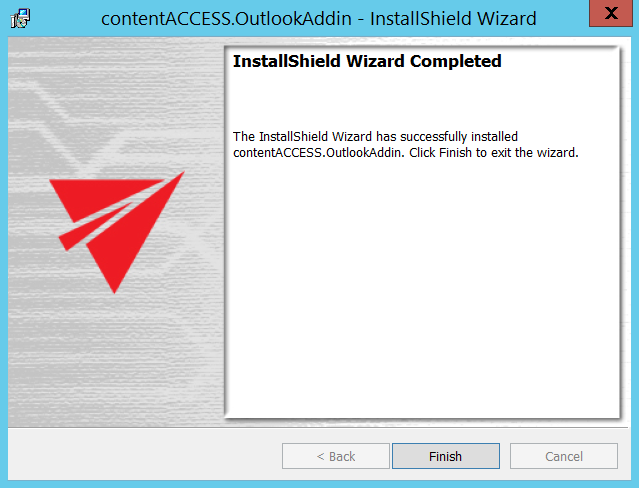
Click Finish to complete the installation process.
Note: If you have repaired or updated the contentACCESS Outlook add-in, always restart Outlook under each profile. New features will be available only after Outlook is restarted.
Silent installation
The contentACCESS Outlook add-in can also be installed using a silent installation command:
contentACCESS.OutlookAddin.exe /v"USESECURE=1 CASERVER="[SERVERNAME]" CASERVERPORT="[CUSTOMNUMBER]" /l*v log.txt /qn
Parameters:
- USESECURE — with or without SSL
- CASERVER — contentACCESS server name
- CASERVERPORT — not mandatory; defaults to
80(ifUSESECURE=0) or443(ifUSESECURE=1) - /qn — enables silent installation
- /l*v log.txt — enables logging
If no parameters are defined, the setup will be installed using default values.