Legacy archive connector for Email Lifecycle Manager (ELM)
Introduction
The Legacy archive connector for Email Lifecycle Manager (ELM) provides access to archived files referenced by legacy ELM shortcuts. This connector is used when Email Lifecycle Manager has been uninstalled from a computer but the archive contents still need to be retrieved and browsed.
This page describes how to install the Legacy ELM retrieve service on the ELM server and how to configure the connection between the ELM server and contentACCESS Central Administration, including:
- installing the retrieve service using the contentACCESS setup package;
- configuring the required IIS application pool and application;
- configuring the legacy data connection in contentACCESS Central Administration.
Note: It is recommended to install the Legacy ELM retrieve service on the same server on which ELM is installed. In the example used throughout this page, ELM is installed on server taelm01, and the retrieve service is installed on the same server.
Install the Legacy ELM retrieve service
-
In the Tools section of the contentACCESS setup package, click Legacy archive connector for email archives > Legacy archive connector for ELM, and run the setup package.
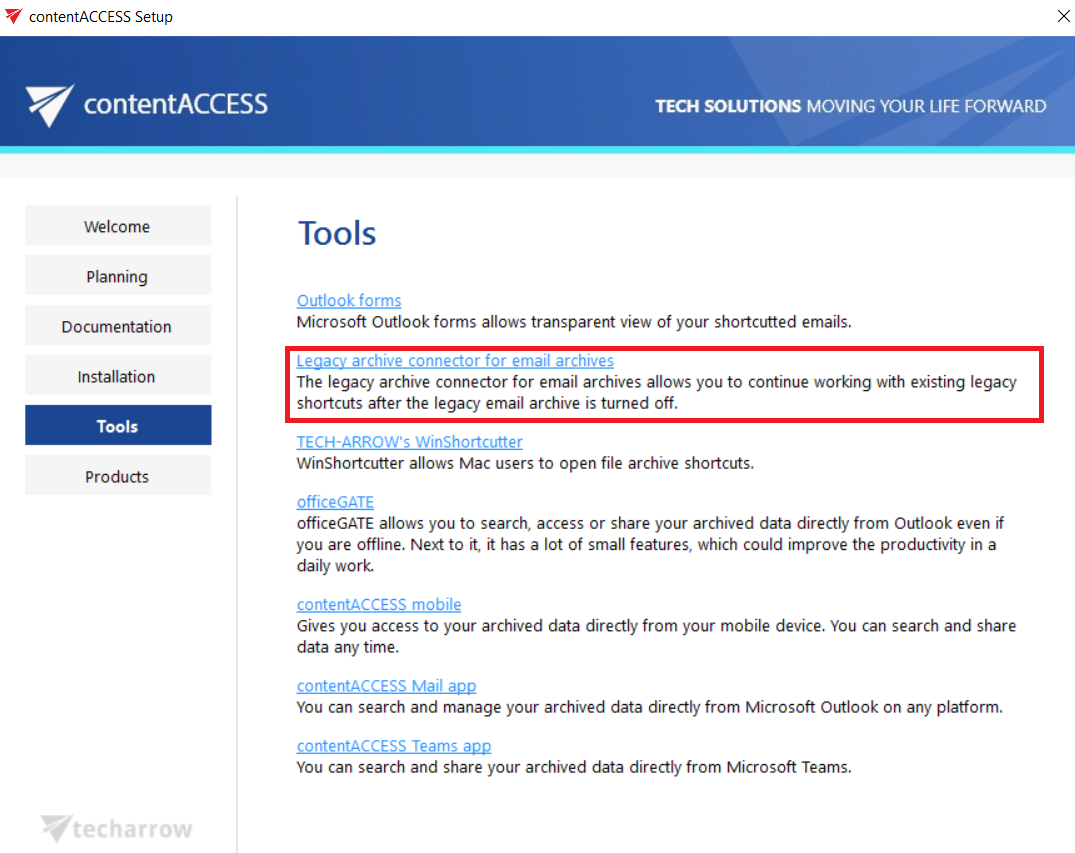
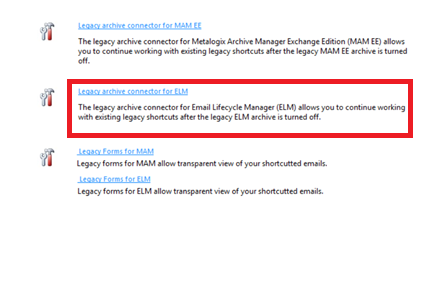
By default, the package unzips to the
C:\Program Files\TECH-ARROW\contentACCESS\LegacyELMRetrievefolder. Click Unzip. Once the files have been successfully unzipped, click OK.

-
A short HowToInstall manual opens automatically to guide you through the server installation. Follow the steps below, which correspond to this manual.
Configure the IIS application pool
-
Open Internet Information Services (IIS) Manager from the Start menu.
-
In the tree on the left side, navigate to [SERVER_NAME] > Application Pools.
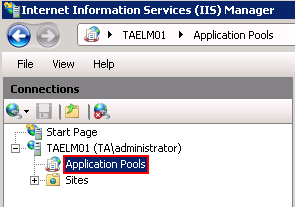
-
Right-click Application Pools and select Add Application Pool.
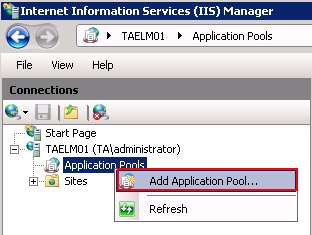
-
In the Add Application Pool window, enter
LegacyELMPoolas the name, select the required .NET Framework version from the dropdown list, and click OK.
-
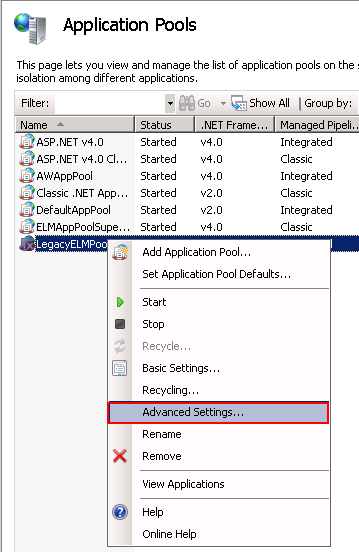
Right-click the newly created LegacyELMPool in the grid and select Advanced Settings from the context menu.
-
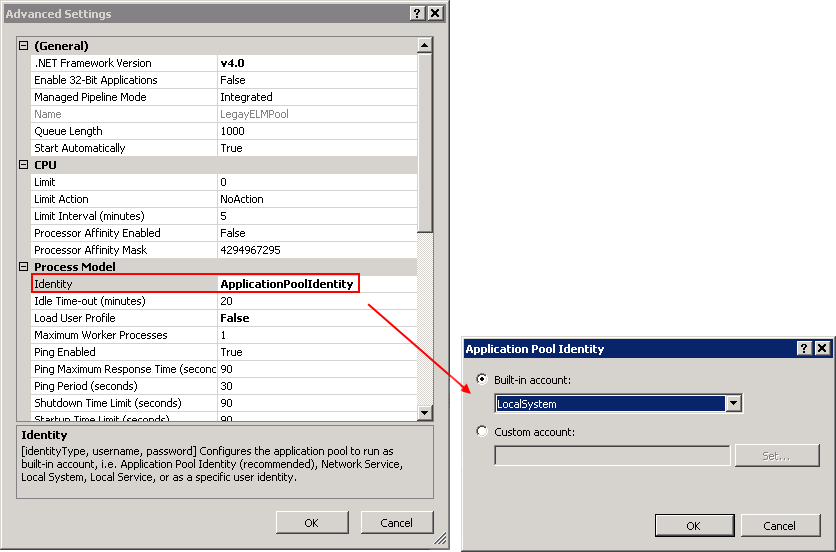
In the Application Pool Identity window, change Identity to the Local System built-in account, then click OK.
Configure the IIS application
-
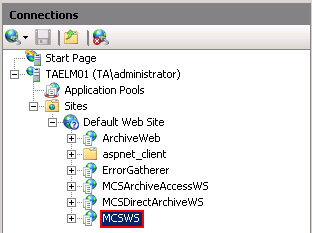
In the tree on the left side, navigate to [SERVER_NAME] > Sites > Default Web Site > MCSWS.
-
If the MCSWS application is not found:
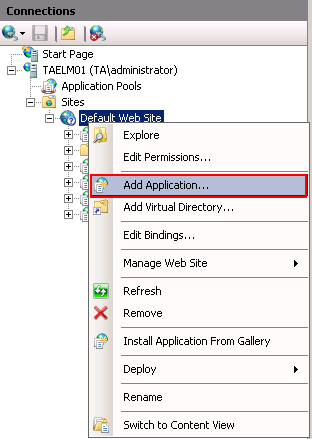
a. Right-click Default Web Site and click Add Application.
b. Enter
MCSWSas the alias andC:\Program Files\TECH-ARROW\contentACCESS\LegacyELMRetrieveas the Physical path. Select LegacyELMPool by clicking Select.c. Click OK.

-
If the MCSWS application is found:
a. Select the MCSWS node by clicking on it.
b. Click Basic Settings… in the Actions pane on the right side of IIS Manager.
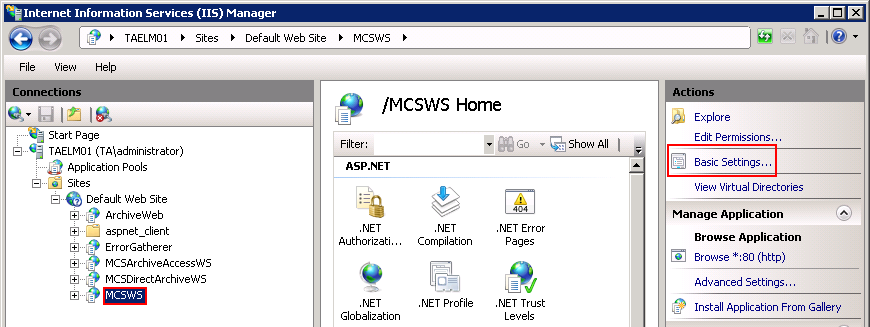
c. In the Edit Application dialog, select LegacyELMPool by clicking Select, and enter
C:\Program Files\TECH-ARROW\contentACCESS\LegacyELMRetrievein the Physical path field.
-
-
Continue by configuring the ELM server in contentACCESS, as described below.
Configure the ELM server in contentACCESS Central Administration
a. Open contentACCESS Central Administration from your browser: [ServerName]:3333/CentralAdministration.
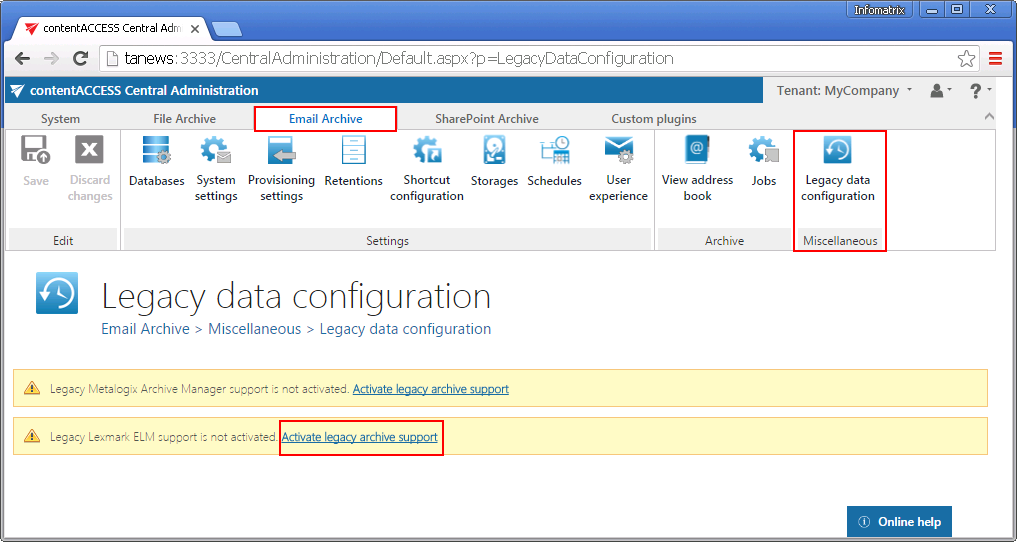
b. On the ribbon, navigate to Email Archive > Miscellaneous > Legacy data configuration.
c. Activate legacy ELM archive support by clicking Activate legacy archive support in the warnings box.
Database settings
d. On the ribbon, go to Email Archive > Settings > Databases, and configure the connection to the old ELM database on the ELM server (in this example, taelm01).
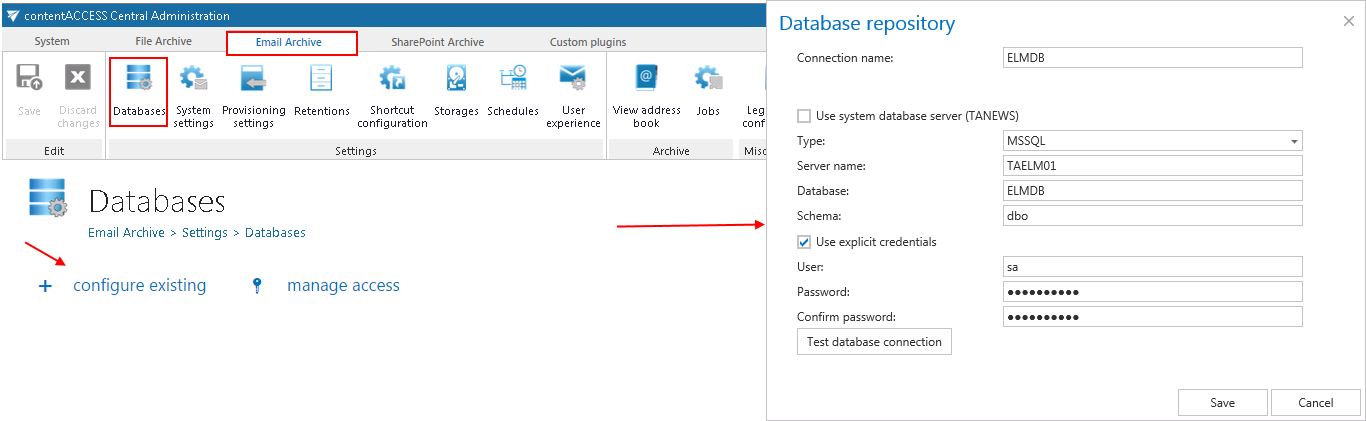
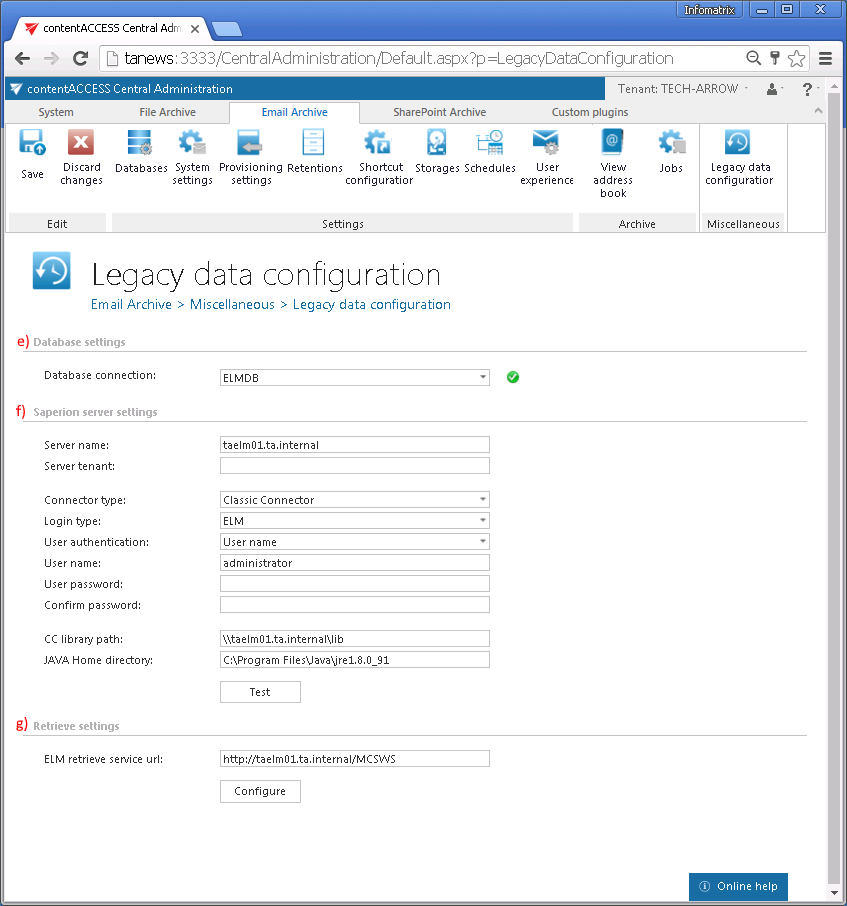
e. Return to the Legacy data configuration page on the ribbon, and set the connection to the ELM database (the ELMDB configured in step d above) in the Database settings section.
Saperion server settings
f. In the Saperion server settings section, configure the connection to the Saperion server. Set the values according to your Saperion server configuration.
The connector has the following prerequisites:
- JRE x64 must be installed on the contentACCESS server (verify that the folder
C:\Program Files\Java\jreX.Xexists). This path is configured in the JAVA Home directory setting. - The ELM references are required, but they can also be referenced directly from the ELM machine. This is the path from which the Classic Connector
.jarfiles can be reached, for exampleC:\Program Files\SAPERION\Applications\crs\crs-classicconnector\lib, and is configured in the CC library path setting. If Unified Base Interface (UBI) is used, this setting can be skipped.
Run a test connection to verify the connection to the Saperion server.
Retrieve settings
g. In the Retrieve settings section, enter the ELM retrieve service URL using the following format:
http://[ELMServerName]/MCSWS/
Then click Configure.
Result
Once the retrieve service is installed and configured, you can:
- retrieve old ELM shortcuts in Outlook/OWA (the required MS Outlook/OWA integration must also be installed; see the User experience page for more information);
- browse the legacy archive using the contentACCESS Portal.