Configuration of the MAM server in contentACCESS Central Administration
Introduction
The Legacy data configuration page in contentACCESS Central Administration allows administrators to configure support for legacy Metalogix Archive Manager (MAM) data. This configuration enables contentACCESS to work with existing MAM shortcuts and archived data, either by replacing the MAM retrieve infrastructure or by supporting MAM shortcuts after data has been migrated to contentACCESS.
Configuration in contentACCESS can take one of two forms, depending on what you need the system to do:
- In-place replacement of MAM: contentACCESS replaces the MAM retrieve server while the original MAM archive database remains in use.
- Post-migration MAM support: contentACCESS supports legacy MAM shortcuts after the archived data has been migrated to contentACCESS and the MAM servers have been decommissioned.
Both configuration types are described in the following sections.
In-place replacement of MAM
Use this configuration when the MAM archive database is still in use and contentACCESS needs to replace the MAM retrieve server.
-
Open contentACCESS Central Administration from your browser:
http://[contentACCESS_Server_Name]:3333/CentralAdministration. -
Navigate to Email Archive ⇒ Miscellaneous ⇒ Legacy data configuration on the ribbon.
-
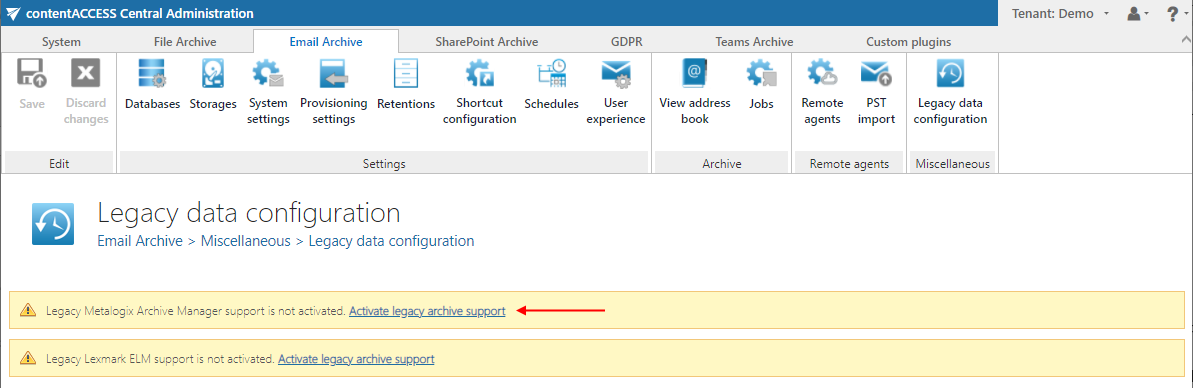
Activate legacy archive support by clicking the Activate legacy archive support option in the warning box.
-
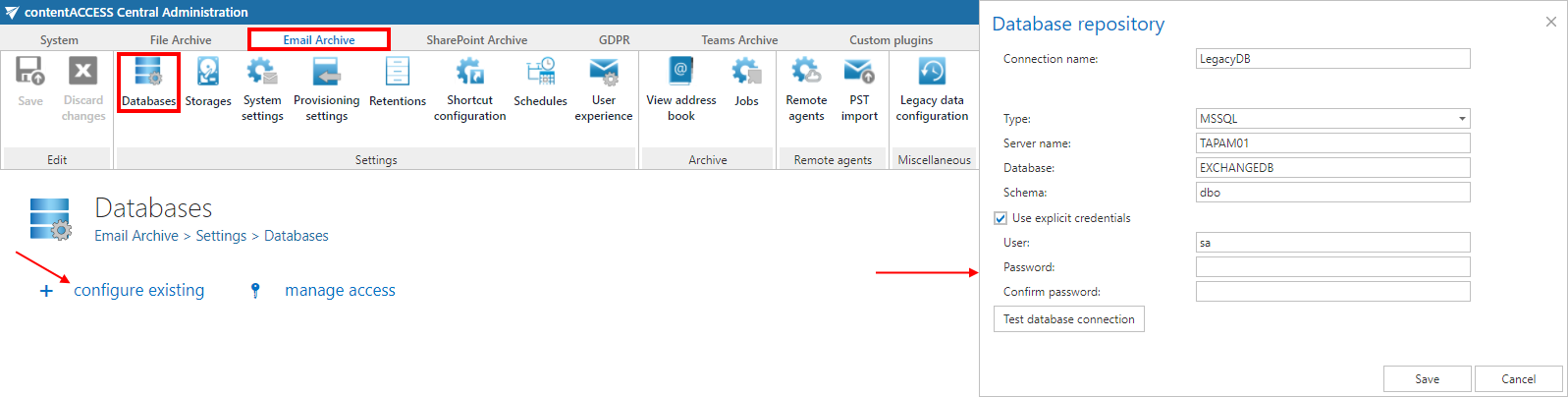
Configure the database settings. Go to Email Archive ⇒ Settings ⇒ Databases on the ribbon, and configure the connection with the old Metalogix database on the MAM server.
-
Navigate back to the Legacy data configuration page on the ribbon and select that database connection from the database dropdown list.

You can now configure the URLs for the MAM retrieve server.
-
Configure the HSM server settings. Enter the HSM server name into the text field using the following sample:
http://[HSMServerName]/PAM4HSM/PAM4HSMWS.asmx.
-
Under Retrieve settings, enter the correct MAM retrieve service URL using the server name (in this example,
test-cd-01.tech-arrow.com) where the legacy MAM retrieve service was installed. Use the following sample:http://[MAMServerName]/exchangePAMWS.Click Configure. In this step, contentACCESS configures the retrieve proxy with the correct parameters.

-
Review the additional settings. For this type of configuration, these settings can be left as they are.

-
Publish the forms. Use the
FormsInstaller.exe mamcommand to publish the legacy forms. Make sure the correct Outlook security registry keys have also been applied.
Once the retrieve service installation and its configuration are complete, it will be possible to retrieve the old MAM shortcuts from Outlook/OWA and browse the legacy archive through the contentACCESS Portal.
Post-migration MAM support
Use this configuration when MAM data has already been migrated to contentACCESS and the MAM servers have been shut down.
-
Open contentACCESS Central Administration from your browser:
http://[contentACCESS_Server_Name]:3333/CentralAdministration. -
Navigate to Email Archive ⇒ Miscellaneous ⇒ Legacy data configuration on the ribbon.
-
Activate legacy archive support by clicking the Activate legacy archive support option in the warning box.
-
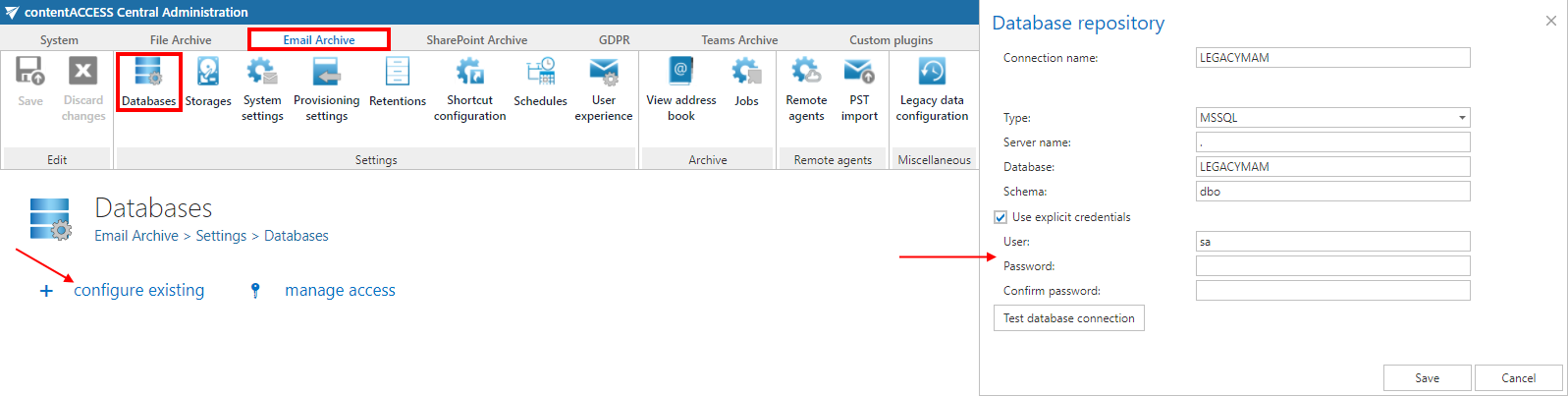
Configure the database settings. Create a new SQL database to hold the mapping information between MAM documents and contentACCESS databases. Go to Email Archive ⇒ Settings ⇒ Databases on the ribbon, and configure the previously created SQL database here.
 warning
Important: This database needs to be filled with the mapping information described above. Ask for professional services to extract the mapping information from the migration database (contentGATE) and import it into the SQL database.
-
Navigate back to the Legacy data configuration page on the ribbon and select that database connection from the database dropdown list. The connection does not necessarily need to work, but it must be selected here. An error at this step is expected and can be ignored.

You can now configure the URLs for the MAM retrieve server.
-
Configure the HSM server settings. Enter the HSM server name into the text field using the following sample:
http://[HSMServerName]/PAM4HSM/PAM4HSMWS.asmx. This URL does not need to work but must be specified here. An error at this step is expected and can be ignored.
-
Under Retrieve settings, enter the correct MAM retrieve service URL using the server name (in this example,
test-cd-01.tech-arrow.com) where the legacy MAM retrieve service was installed. Use the following sample:http://[MAMServerName]/exchangePAMWS.Click Configure. In this step, contentACCESS configures the retrieve proxy with the correct parameters.

-
Review the additional settings. Turn the Require user authentication option OFF. Check the Enable extended support checkbox. This enables the possibility to open MAM shortcuts from
.msgfiles after the MAM servers have been shut down and migrated to contentACCESS. A database is required here — select the same database used in step 4 (in this example, "LEGACYMAM").infoNote: When you first select the database here, the control asks you to deploy the database — do so. The version is
5.0.
-
Publish the forms. Use the
FormsInstaller.exe mamcommand to publish the legacy forms. The setup can be found atC:\TECH-ARROW\5.0.5\contentACCESS_Package\Setups\FormsGATE.FormsSetup.exe. Make sure the correct Outlook security registry keys have also been applied.
After this installation, clicking on any MAM shortcut will open the corresponding contentACCESS email. It will also be possible to retrieve the old MAM shortcuts from Outlook/OWA.