Installing Legacy MAM retrieve service and its configuration on the MAM server
Introduction
The Legacy MAM retrieve service is a component installed on the MAM server that enables integration between contentACCESS and Metalogix Archive Manager for Exchange Edition (MAM EE). This page describes how to install the service from the Tools section of the contentACCESS setup package and configure it using Internet Information Services (IIS) Manager, including creating a dedicated application pool and setting up the corresponding application in IIS.
After completing the steps on this page, continue with configuring the MAM server in contentACCESS Central Administration.
Install the Legacy MAM retrieve service
-
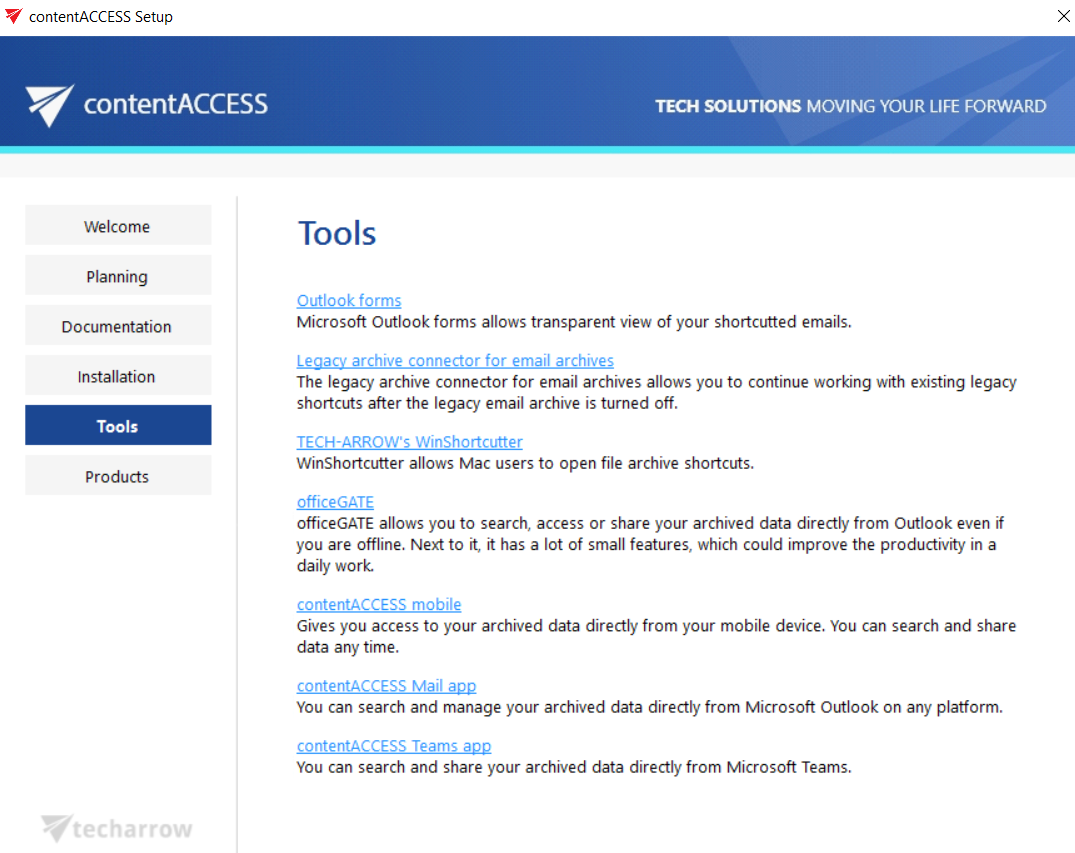
In the Tools section of the contentACCESS setup package, click on Legacy connector for email archives/Legacy archive connector for MAM EE and run the setup package.
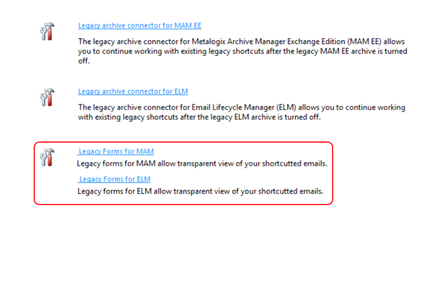
By default, the package unzips to the
C:\Program Files\TECH-ARROW\contentACCESS\LegacyMAMRetrievefolder. Click Unzip. After the files have been successfully unzipped, click OK.

-
A short HowToInstall manual automatically opens to help you install the server. Follow the steps of this step-by-step manual, described below.
Configure the application pool in IIS
-
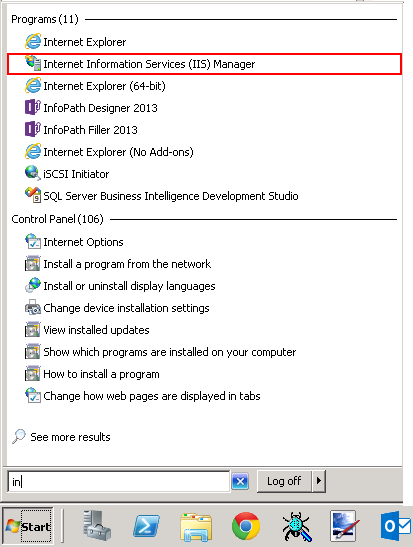
Open Internet Information Services (IIS) Manager from the Start menu:
-
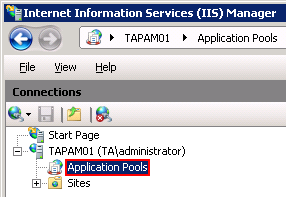
Navigate to the following node in the tree on the left side: [SERVER_NAME] > Application Pools:
-
Right-click on the Application Pools node and select Add Application Pool:
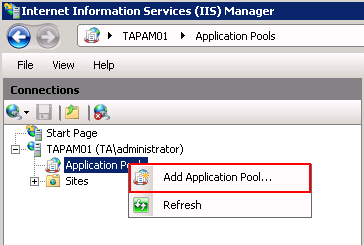
-
In the Add Application Pool window, enter
LegacyMAMPoolas the name and select the required version from the .NET Framework version dropdown list, then click OK.
-
Right-click on the newly created LegacyMAMPool in the grid, and select Advanced Settings from its context menu.
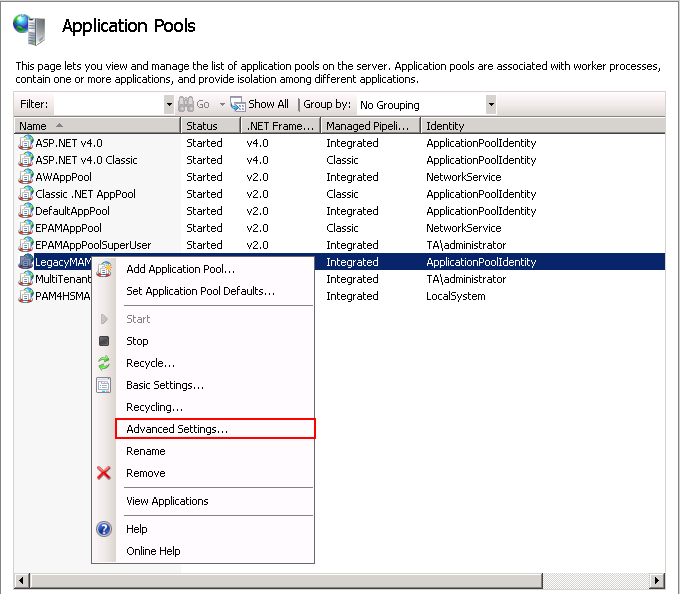
-
In the Application Pool Identity window, change Identity to the Local system built-in account, then click OK.
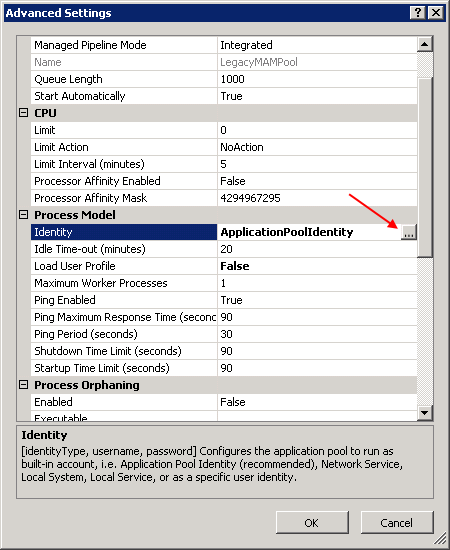

Configure the ExchangePAMWS application
-
Navigate to the following node in the tree on the left side: [SERVER_NAME] > Sites > Default Web Site > ExchangePAMWS:
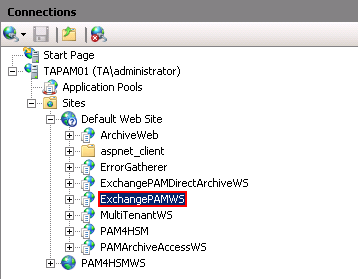
If ExchangePAMWS is not found:
-
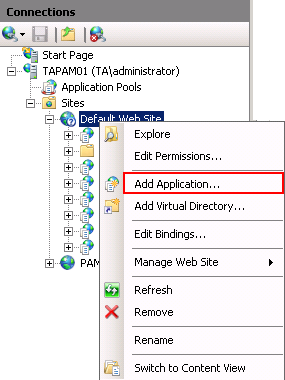
Right-click on Default Web Site and click Add Application.
-
Enter
ExchangePAMWSas the Alias andC:\Program Files\TECH-ARROW\contentACCESS\LegacyMAMRetrieveas the Physical path. Select LegacyMAMPool by clicking the Select button. -
Click OK.

If ExchangePAMWS is found:
-
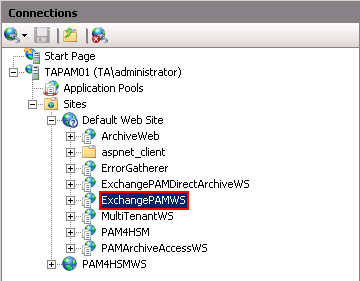
Select the ExchangePAMWS node by clicking on it.
-
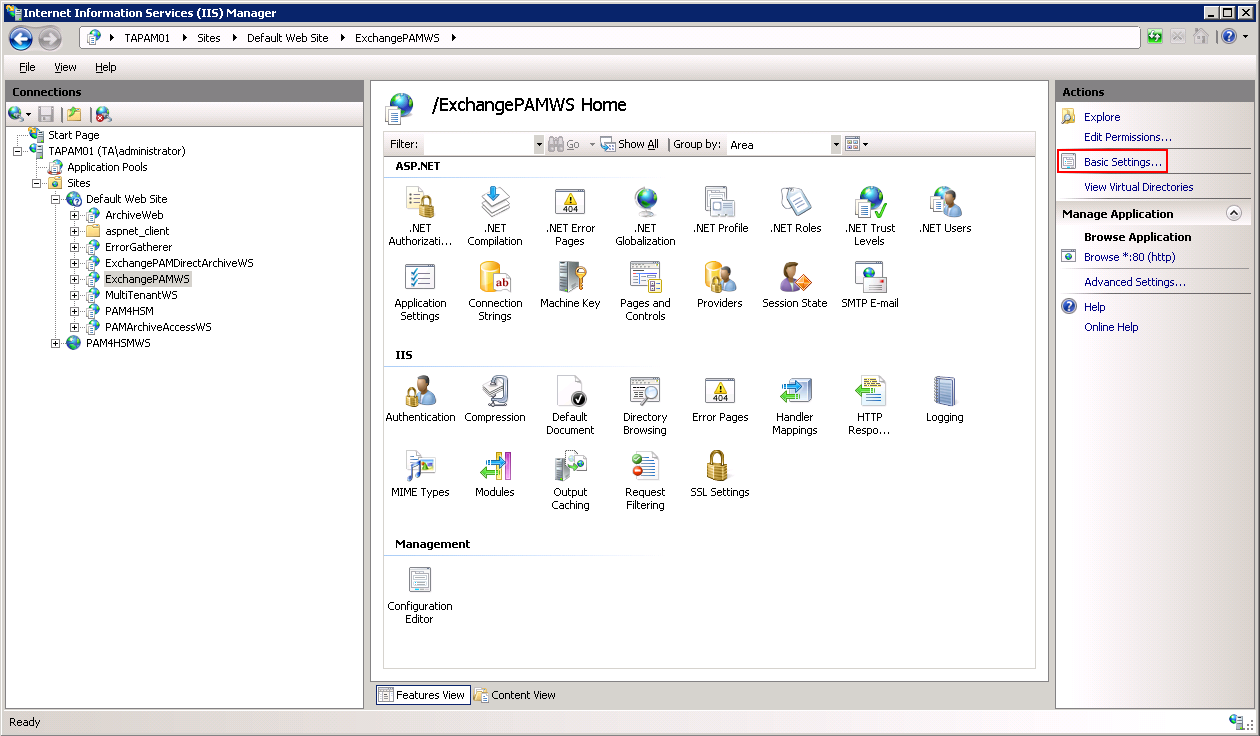
Click Basic Settings… in the Actions pane (right side of the IIS Manager).
-
In the Edit Application dialog, select LegacyMAMPool by clicking the Select button and enter
C:\Program Files\TECH-ARROW\contentACCESS\LegacyMAMRetrieveinto the Physical path textbox.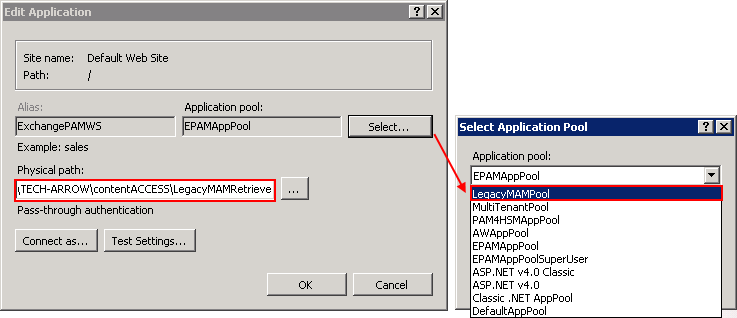
-
-
Continue with setting up the MAM server in contentACCESS, as explained in the Configuration of the MAM server in contentACCESS Central Administration section.