Creating new jobs in contentACCESS
Introduction
contentACCESS is a modular product, and its functionality is extended through jobs, each of which manages a specific data management process. Licensed jobs can be customized and adapted to individual requirements by creating new jobs from an available job type.
This page describes how job types are organized in contentACCESS, how to open the Jobs page for each job category, and how to create and configure a new job.
Job types and categories
A new job is created from a built-in job type, which has its own configuration settings, such as scheduling, retention, database, and storage settings. These configurations assign specific data processing tasks to the job. It is possible to create an unlimited number of jobs from the same job type, each with different configurations regarding the database where the processed metadata will be located, the storage where the processed binaries will be stored, the frequency at which they run, and so on.
In contentACCESS, job types are categorized into four main groups:
- Email Archive jobs;
- File Archive jobs;
- SharePoint Archive jobs;
- Custom jobs (all licensed job types other than Email Archive and File Archive jobs are accessible here).
Opening the Jobs page
To create a new job from any of these job types, open the Jobs page from the Central Administration ribbon:
-
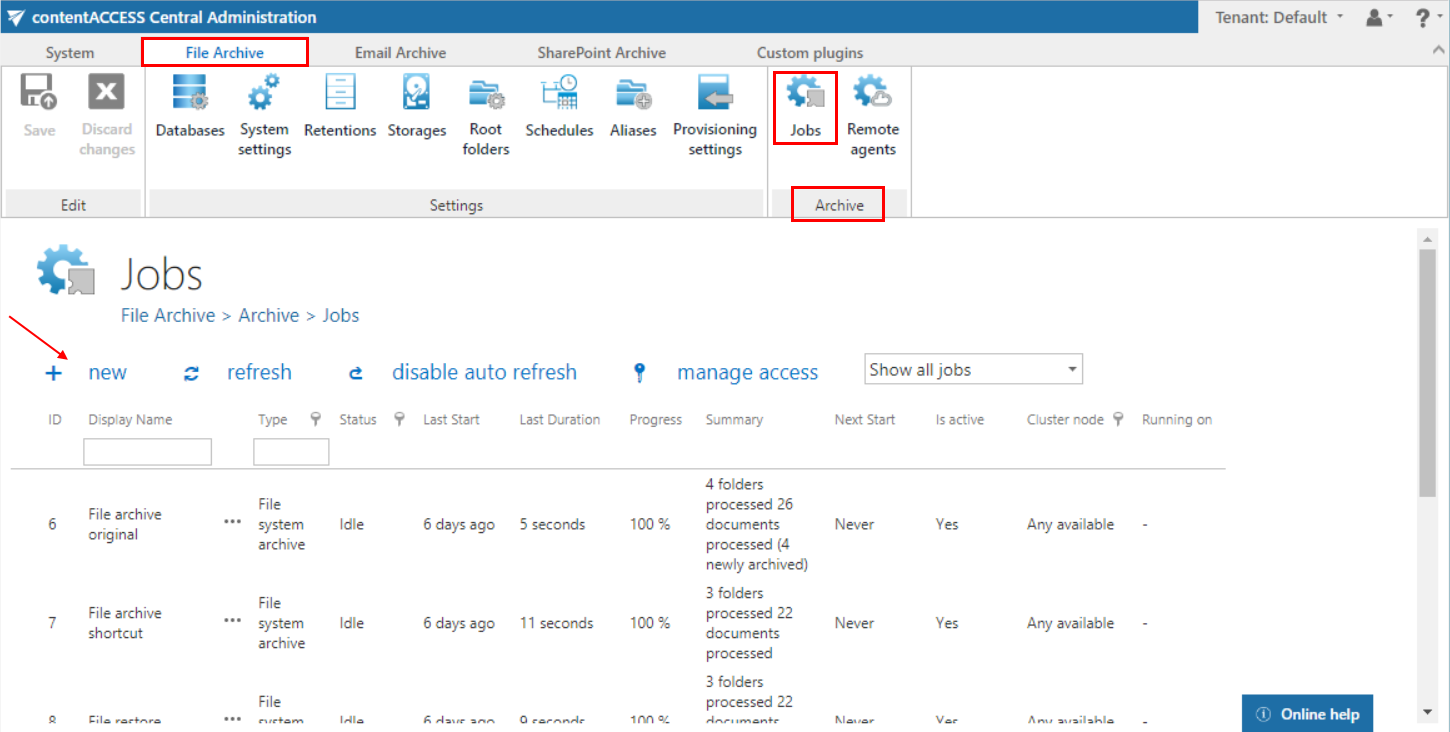
File Archive ⇒ Archive ⇒ Jobs (for the File Archive job type);
-
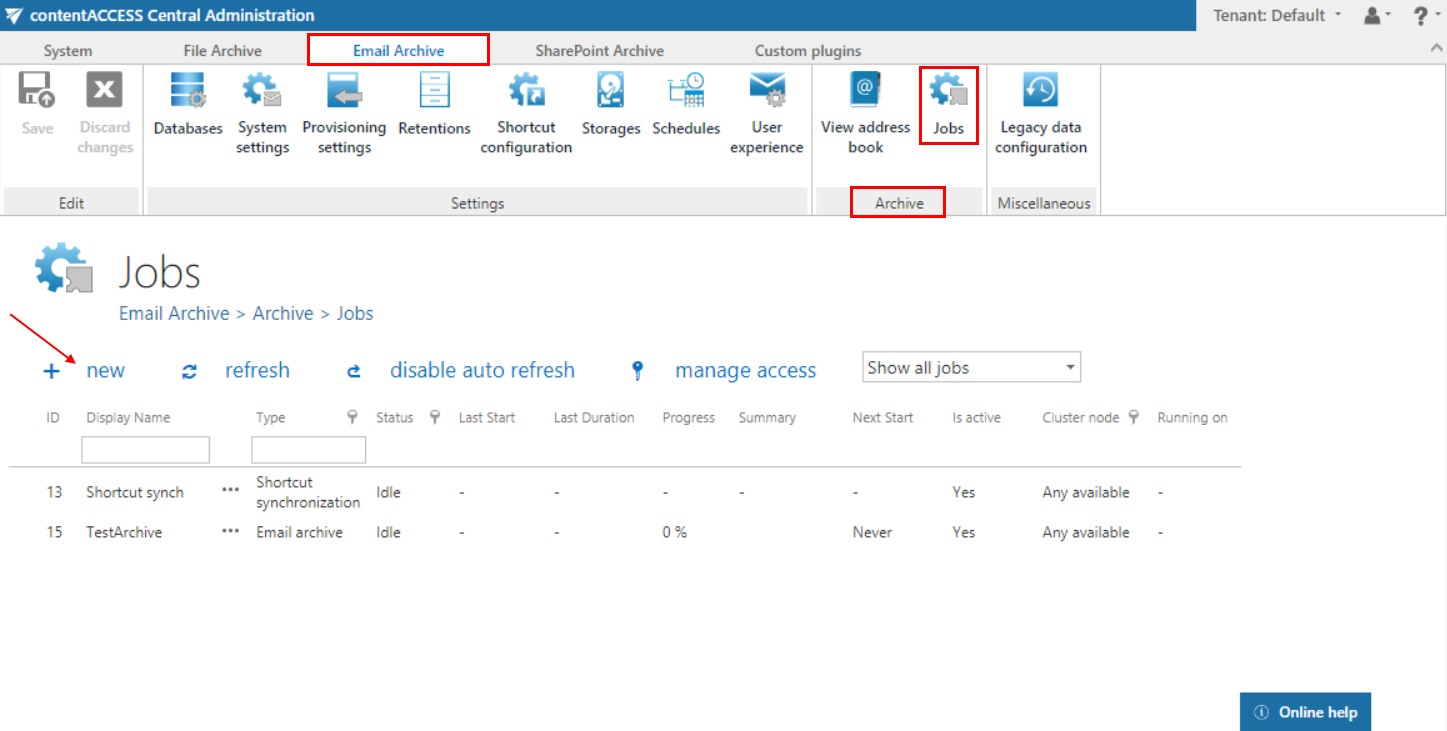
Email Archive ⇒ Archive ⇒ Jobs (for the Email Archive job type);
-
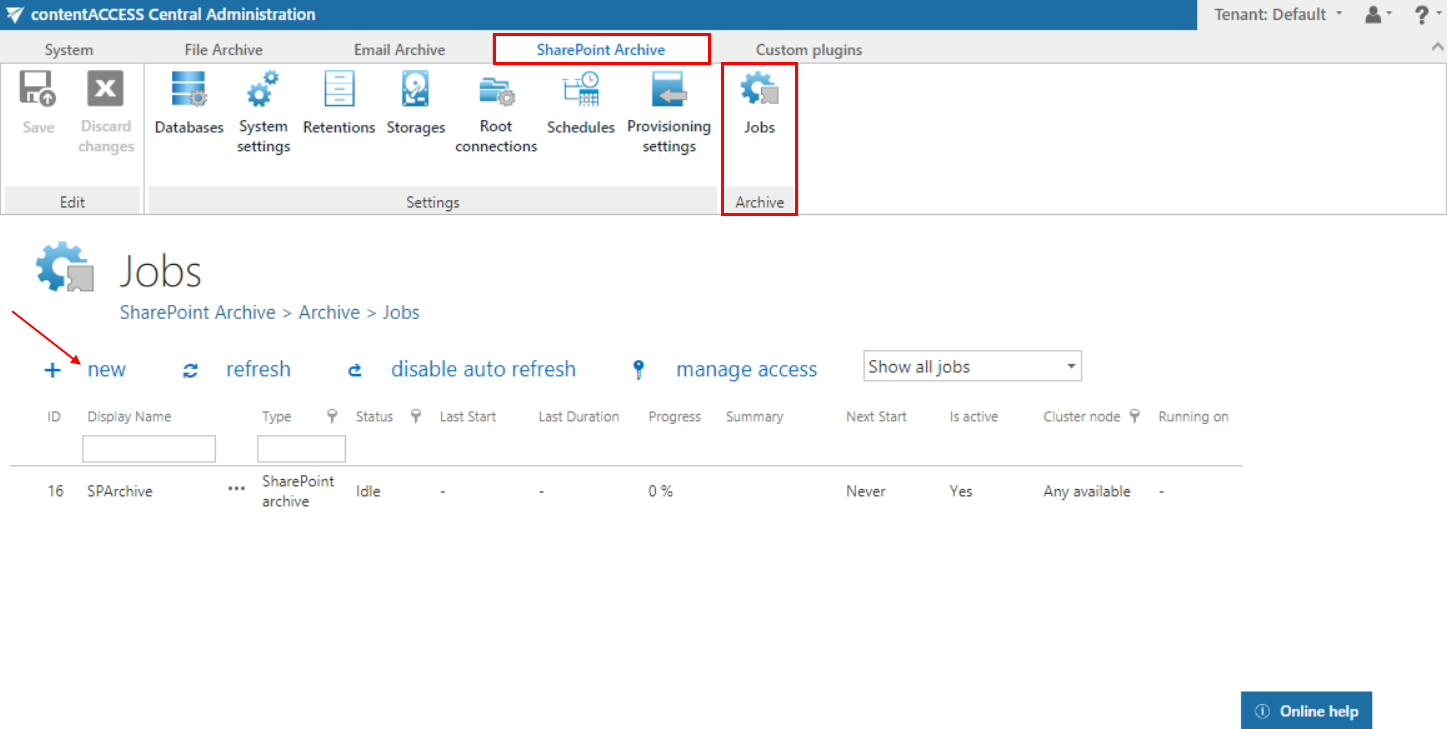
SharePoint Archive ⇒ Archive ⇒ Jobs (for the SharePoint Archive job type);
-
Custom jobs ⇒ General ⇒ Jobs (for the Custom job type).
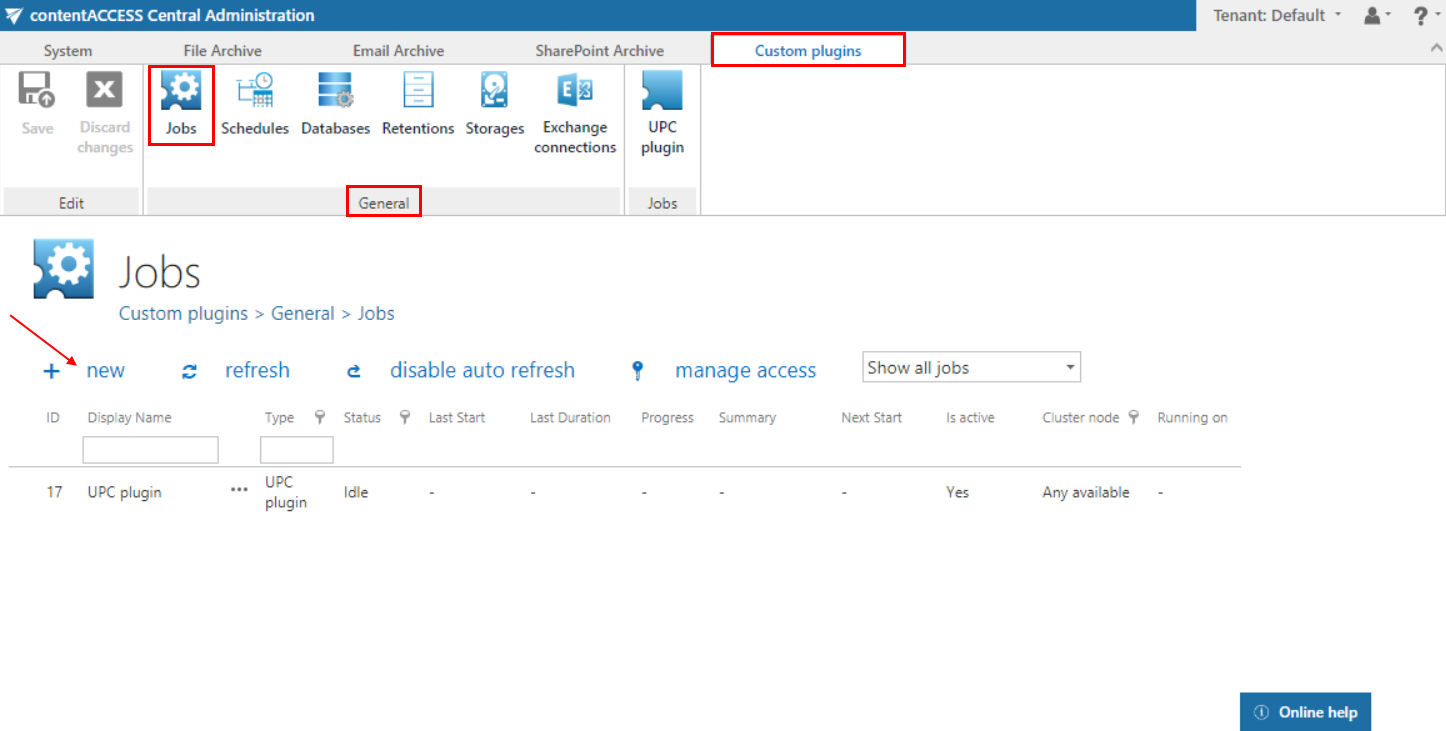
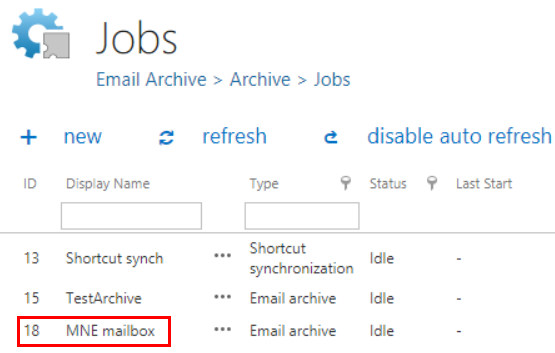
On the Jobs page, you can refresh the status information of all jobs. This can be done either manually with the Refresh button, or by enabling or disabling automatic refresh with the Enable/disable auto refresh button.
Note: The + new option to create a new job is unavailable to the logged-on user if the "Add jobs" permission on the tenant is not allowed in their role assignment.
The manage access option allows access permissions on the selected job to be granted to a second user. This option is available to the logged-on administrator if their role assignment contains the "Edit jobs – All allowed" permission on the tenant. Read more in Managing access to contentACCESS objects.
Create a new job
To create a new job:
- On the Jobs page, click + new to open the Add new job instance dialog.
- Select an available job type from the dropdown list. The list contains only the licensed job types.
- Open the Run on node dropdown list and select a node from the cluster where the job should run. If you do not want to specify a node, select Any available from the list.
- Enter a Display name for your job. Below, a short description of the selected job type is displayed.
- Click Add.

A pop-up window asks whether you would like to configure the newly created job immediately.

- Click OK to automatically load the job's configuration page.
- Click Cancel to configure the job later. In this case, the job is only added to the list of jobs on the Jobs page, but it will not run until it is configured.
Further information about configuring jobs in contentACCESS is available in the respective subchapters.