Email synchronizer job
Introduction
The Email synchronizer job synchronizes properties of the same email across multiple mailboxes. It processes a queue of actions that is filled by other jobs, and periodically checks this queue for new actions to execute on emails.
Currently, the following actions are supported:
- Add category: adds one or more categories to an email.
- Remove category: removes one or more categories from an email.
This page describes how to configure an Email synchronizer job.
Setting up an Email synchronizer job
After an Email synchronizer job is created on the Custom jobs ? General ? Jobs page, you can configure it. For more information on how to create jobs, refer to Creating new jobs in contentACCESS.
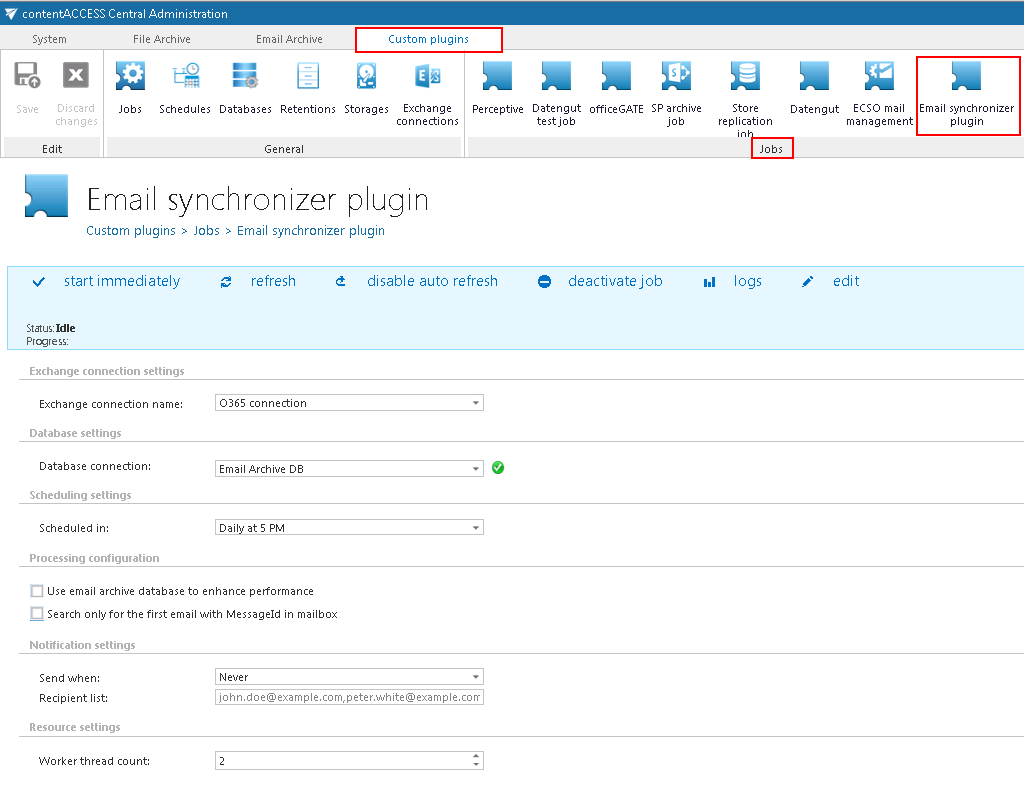
On the configuration page of the job, you must specify the following settings:
Exchange connection settings
The connection to the Exchange server must be established first. Before processing, the job builds a list of all mailboxes and mailbox groups found on the specified Exchange server. Only the queue items belonging to a mailbox handled by this Exchange server are processed.
For more information on setting up an Exchange connection, refer to Exchange connections. Select the configured Exchange connection on the synchronizer job's configuration page.
Database settings
Set a database where the job will write the necessary data. For more information on how to create databases, refer to Databases.
Scheduling settings
Using schedulers, administrators can automate the running times of the job. Mailboxes are periodically synchronized with the categories written into the queue, at the time intervals set here. For more information on setting up schedulers, refer to Schedules.
Processing configurations
Two methods are available to speed up the synchronization process:
- Use email archive database to enhance performance: After processing emails with an
EntryId, the job continues processing emails that have only anInternetMessageId. Using this option can speed up the process if contentACCESS is used for email archiving: the job first searches for the queue item'sEntryIdin the archive, and if found, adds the queue item to the list of queue items withEntryId. - Search only for one email with MessageID in mailbox: If the same email message exists in the mailbox multiple times, only the first email is processed (marked with the given category), and all other emails in that mailbox are ignored. The first email is also marked in the recipient mailboxes, if it exists there.
Notification settings
This option allows the administrator to set when notification emails are sent by the job: always, only when errors occur, when both errors and warnings occur, or never. The recipient list for these emails is also set in this section.
Resource settings
This setting defines the number of threads running in parallel. The default value is 2.