Email management job configuration
Introduction
The Email management job scans mailboxes and processes and archives email messages and their contents into a specific storage. This page describes how to configure the Email management job after it has been created, including Exchange (EWS) settings, database and storage settings, scheduling, folder and item filtering, processing options, mailbox management, and resource settings.
Open the job configuration
After you have successfully created a new job for the Email management job (for more information on how to create a new job, refer to Creating new jobs in contentACCESS), you can start to configure it.
- Navigate to Custom jobs ⇒ General and click Jobs.
- Choose the job from the list.
- Click the ellipsis (…) and choose Configure from the context menu, as shown in Screenshot A. Alternatively, double-click the job in the grid.
It is also possible to open the job for further configuration by double-clicking the corresponding job icon in the Jobs ribbon group (Screenshot B).
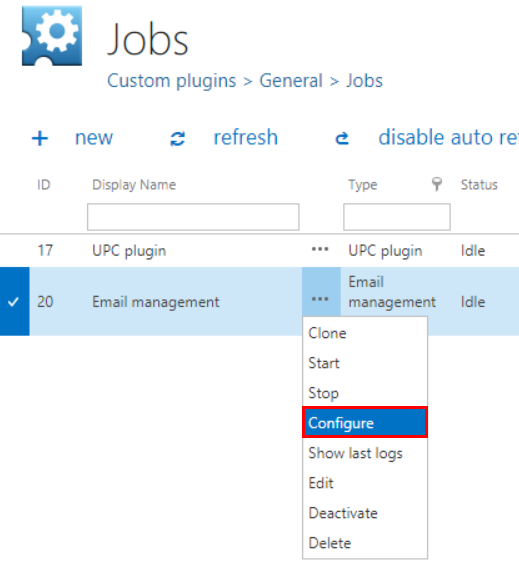
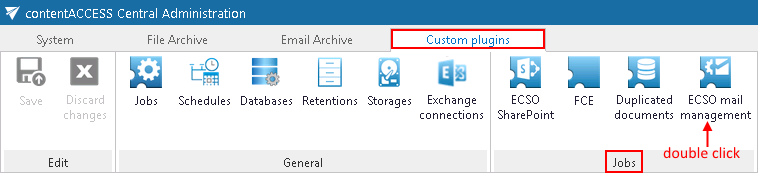
Screenshot A (left) and Screenshot B (right): Opening the job configuration.
The job's configuration page opens. The following sections must be configured.
EWS settings
Select the previously configured Exchange connection from the dropdown list. Using these connection settings, the user will be allowed to operate over the mailboxes (see Mailbox settings below). For further information on how to perform EWS (Exchange Web Services) settings, refer to Exchange connections.

Note: The user set in the Exchange connections must have full access permission to all mailboxes.
Database settings
Select a connection, where the metadata will be stored, from the dropdown list. For further information on how to set database connectors, refer to How to create/configure databases — All databases.

Scheduling settings
Select the running times of the Email management job. You can either select a scheduler from the list or create a new scheduler using the Create new option. For more information about how to set schedulers, refer to Schedules.

Include folders
The Email management job can crawl a single mailbox folder, multiple folders, or recursive folder structures. Before entering the folders to be crawled, select the folder filtering type.

- One single folder: Only one predefined folder is processed (for example, if you set
%INBOX%Subfolder1, onlySubfolder1is processed). - Recursive, starting from a single folder: All folders starting from the specified folder are processed (for example, if you set
%INBOX%Subfolder1, every subfolder underSubfolder1is processed). - Multiple folders: The same rule as One single folder applies, but multiple folders can be processed simultaneously (for example,
%INBOX%,%OUTBOX%Folder name 5). - Multiple recursive, starting from a single folder: The same rule as Recursive, starting from a single folder applies, but multiple starting folders can be processed simultaneously (for example,
%TASKS%,%CALENDARS%Folder name 6).
Note: You can either select an item type from the dropdown list or enter the item type manually in the text box. When crawling more item types/folders, always place item types between percent signs and separate them with a comma.

Storage settings
Choose an already configured storage from the dropdown list. The processed emails will be stored here. For more information on how to set storages, refer to Storages.
Item filtering
This configuration allows you to filter mailbox items by three types of criteria: age, size, or message class. It is also possible to use several filters simultaneously. To activate a filter, select the corresponding checkbox, then click the button to open the filter dialog.

Age filter
If you select an option from the Select filtration type list, check the Use Dates checkbox, and specify a date, the age filter will filter out all items with a sent date younger/older than the specified date. You can also specify a date interval using Use Dates; in this case, items falling within the sent date interval will be filtered out. This filtering type should be used when you want to process emails with a specific sent date.
Examples of using dates:
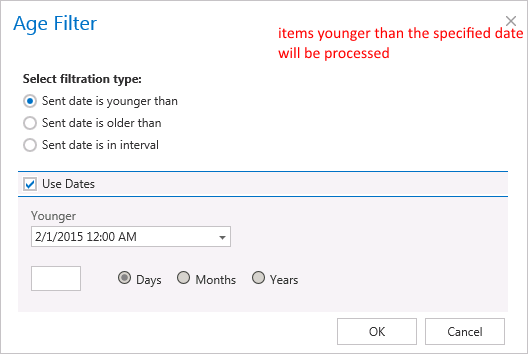
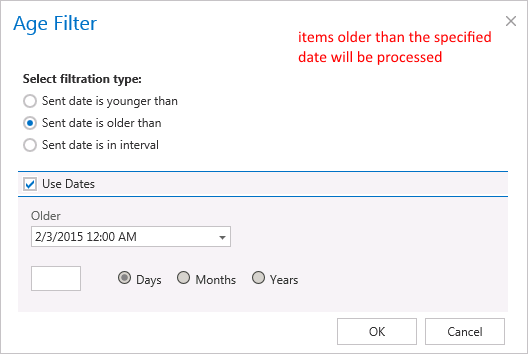
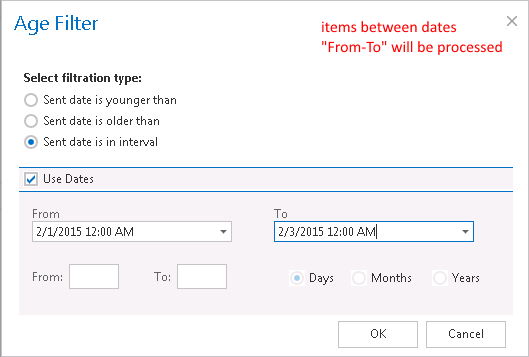
If the Use dates checkbox is not selected, the date selection option becomes inactive. In this case, you can filter items that are Younger/Older than a certain number of days/months/years by entering the number next to the Days/Months/Years radio button (Screenshot A). You can also filter items belonging to a certain period of time, for example between months 1 and 3 (Screenshot B). This filtering type should be used when you want to process items that are older/younger than a certain number of days/months/years (for example, items older than one year). After the age filter has been set, click OK.


Screenshot A: Processing items younger than 90 days. Screenshot B: Processing items aged 1–3 months.
Size filter
This filter is useful for finding the largest emails for further processing. By permanently processing large emails (and large attachments), the Exchange server is relieved of redundant megabytes that often cause slowdowns.
To filter emails by this criterion:
- Check the Size filter checkbox to activate the button.
- Click the active button to open the Size filter dialog.
- Choose a filtering type (Bigger then, Smaller then, or Between values).
- Enter the size, in kilobytes.
- Click OK.
Message class filter
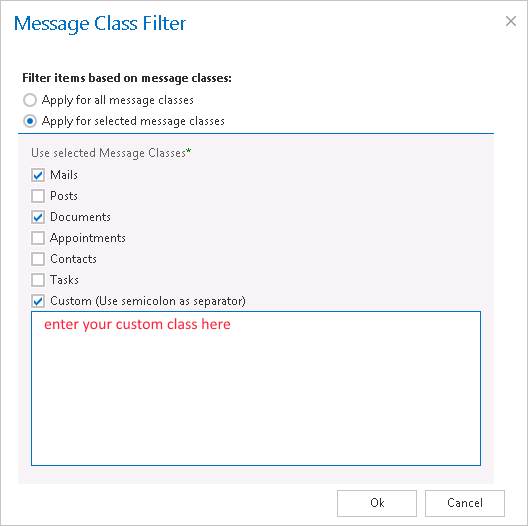
This filter allows you to select certain message classes to be processed, letting you filter different document types, such as mails, documents, or contacts.
To filter emails by this criterion:
- Check the Message class filter checkbox to activate the button.
- Click the active button to open the Message class filter dialog.
- Choose whether the filter applies to all message classes (Apply for all message classes) or only to selected classes (Apply for selected message classes). You can also add Custom message classes to the list of existing ones.
- After all necessary custom classes have been checked, click OK.
After all settings have been configured, a summary of the filtering settings is displayed under Item filtering, as shown below:

Processing settings
You can choose from three main ways of storing emails and attachments:
- Simple archive: Archives the entire email message (in
.msgformat) together with the attachment. - Archive attachment: Archives only the attachment.
- Archive and copy to Public folder: Archives the entire email and copies it to the Public folder. This helps share the document with other users — anyone with a user account and password on the Exchange server can access the Public folder.

When using Archive and copy to Public folder, enter the Public Folder data into the displayed text boxes to establish the connection between the Public folder and the archive management system:

Additional processing options
-
Custom categories to process: Restricts searching in the mailbox to the categories selected here. For example, if Red Category is set, only emails labeled with Red Category will be processed.
-
Split attachments: When this checkbox is selected, the email message (
.msgformat) and its corresponding attachments are stored separately from each other, though both remain in the selected storage. This helps save storage space — if emails from multiple users (for example, 5 users) are stored in the same storage, the Split attachments function recognizes duplicate attachments and stores them only once instead of five times. Email bodies, however, are still stored once per mailbox, since emails in different mailboxes have different metadata.infoNote: Splitting attachments helps spare storage space for company documents. The selected storage must support single instancing.
-
Create tag view: contentACCESS Portal and officeGATE are both associated with contentACCESS, so emails and attachments processed in contentACCESS can be easily found in both systems. By creating a tag view, items falling under multiple custom categories are gathered together under a main folder, specified in the Create tag view text box. This main folder is displayed under the specified "tag view root name" in both contentACCESS Portal and officeGATE. Subfolders under this main folder gather all items falling under a certain custom category.
Mailbox settings
To add a new mailbox to be processed:
- Click + new.
- Fill in the Name and Email fields in the popup window.
- Check the Is Active checkbox; otherwise, the added mailbox will not be crawled (crawling of the mailbox will be in sleeping mode).
- Click OK.

contentACCESS allows you to crawl multiple mailboxes at the same time. To select mailboxes to be crawled, navigate to the select option ( ) and enter mailboxes into the Mailbox selection dialog box. Checking the checkbox next to Name selects/deselects all mailboxes for further processing.
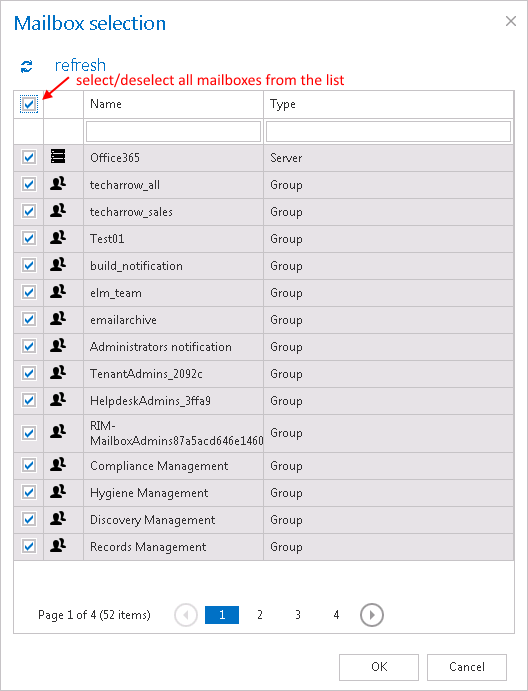
Under Mailbox settings, you can also edit, delete, or manage access to the selected mailbox(es). Click the ellipsis (…) and choose an option from the dropdown list.

Managing mailbox access
You can grant access to a mailbox for other users of contentACCESS Portal, officeGATE, or users who log in to the mailbox through an online web application from mobile devices. Granting access allows these users to access the archived messages of the selected mailbox(es).
- Click Manage access to mailbox in the context menu.
- Click + new to open the Create new role association dialog box.
There are multiple options for granting access to a mailbox for a user in the Create new role association window:
- Create new user.
- Search for existing worker from the company.
- Send an invitation to somebody who is not yet a contentACCESS user.
In each case, the "Standard user" role type must be selected from the dropdown list (a standard user has only the right to check the mailbox). The screenshot below shows granting access rights to the mailbox for an already existing contentACCESS user.

Resource settings
Define the number of items that will be crawled simultaneously. It is not recommended to set a value higher than the duplex number of processor cores, as this may significantly slow down the whole processing.

Important: Always save your job configuration when finished. Click Save in the upper left corner of the Central Administration ribbon.