Storage replication job
Introduction
The Storage replication job duplicates stored or archived data in real time between two storage locations, providing an additional layer of protection against failures of the primary storage backup system. Immediate access to the replicated data minimizes downtime and its associated costs.
When properly configured, the storage replication job streamlines disaster recovery processes by continuously generating duplicate copies of all archived files. It also speeds up and simplifies recovery from a disaster such as a fire, flood, hurricane, or virus.
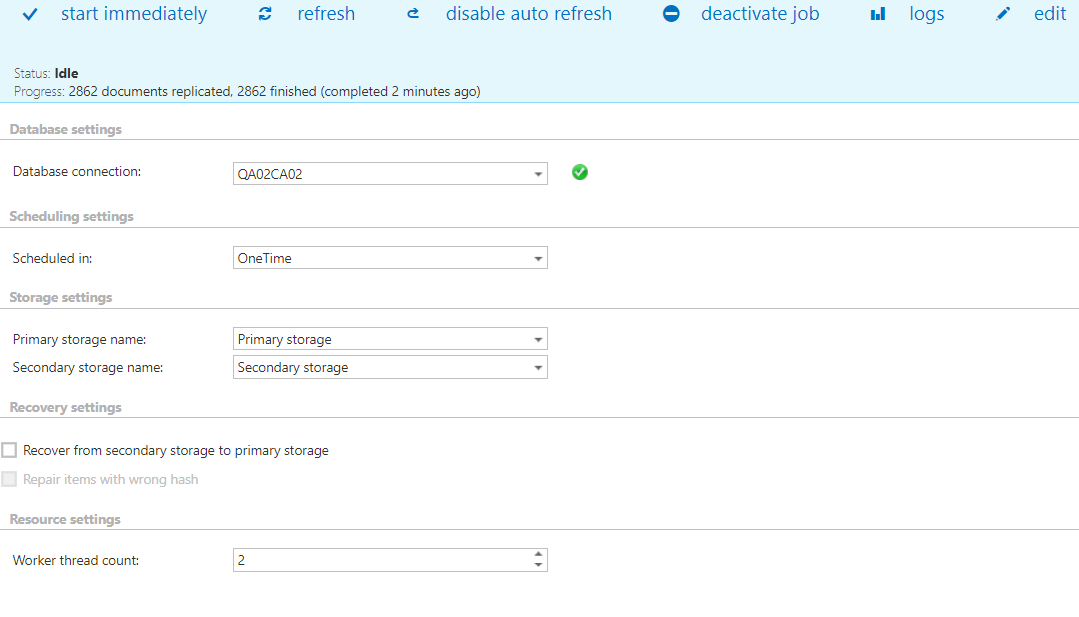
This page describes how to configure the storage replication job, including its database, scheduling, storage, recovery, and resource settings.
Accessing the job configuration
Before configuring the storage replication job, you must first create a new job for the Store replication job. For more information, see Creating new jobs in contentACCESS.
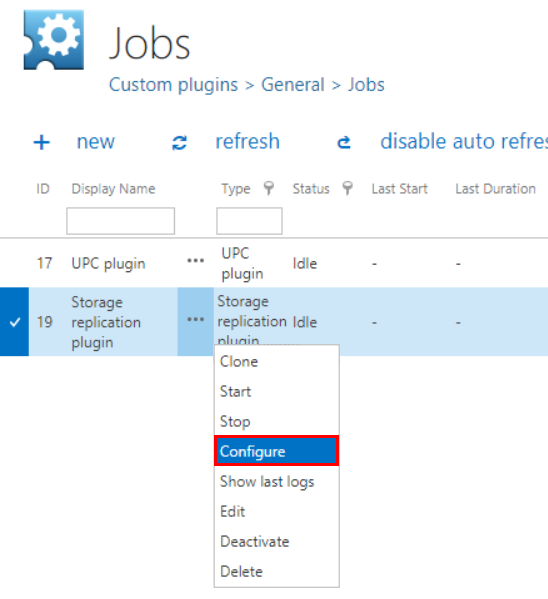
Once the job has been created, navigate to Custom jobs ⇒ General ⇒ Jobs, and choose the job from the list. Click the ellipsis (…) and choose Configure from the context menu.
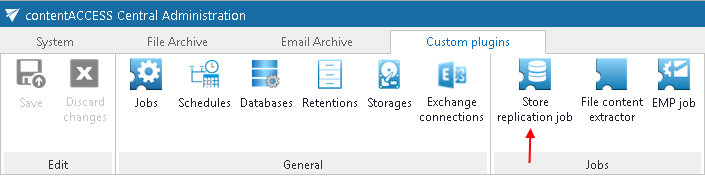
The same job configuration can also be opened with a simple click on the job's icon in the Custom jobs ⇒ Jobs group in the ribbon:
Database settings
Select an existing connection from the dropdown list, or create a new one, where the job will save its metadata. For more information on how to set database connections, see How to create/configure databases.

The database of the Store replication job contains the mapping data between the source storage (Primary storage) and the target storage (Secondary storage) items. This means that after a failover of the main (source) storage, this database retains the mapping data between the source item and the target item, ensuring successful recovery from the backup (target) storage.
Scheduling settings
The storage replication job runs at the times set in the selected scheduler. In the example below, the Always scheduler is selected, which runs the job without interruption. For more information on how to configure scheduler settings, see Schedules.

Storage settings
Within these settings, you must set the source folder and the target folder(s). The source folder is the primary folder. After selecting the primary and secondary storage, start the job, and the items will be duplicated and available in both repositories.
Note: The storage replication service does not re-archive items from the primary storage to the secondary storage. It only replicates (copies) the folder structure(s) and items from one store to the other.

Recovery settings
Select this option when an issue occurs with the primary store and you want to recover items (and the folder structure) from the secondary store. In case of technical trouble, the required documents are recovered from the secondary (target) folder with the assistance of the data mapping saved in contentACCESS.
The second option, Repair items with wrong hash, is only available if the first option, Recover from secondary storage to primary storage, is selected. The first option can be selected on its own.

Resource settings
Resource settings define how many items/source folders are crawled simultaneously.
Important: Do not set a value here higher than the duplex number of processor cores, as this will significantly slow down the whole process.