Access to private emails and archiving them
Introduction
The Access to private emails configuration in contentACCESS controls whether delegates can view private emails belonging to a mailbox owner in archived mailboxes.
By default, contentACCESS grants access to private emails whenever a user is granted permission to a mailbox. This permission corresponds to the Exchange "full mailbox access" permission and allows the user to see all emails in the delegated mailbox across all contentACCESS client applications.
To prevent delegates from accessing private emails, a new user role must be created and applied through the Email archive provisioning settings. This page explains:
- which existing roles have or do not have access to private emails;
- how to create a custom role that restricts access to private emails;
- how to apply this role using the Email archive provisioning settings;
- how contentACCESS handles partial mailbox access and shared mailboxes.
Default role behavior for private emails
Before configuring a custom role, it is useful to understand how the existing role types behave with regard to private emails in archived mailboxes:
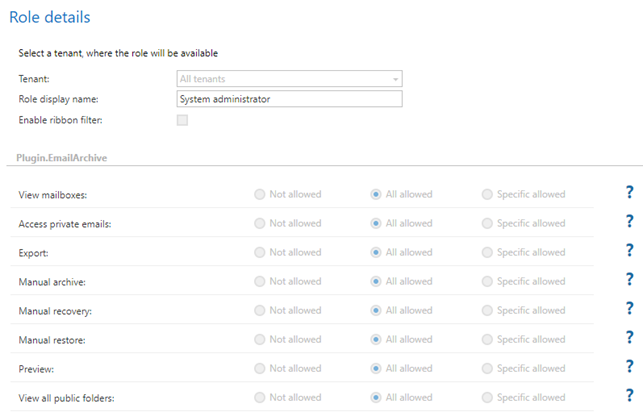
- System administrators and Tenant administrators have irrevocable permission to access private emails in all archived mailboxes.
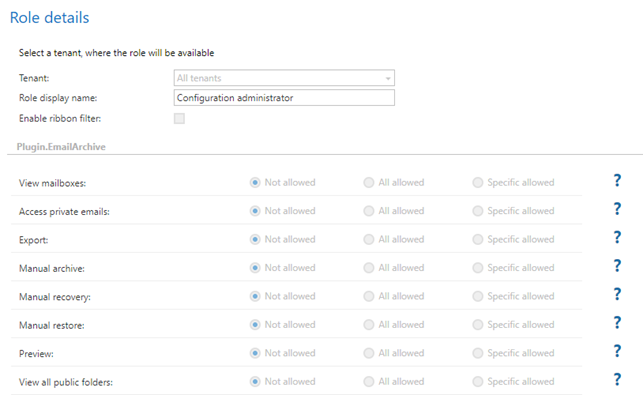
- Configuration administrators and Tenant configuration administrators (including the Junior variants) have no access to mailbox contents, and therefore no access to private emails.
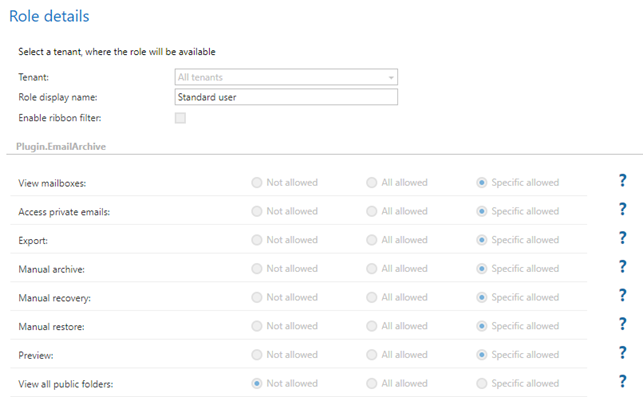
- The Standard user role allows access to private emails.
Create a role to prevent access to private emails
To prevent access to private emails, a new user role needs to be created.
- Navigate to System => Roles.
- Clone the Standard user role.
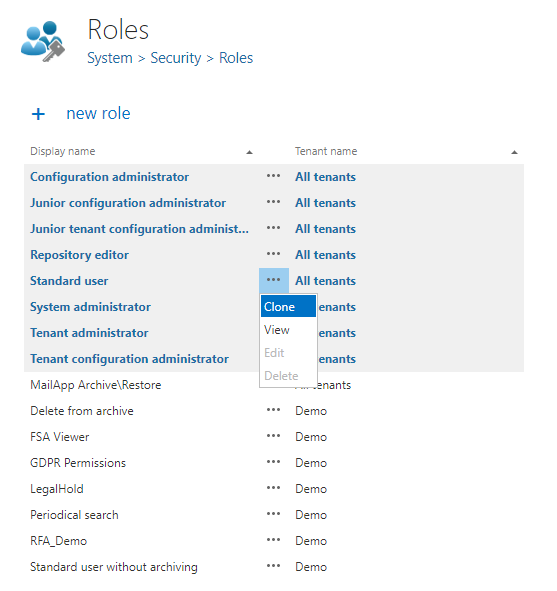
- Select a suitable name for the new role. In this example, the role is named No private access.
- Leave all permissions at their default value and modify only the Access private emails permission.
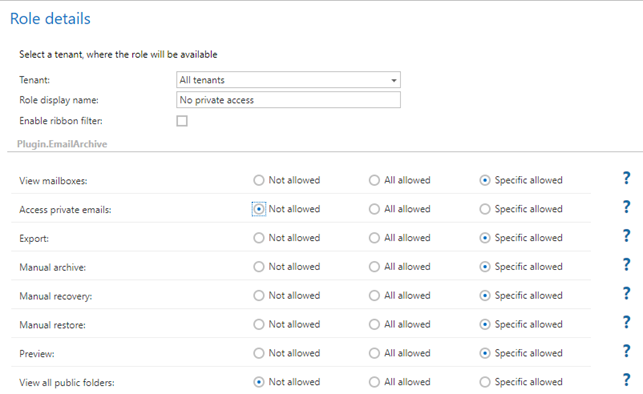
- Save the role.
The new role is now ready to use in the Email archive.
For more information about roles, see the Roles page.
Configure Email archive provisioning
Once the role is created, configure the Email archive provisioning settings to manage access to mailboxes and private emails.
The Provisioning settings page provides three role selections:
- Role for the mailbox owners: adds a role that is assigned to the mailbox owner.
- Role for delegated mailboxes: determines whether a delegate has access to private emails.
- Role for shared mailboxes: shares the mailbox with other users.
The email archive provisioning synchronizes Exchange permissions to the archive:
- If the user is the owner of the mailbox, the mailbox owner role is assigned to them — in this example, the Standard user role.
- If the user has access to other mailboxes, the delegated mailboxes role is assigned to them — in this example, the No private access role. This role is also applied to delegated mailboxes where the user only has access to certain folders.
- If the target mailbox is a shared mailbox, a different role is used — Standard user. This is important because you might decide that private emails should be visible in shared mailboxes.
Note: Access to public folders is also granted using the role for shared mailboxes.
The resulting roles for the user look like this:
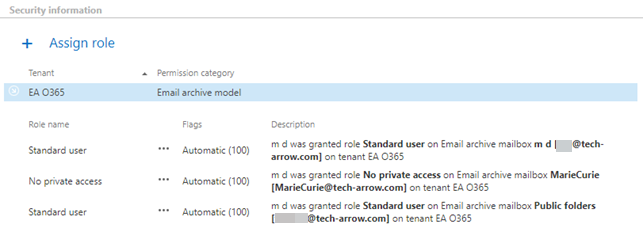
- Access to own mailbox – shows private emails.
- Access to the delegated mailbox – does not show private emails.
Partial mailbox access
If the user has access to a whole mailbox other than their own, the provisioning adds the role as described above.
If the user has access only to a certain folder of a mailbox, the provisioning does not add any role, since the user only has partial access. When the user logs in, contentACCESS evaluates the partially accessible mailboxes as well and offers them for selection. contentACCESS displays only the accessible folders.
Note: The role under which this access is performed is the "Role for delegated mailboxes" set in the provisioning settings. This is the same role that is given for fully accessible mailboxes, but here it is applied only temporarily and only to the specific accessible folders.
Important: If the user has access to private emails, those emails must be displayed in the client applications (contentACCESS Portal, contentACCESS MailApp, Teams search app, and mobileApp), and must also appear in the search results list.