Address book objects
Introduction
The View address book page in Email Archive displays the objects that are provisioned in the address book, organized into Mailboxes, Public folders, Groups, and Servers tabs. This page allows administrators to review the status of these objects, manage contentACCESS Portal access and roles, assign databases, storages and index zones, activate or deactivate mailbox licenses, override archive settings, and resolve warnings such as deleted or changed mailboxes.
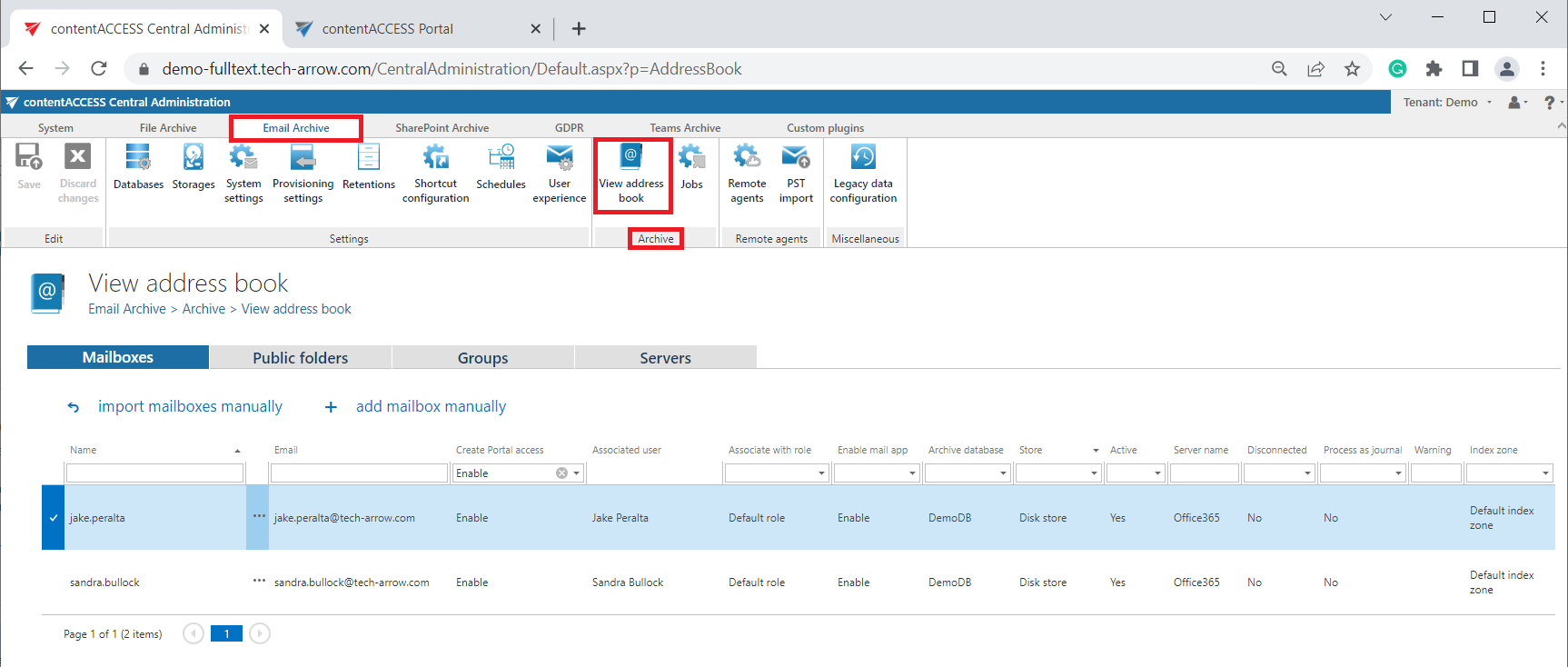
Navigate to Email Archive ⇒ Archive ⇒ View Address Book to open the View address book page:
Overview
The address book contains a read-only list of objects that are provisioned in the address book. Objects can be added to the address book:
- By the Email Archive provisioning job. Read more in the Email archive provisioning settings chapter.
- Manually, using the import manually (read more in Manual import of Exchange servers, groups, mailboxes to the contentACCESS address book) or add manually (read more in Adding address book objects manually) options, available on all tabs except Public folders.
The address book objects are organized into four tabs: Mailboxes, Public folders, Groups, and Servers. Read more about public folders in the Public folder archiving chapter.
Portal access and role columns
The Create contentACCESS Portal access column indicates whether there is a command for the provisioning job to create contentACCESS Portal users for the selected object (mailbox, group, or server). If this column displays Inherit, the object inherits the setting from its parent. Once contentACCESS Portal access is granted (the provisioning job must be run), every user of the provisioned object is able to access the archived content of the mailboxes that they can also access on the Exchange server.
The Associate with role column displays the role assigned, or to be assigned, to the Exchange object by the next running Email provisioning job. By default, Exchange server mailboxes inherit the default role specified in the Email archive provisioning settings, but the administrator can assign custom roles for individual objects. Custom roles can be selected when a contentACCESS Portal user is created for the Exchange object (more information in Creating contentACCESS Portal users (Option 1)).
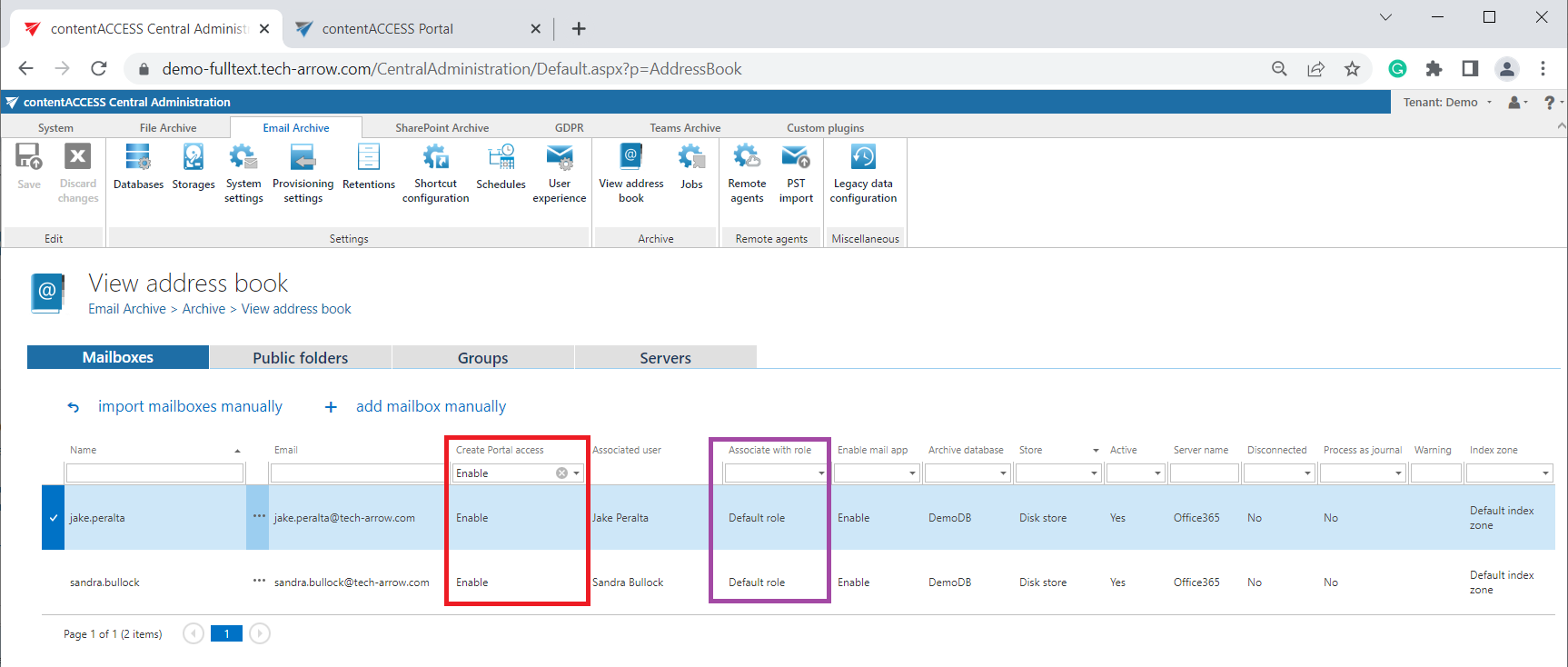 Screenshot: Columns Create contentACCESS Portal access and Associate with role in the Mailboxes tab
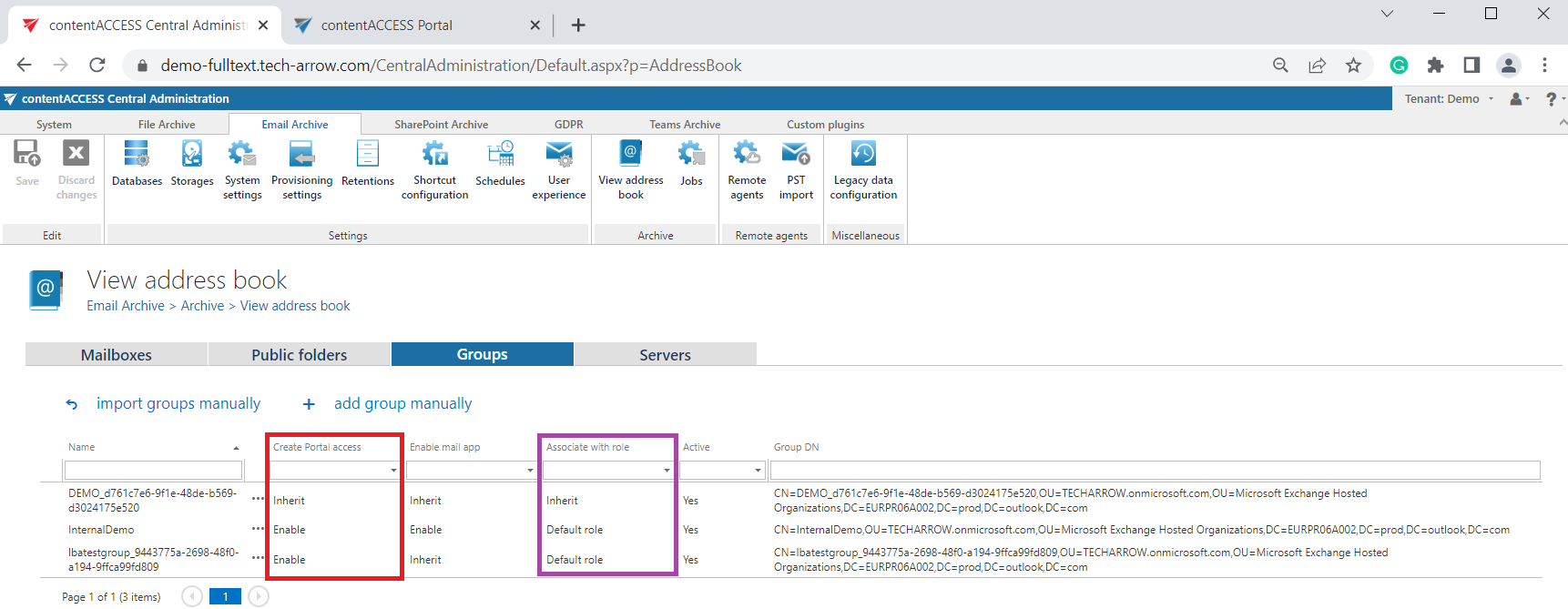 Screenshot: Columns Create contentACCESS Portal access and Associate with role in the Groups tab
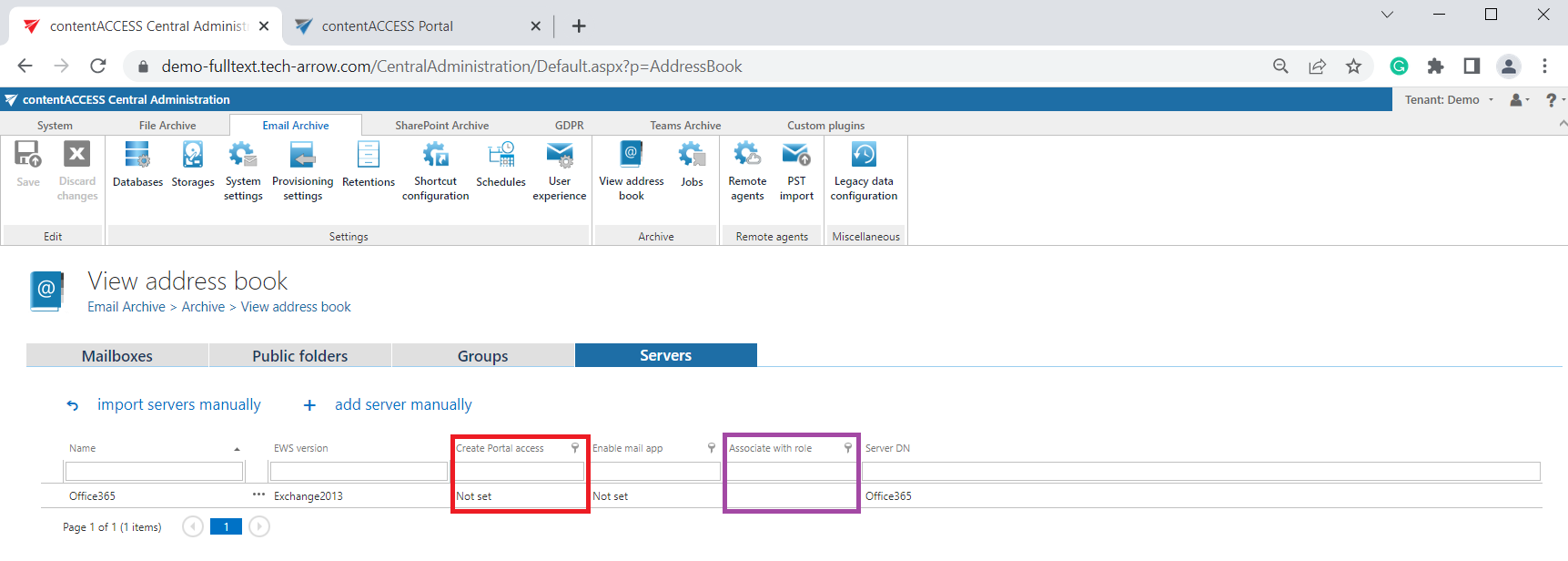 Screenshot: Columns Create contentACCESS Portal access and Associate with role in the Servers tab
Mail app column
The Enable mail app column shows whether contentACCESS MailApp was allowed for the respective mailbox, group, or server. By default, Exchange server mailboxes and groups inherit the contentACCESS MailApp access from the parent, but the administrator can explicitly allow or forbid access for individual objects.
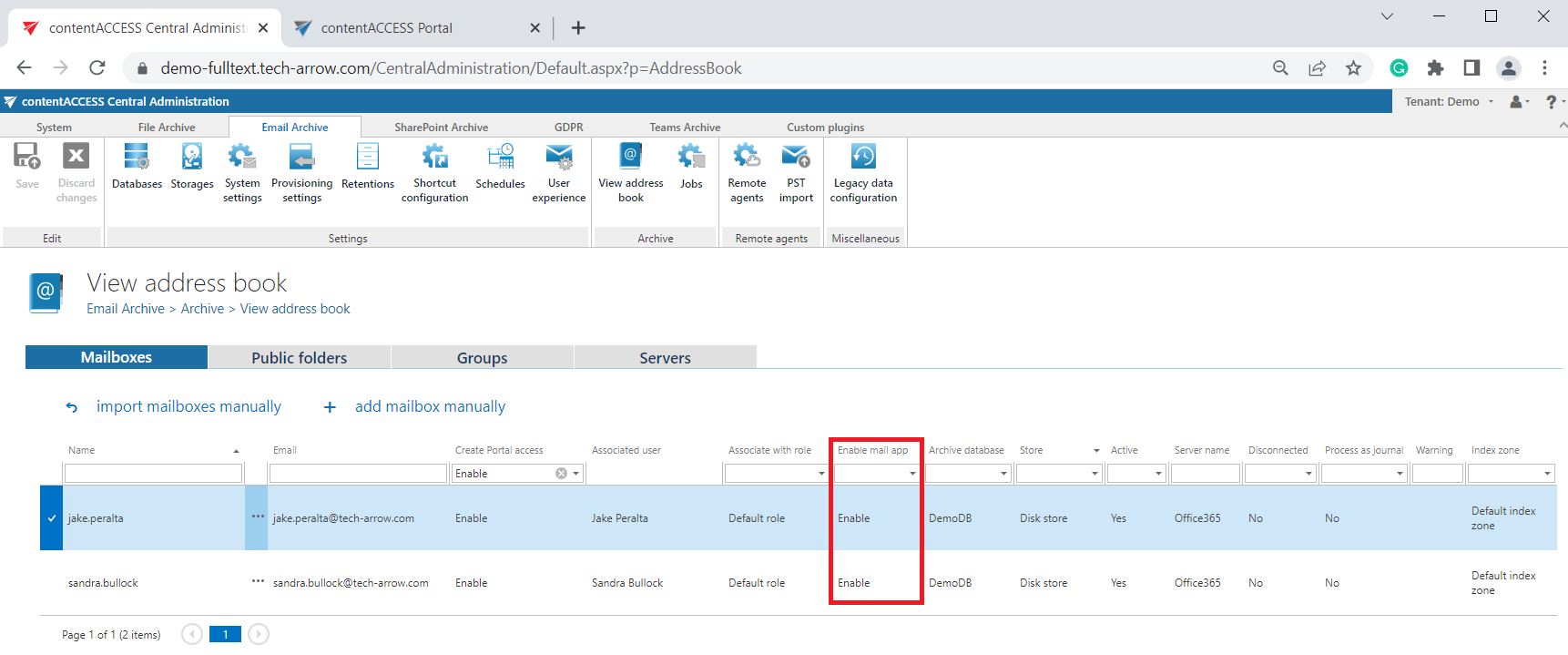 Screenshot: Column Enable mail app in the Mailboxes tab
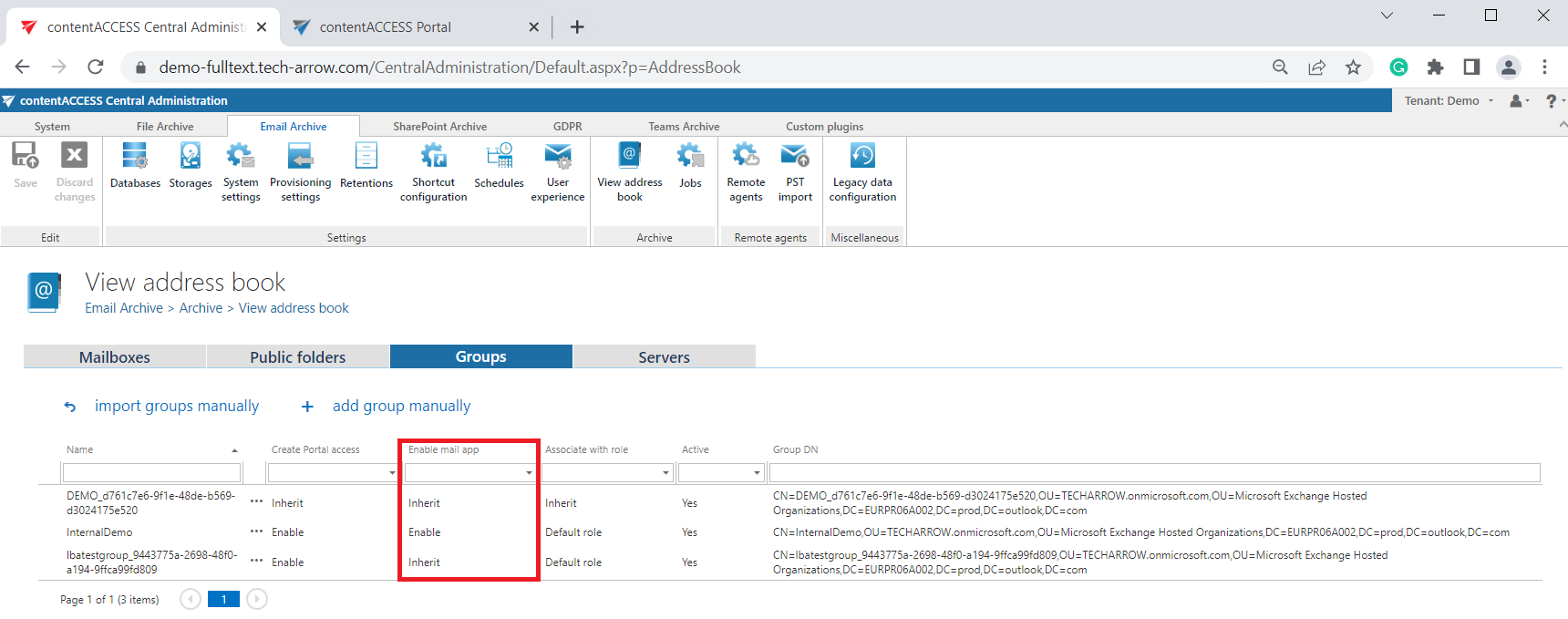 Screenshot: Column Enable mail app in the Groups tab
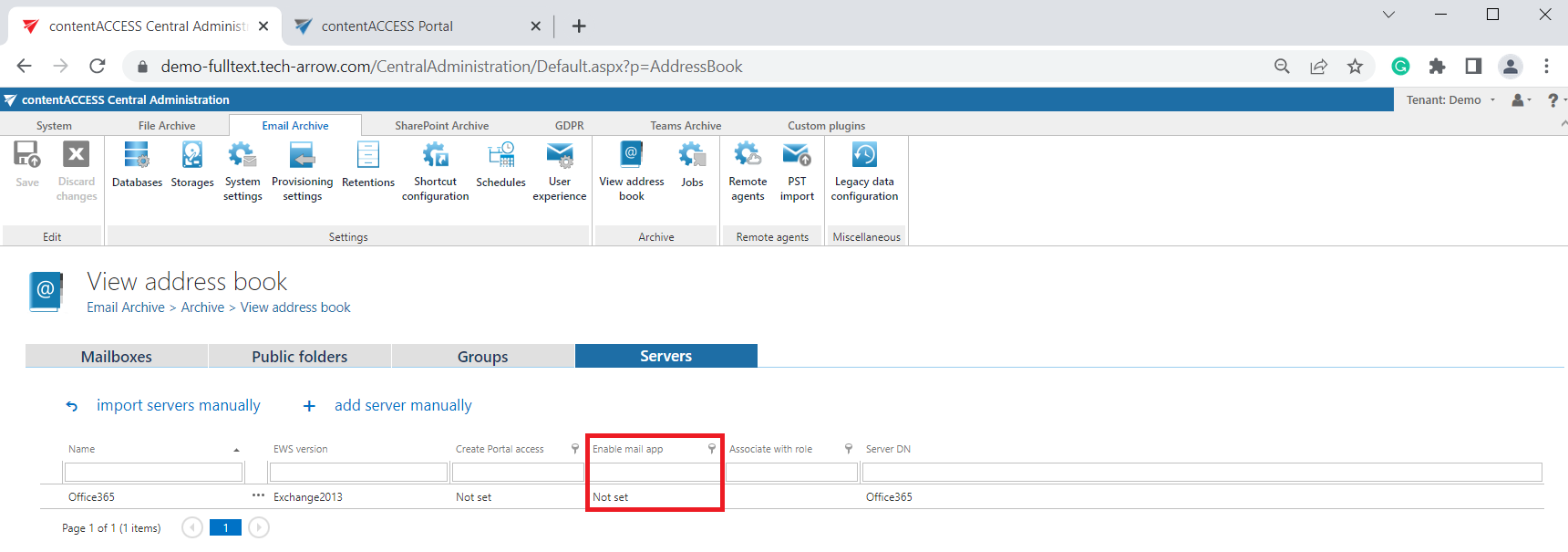 Screenshot: Column Enable mail app in the Servers tab
Active column and licensing
The Active column shows whether the respective mailbox or group is active in contentACCESS. This feature allows the deactivation of no longer used mailboxes, keeping the licenses under control. Deactivated mailboxes and groups are not touched by the Email archive/Email restore, Email recovery, or Shortcut synchronization jobs, and are not counted toward the licensed mailboxes.
To set a group or mailbox to active or inactive, the telemetry job must also be run. It runs automatically every day, or it can be started manually on the Licensing page (System tab ⇒ Services group ⇒ Licensing, option update telemetry).
Note: The mailbox is ready for archiving if it's associated with a database and storage and is set as active. If the license allows it, the mailbox will be archived. After reaching the limit of active mailboxes of the license, it won't be possible to archive more mailboxes.
Important: You can't have more active mailboxes than the license allows. If the limit has already been reached, the existing email jobs are not able to start. To fix the problem, deactivate mailboxes until the number of active mailboxes drops below the number of licensed mailboxes, then run the telemetry job.
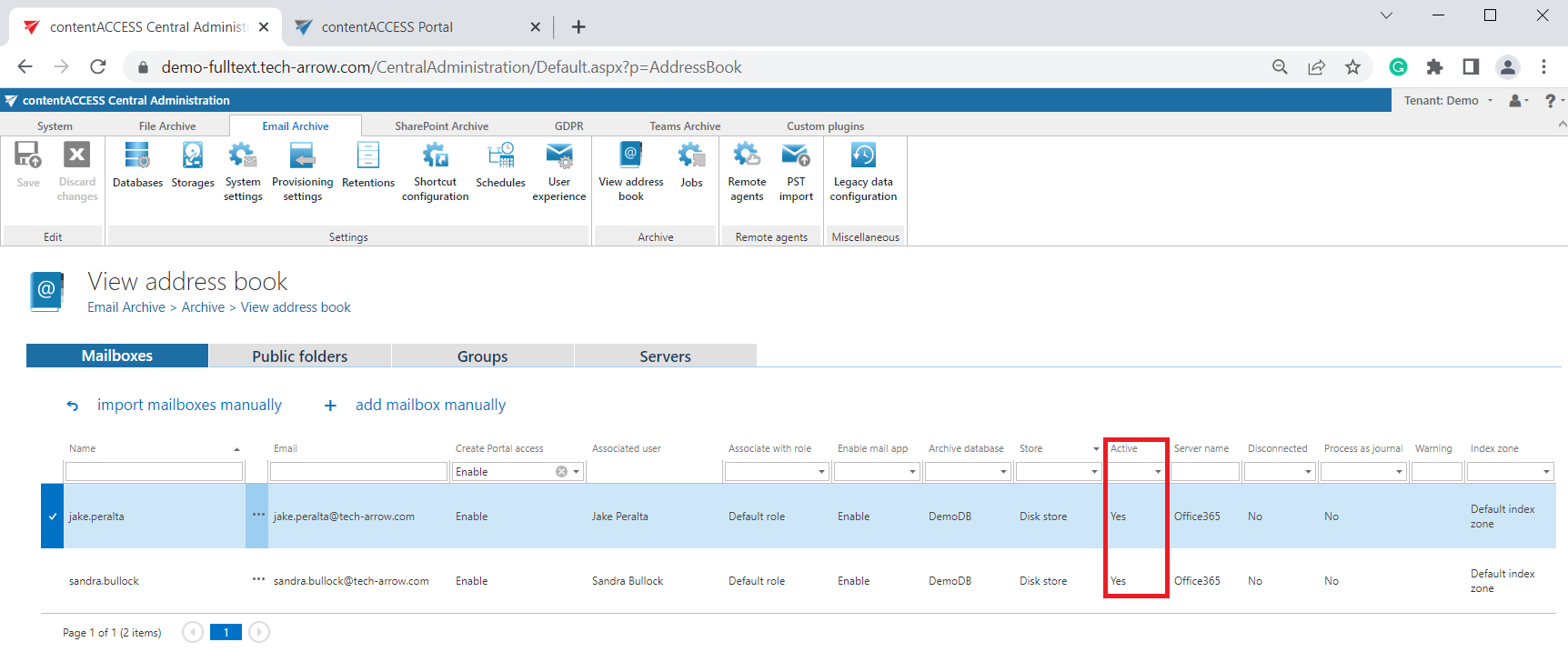 Screenshot: Column Active in the Mailboxes tab
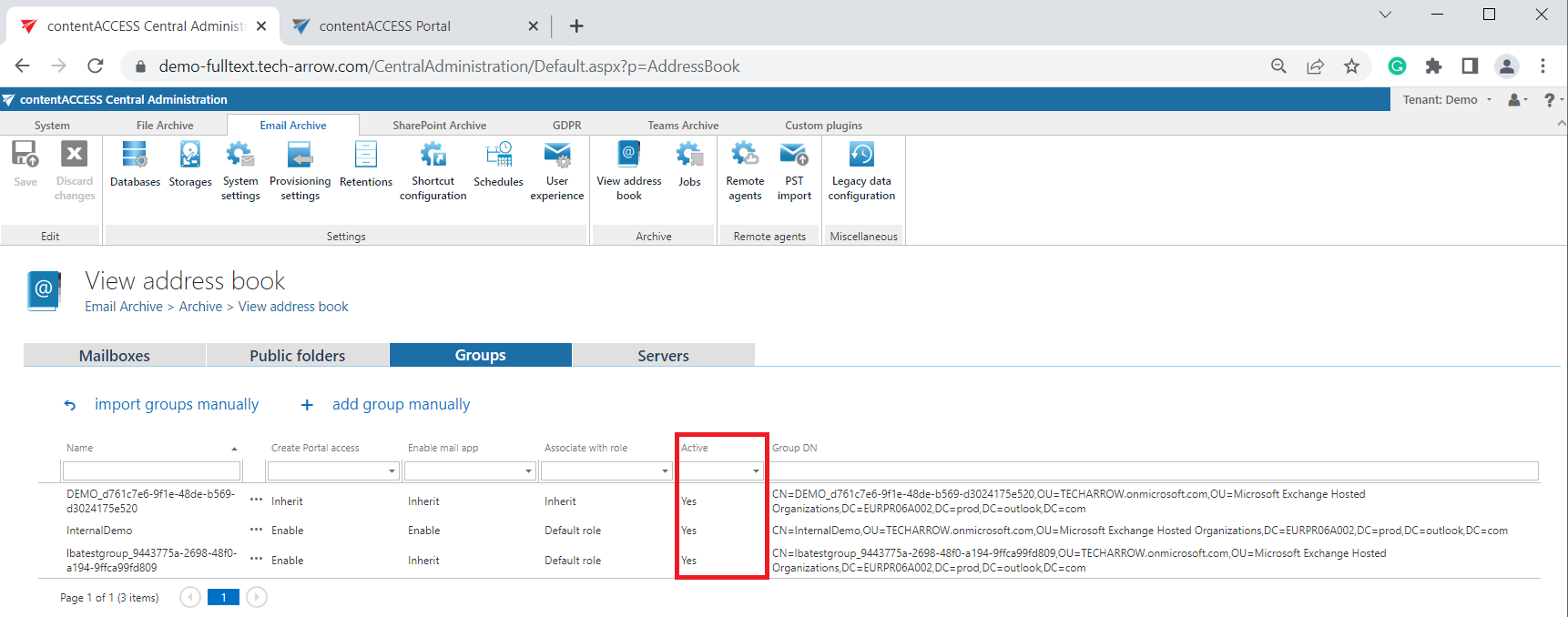 Screenshot: Column Active in the Groups tab
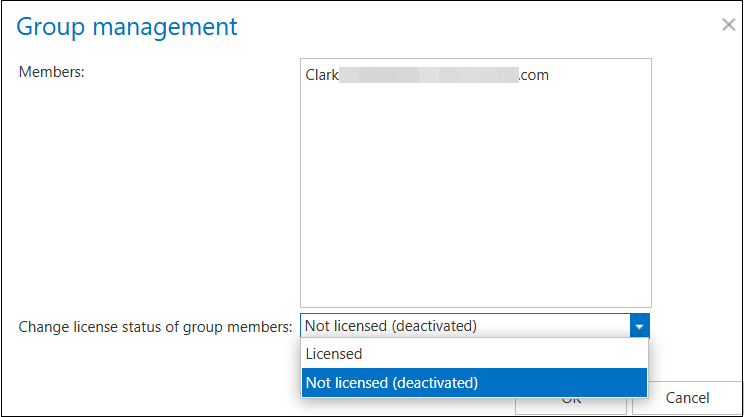
To activate or deactivate mailboxes on the Groups tab, select Deactivate/activate mailboxes from the context menu. This opens the Group management dialog, where the Members field lists all mailboxes belonging to the selected Exchange group. Use the Change license status of group members dropdown to set the status to Licensed or Not licensed (deactivated), depending on whether the group should be active or deactivated. After changing the license status, the telemetry job must be run — it runs automatically every day or can be started manually on the Licensing page (System tab ⇒ Services group ⇒ Licensing, option update telemetry).
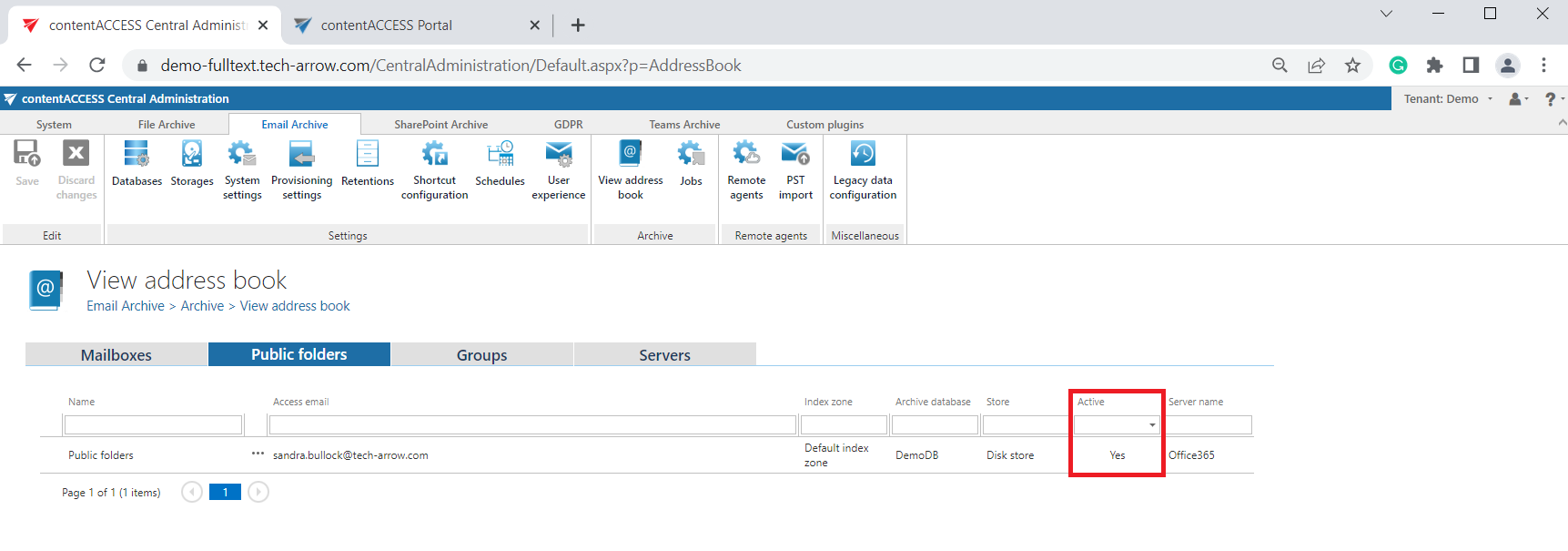 Screenshot: Column Active in the Public folders tab
Database, storage, index zone, and journal columns
The email archive database, storage, and index zone assigned, or to be assigned, to the Exchange mailbox(es) are displayed in the Archive database, Store, and Index zone columns. The database and storage are assigned automatically either by the provisioning job or by the first running archive job, or manually using the mailbox context menu. The index zone can be assigned by the provisioning job or archive job, but not manually.
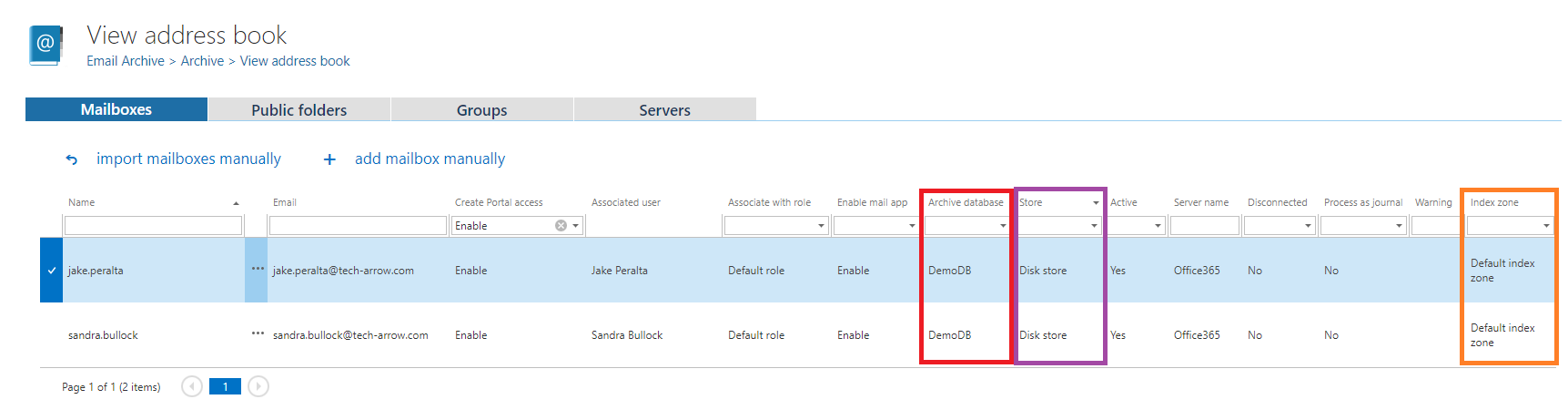 Screenshot: Archive database, Store and Index zone columns in the Mailboxes tab
 Screenshot: Archive database, Store and Index zone columns in the Public folders tab
The Process as journal column shows whether the mailbox will be processed as journal when selected in Address books objects to process in the email archive job configuration (read more in Email archive journal processing).
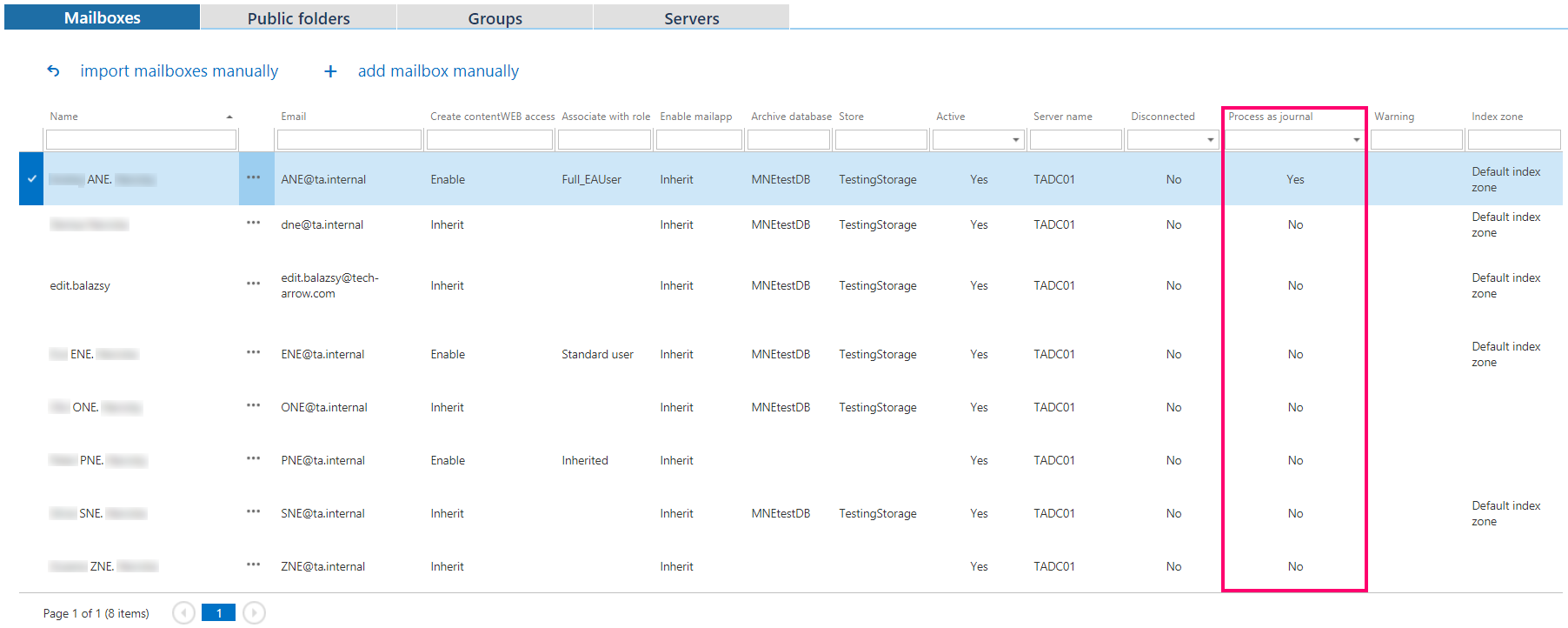 Screenshot: Column Process as journal in the Mailboxes tab
Context menu actions
Using the server's, group's, or mailbox's context menu, an administrator with the necessary permissions is allowed to:
- View mailbox details.
- Automatically create a contentACCESS Portal user, also with custom permissions (read more in Creating contentACCESS Portal users (Option 1)).
- Activate the mail app. Read more in contentACCESS MailApp access.
- Assign database, storage, and index zone for Exchange groups and mailboxes (read more in Database and store assignment in email archiving).
- Activate/deactivate mailbox licenses.
- Override archive settings. Read more about this option below in this section.
- Manage access for other users to the selected archive mailbox(es) (read more in Managing access to contentACCESS objects).
- Move a mailbox (read more in Mailbox move job configuration).
- Disconnect a mailbox.
- Change server settings (read more in Mixed Exchange environments in the email archive system).
- Select the mailbox to be processed as journal/normal (read more in Email archive journal processing).
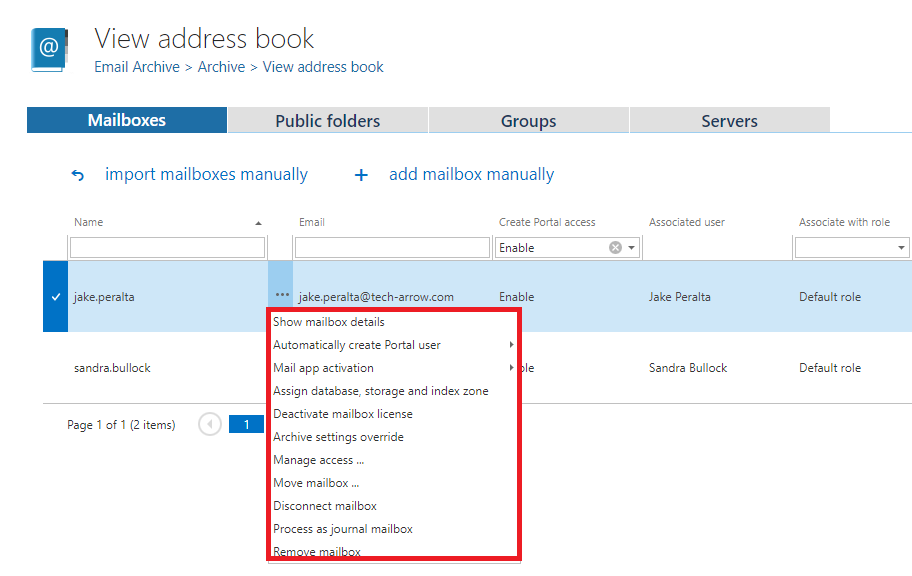
Show mailbox details
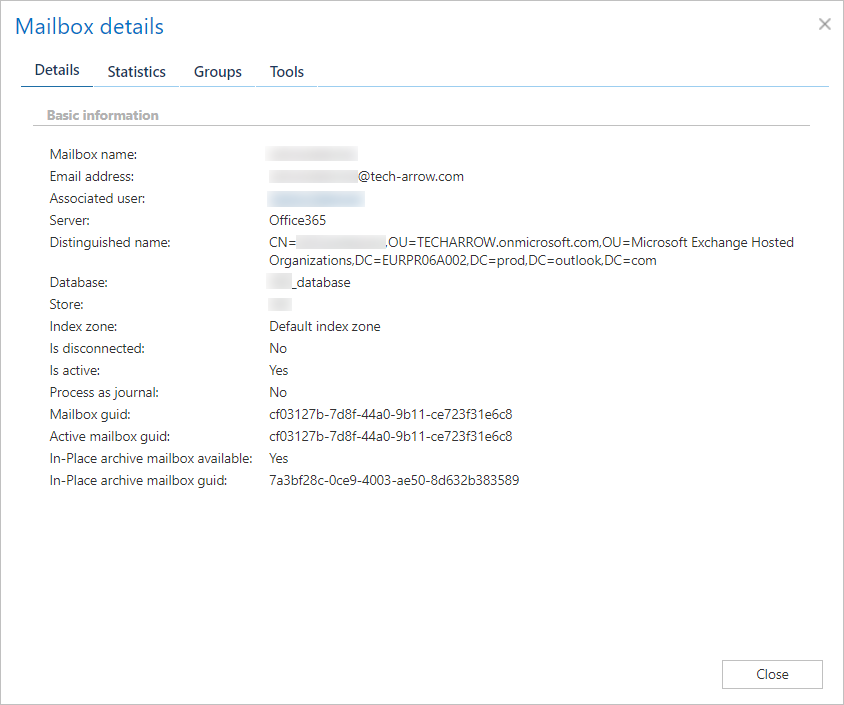
After clicking Show mailbox details, a pop-up opens showing the mailbox details, archive statistics, and the list of groups of the user.
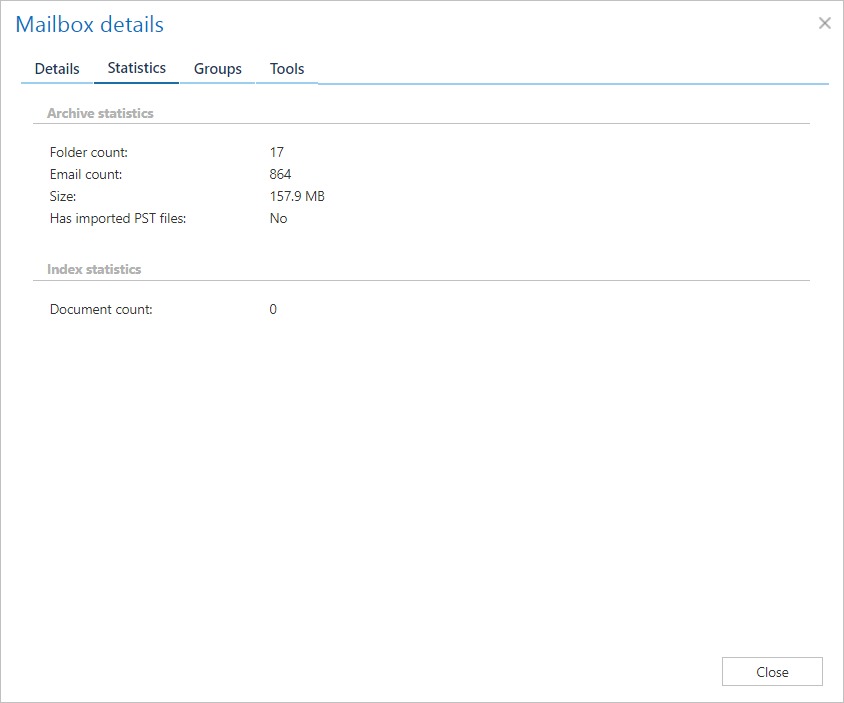
On the Statistics tab, it is possible to see the Folder count, Email count, total Size of the emails, whether the mailbox has any Imported PST files, and the Document count processed by the Indexing job.
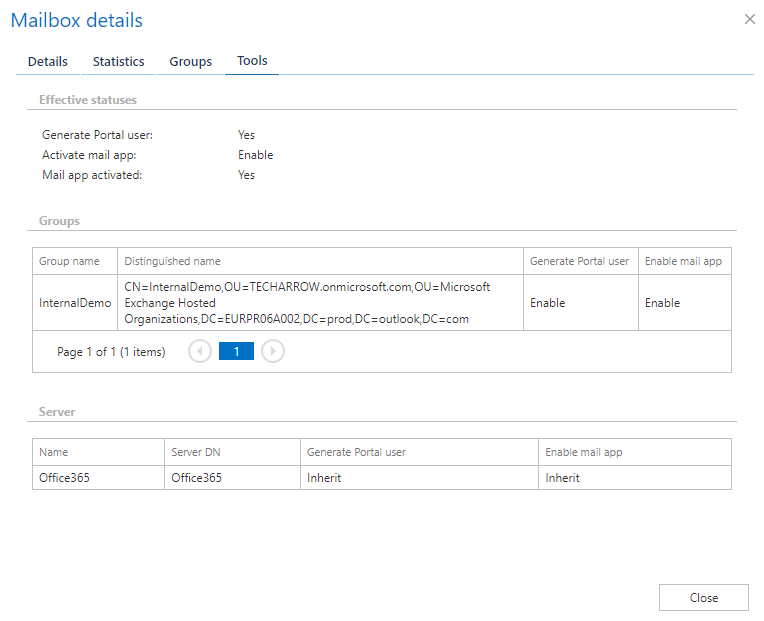
On the Tools tab, it is possible to see if Create contentACCESS Portal access was allowed, if Mail app activation was allowed, if contentACCESS MailApp was already activated, and details about the Group and Server that the mailbox belongs to.
Show group details
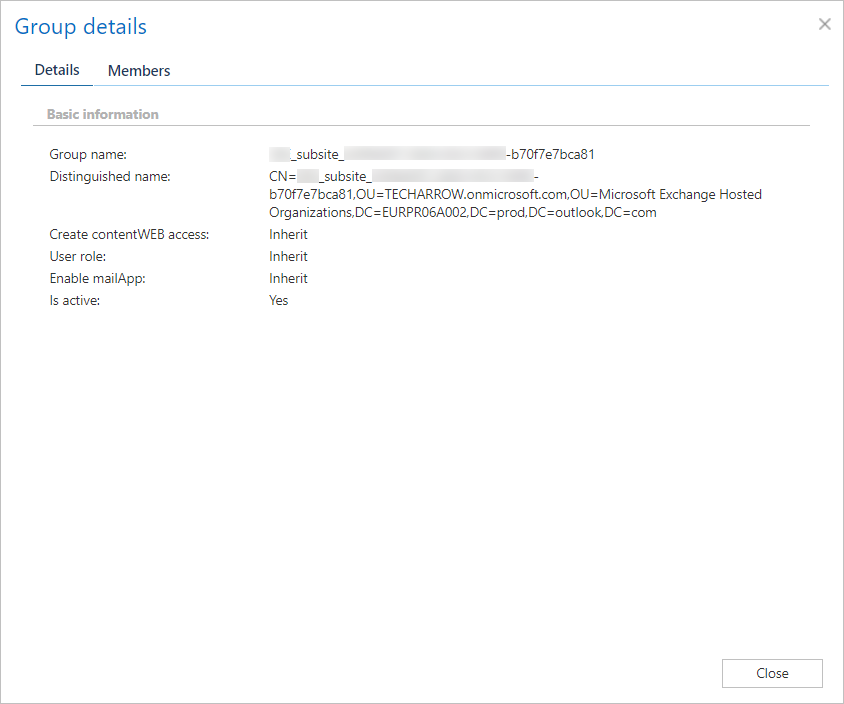
After clicking Show details from a group's context menu, a pop-up opens. On the Details tab, it is possible to see basic information and details of the selected group.
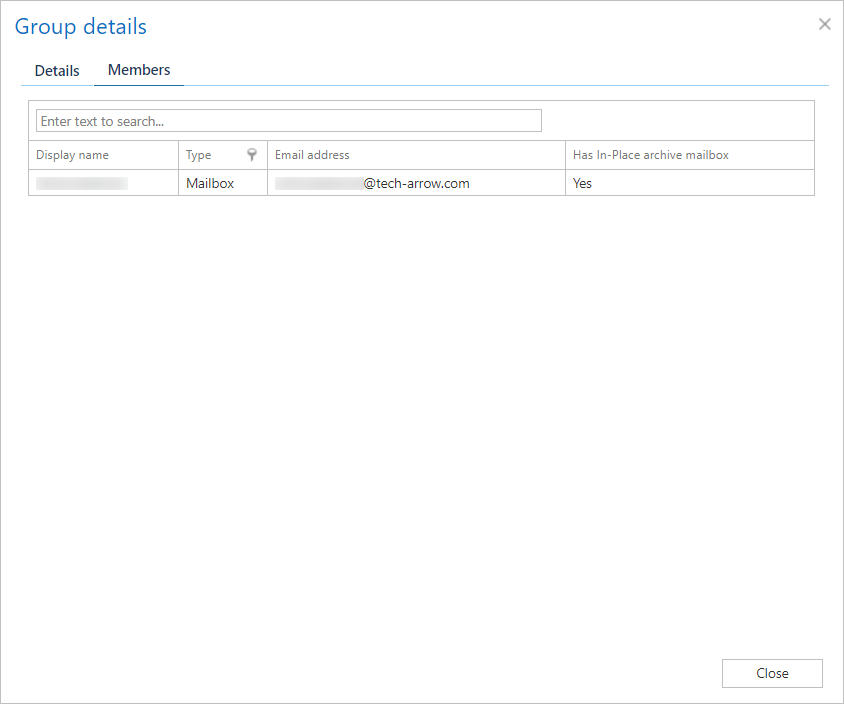
On the Members tab, it is possible to see the list of members of the currently selected group and some information about them.
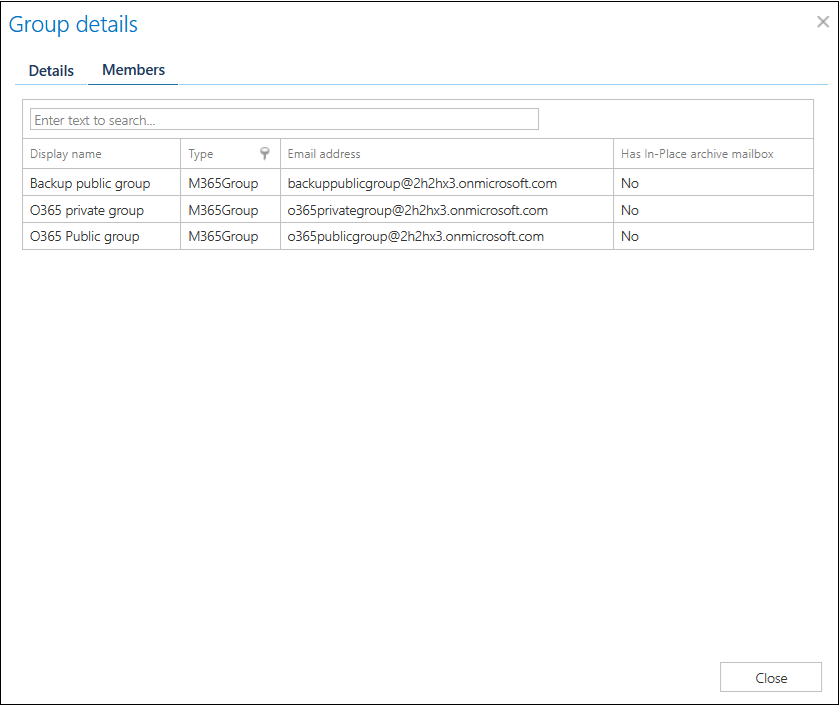
If the Add M365 groups to separate groups option was checked before provisioning, the job organizes the M365 groups into a distinct group called Microsoft 365 Groups in the address book. When you open Show details on this collective group, the Members tab displays the grouped M365 mailboxes instead of listing individual mailboxes.
Disconnect and reconnect a mailbox
Use the Disconnect mailbox option only if the mailbox no longer exists and you want to re-use the email address for a new user/mailbox. Disconnecting the mailbox changes the email address, allowing the email address to be used for a new user.
After you disconnect a mailbox, the email address is prefixed with #.
If the mailbox has not been re-used yet, you can undo the operation using Reconnect.
If the mailbox is marked with the warning Guid changed (see Warning flags below), a new menu option, Re-link deleted mailbox, appears. This option allows you to locate the new mailbox that was created for the user.
Search and page listing
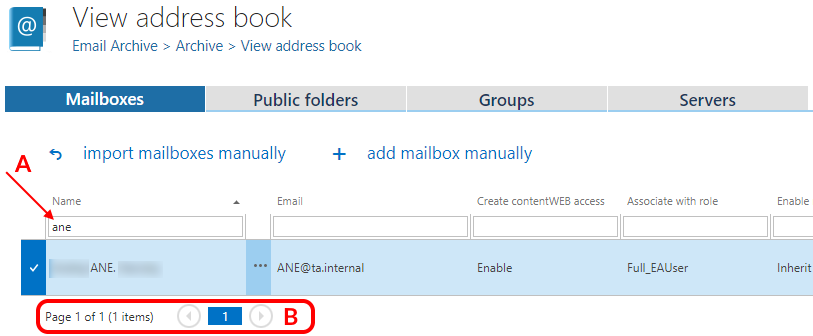
The search textboxes (A) and page listing (B) options at the top and bottom of each section make it easier to work with the address book objects.
Archive settings override
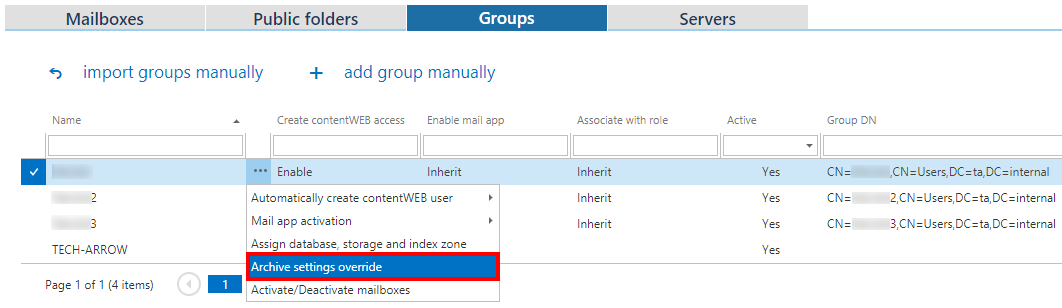
It is also possible to assign a specific storage, retention, and shortcutting type to selected mailboxes and groups on folder level by clicking Archive settings override from their context menu. These settings are always prioritized.
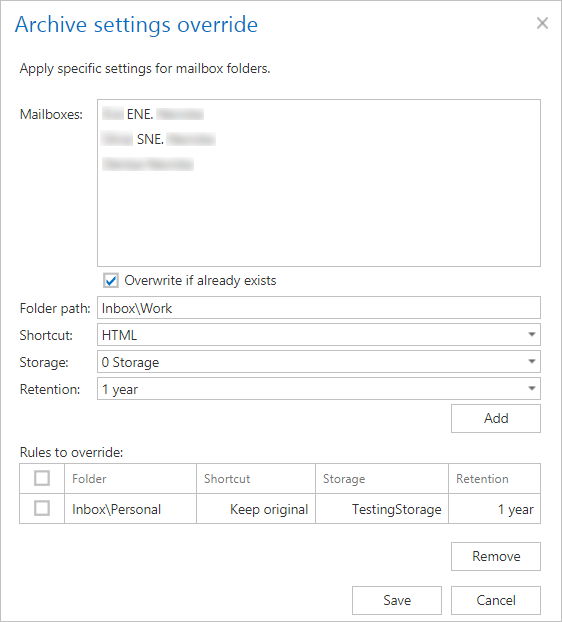
The selected mailbox(es) are displayed in the Mailboxes section. If you want to overwrite settings that already exist for the mailbox(es), check the Overwrite if already exists checkbox. Fill in the path of the mailbox folder, select the shortcut, storage, and retention from the respective dropdown lists, and click Add. The rule is added to the list below. Click Save. Once this is done, the official archiving process (live mail and offline mail) checks for each item to be archived whether there is a folder override for that item.
Important: The Shortcut repair job will NOT take the shortcut settings from Archive settings override.
Change server settings
To change server settings, switch to the Servers tab in the address book. Select a server and choose Change server settings from its context menu. In this window, it is possible to change the EWS version or specify a custom EWS URL.

Warning flags
In the address book, objects may be displayed with different colors:

 – The object is ok.
 – Selected object.
 – The object has a warning, displayed in the Warning column.
 – The object is not active (or set to inactive at the next provisioning run); the license was removed.
 – The object was deleted, or its GUID changed – displayed in the Warning column.
The warnings may be:
- Deleted – the object was detected as deleted.
- SID changed – the owner of the mailbox was changed (the mailbox was assigned to a different Windows user).
- Guid changed – the mailbox was manually deleted and a new mailbox was created for the user.
To find out the status of the mailboxes, use the filter: enter a number into the search box in the Warning column, then press Enter to see the status.
The following values are searchable in the Warning column:
- 0 – No warning
- 1 – Deleted
- 2 – GUID changed
- 3 – Deleted + GUID changed
- 4 – SID changed
- 5 – Deleted + SID changed
- 6 – GUID changed + SID changed
- 7 – GUID changed + SID changed + Deleted
Based on the status of the mailbox, a different context menu is displayed.
Related topics
- Email archive provisioning settings
- Manual import of Exchange servers, groups, mailboxes to the contentACCESS address book
- Adding address book objects manually
- Public folder archiving
- Creating contentACCESS Portal users (Option 1)
- contentACCESS MailApp access
- Database and store assignment in email archiving
- Managing access to contentACCESS objects
- Mailbox move job configuration
- Mixed Exchange environments in the email archive system
- Email archive journal processing
- Shortcut repair job