Creating Email archive jobs: archive, restore, recovery, delete, mailbox move, shortcut synchronizaion, shortcut repair
Introduction
Automated archiving in Email Archive is managed by jobs, which are configured on each job's configuration page. This page explains how to create a new job and provides an overview of the available Email Archive job types, including archive, restore, recovery, delete, mailbox move, shortcut synchronization, and shortcut repair jobs.
On the job's configuration page, you can define the exact configuration of a job, such as the database, schedulers, storage, and address book objects to process.
Create a job
To create a job from the available Email Archive jobs:
- Navigate to Email archive -> Archive on the ribbon and click Jobs. The Jobs page of Email Archive opens.
- Click + new.
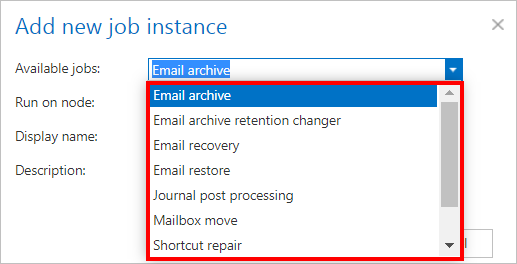
- In the Add new job instance dialog, configure the following:
- Job type: Choose one of the available jobs (Email archive, Email restore, Email recovery, Mailbox move, Shortcut synchronization, or Shortcut repair).
- Run on node: Select the node where the job will run.
- Display name: Enter a name for the job.
- Click Add.
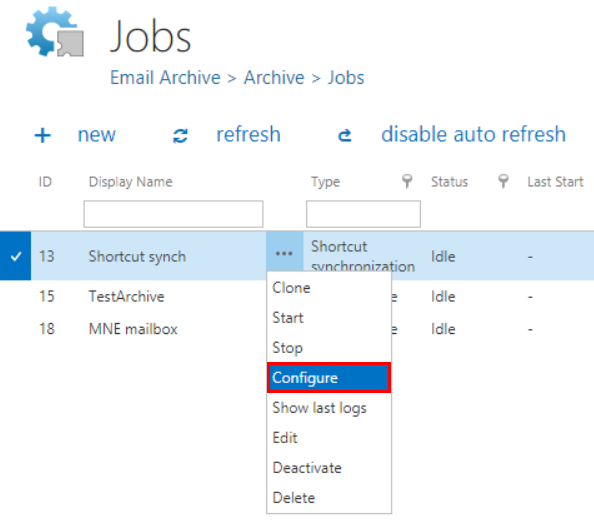
If you want to configure the job immediately, click OK in the pop-up window, and the job configuration page opens right away. The configuration page can also be accessed at any time using the Configure menu item in the job's context menu.

Job types
The following pages describe the functionality and configuration of each Email Archive job type in more detail:
- Email archive job
- Email archive retention changer job
- Email restore job
- Email recovery job
- Delete job
- Journal post processing job
- Mailbox move job
- Shortcut synchronization job
- Shortcut repair job
- Public folder archiving
- SMTP archiving