Email archive journal processing
Introduction
Journal processing in Email archive enables journal-based archiving, the most efficient way of archiving emails, fully addressing both economical and compliancy requirements.
Journaling is the ability of an email server to record all inbound and outbound email communication in an organization. This page explains how journal-based archiving works, the difference between standard and advanced journal archiving, and how to configure journal processing in two phases so that archived emails are correctly organized into each user's mailbox folder structure.
How journal archiving works
The recorded email communication can reach contentACCESS in one of two ways:
- Dedicated mailbox: contentACCESS periodically monitors a dedicated journal mailbox and processes emails from it.
- Journal forwarding: The built-in contentACCESS SMTP server receives the emails and forwards them to the archiving module. SMTP forwarding is particularly useful for Microsoft 365 tenants, since Microsoft does not support creating a dedicated journal mailbox but does allow forwarding of journal emails.
The result is the same in both cases (dedicated mailbox and SMTP forwarding).
Standard journal archiving
In a standard journal archiving scenario, the company has only one mailbox in the archive — the journal mailbox. This mailbox can be used for legal, regulatory, and organizational compliance purposes, but standard users do not have access to it.
Advanced journal archiving
In an advanced journal archiving scenario, contentACCESS does not archive the email only into a single journal mailbox, but also duplicates (links) that email to all recipients. In this case, each user participating in the email conversation gets a separate copy of the email.
Emails delivered through journal processing do not contain folder information (that is, which folder the email would be placed in within the user's mailbox). To resolve this, the standard Email archive job can run in a special mode that synchronizes the user's folder structure, finds the emails duplicated (linked) through the journal in the user's mailbox, and places them into the correct folder inside the archive. This achieves the same result as standard email archiving, but in a more efficient way.
Note: The shortcutting functionality is also supported during advanced journaling.
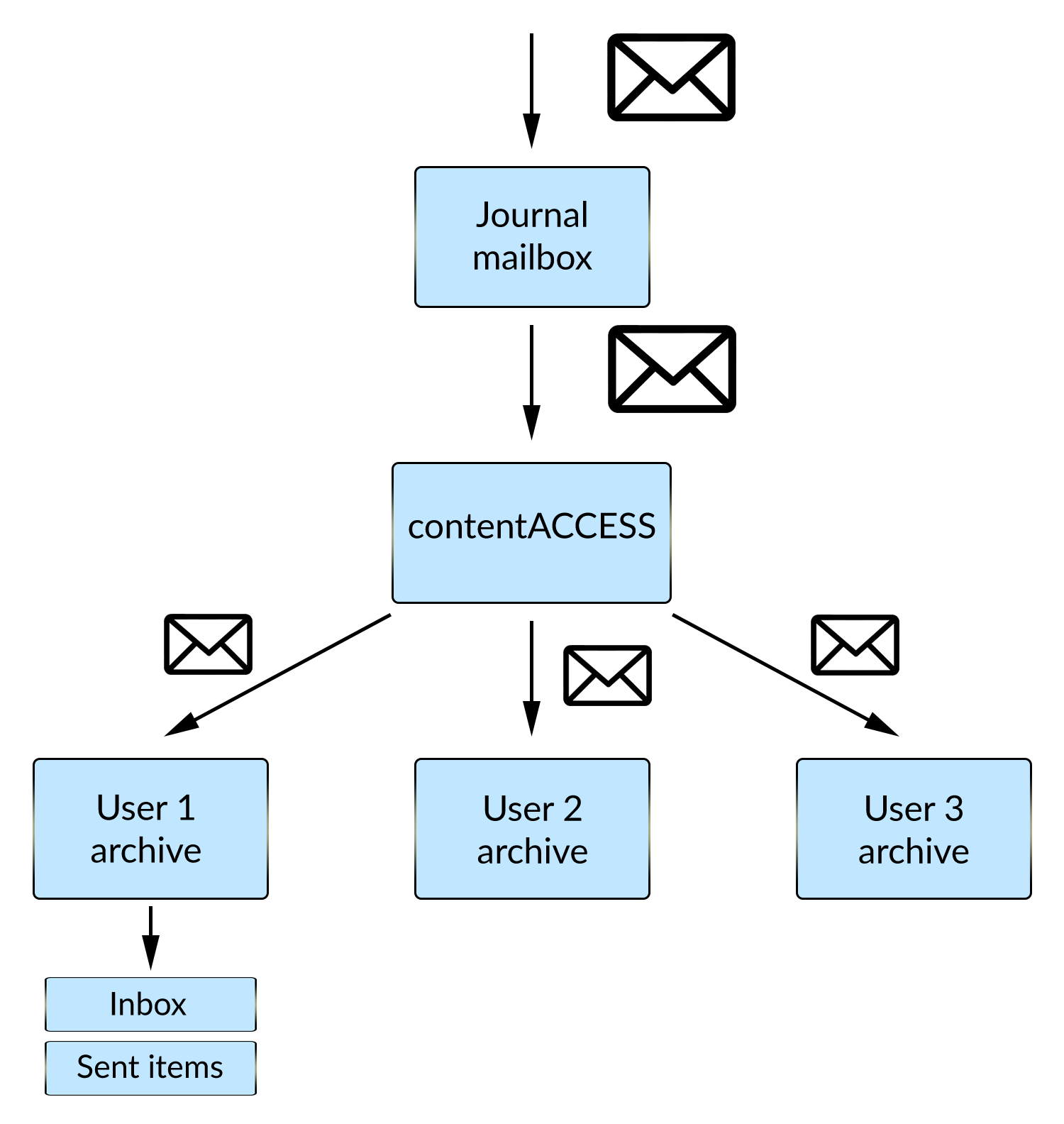 Screenshot: Workflow of the journal processing.
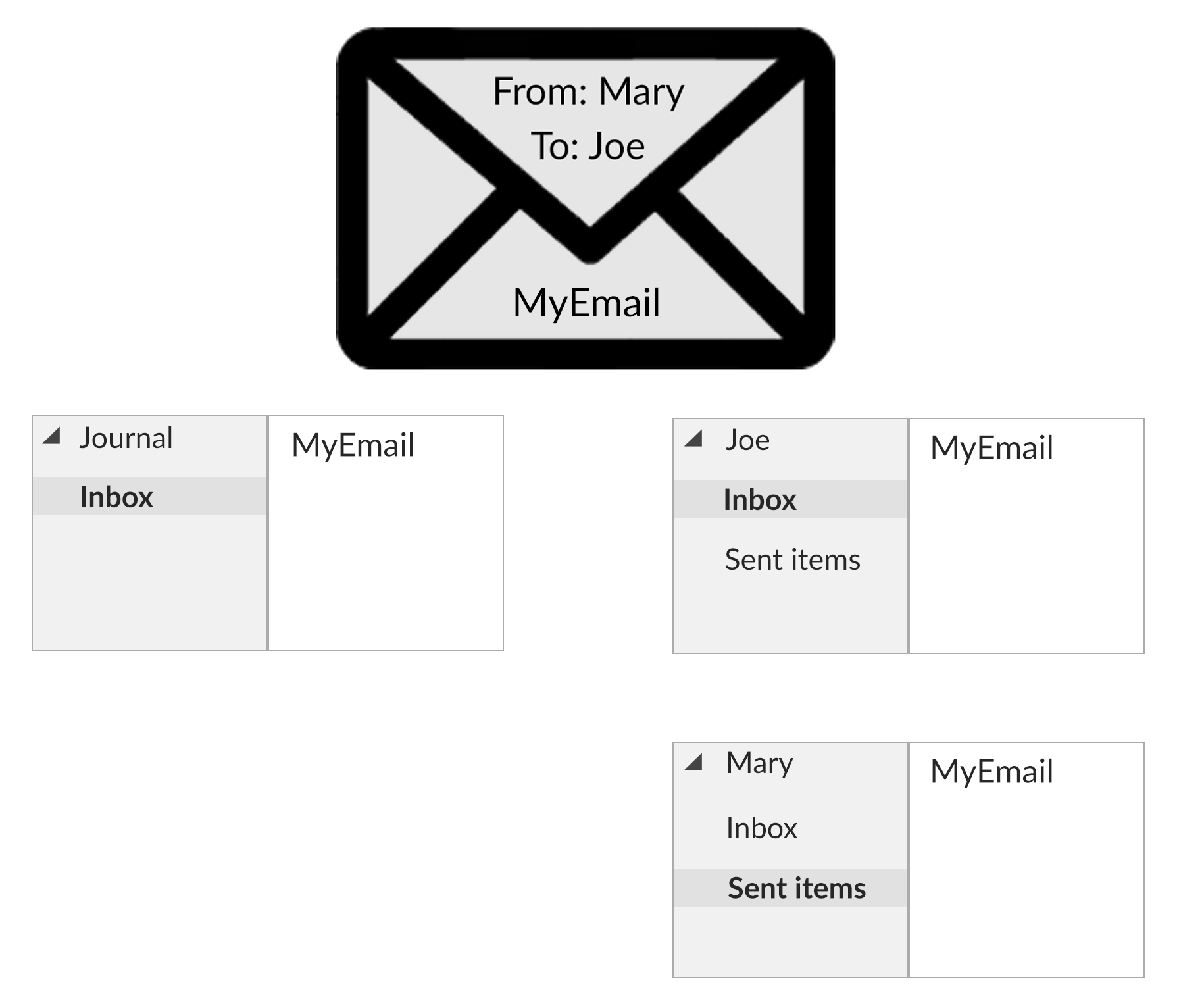 Screenshot: Results in contentWEB before (on the left) and after the archive job "archive based on journal" (on the right).
Configuring the journal processing
First, select Process as journal mailbox from the context menu of the selected mailbox in Address book.
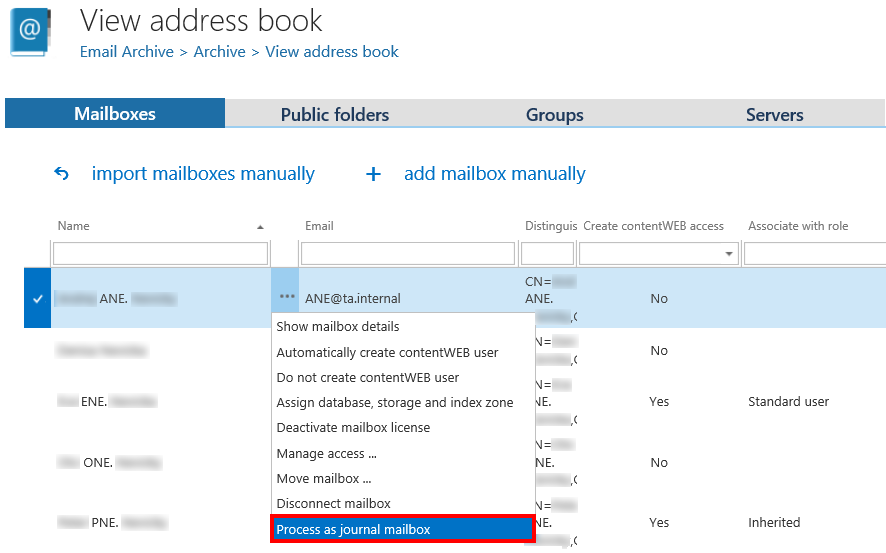
Journal processing is configured in two phases.
Phase 1: Archive the journal mailbox
In this phase, the archiving process creates:
- mailboxes in the archive for all users who are recipients or senders on a journal email;
- "Inbox" and "Sent items" folders in the archive for these mailboxes.
Note: All mailboxes must have a Database and Store assigned in the Address book, otherwise the job will skip them.
Archive the journal mailbox using one of the following methods:
-
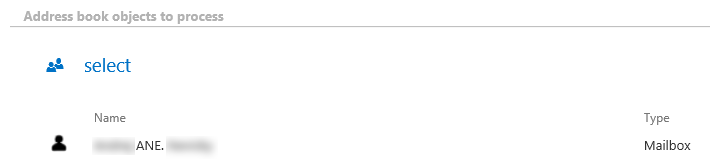
Directly, by creating an Email archive job and selecting the journal mailbox in Address book objects to process.
-
Via SMTP archiving — to learn how to configure this way of archiving, refer to the SMTP archiving section.
The job archives the emails in the journal mailbox and automatically duplicates the archived email for all recipients and senders:
- for a sender, it creates a "Sent items" folder in the archive for the sender's mailbox and duplicates the email there;
- for a recipient, it creates an "Inbox" folder in the archive for the recipient's mailbox and duplicates the email there.
Phase 2: Build the correct folder structure
Important: This option does not work for Exchange 2010 or earlier.
In this phase, the archiving process creates the correct folder structure in the archive for the mailboxes that were archived in Phase 1, and moves each email into the correct folder.
Before configuring Phase 2, you must have a job configured based on Phase 1 (see above).
Create an archive job and enable the Use journal archive to build folder structures of mailboxes option in Processing settings. This allows the job to create the correct folder structure.
Note: At least one mailbox must be set as Process as journal mailbox from its context menu in the Address book, otherwise the Use journal archive to build folder structures of mailboxes and Archive email if journal didn't archive it yet options will not appear in the job's configuration.

In the Address books object to process section, select all the mailboxes except the journal one. You can simply select the whole server or group and exclude the journal mailbox in the Exclude addresses section.

When the job runs, it goes through a mailbox, searches for the email in the archive, and moves it to the correct folder, creating the folder in the archive if it does not already exist.
If you enable the Archive email if journal didn't archive it yet sub-option, the archive job also archives the email if it was not yet archived using journal processing (that is, if Phase 1 did not duplicate it for the sender or recipient mailbox).
