Email archive Provisioning settings
Introduction
The Provisioning settings page allows administrators to configure the Email archive provisioning job, which synchronizes Exchange server objects with the contentACCESS Address book.
The provisioning job:
- Synchronizes the Exchange server objects specified on the Provisioning settings page to the contentACCESS Address book.
- Verifies the user's permissions on the mailboxes on the Exchange server and synchronizes these permissions to contentACCESS.
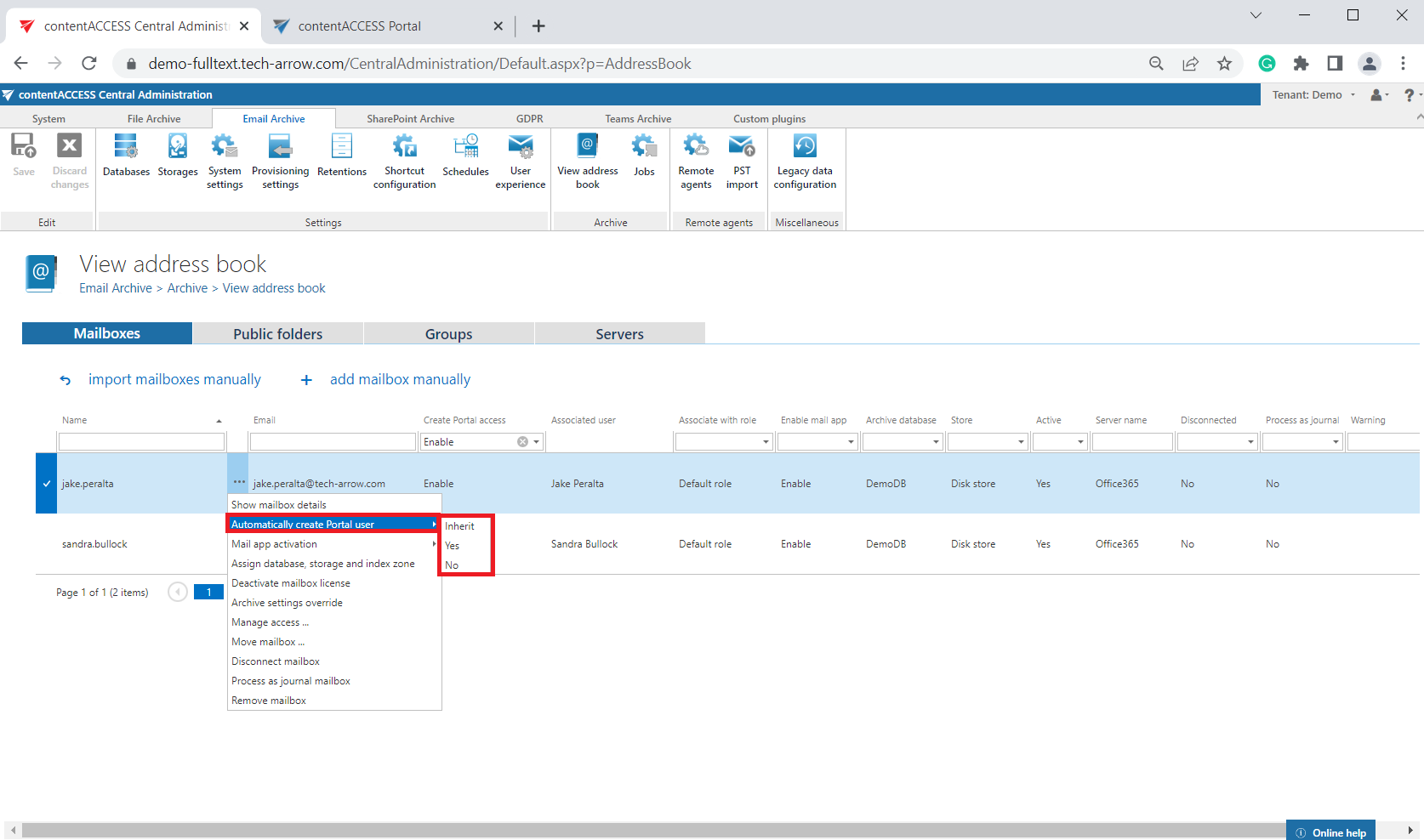
- If contentACCESS Portal user creation is turned on in the Address book for an object (Exchange mailbox/group/server), creates a contentACCESS Portal user for mailboxes with an authentication type Windows, Microsoft 365, or Microsoft Exchange, based on the EWS settings (for more information, see the EWS settings section in Email archive System settings).
- If contentACCESS MailApp activation is allowed (or inherited from the parent group/server), activates contentACCESS MailApp for the selected mailbox/group/server.
- Based on the roles assigned in the Address book, gives permissions on the specific archive mailbox(es).
The mailbox provisioning job is an elementary job intended to extract Exchange groups and subgroups from the Exchange server and synchronize their changes with contentACCESS. For example, if a new user is added to an Exchange group that is under archiving process, the provisioning job detects this change and the new user's mailbox is crawled and archived automatically. The provisioning job also synchronizes mailbox permissions.
In contentACCESS, a provisioning job is created automatically when Email archive is activated for the first time.
Email archive provisioning settings are available on the Provisioning settings page (Email Archive ⇒ Settings ⇒ Provisioning settings):
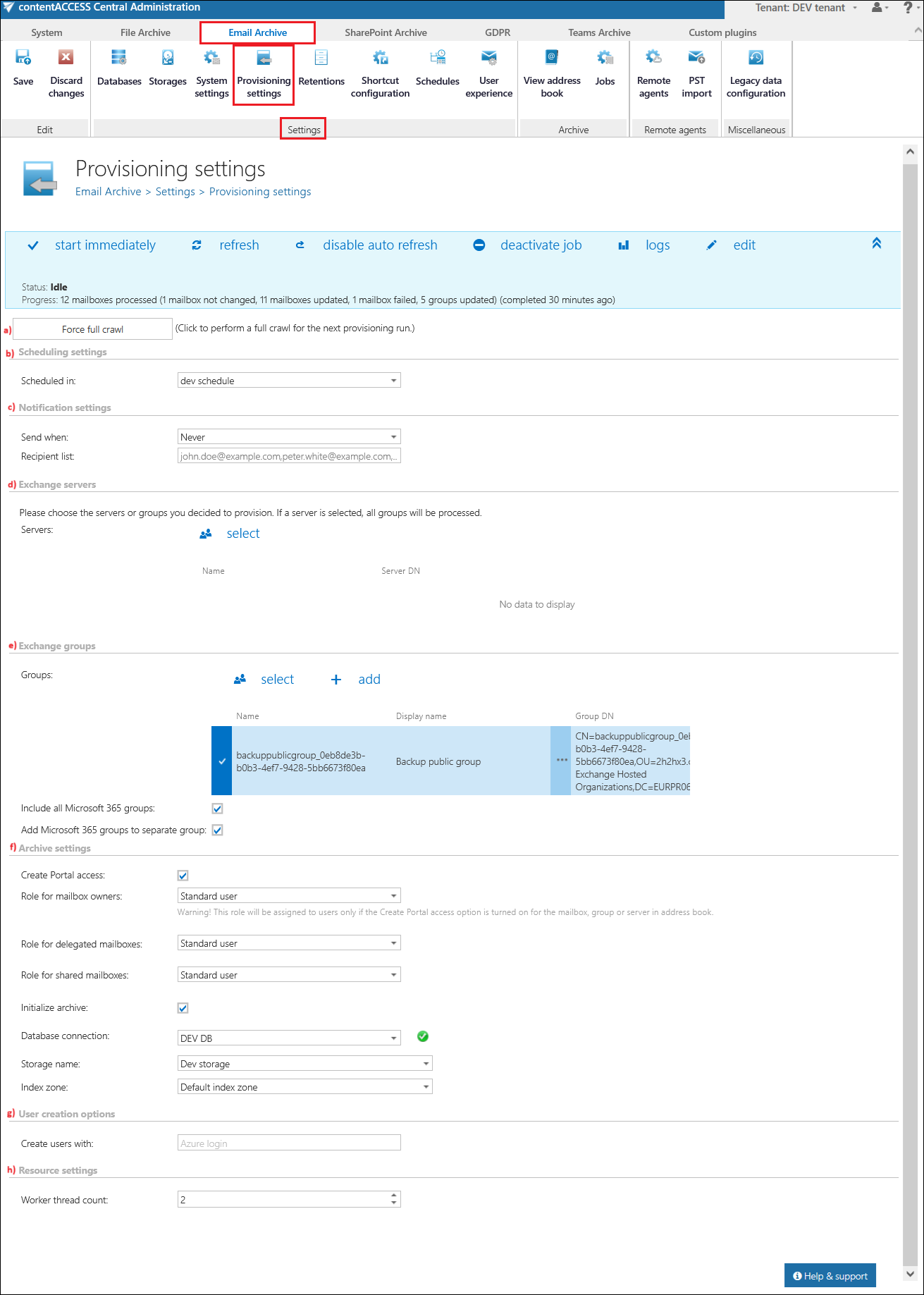
Note: To process Exchange groups, they must either be modern (Microsoft 365 group) or email-enabled security types.
Status bar
The status bar of the provisioning job offers the following options:
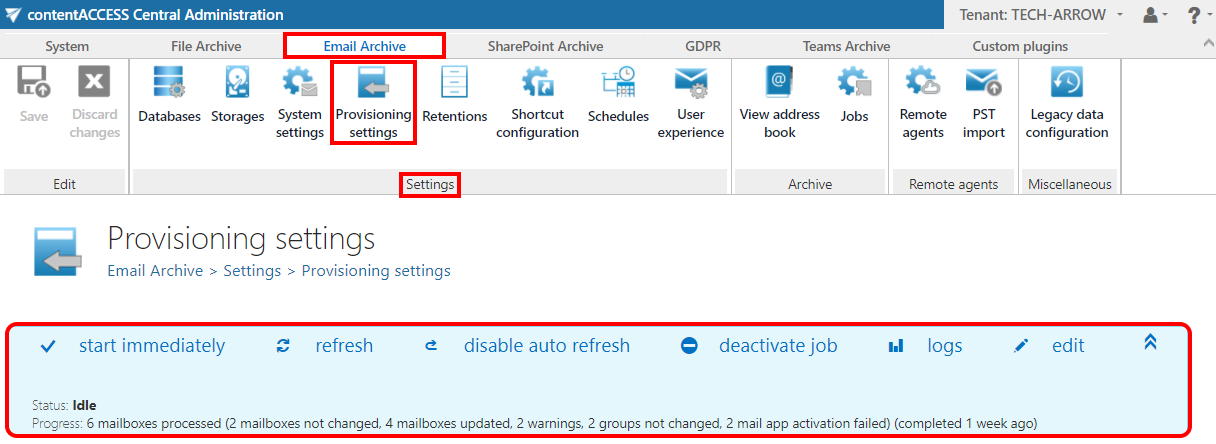
- Start immediately / Stop: If a scheduler has not been selected, the provisioning job can still be started (or stopped) manually.
- Refresh: Manually refreshes the provisioning progress information.
- Enable auto refresh / Disable auto refresh: Enables or disables automatic refresh of progress information every 5 seconds.
- Deactivate job: Deactivates the provisioning job. A deactivated job will not start automatically and cannot be started manually.
- Edit: Selects the node on which the provisioning job will run. The user may also rename the provisioning job from here.
- Logs: Redirects to the System logs page, where the last run of the provisioning job is preselected and the last events are shown in the events table, allowing you to view further event details and detect any potential failures or errors.

With the arrows icon ( ) on the right side of the status bar, you can collapse or expand the progress information about the provisioning job's running. The status bar's last state is always stored and reopened when navigating to the page again.
Configuration sections
The following configuration sections are available on the Provisioning settings page.
Force full crawl
The Exchange provisioning job performs an incremental crawl of the Exchange objects (mailboxes and groups). This means that if an object has not changed, it is not necessary to access it, which makes the provisioning job faster and helps reduce resource usage. In some situations, however, it is necessary to perform a full crawl of the objects — synchronizing every object independently, whether it was changed or not since the last synchronization. This can be done with a single click on the Force full crawl button, located under the status bar of the provisioning job.

Scheduling settings
Select the running times of the provisioning job or create a new scheduler. For more information on how to configure scheduler settings, refer to the Schedules page.
Notification settings
If the provisioning job cannot run properly, contentACCESS can send a warning about the problem. The notification email message is sent to the email address specified under the Recipient list option. Here you can also choose when these email messages should be sent: only if errors occur, when errors or warnings occur, or always, regardless of whether the provisioning job runs without problems.
Exchange servers
Click the  select option and select the Exchange servers to synchronize from the Select Exchange Server dialog's list.

If you select a server, all mailboxes falling under this server, as well as all Exchange groups within the organization, are permanently processed by the provisioning job. This means that if a server is selected, it is not necessary to also select an Exchange group. Once all settings are done, click OK. The selected server can be deleted from its context menu:

Exchange groups
All users of an Exchange server fall under an Exchange group (or can belong to more than one Exchange group simultaneously). In this section, you can specify one or more Exchange groups to be synchronized by the provisioning job.
Group(s) can be:
- Selected from the list of all groups available on the Exchange: Click the select option and select the groups in the Select Exchange Group dialog's list.
- Added manually to the groups to be provisioned: Click + add and fill in the group in the Add Exchange Group dialog.
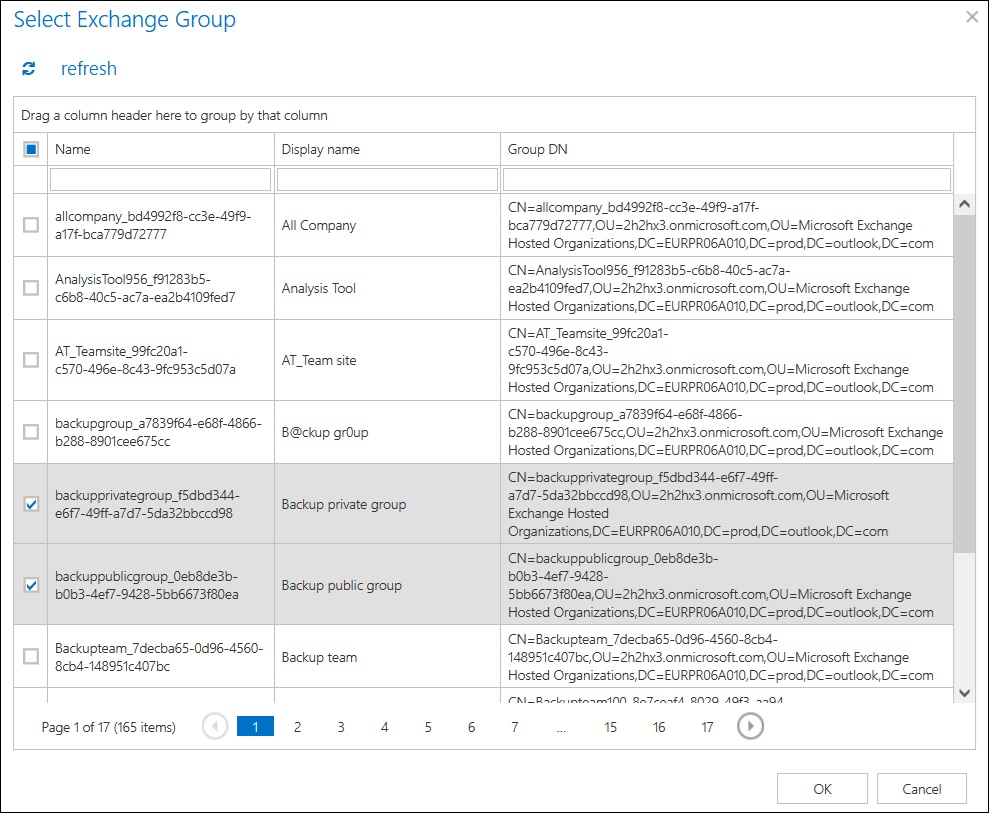
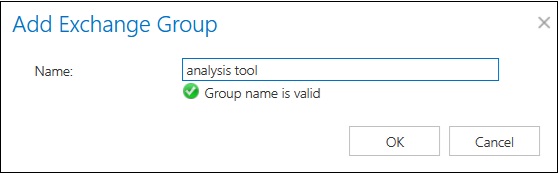
Note: If you selected a server one step earlier, all groups falling under this server will be processed, so it is not necessary to also select groups.
You can also process Microsoft 365 groups in the Provisioning settings by selecting them from the Select Exchange Group dialog's list or by adding them manually.
Two key options are available for group mailbox processing:
- Include all M365 groups: Provisions all group mailboxes even if none are selected explicitly.
- Add M365 groups to separate groups: Organizes them as distinct groups in the Address book for easier management. If this option is not checked, the groups are simply merged into the Address book structure.

Archive settings
This configuration section allows you to assign default contentACCESS Portal user roles. The provisioning job assigns the role defined here to the Exchange objects that are already synchronized to the Address book and for which contentACCESS Portal user creation is allowed (option "Automatically create contentACCESS Portal user" in the Address book). It is recommended to specify a default role with fewer contentACCESS Portal permissions here, for example, a role without permission to recover from the archive. The roles to be assigned must be created on the Roles page.
Important: If multiple roles are assigned for the same Exchange object (for example, one role with fewer permissions in the provisioning settings and another role with more permissions in the Address book), the following rule applies: the role with more permissions always wins.
Important: To assign roles using the provisioning job, contentACCESS Portal user creation must first be allowed in the Address book, or inherited from a parent that has contentACCESS Portal user creation allowed. Otherwise, the role will not be assigned.
Roles containing Manage system and/or Manage tenant permissions are unavailable in the default roles' dropdown list. If the role is changed in this configuration section, the next run of the email provisioning job replaces the previously assigned user permissions with the permissions defined in the newly assigned role.
In the Archive settings configuration section, you need to set:
- Mailbox owner role: A default role that is assigned to the Exchange objects (mailboxes/groups/entire server) if the "Use the role defined in the provisioning job" option is selected for the given Exchange object in the Address book.
- Shared mailboxes role: A role that defines the user's permissions on the shared mailboxes on the Exchange server.

If you check the Assign to mailbox checkbox, three dropdowns and the Create contentACCESS Portal user checkbox appear. With the dropdowns, you can select the default Database, Store, and Index zone for the mailboxes.
During the run of the provisioning job, if new mailboxes are provisioned, the selected Database, Store, and Index zone are automatically assigned to them.
If you want to assign Database, Store, and Index zone to already provisioned mailboxes that do not yet have them assigned, you need to enable Force full crawl before running the provisioning job.
- If a database is already assigned to the mailbox, it will not be updated.
- If a store is already assigned to the mailbox, it will not be updated.
- If an index zone is already assigned to the mailbox, it will not be updated.
If you check the Create contentACCESS Portal user checkbox, a contentACCESS user is created with the selected Mailbox owner role, provided that Create contentACCESS Portal access is set to Inherit in the Address book for that mailbox AND:
- the mailbox is not in any group and Create contentACCESS Portal access is not set to Forbidden for the server in the Address book, OR
- for all the groups the mailbox is a member of, Create contentACCESS Portal access is set to Inherit in the Address book and Create contentACCESS Portal access is not set to Forbidden for the server in the Address book, OR
- for at least one of the groups the mailbox is a member of, Create contentACCESS Portal access is set to Enable.

Note: For more information on how to assign explicit permissions for newly created contentACCESS Portal users and how to change these explicit permissions, refer to Creating contentACCESS Portal users.
User creation options
In this section, the login type of the users created by the provisioning job is displayed.

Resource settings
Set the value that determines how many items will be processed simultaneously by the provisioning job. The recommended value is 2.
